

2026-10-06 14:27:33
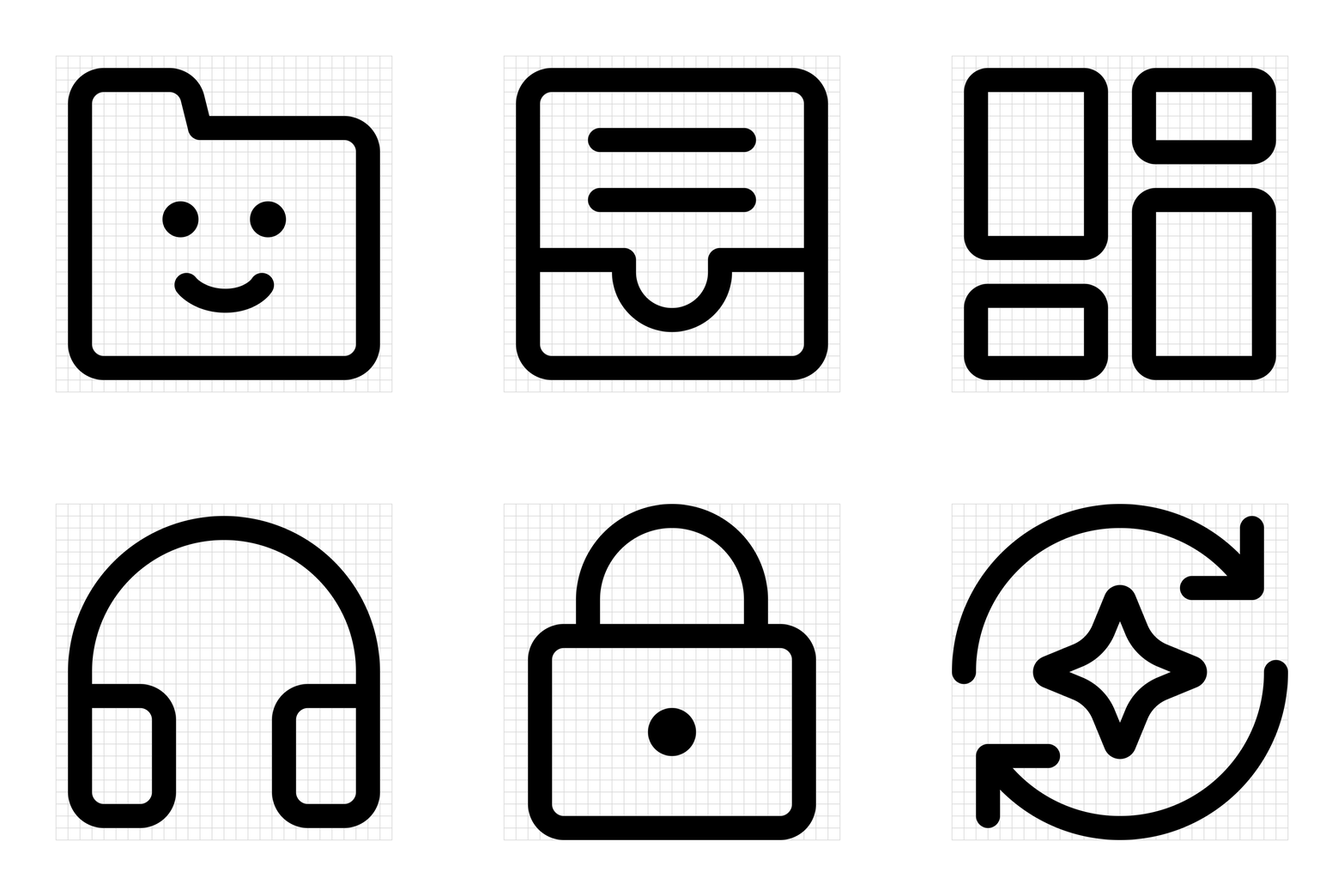
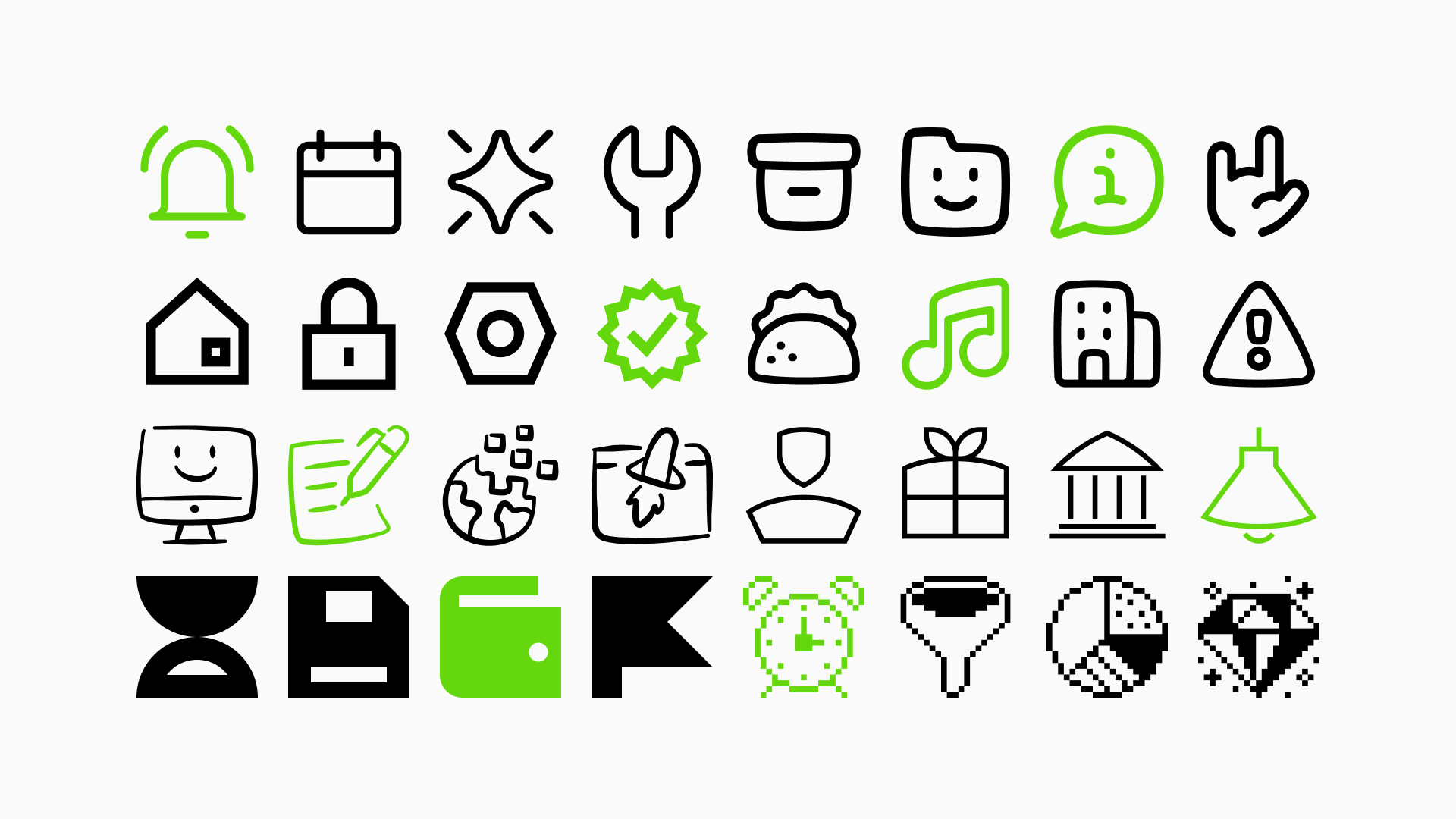
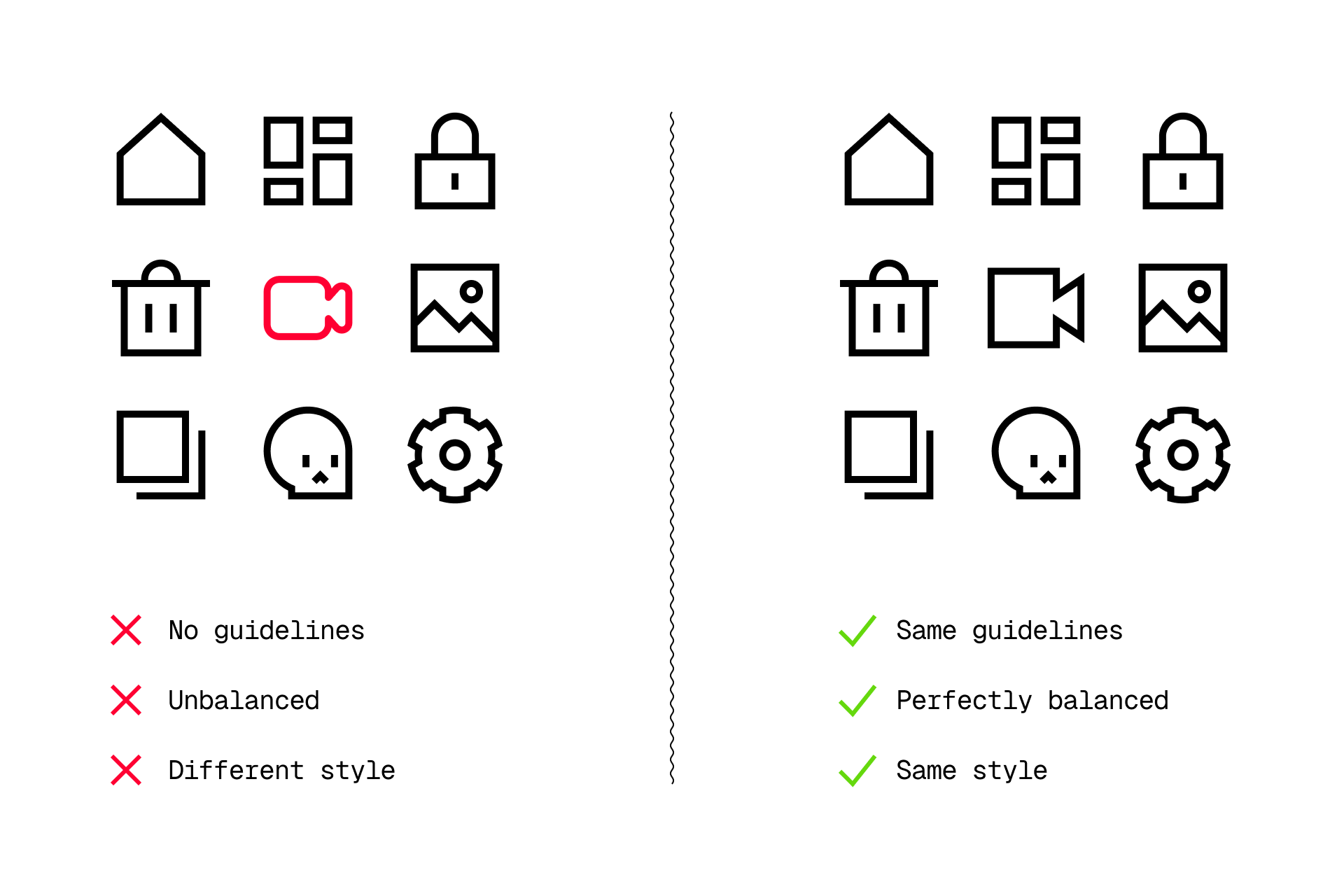
A great icon cannot just look good on its own. It has to feel like it belongs.
That sounds simple, but an icon library is a visual system made of hundreds or thousands of individual decisions. The real challenge is not drawing one good icon. It is drawing the thousandth icon so it still feels like it was made by the same hand, using the same visual language.
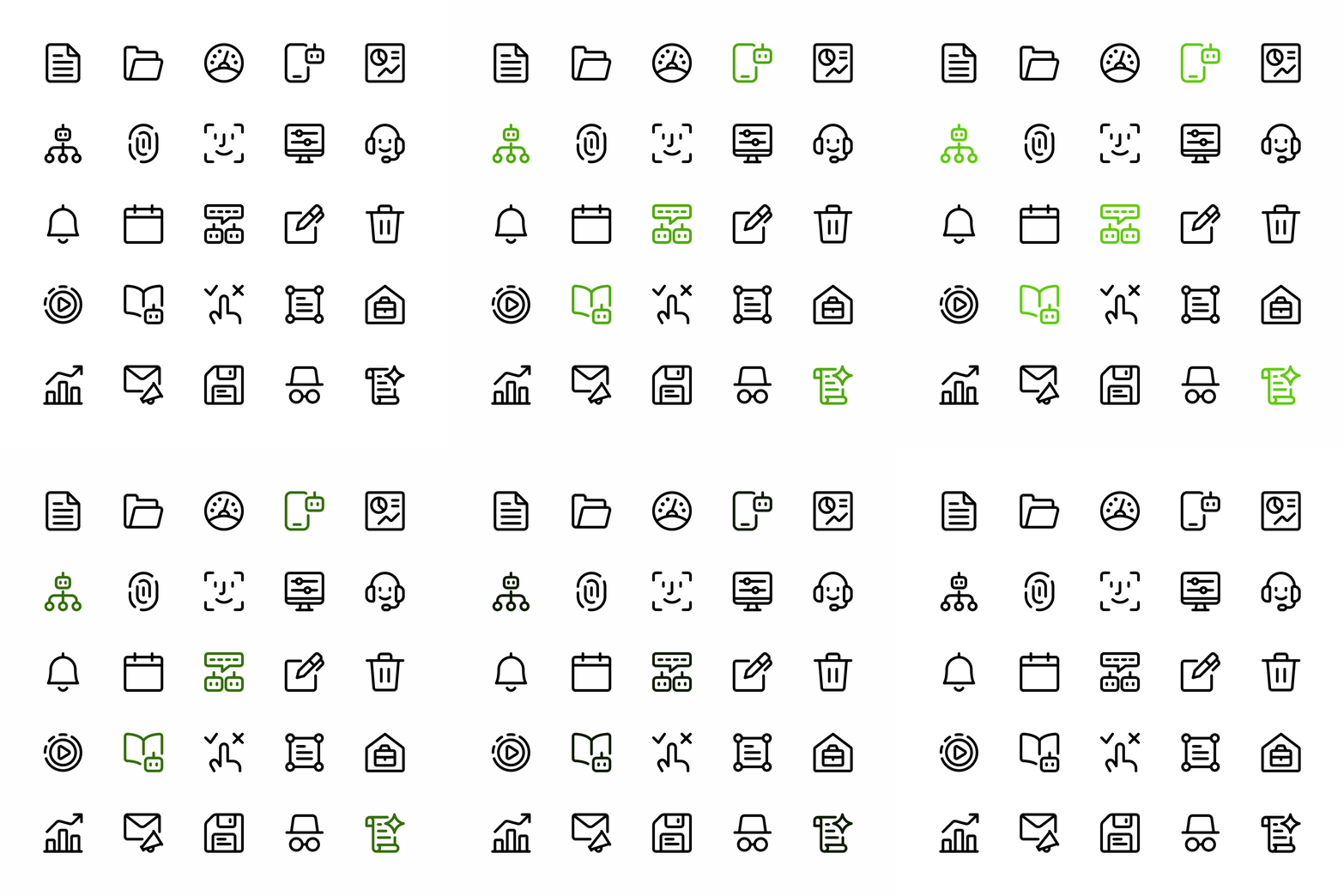
A consistent icon set is not shaped by one rule. It is the result of many subtle choices working together:
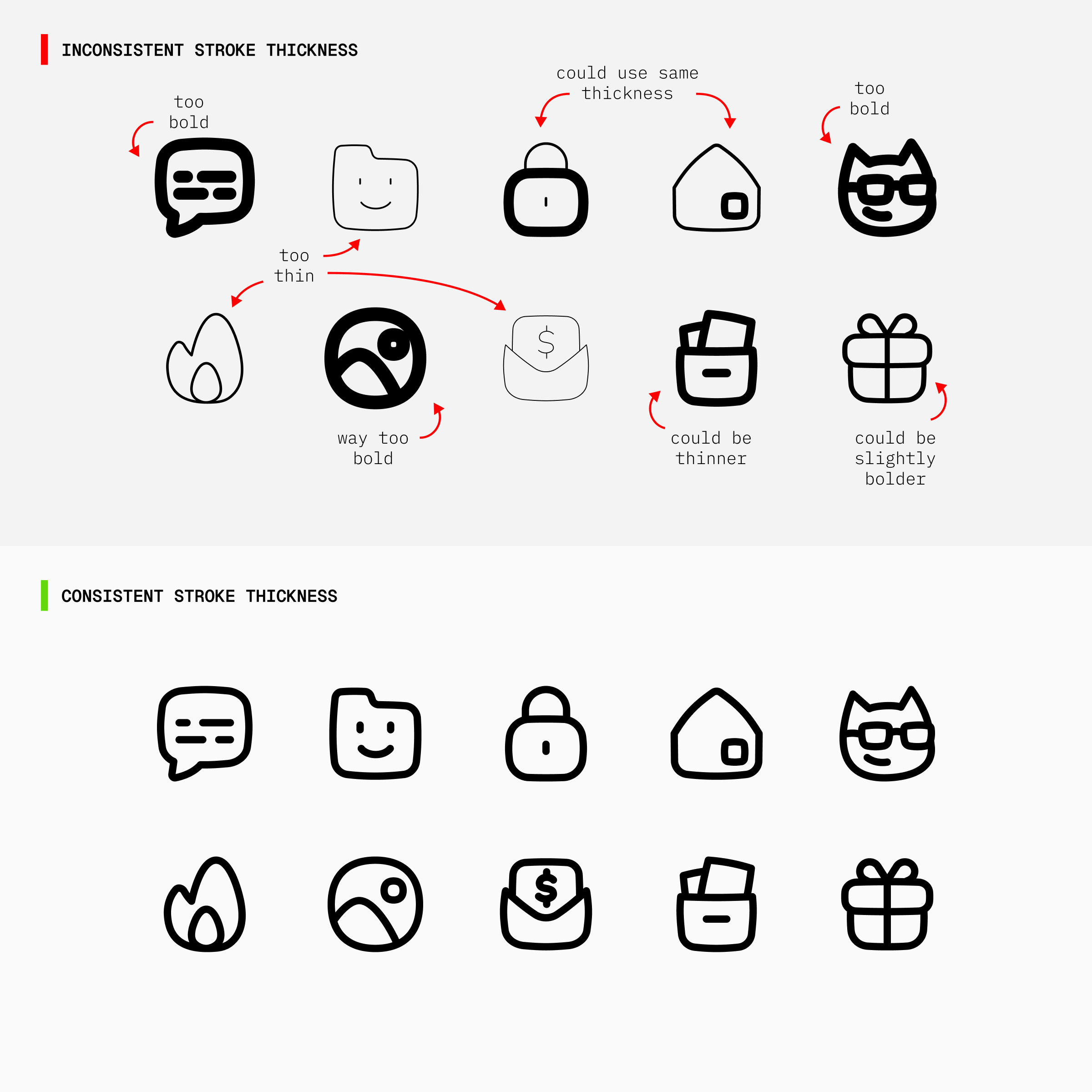
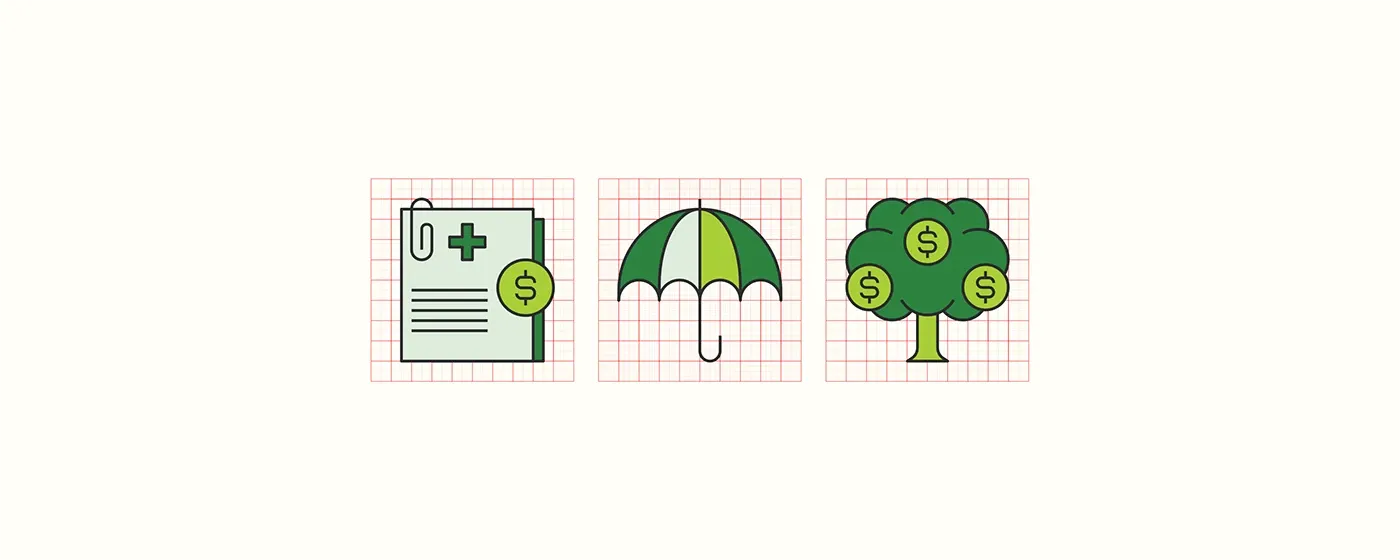
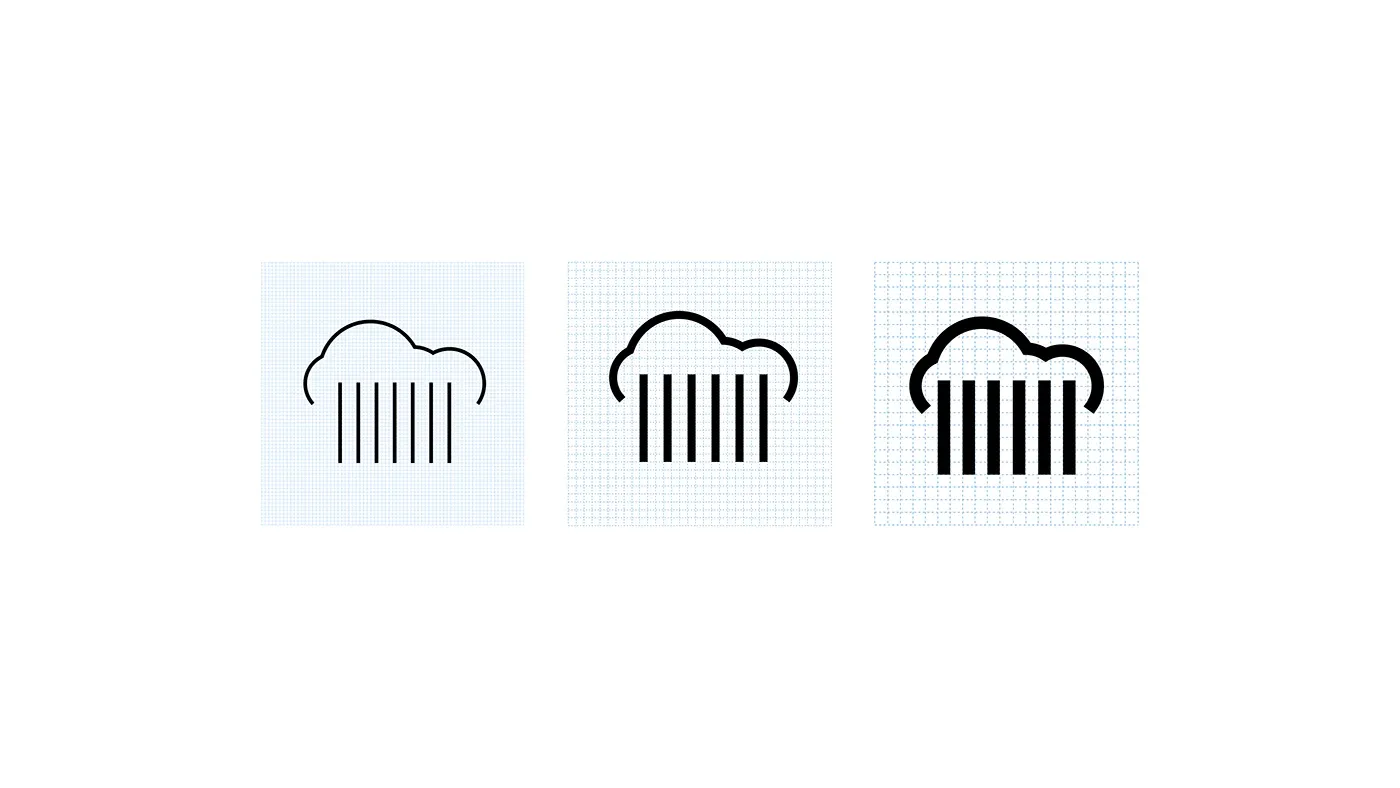
Every icon should use the exact same line thickness, with no icon running thinner or thicker than the rest.
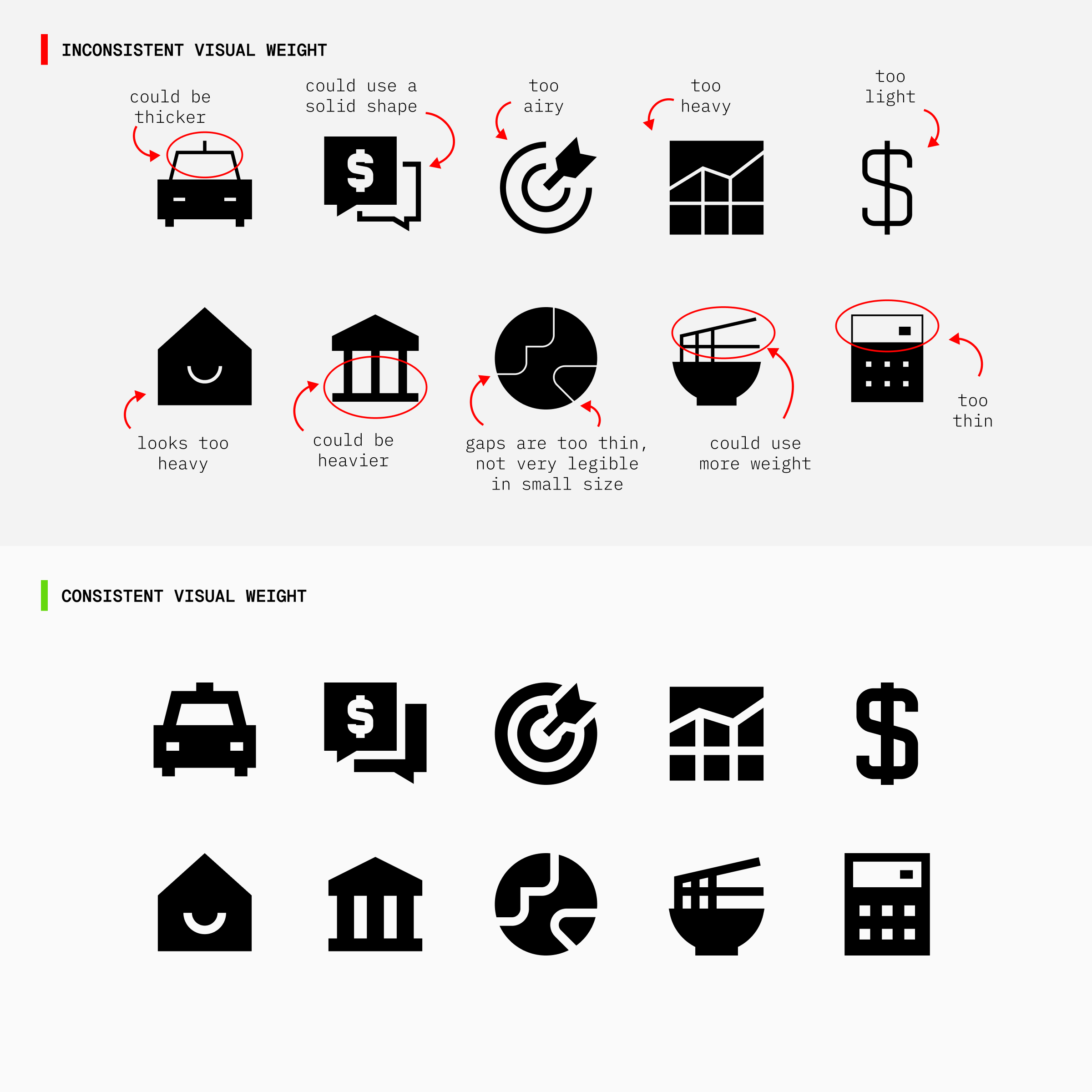
Icons should look equally heavy or light across the set, despite having different shapes or levels of detail.
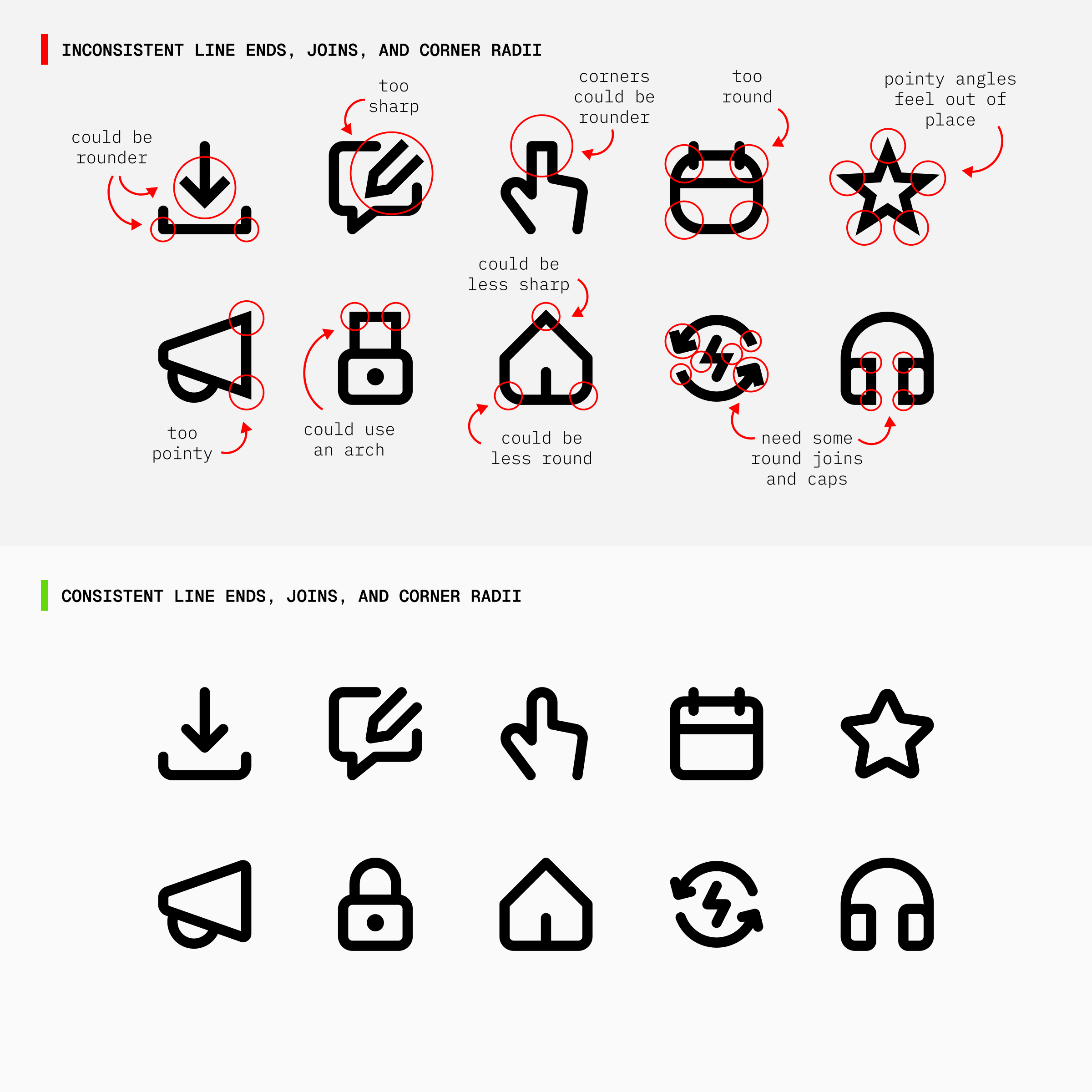
Where a line ends (caps), where two lines meet (joins), and how sharply or smoothly a shape turns a corner (corner radius), all of it should follow one consistent treatment across the set.
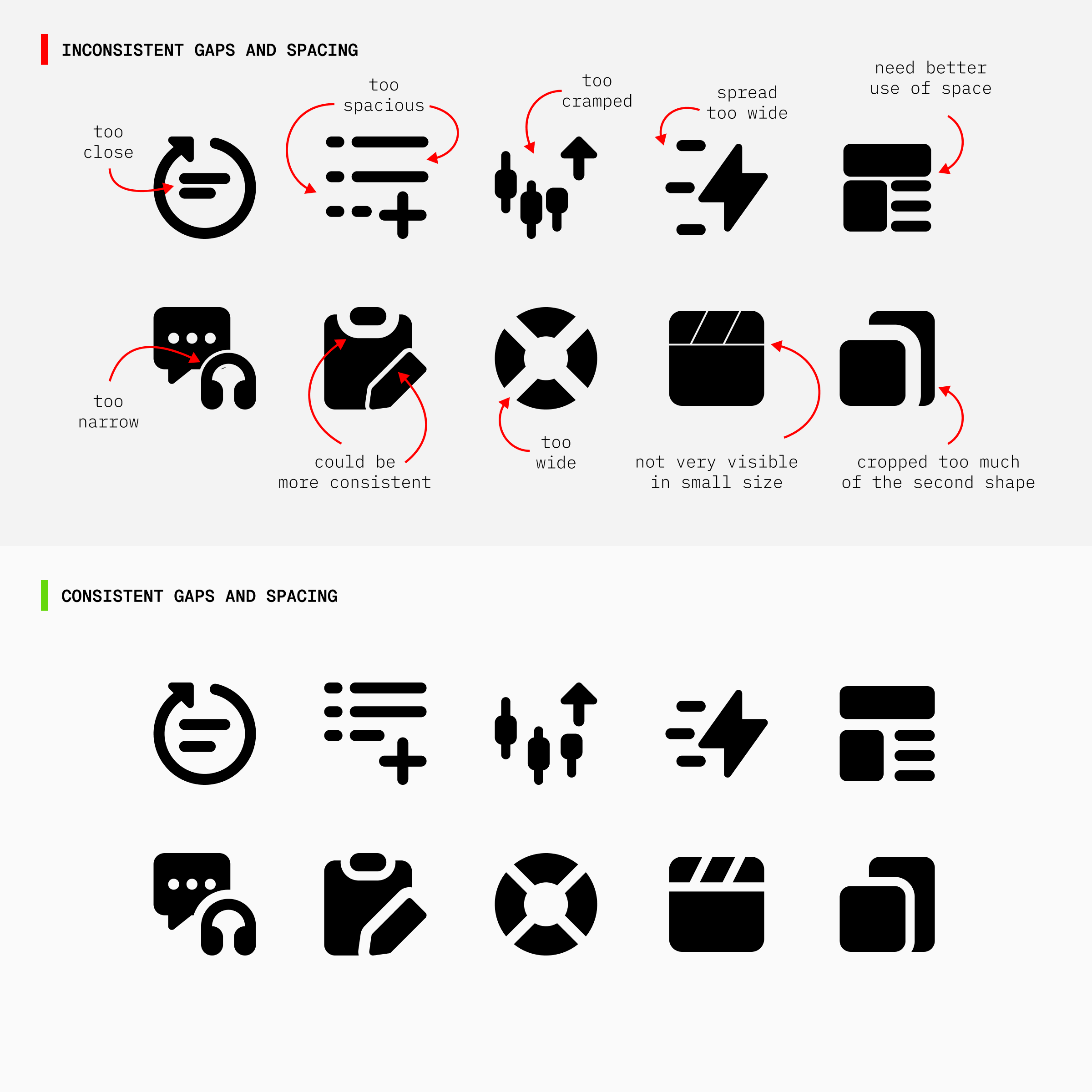
The space between lines, shapes, and parts of the icons should stay even across the set, not tight in one icon and loose in another.
Elements should feel proportionally similar across concepts, so no icon appears unusually large, cramped, or delicate, and the negative space within the grid doesn't look too dense or too open.
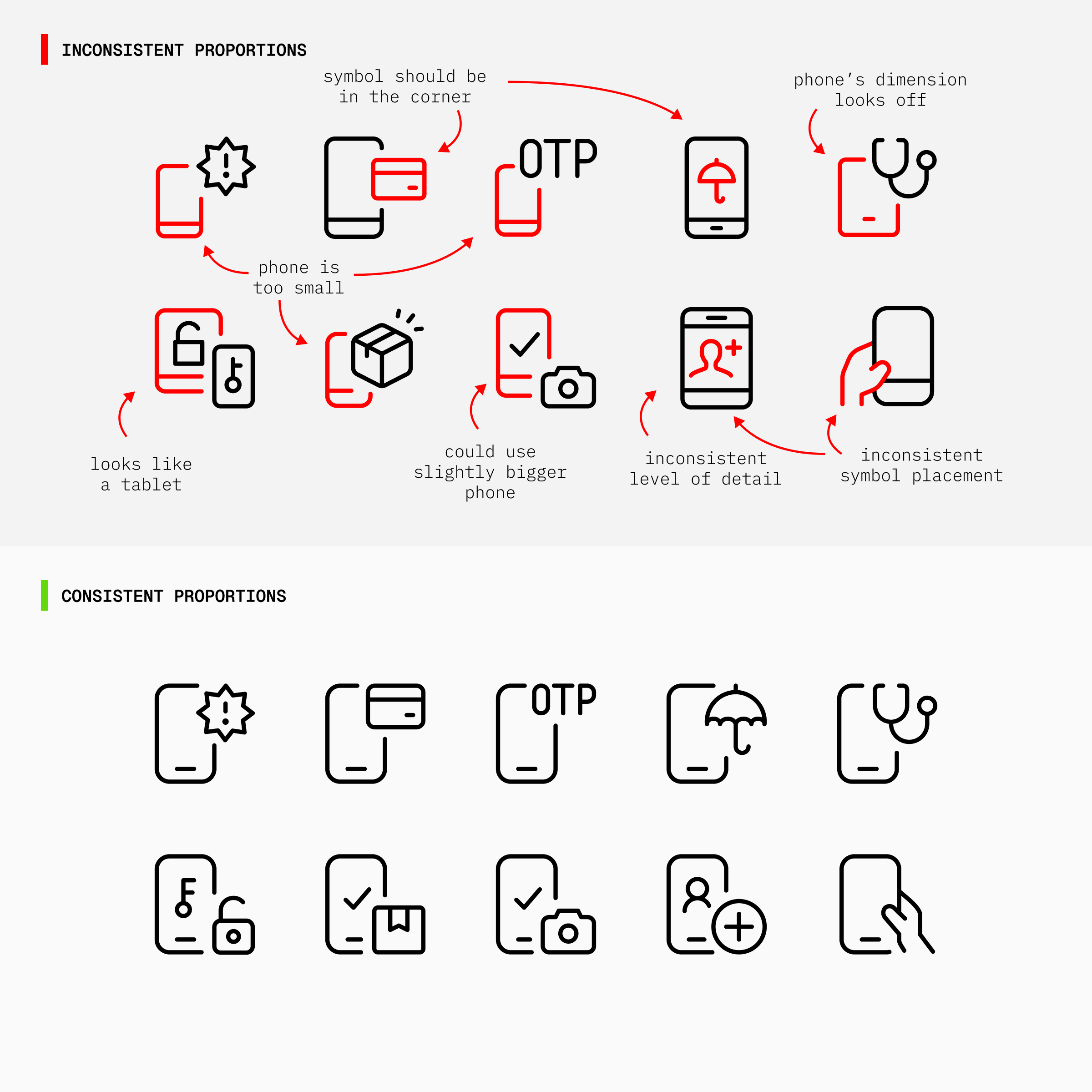
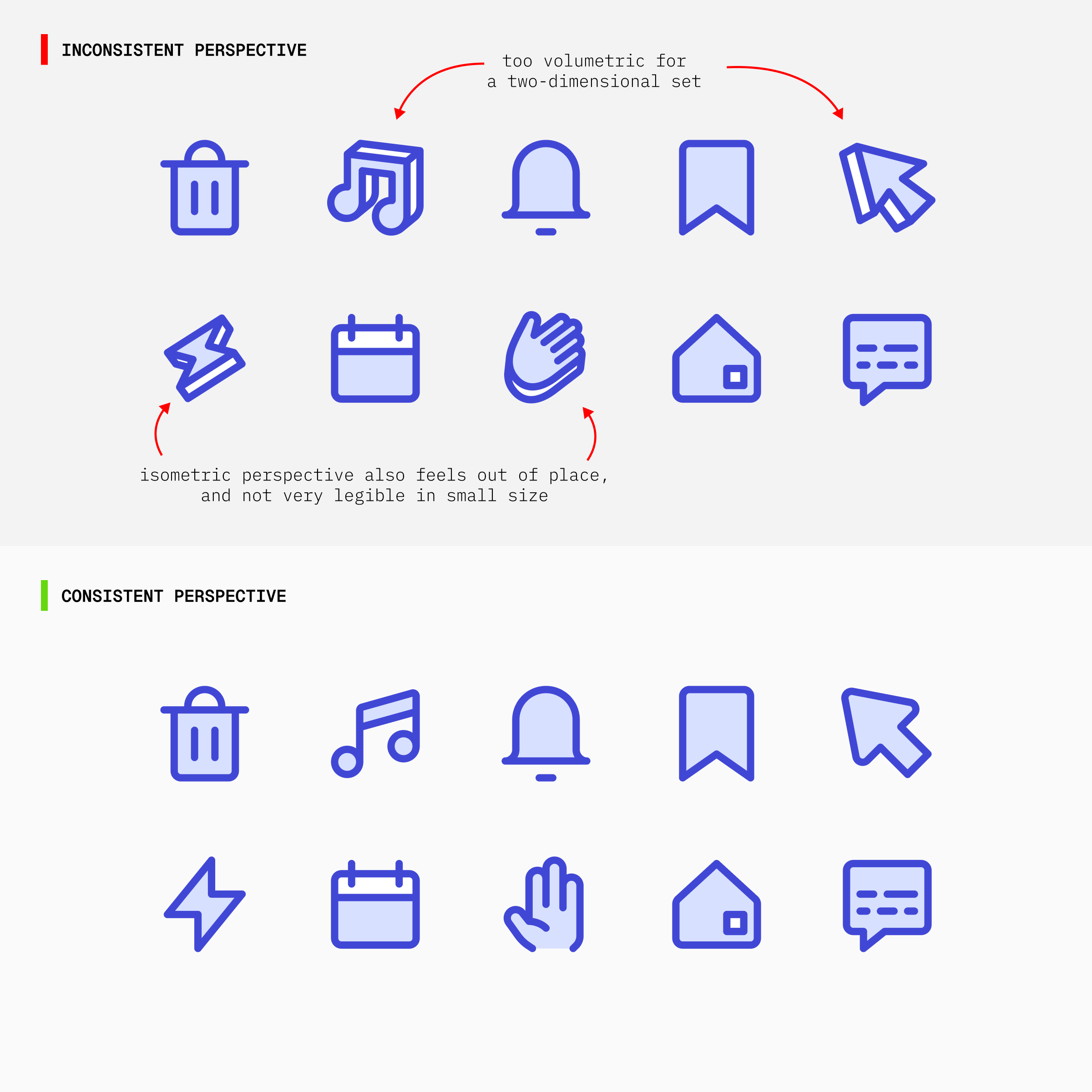
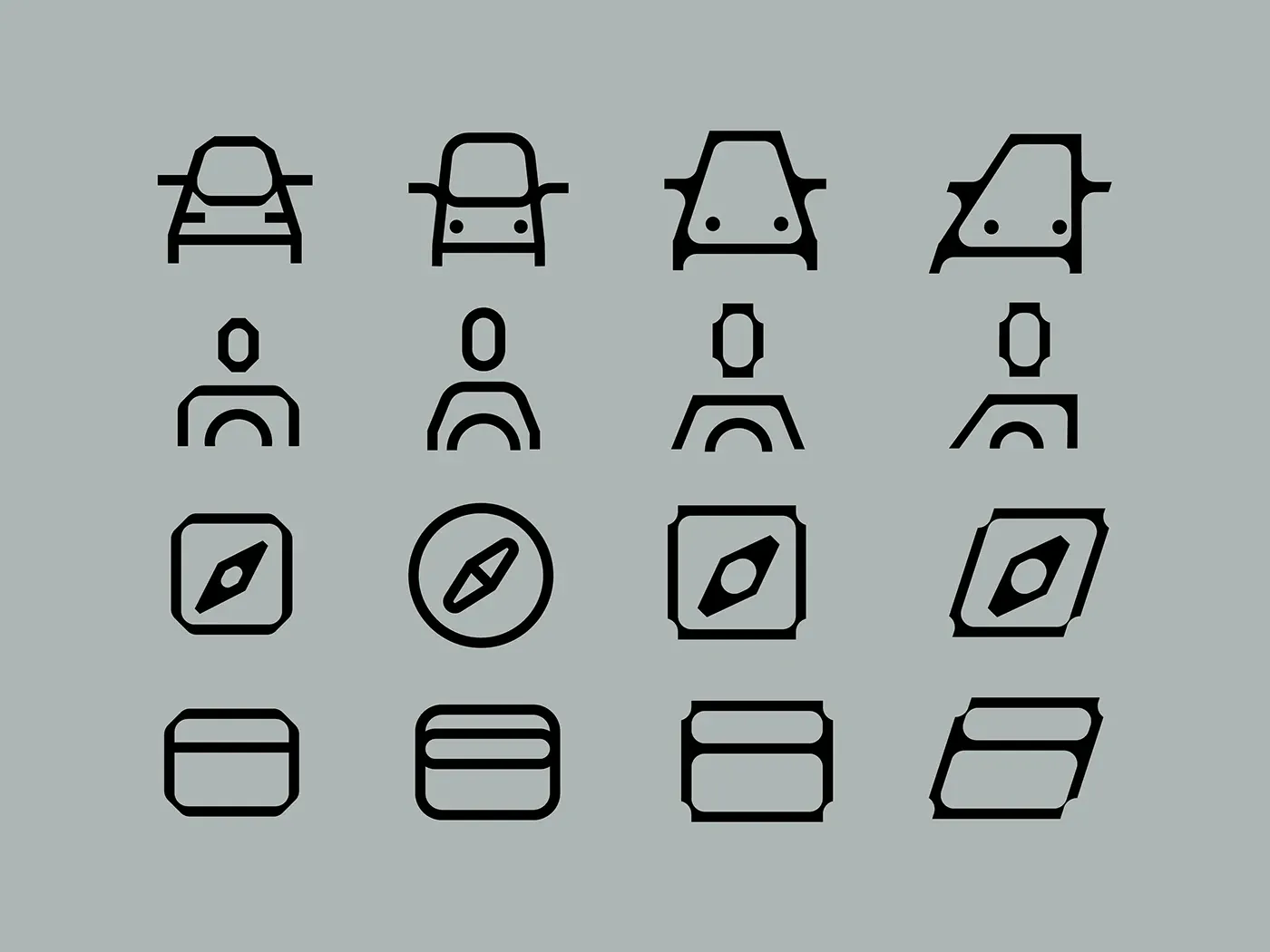
Every icon should be drawn from the same viewpoint, either orthographic or isometric, not two-dimensional in one icon and angled in another.
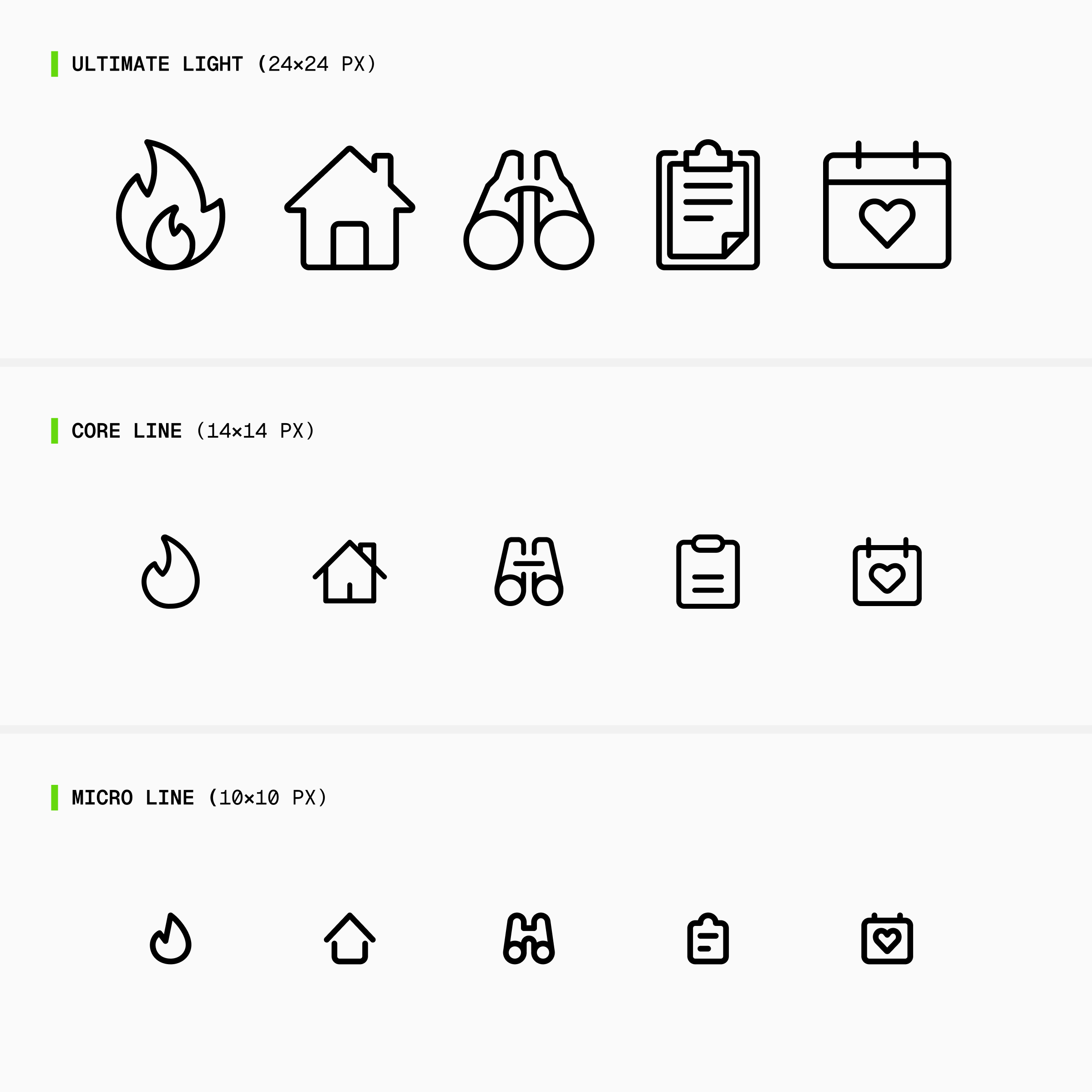
Icons need a comparable degree of complexity, with clear rules for which details are essential and which can be removed.
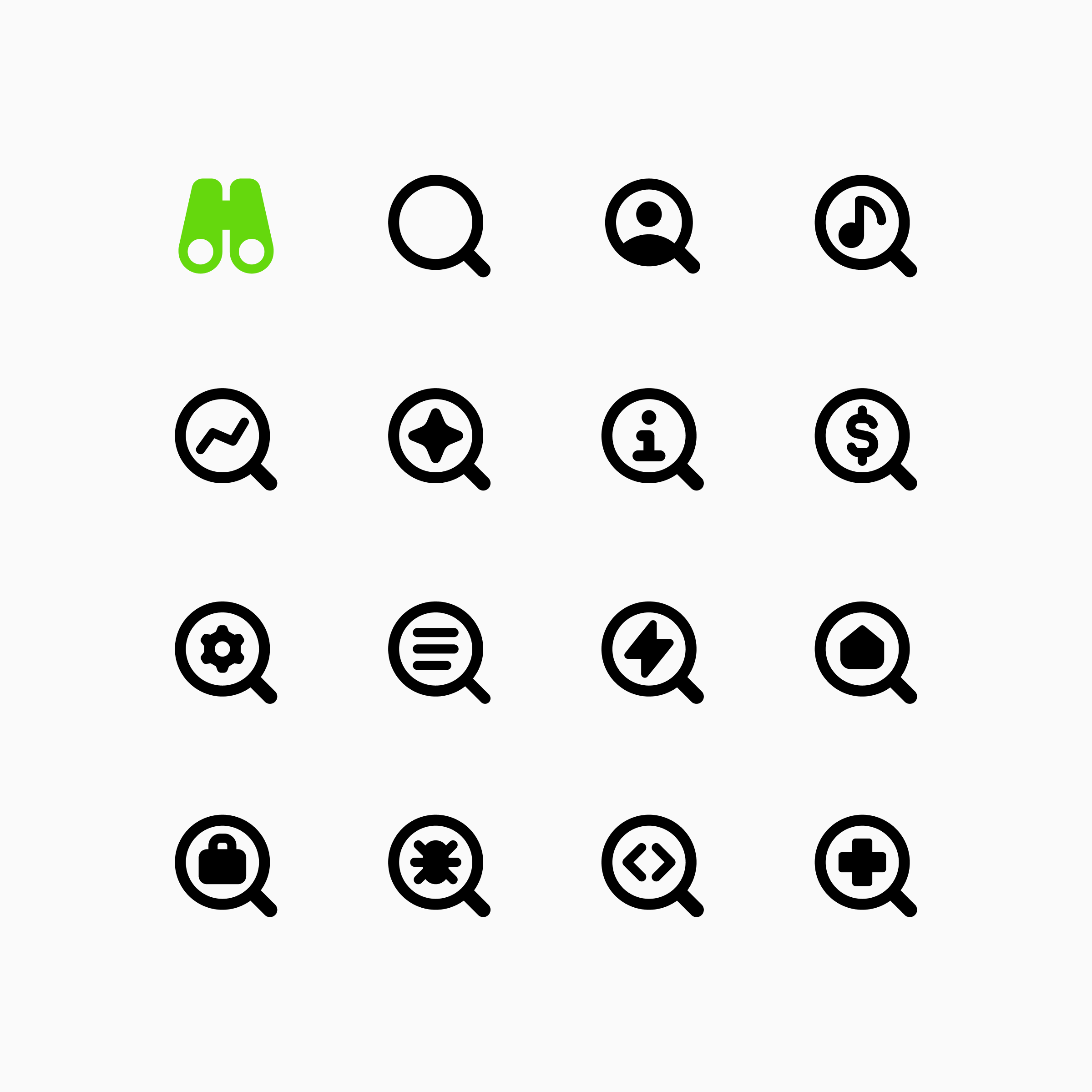
The way a concept is represented should match the library's visual vocabulary, using widely recognized symbols and established visual metaphors.
Shapes often need to be adjusted by eye, not just by measurement, so they appear balanced and aligned.
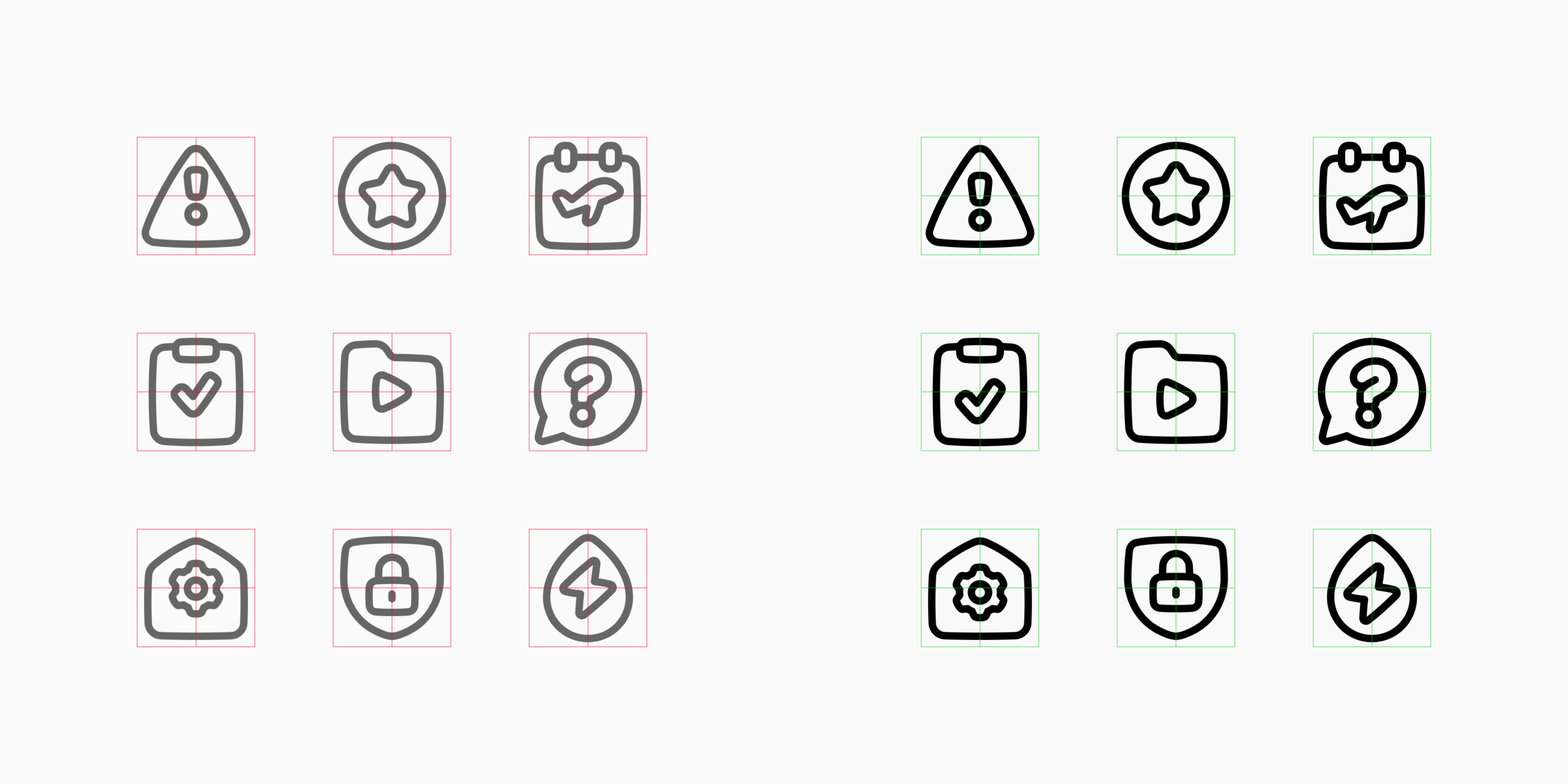
Every icon should follow the same underlying construction as other icons in the same style, covering everything from how lines behave to how shapes are built.
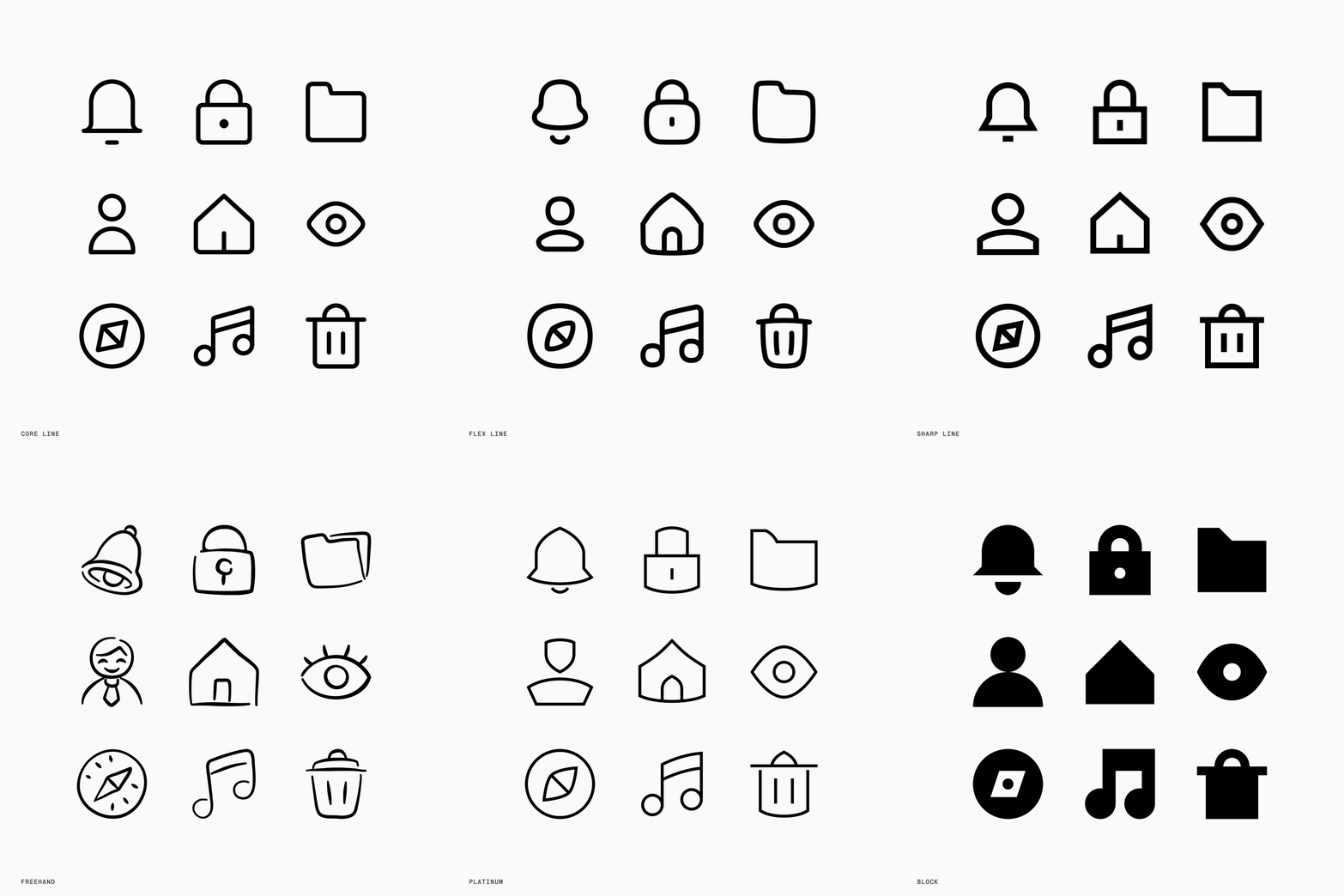
None of these decisions is especially dramatic on its own. Together, they create the rhythm and personality of a set.
That is why an icon can be perfectly functional in isolation but still feel wrong next to the rest of the library. A slightly heavier stroke, an unusually tight gap, or a metaphor that feels too playful can be enough to break the connection.
The first few icons help define a style. The thousandth proves whether the style can last. As the library grows, every new concept tests that: every new icon has to still feel like it was made by the same hand.
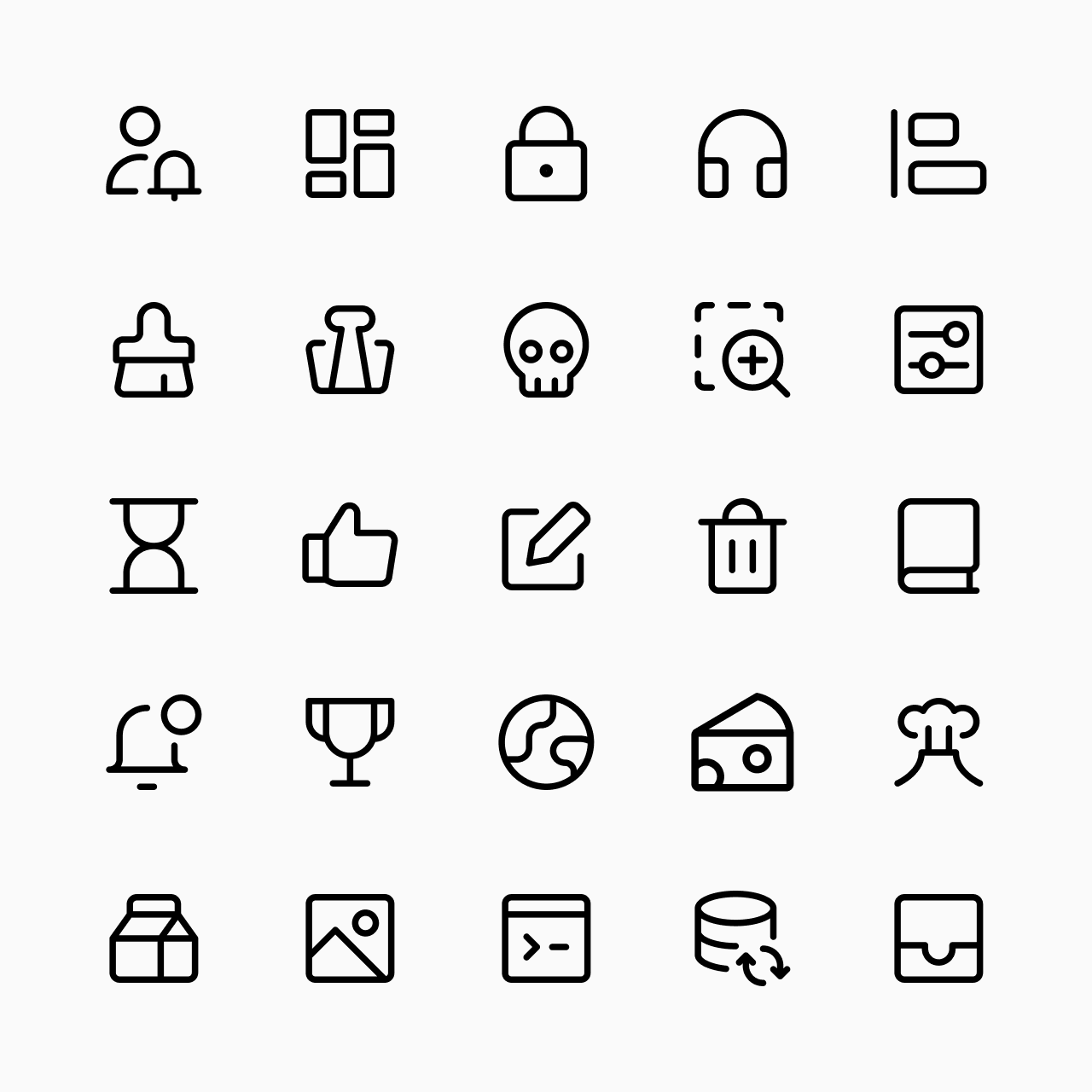
Design guidelines make this possible. We build them from the first icons, then refine them as we learn from feedback and from work on other styles. That's how a new icon, drawn a thousand icons later, can still be checked against what the first ones established.
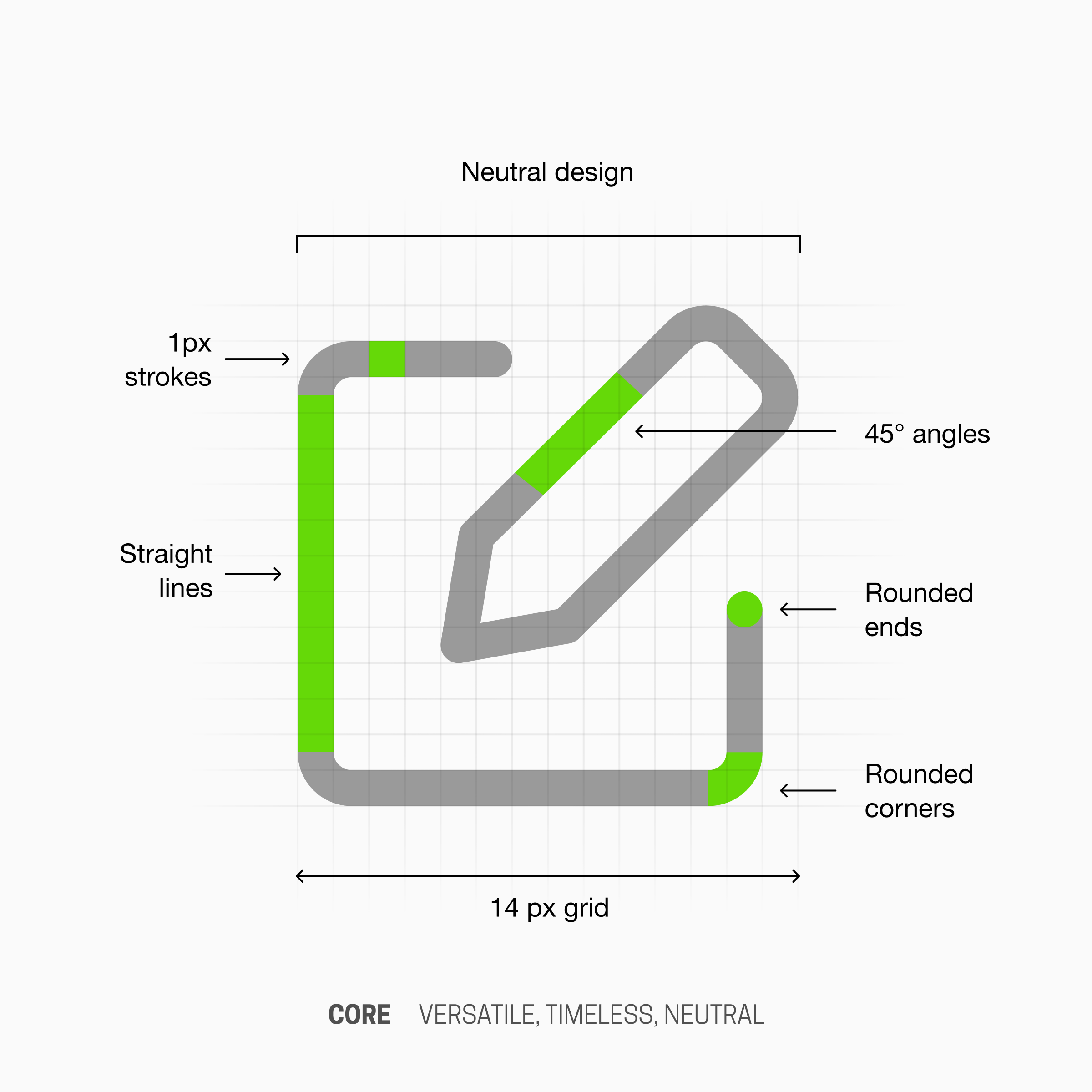
You might think our latest additions to the Core set were created by the same designer who made the first icons, but no. Several designers have worked on Core over time.
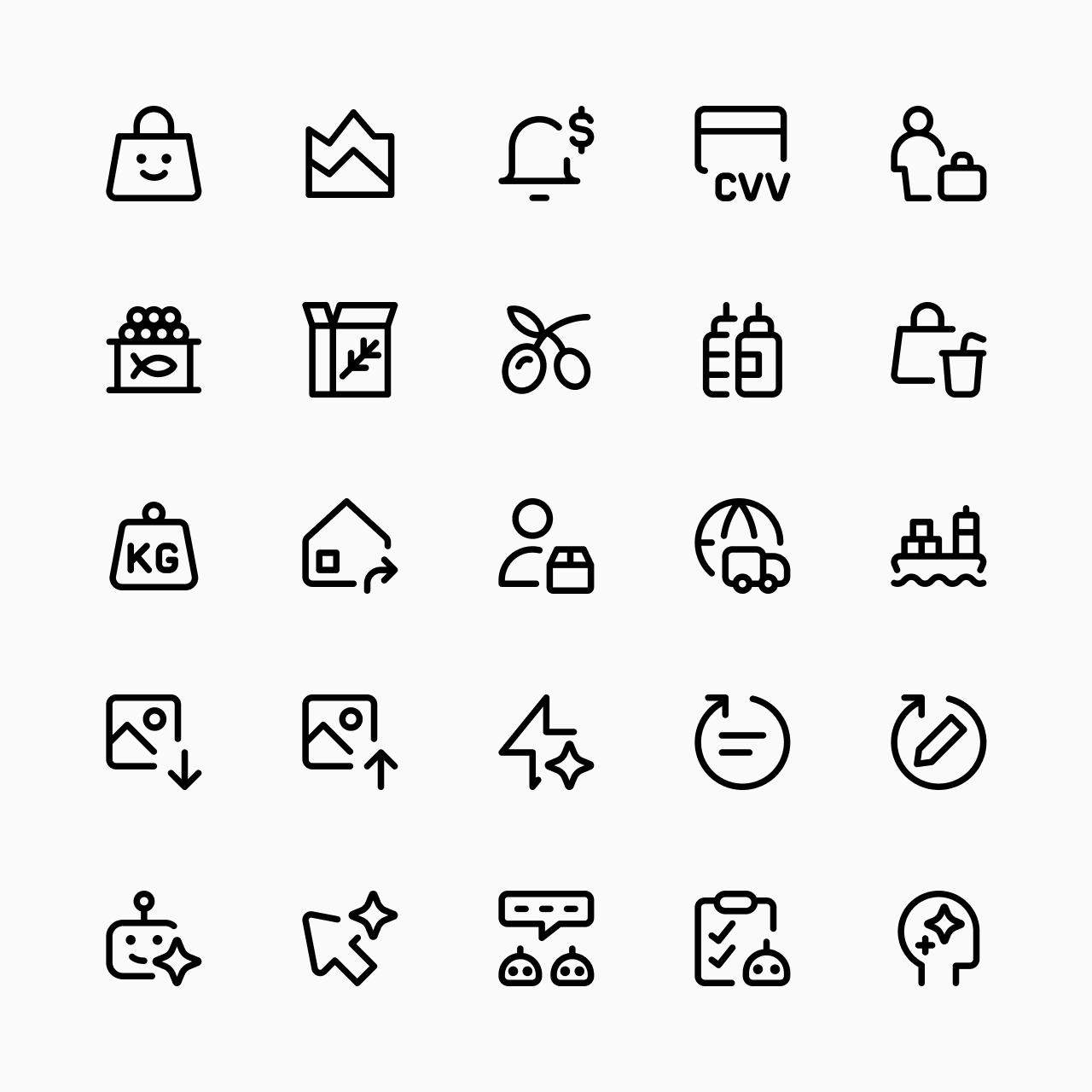
The more distinctive an icon style becomes, the more visible inconsistency becomes.
A neutral system has fewer stylistic constraints. Highly expressive styles depend on unique design rules: unusual proportions, exaggerated shapes, specific curves, custom perspectives, and so on. Those characteristics give a set personality, but they also leave less room for variation.
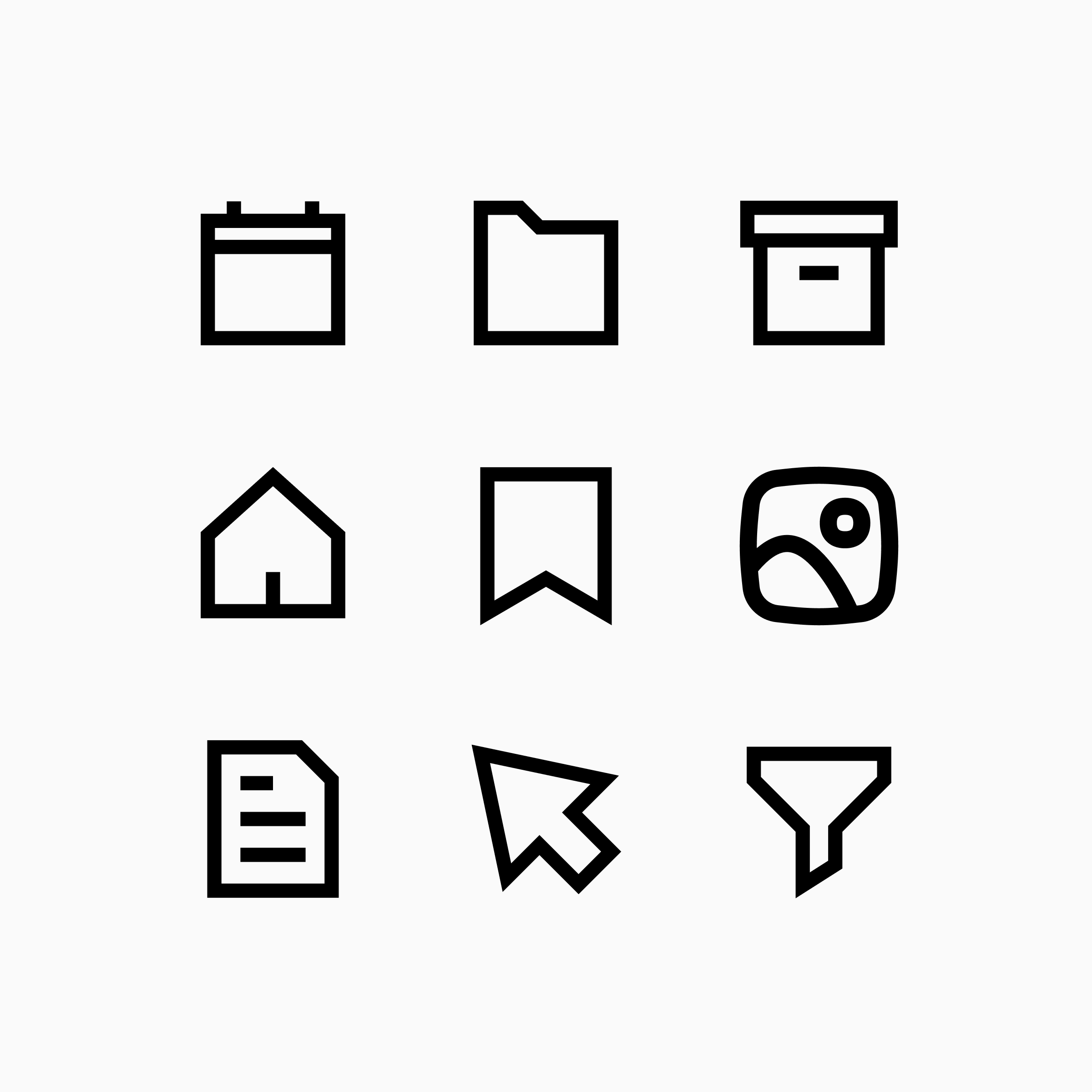
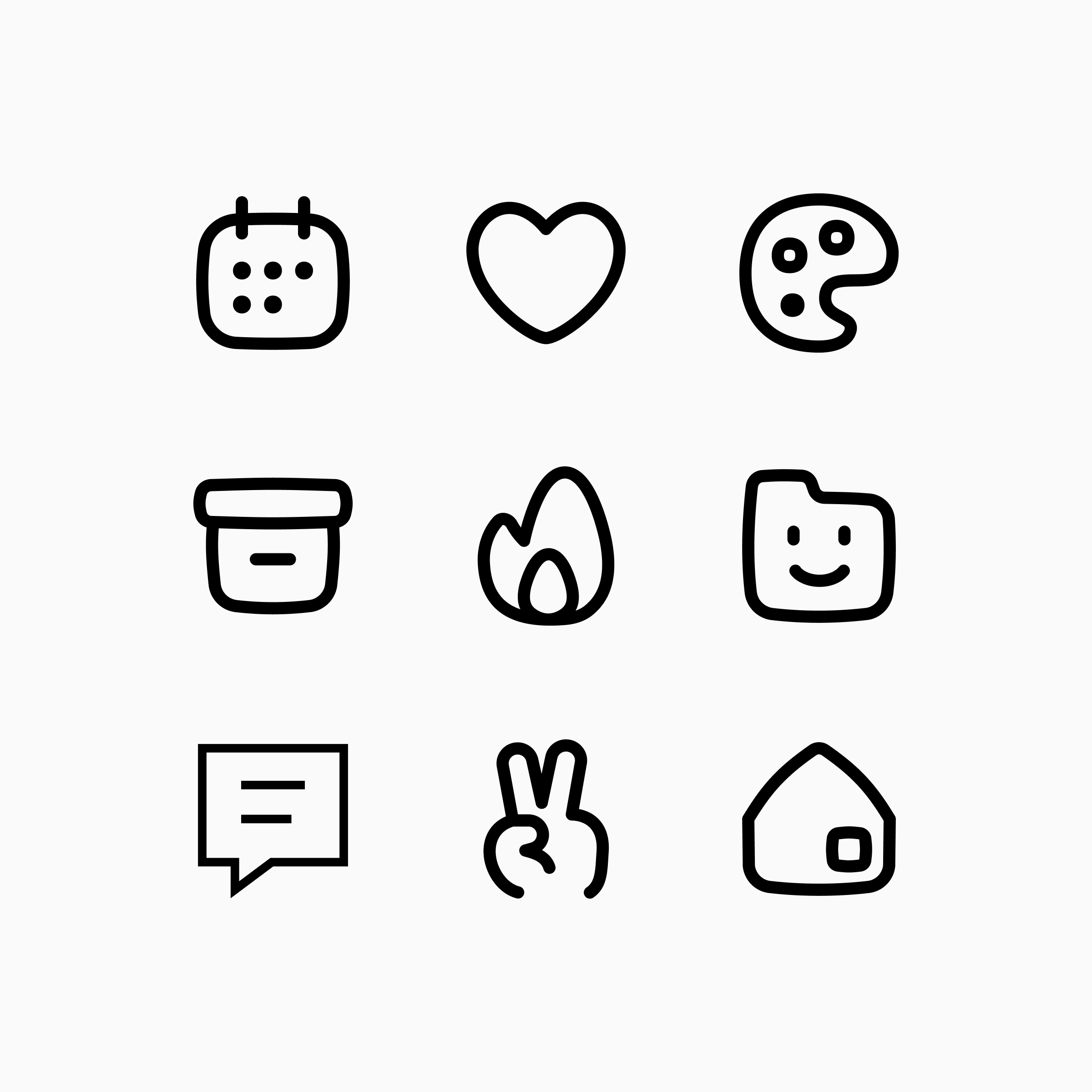
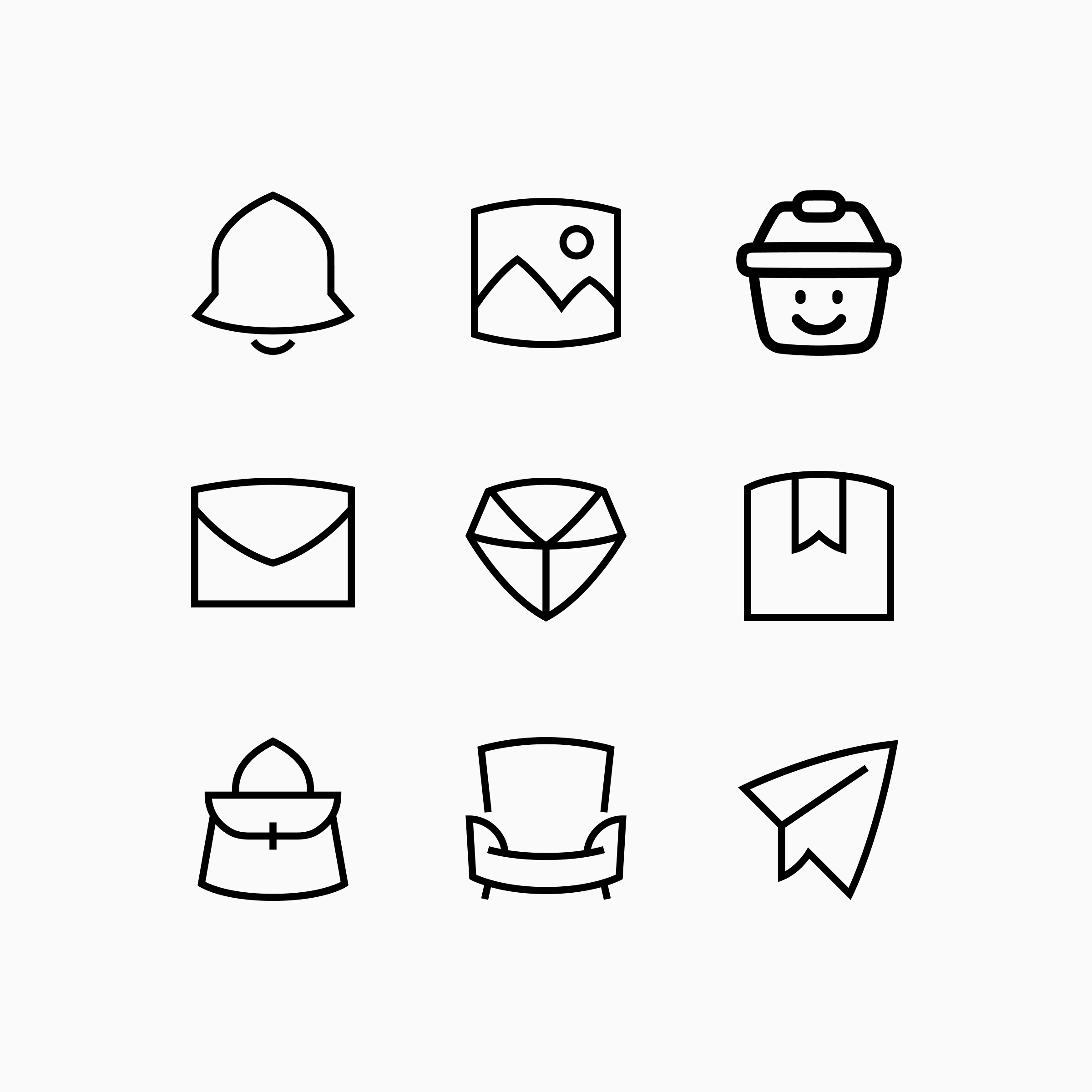
Minimal styles simply have fewer rules to break. The more expressive a style becomes, the more rules it introduces, and the more opportunities there are for inconsistency to show.
Good icons are consistent. Good icons are also legible. But holding onto both gets harder as a style becomes more distinctive.
Some icons adapt naturally to a style, while others resist its rules and become harder to recognize. In Sharp, icons like a bookmark, a calendar, or a document adapt naturally to the style's straight lines and sharp corners. But push that rule onto everything, and icons like a notification bell, a user, an eye, or a fingerprint start to look off.
This creates a tension. If you follow every style rule too strictly, the icon may become harder to understand. If you preserve recognition, you may need to bend a rule. When that trade-off comes up, we prioritize legibility. That's why Sharp keeps a few curves and arches: to stay legible without losing its identity.
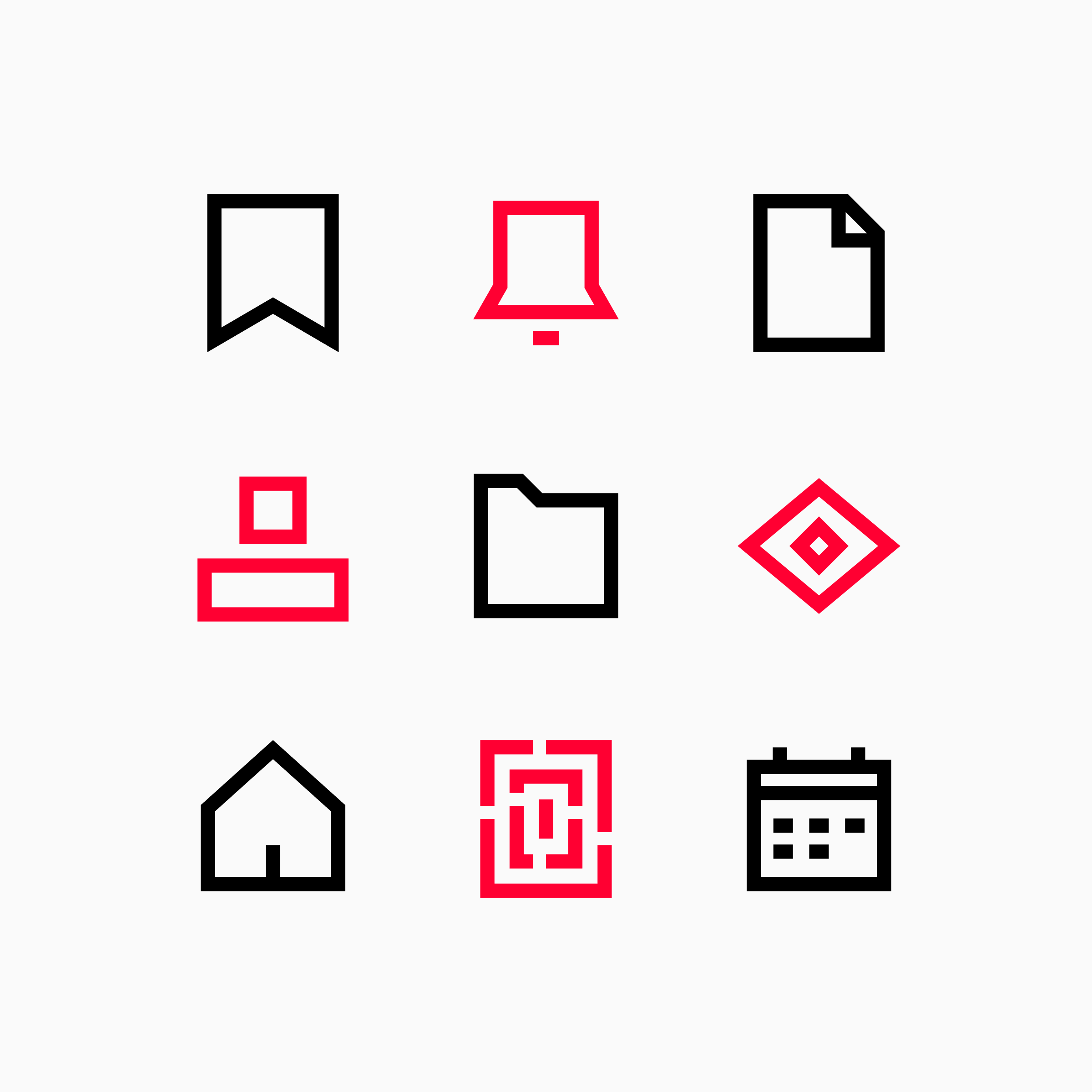
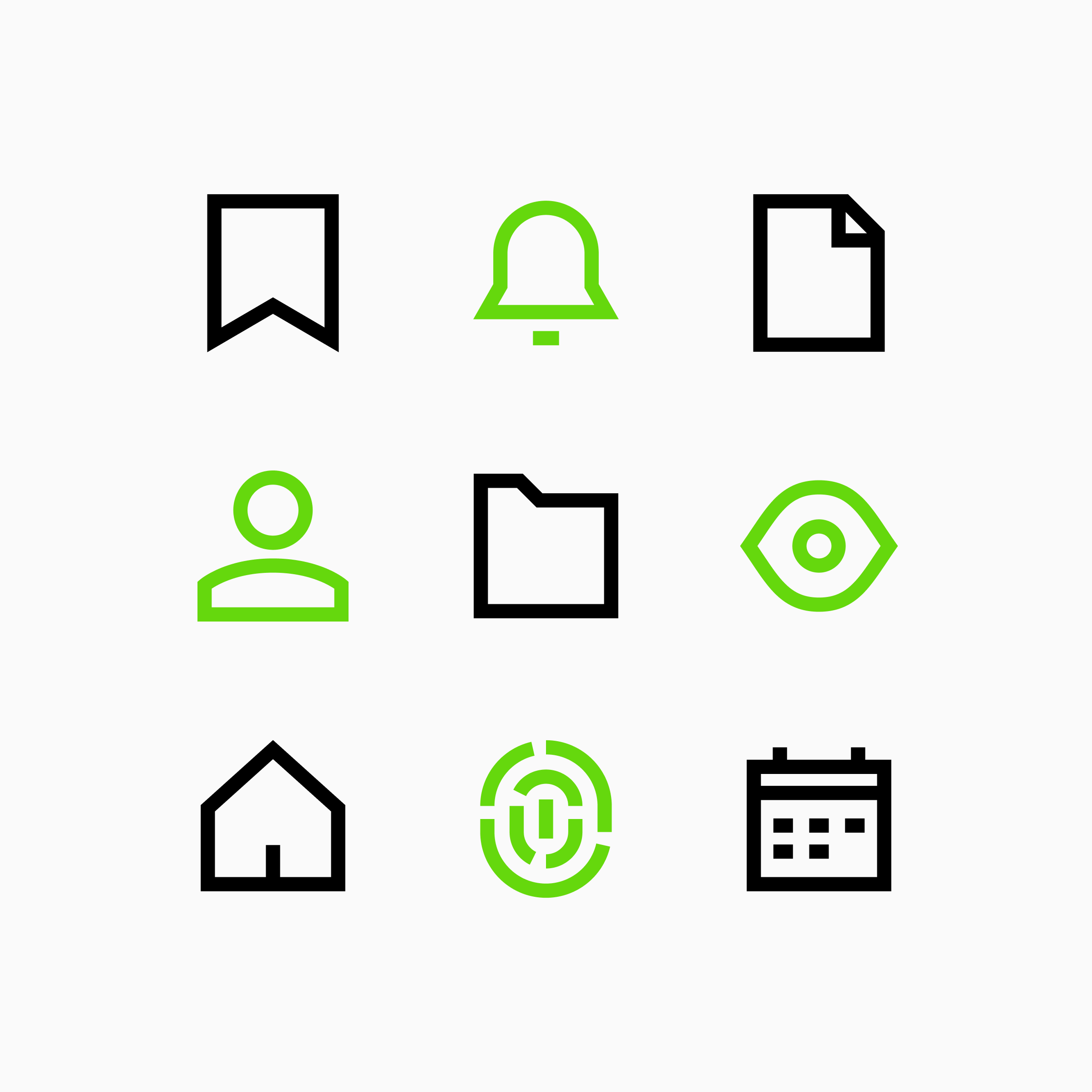
A bell, a user, an eye, and a fingerprint, forced sharp, then given back a few curves. Small exceptions like these are what keep Sharp icons legible.
The difficult part of icon design is often not creating the rules, but deciding when they deserve to be broken.
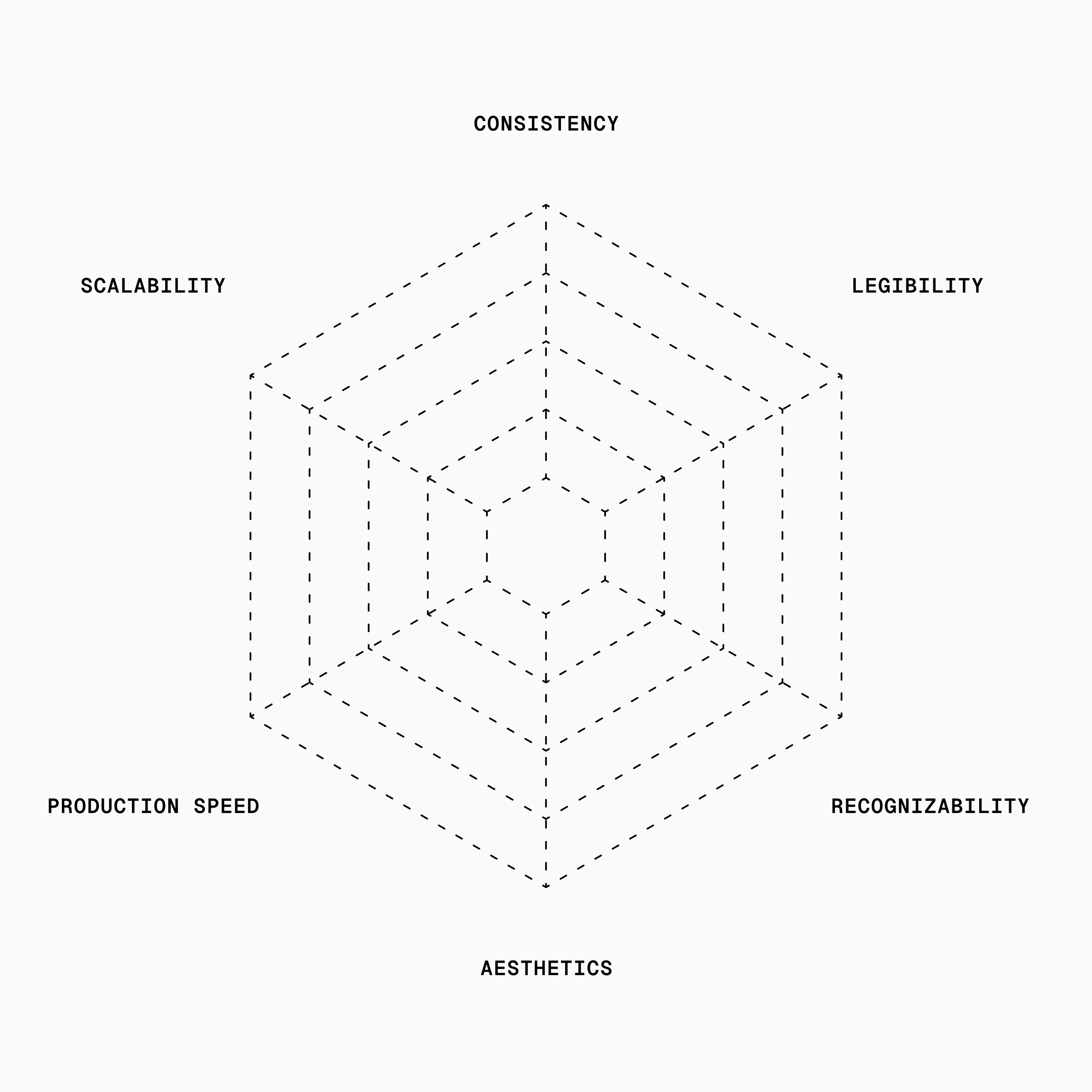
No icon set is perfectly consistent, and it should not try to be. Every library balances competing priorities:
A more detailed icon may be easier to recognize but less consistent with a minimal style. A highly stylized solution may be more memorable but less legible at small sizes. A faster solution may work today but introduce exceptions that make the system harder to scale tomorrow.
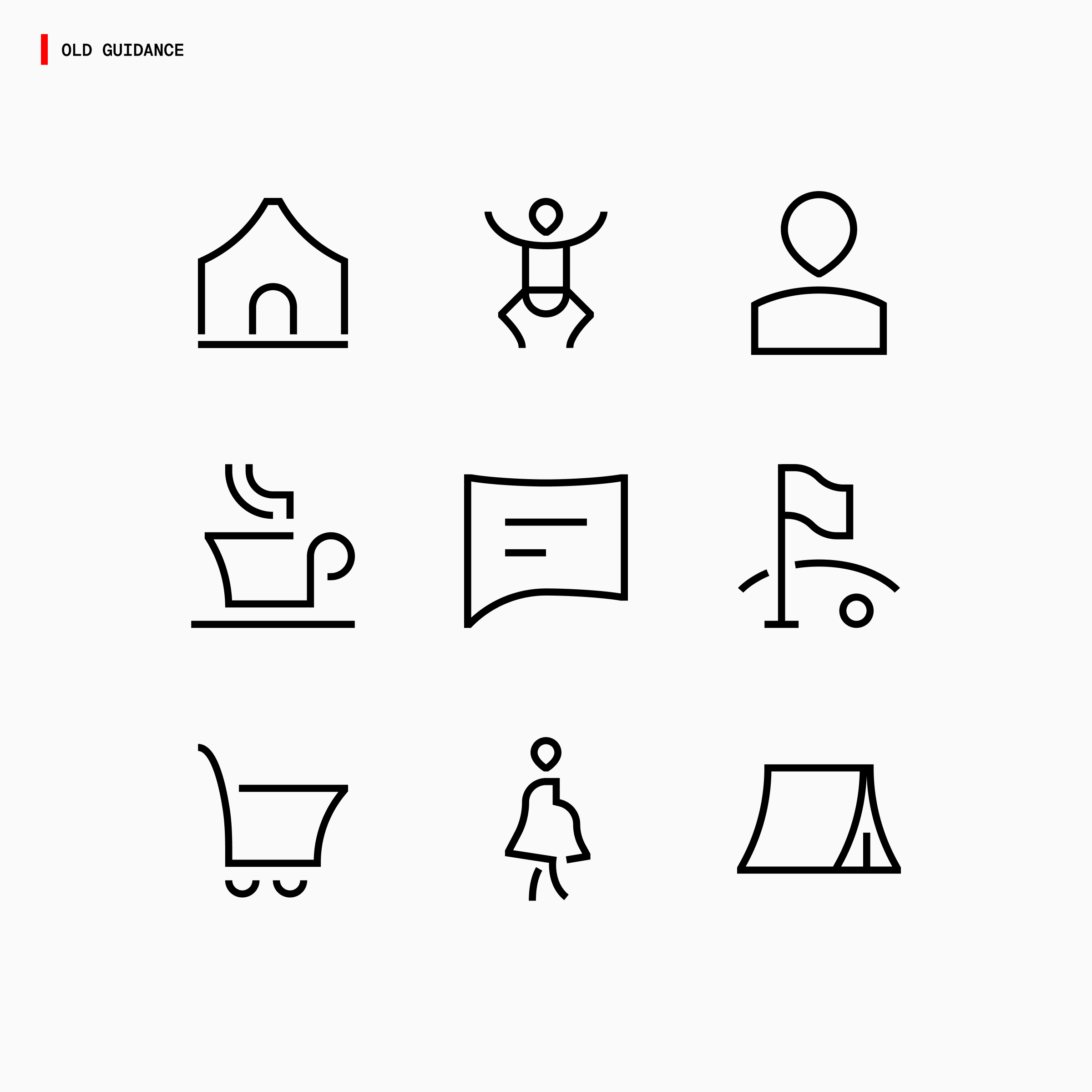
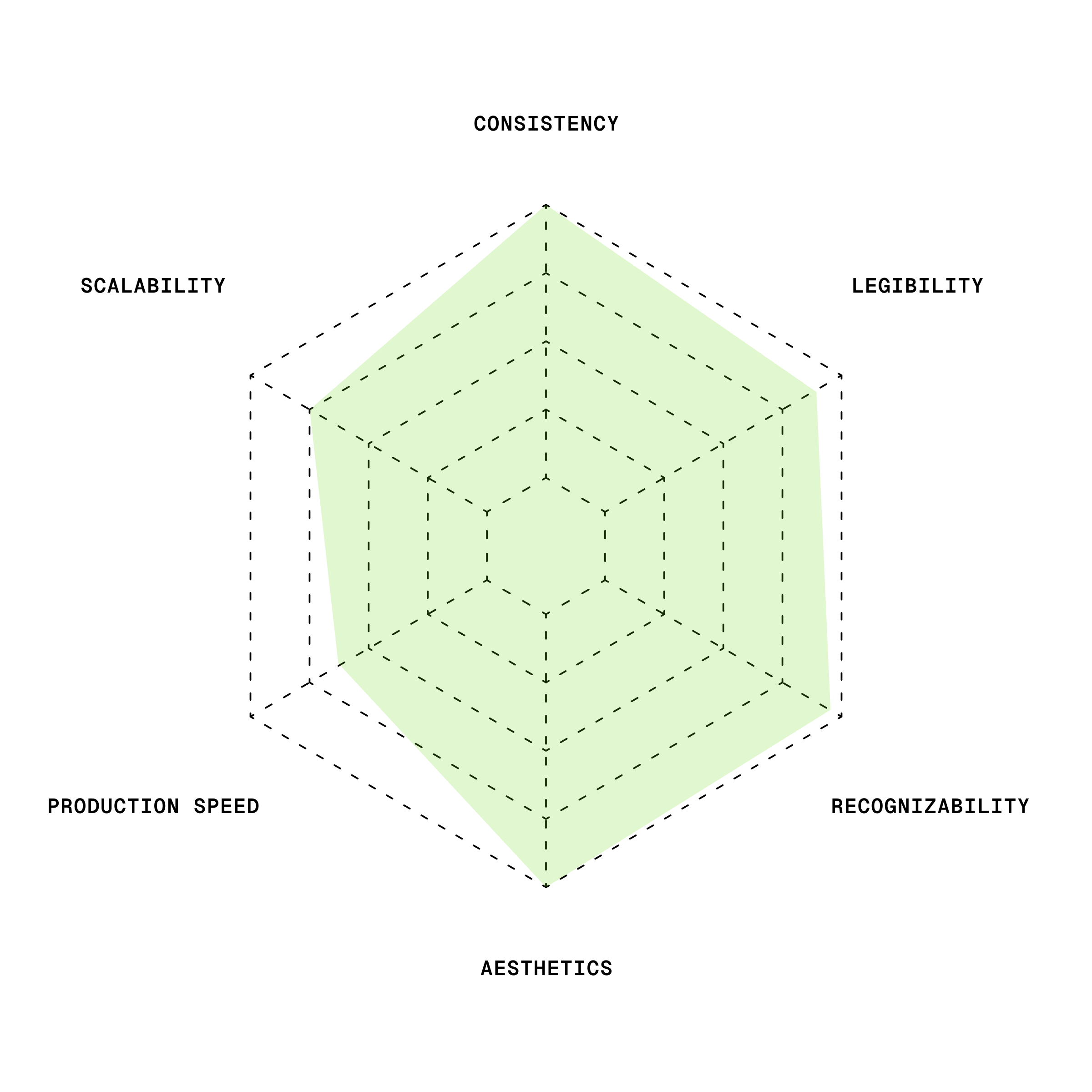
Guidance leaned heavily into aesthetics early on, at some cost to legibility and recognizability. We've been working to improve that.
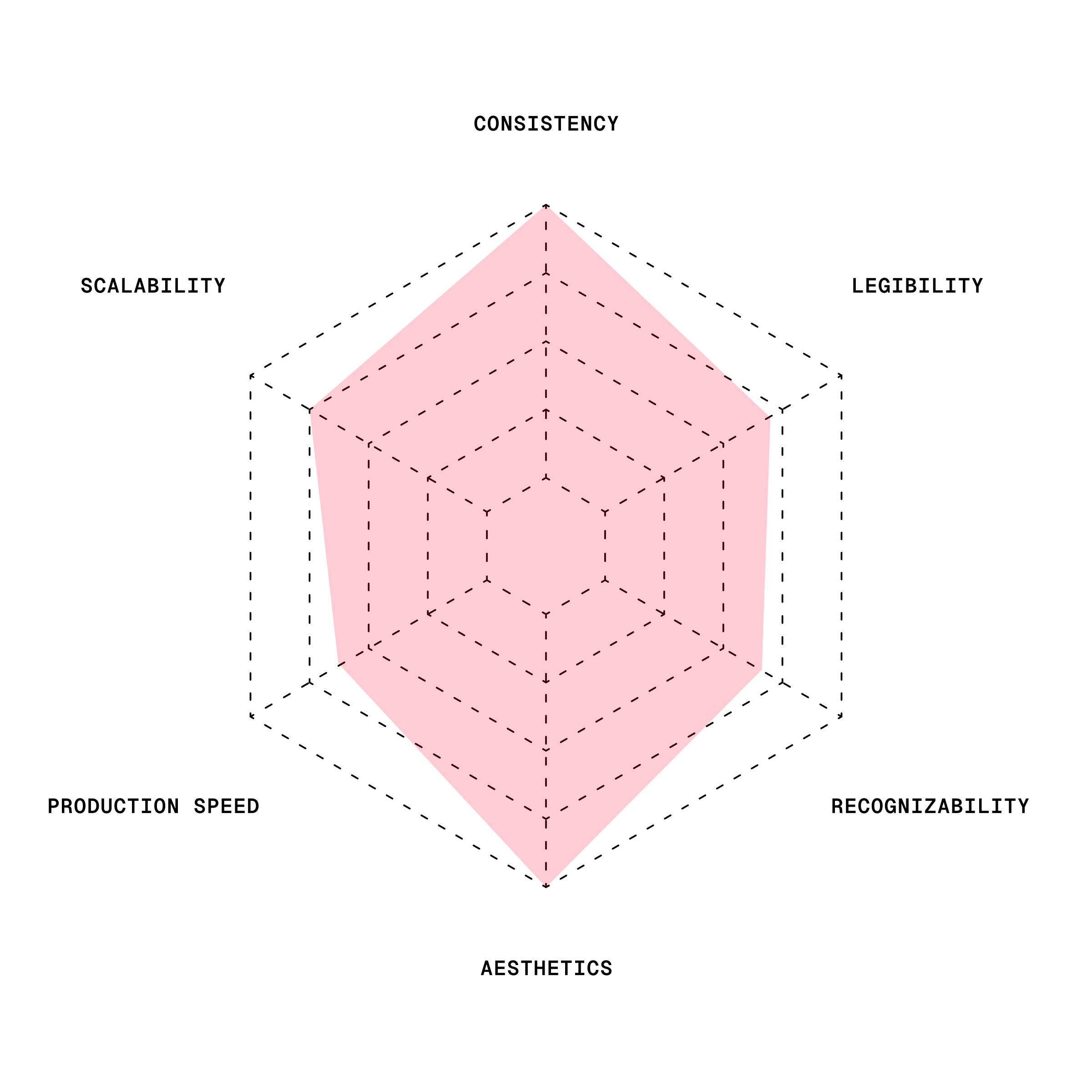
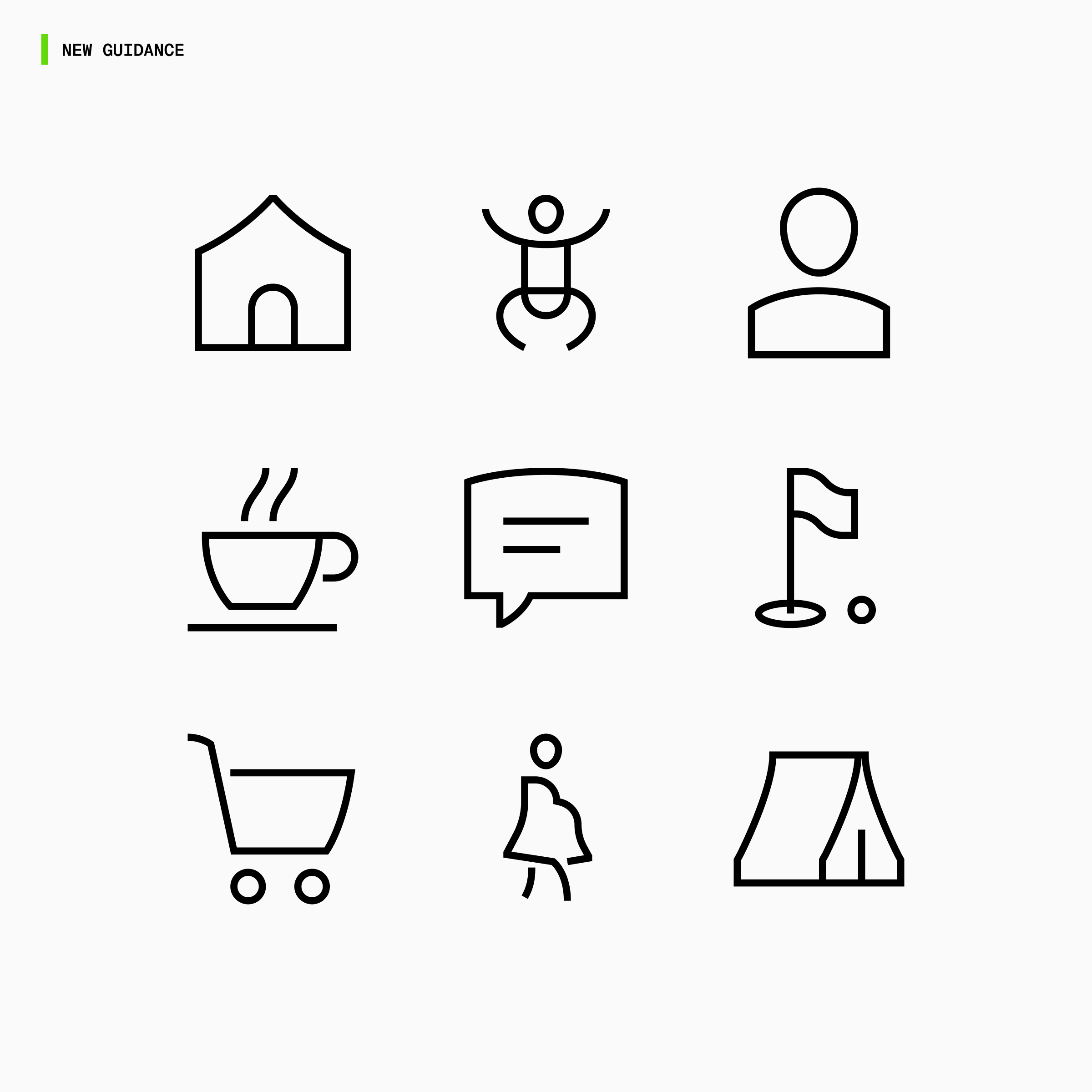
The new Guidance features more familiar shapes and symbols alongside its defining curves. We make sure those icons become more recognizable and legible at small sizes without losing their aesthetic look.
The goal is not to maximize one dimension at the expense of everything else. It is to make good decisions, one icon at a time.
The easiest way to understand icon consistency is to compare styles side by side.
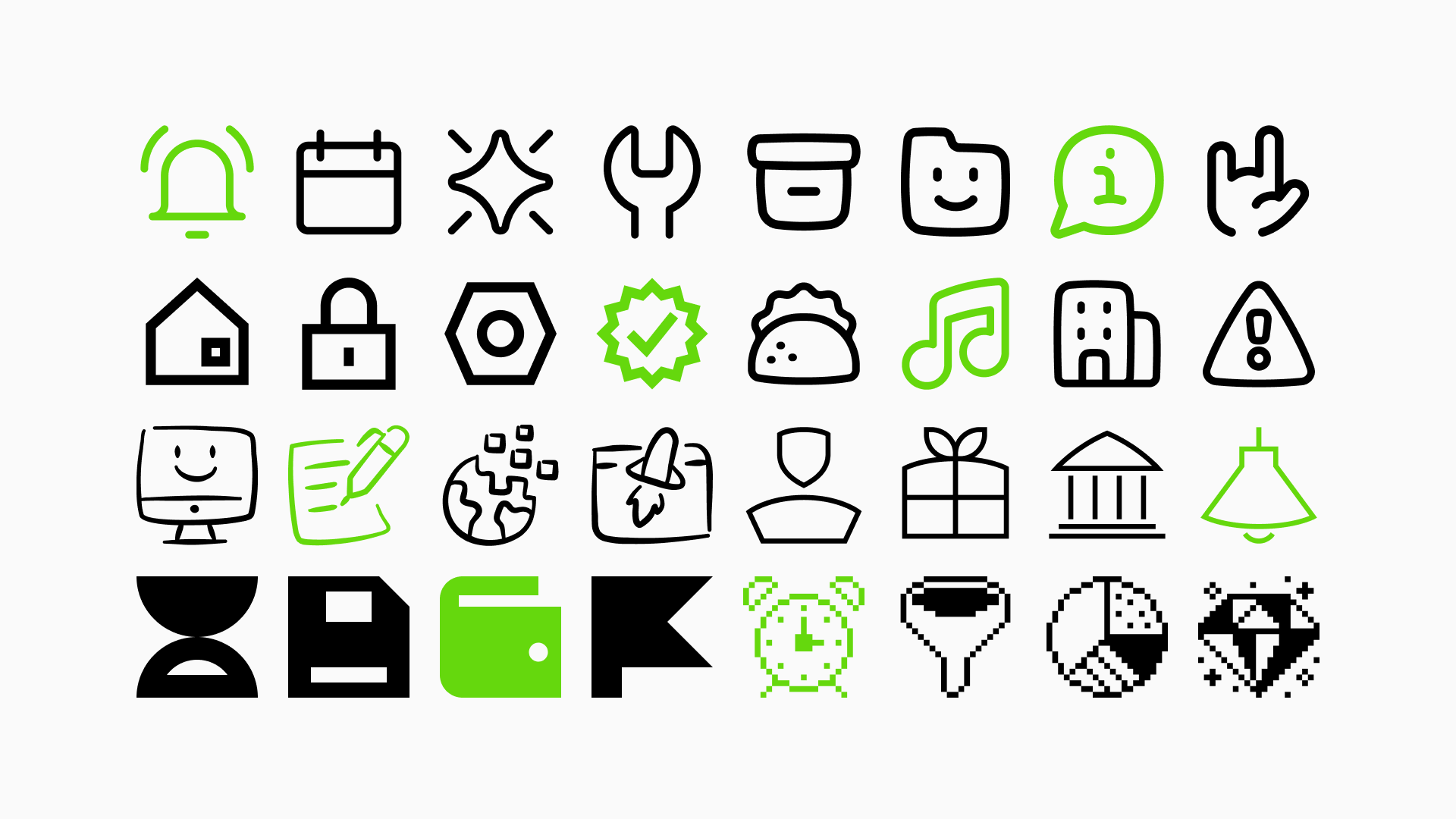
Browse the Streamline Icon System to see how thousands of icons stay connected while each style keeps its own personality.
2026-09-30 14:42:42
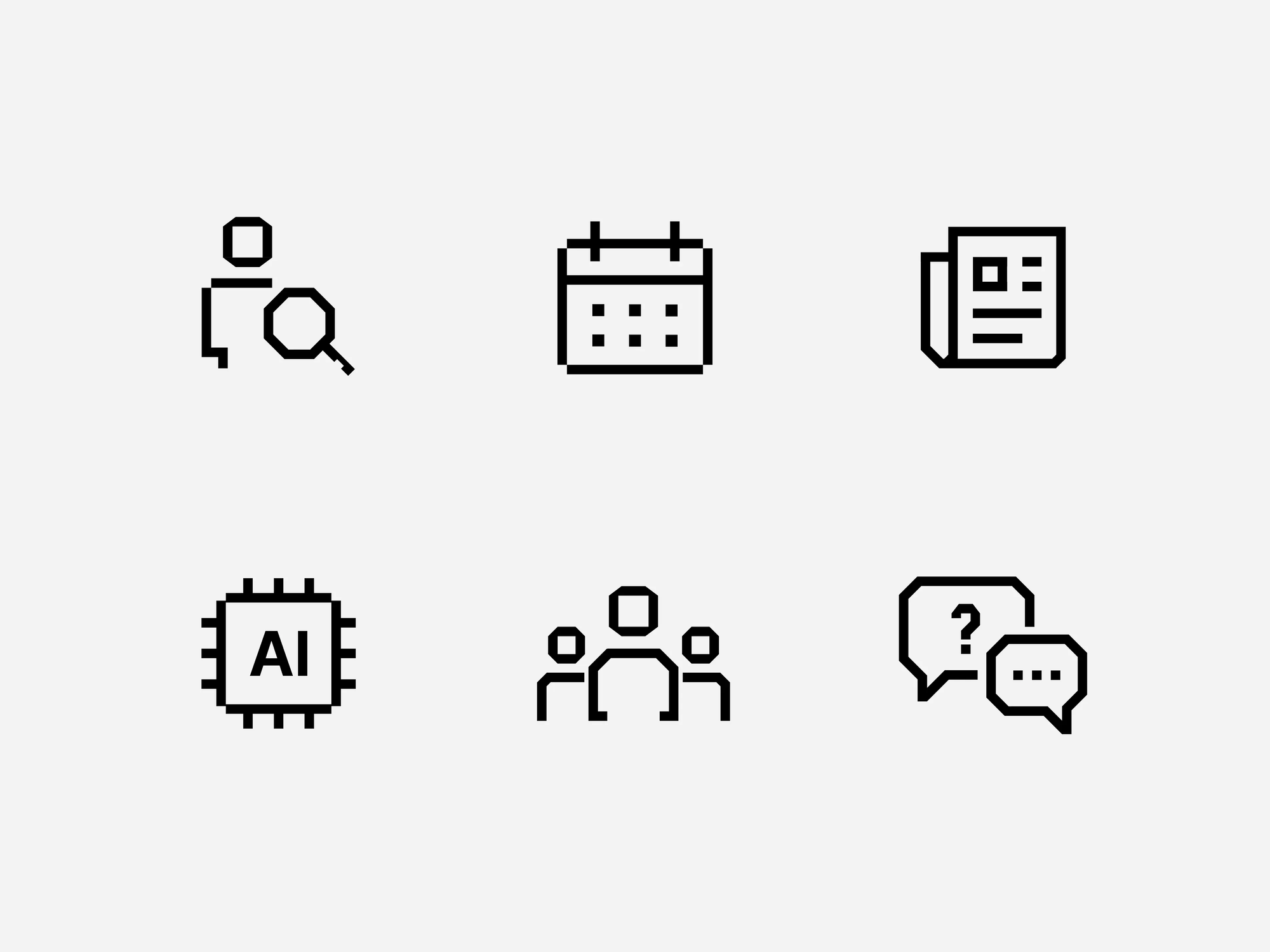
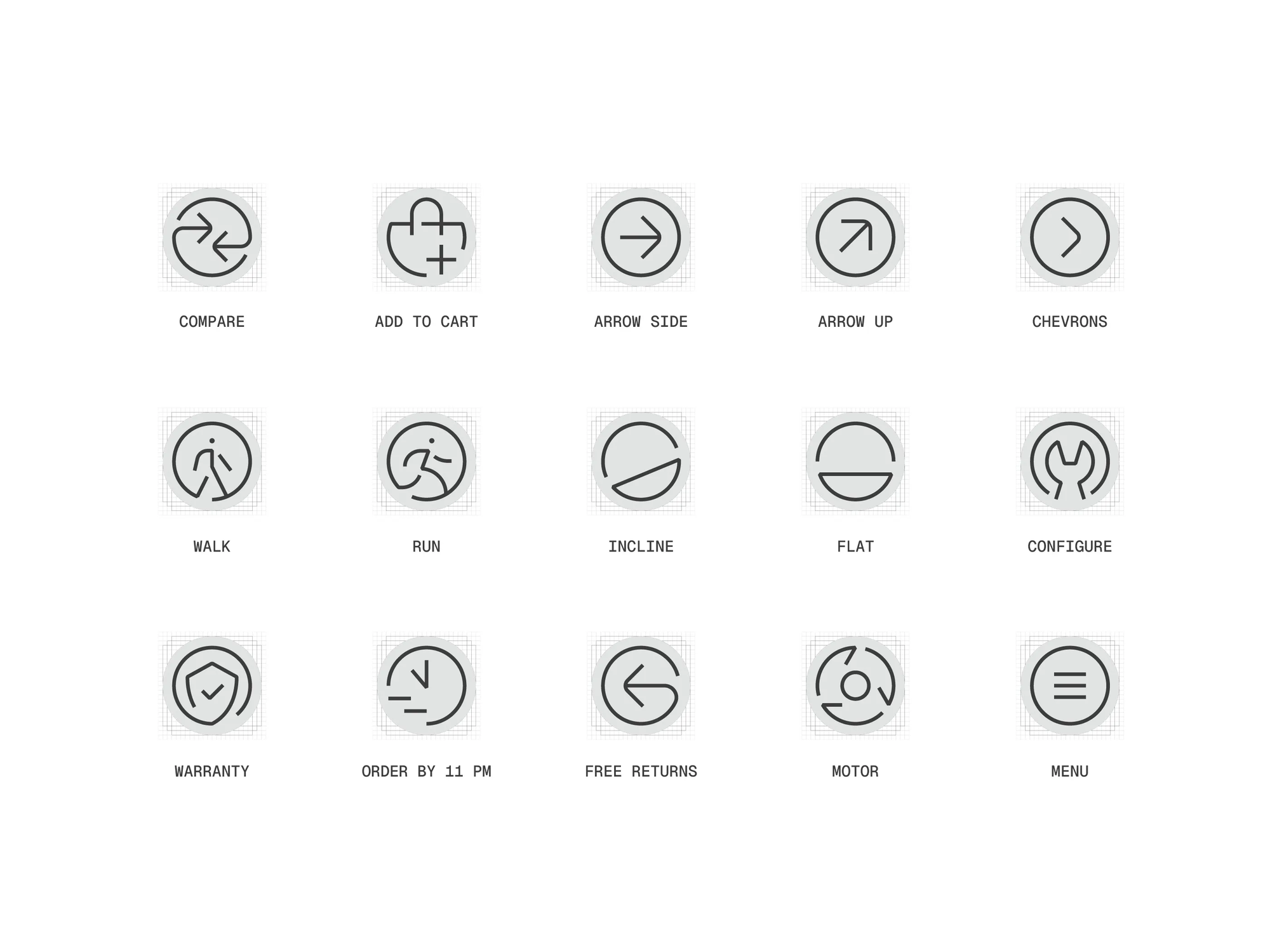
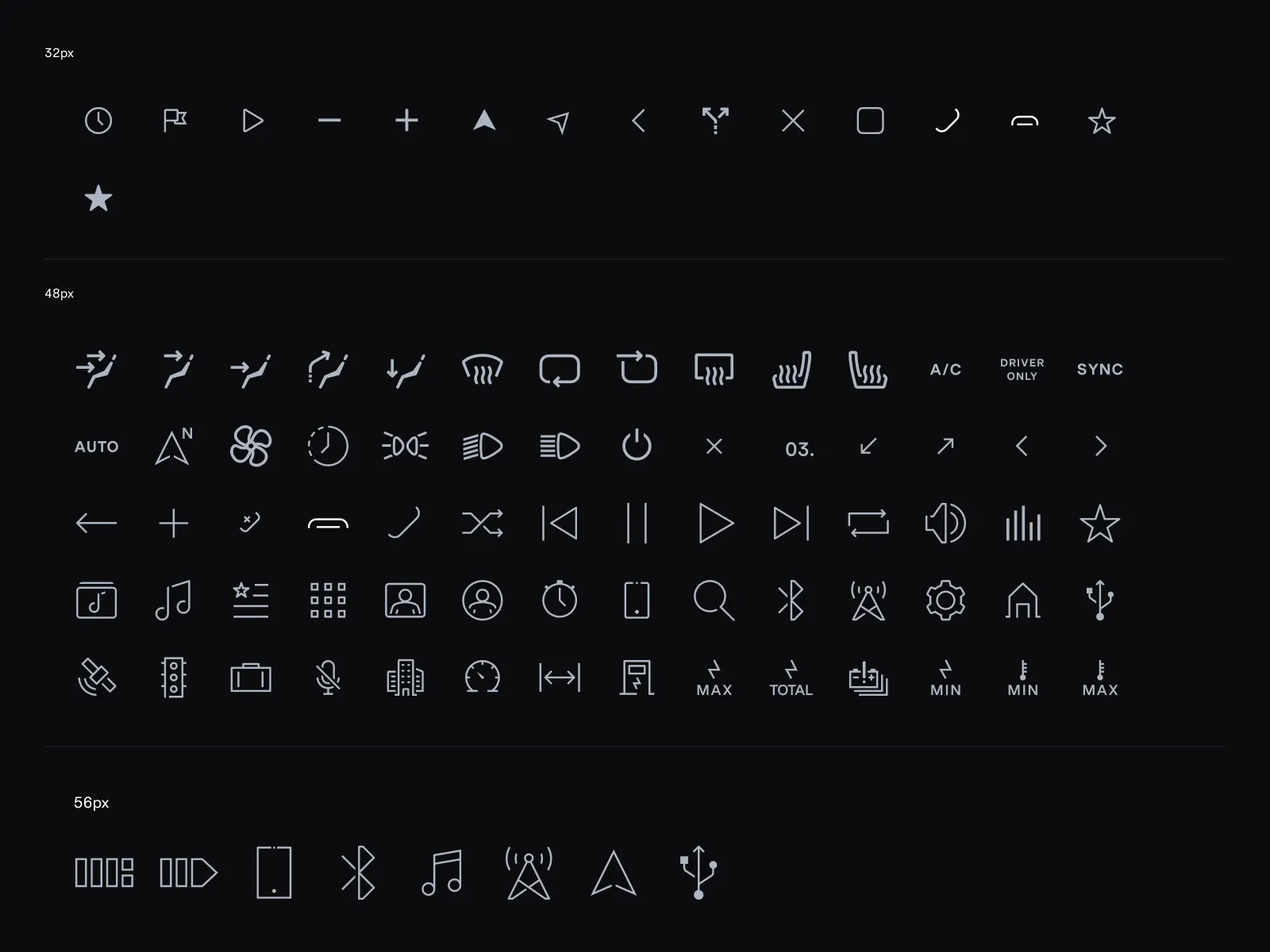
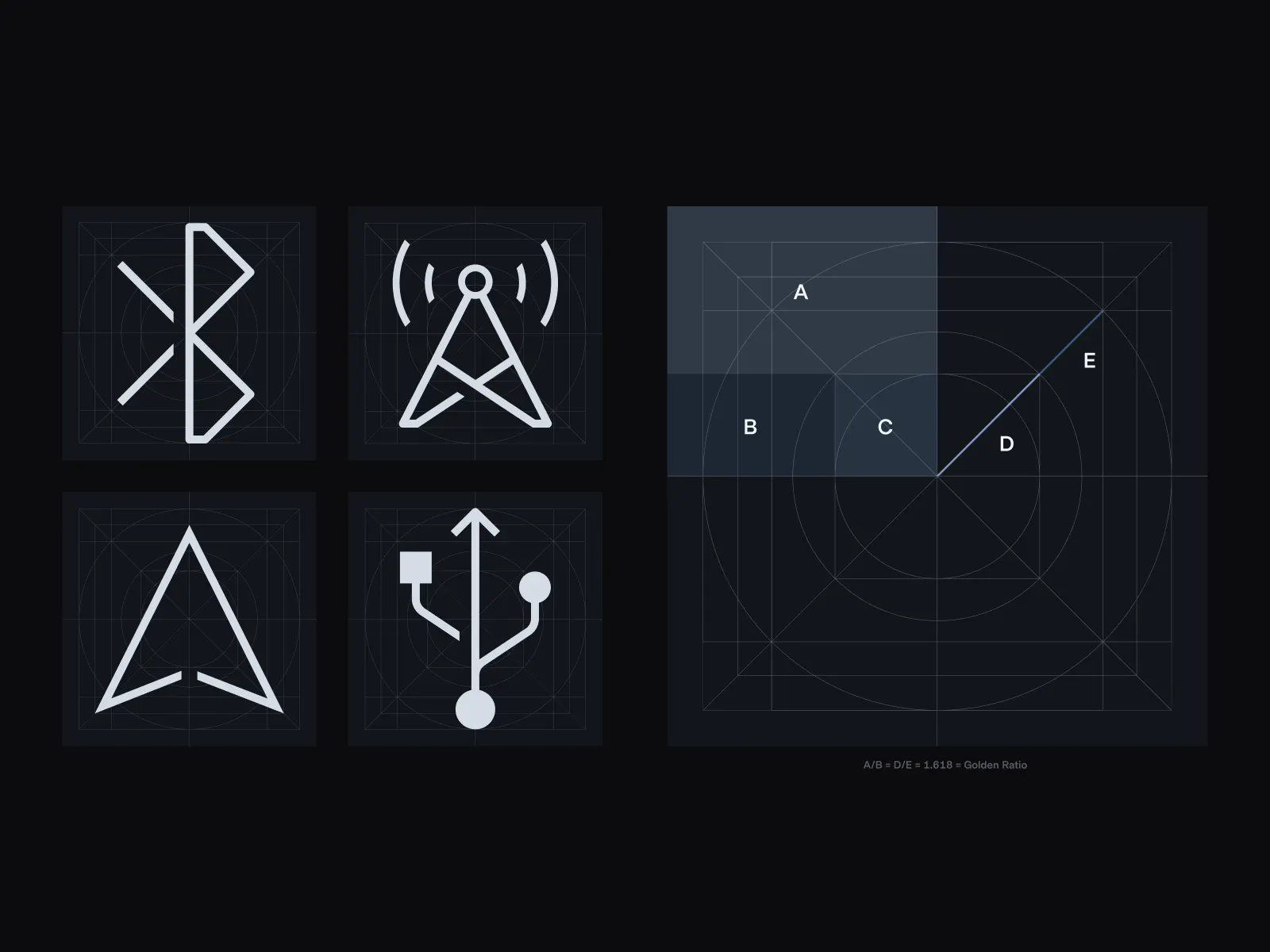


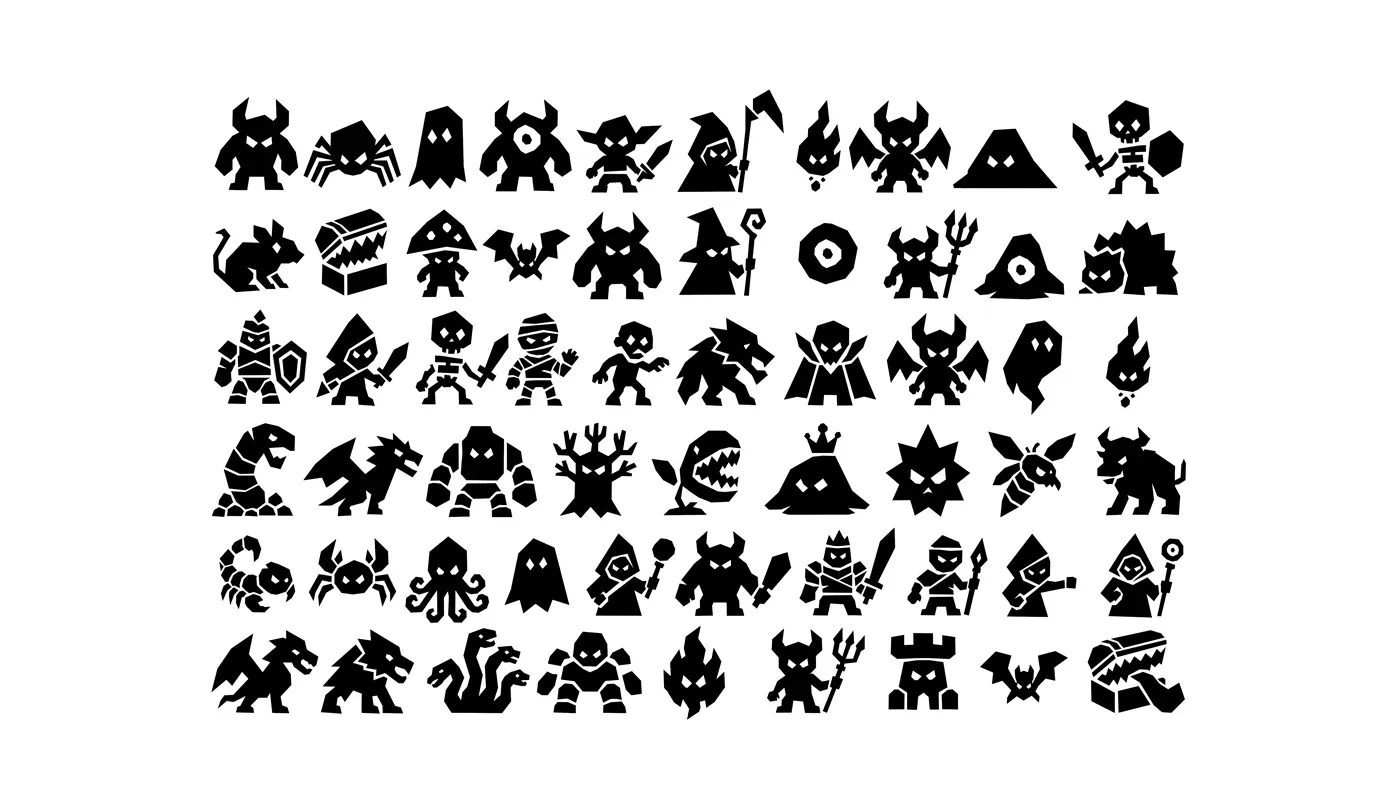
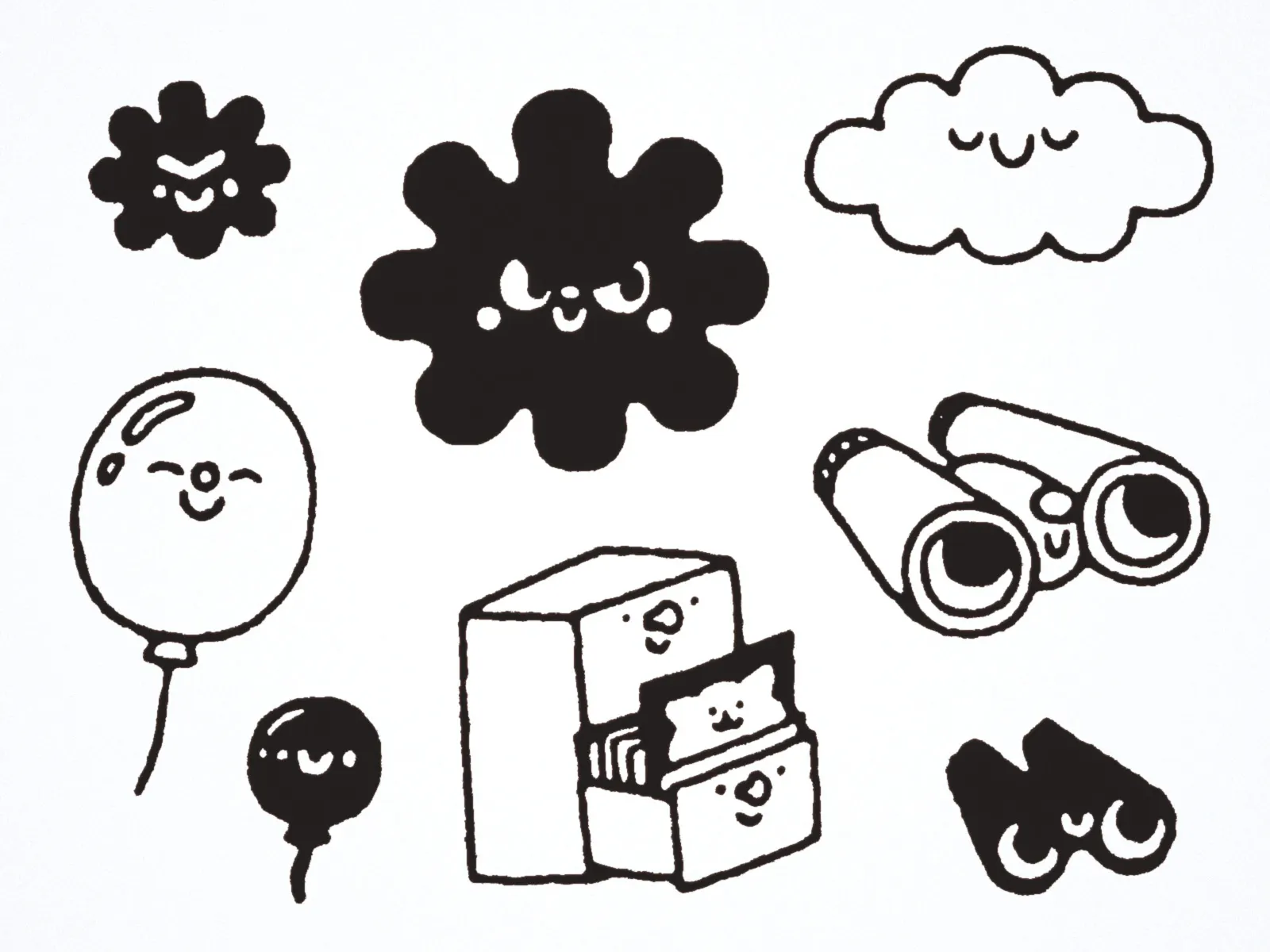
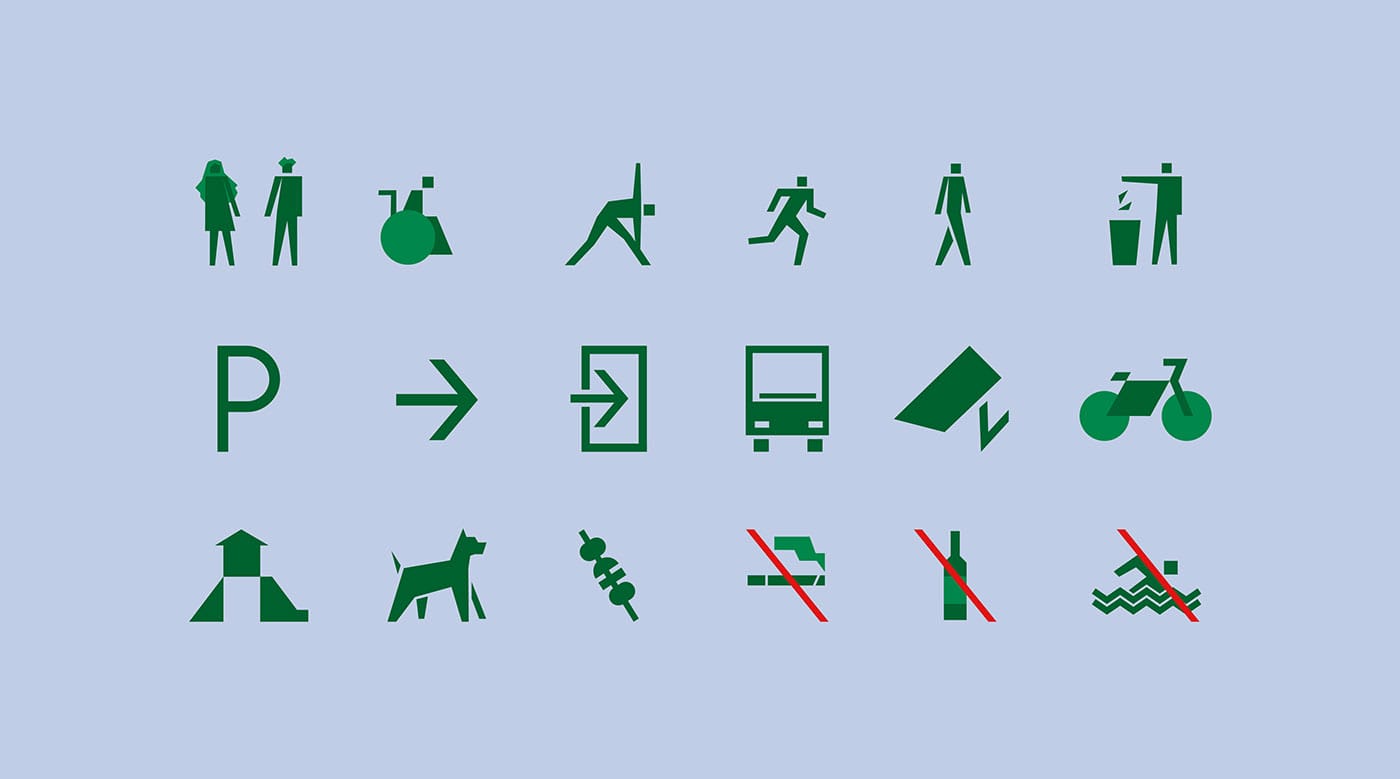
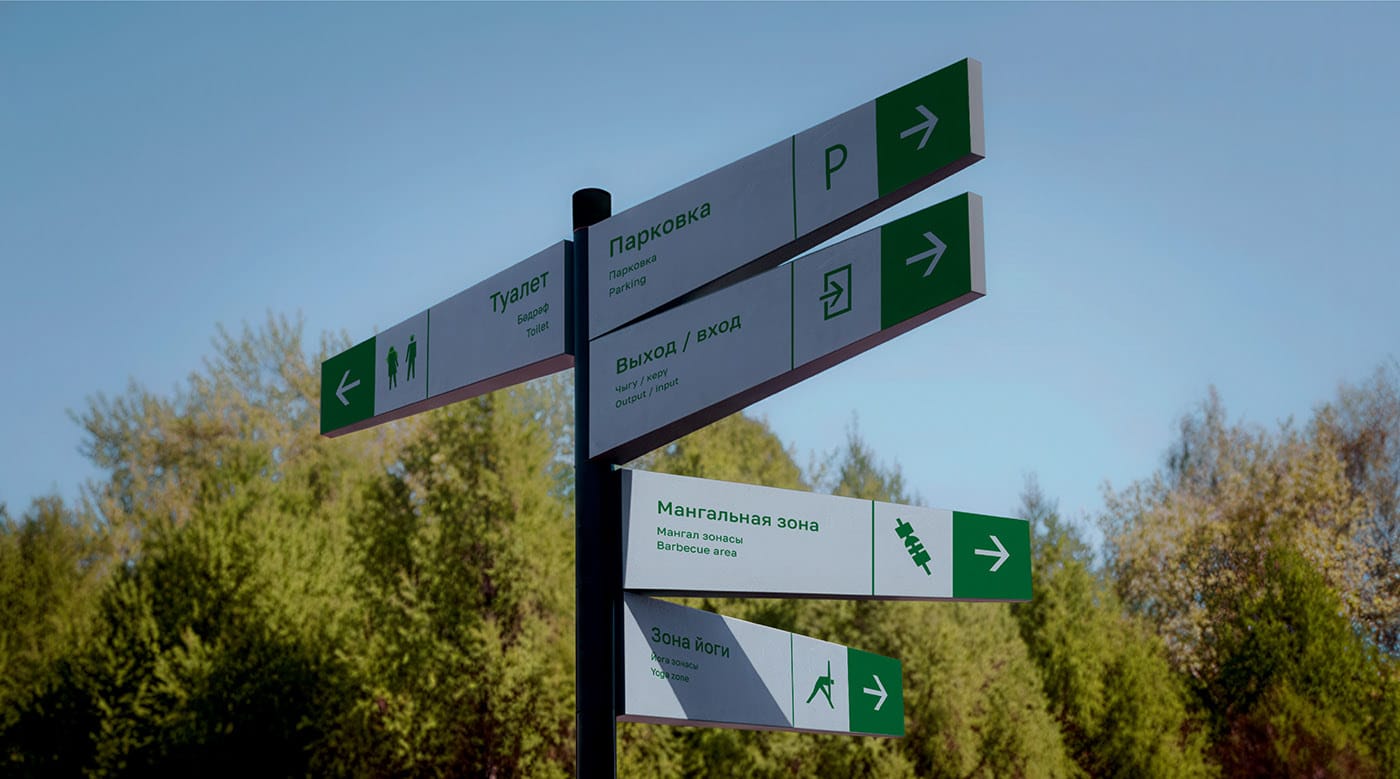
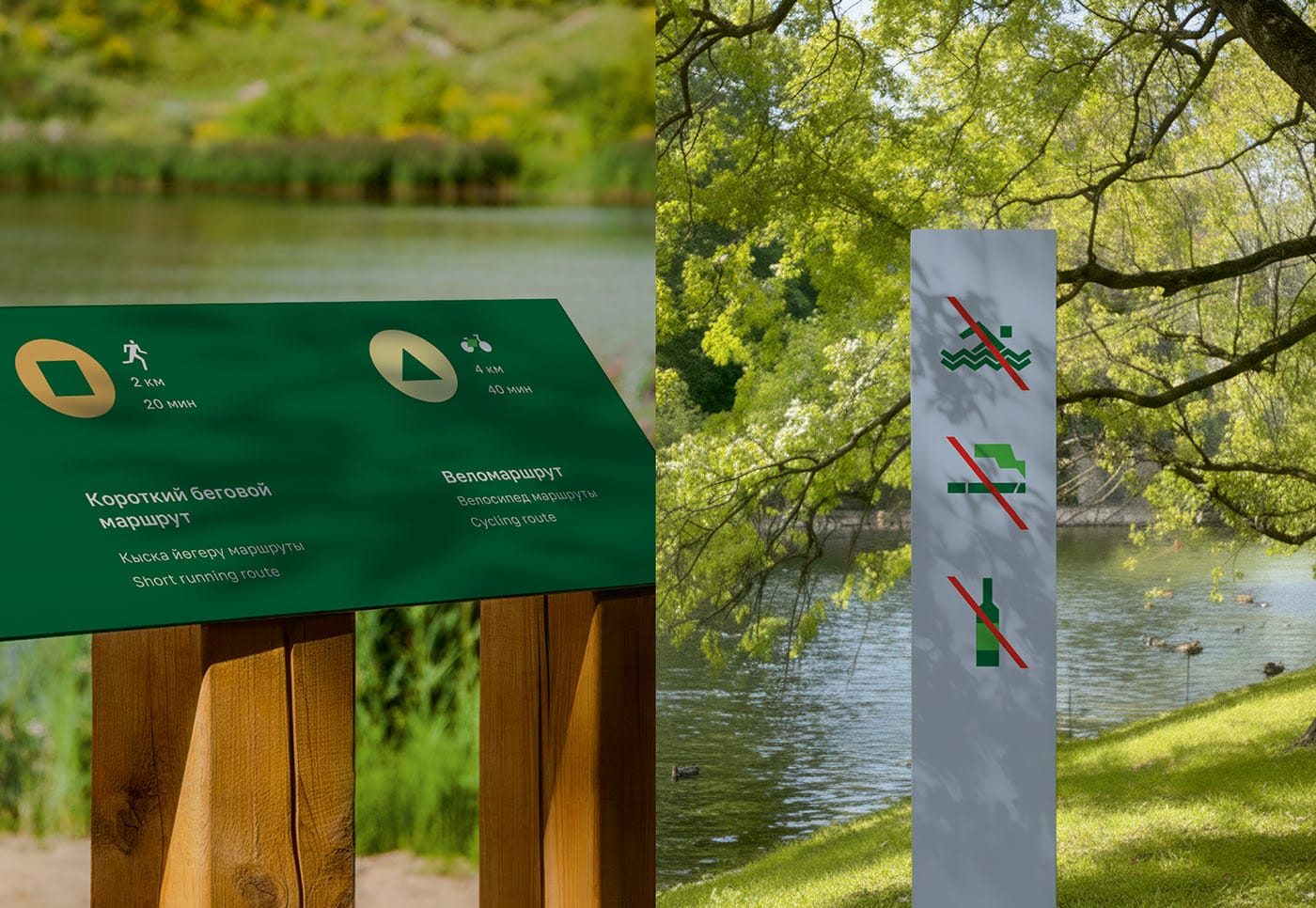
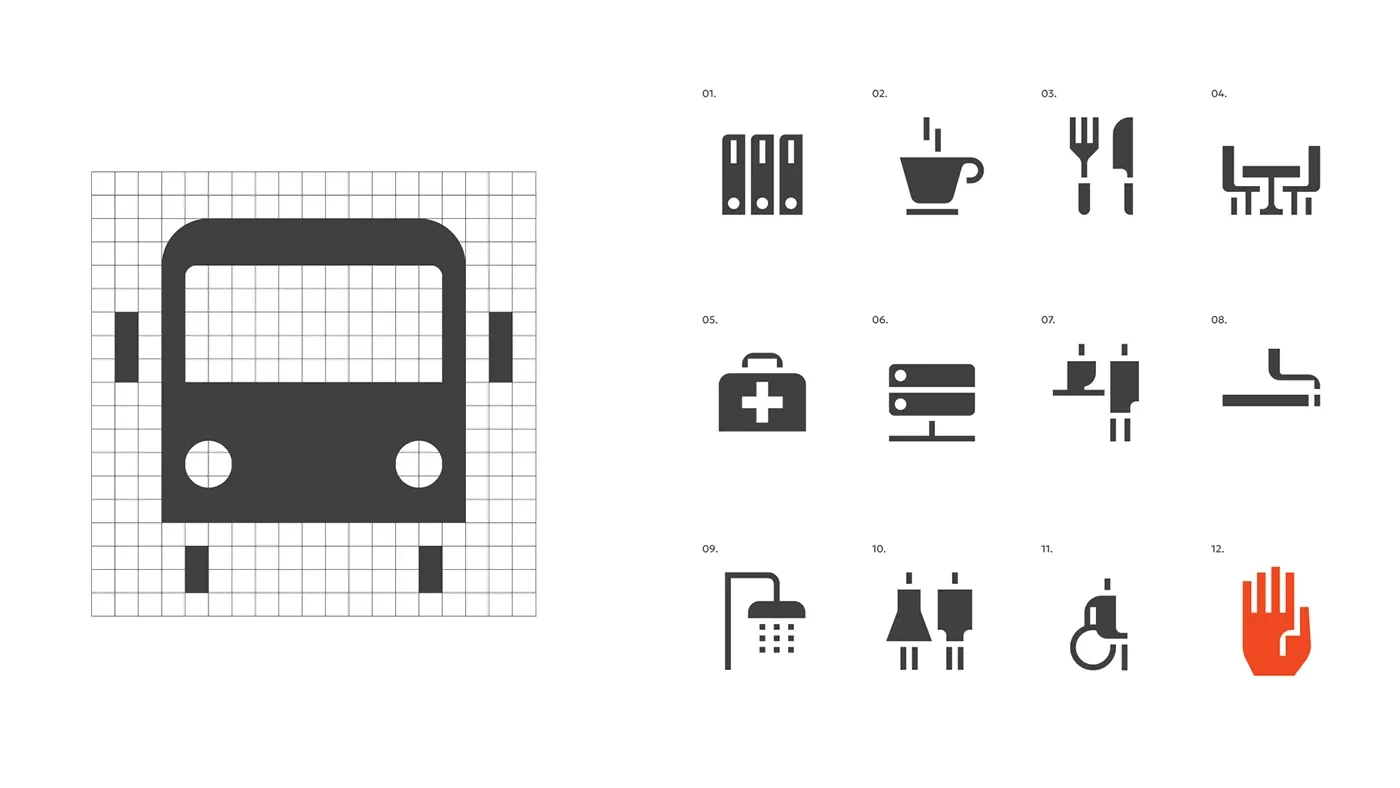
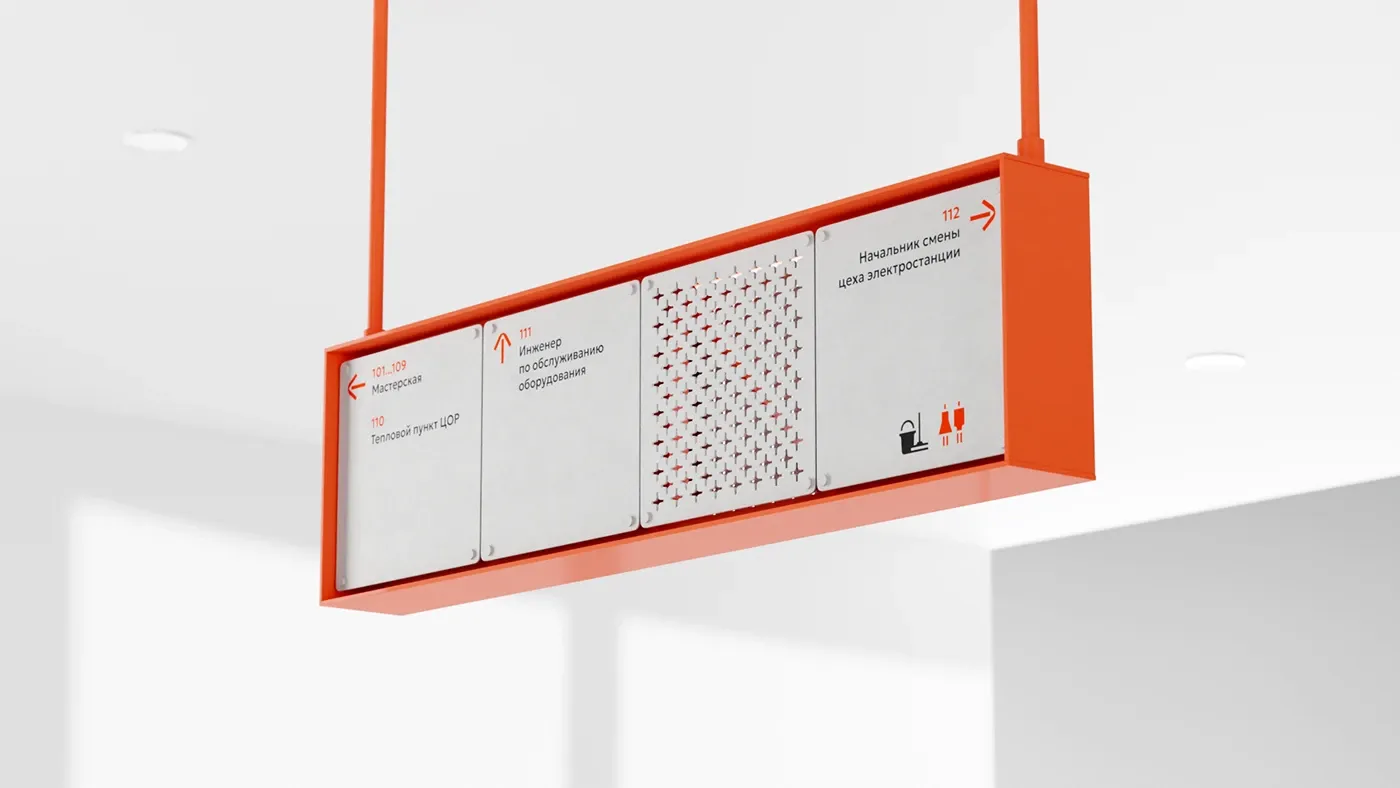
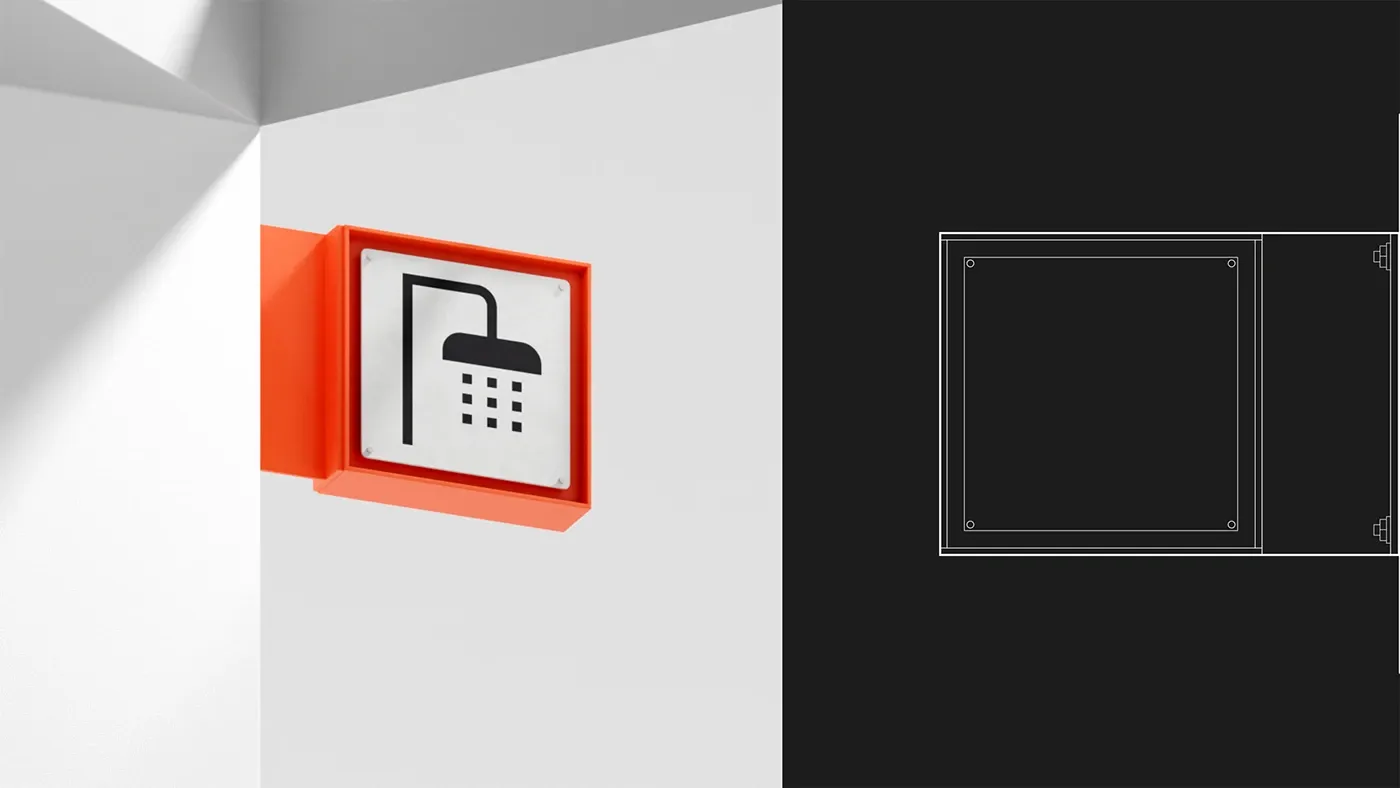
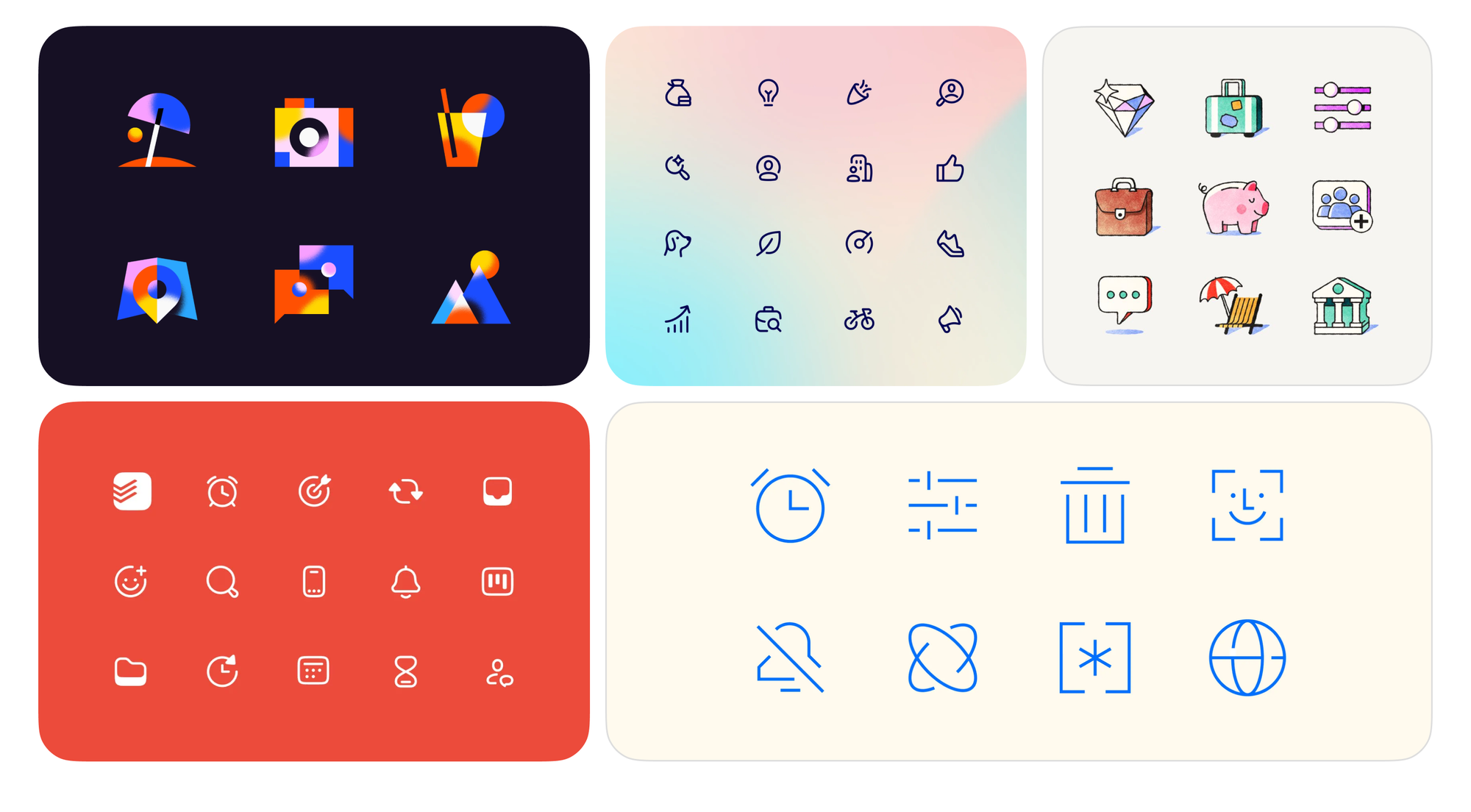
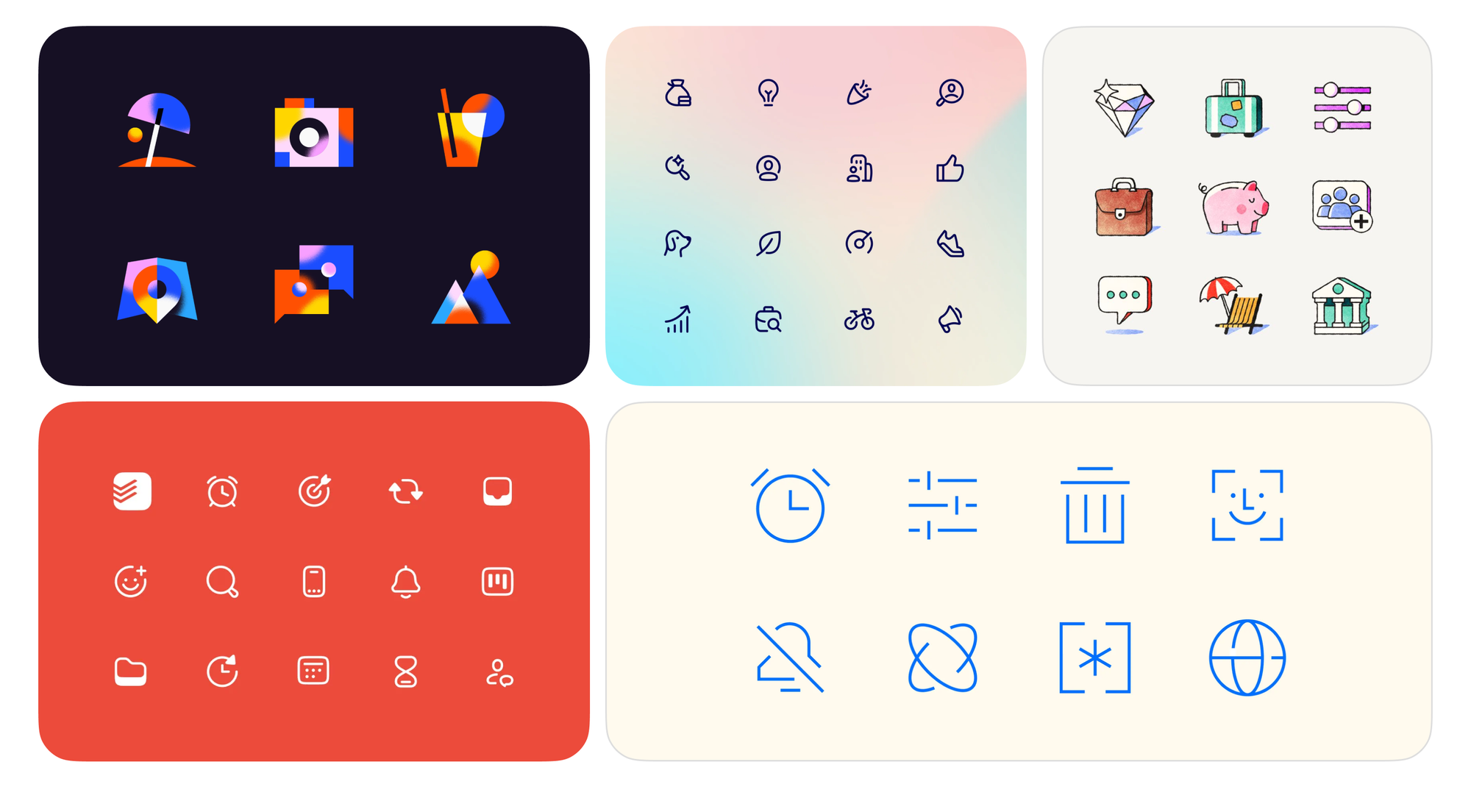
Submit your best icon designs (or creative use cases featuring Streamline icons) and get featured in our monthly showcase.
The icon design community never ceases to amaze us. Each month brings fresh creativity, and we’ll be back with more handpicked projects to spark your inspiration. ✨
Missed a past edition? Explore the Icon Spotlight posts.
2026-08-31 14:40:29
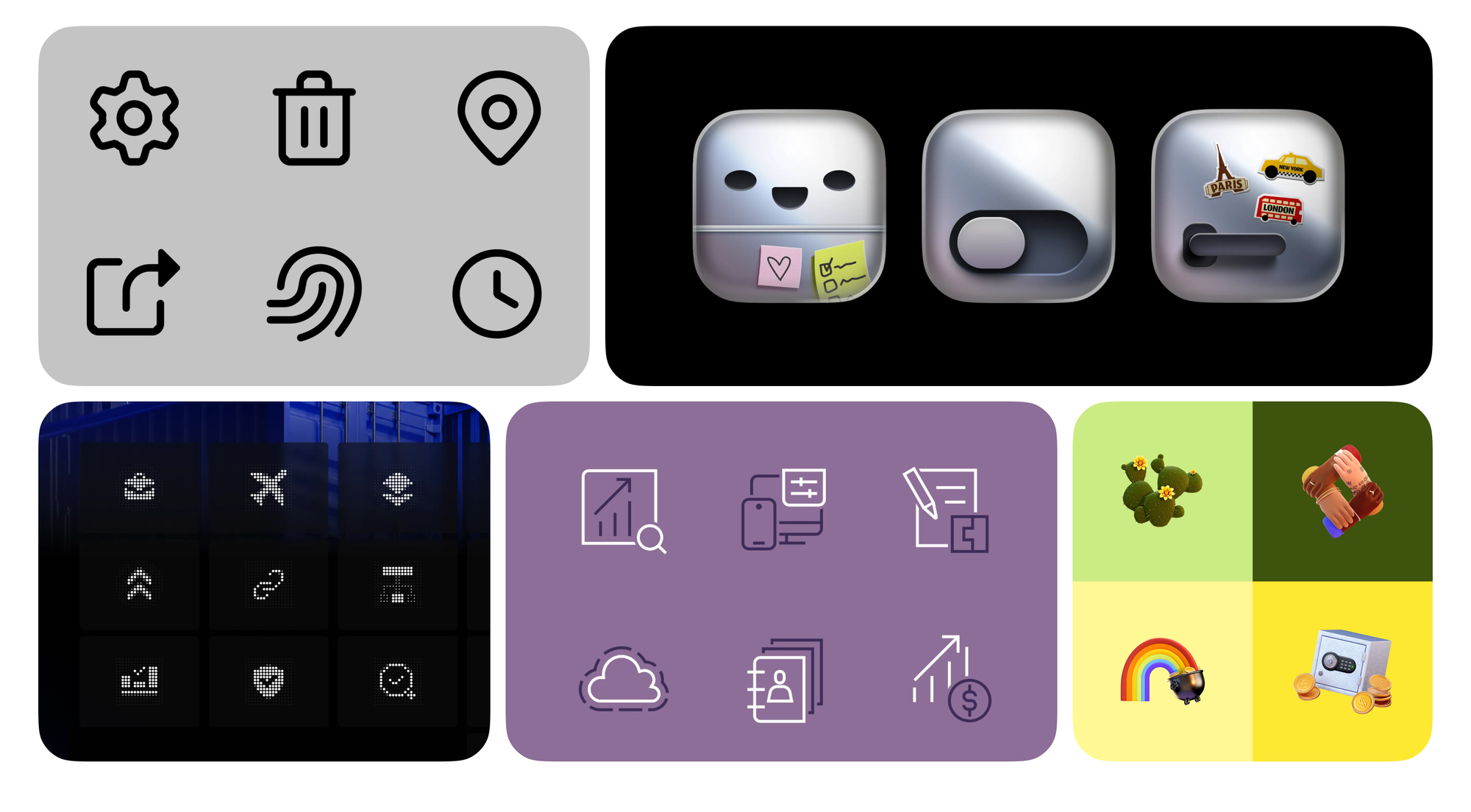
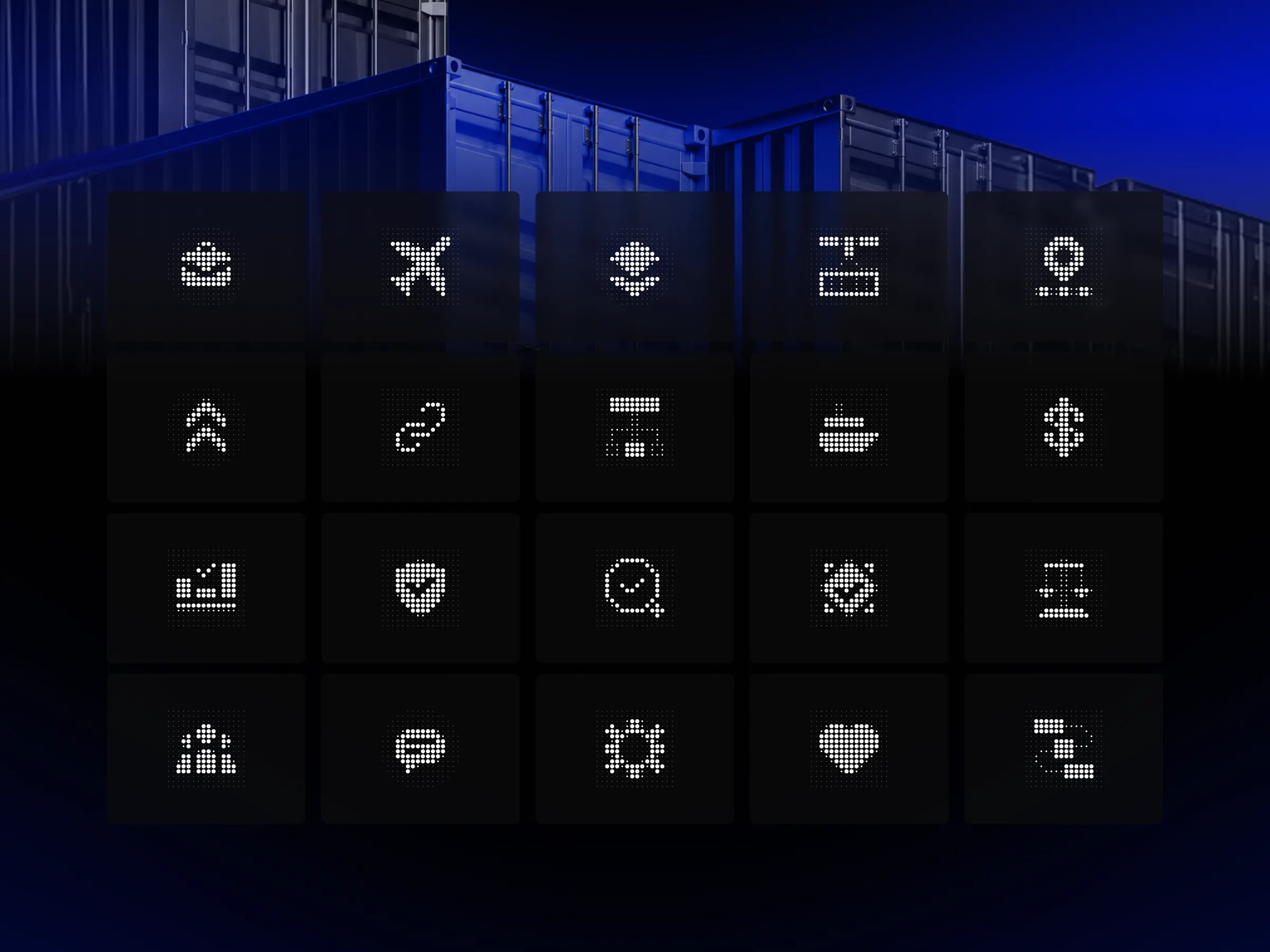
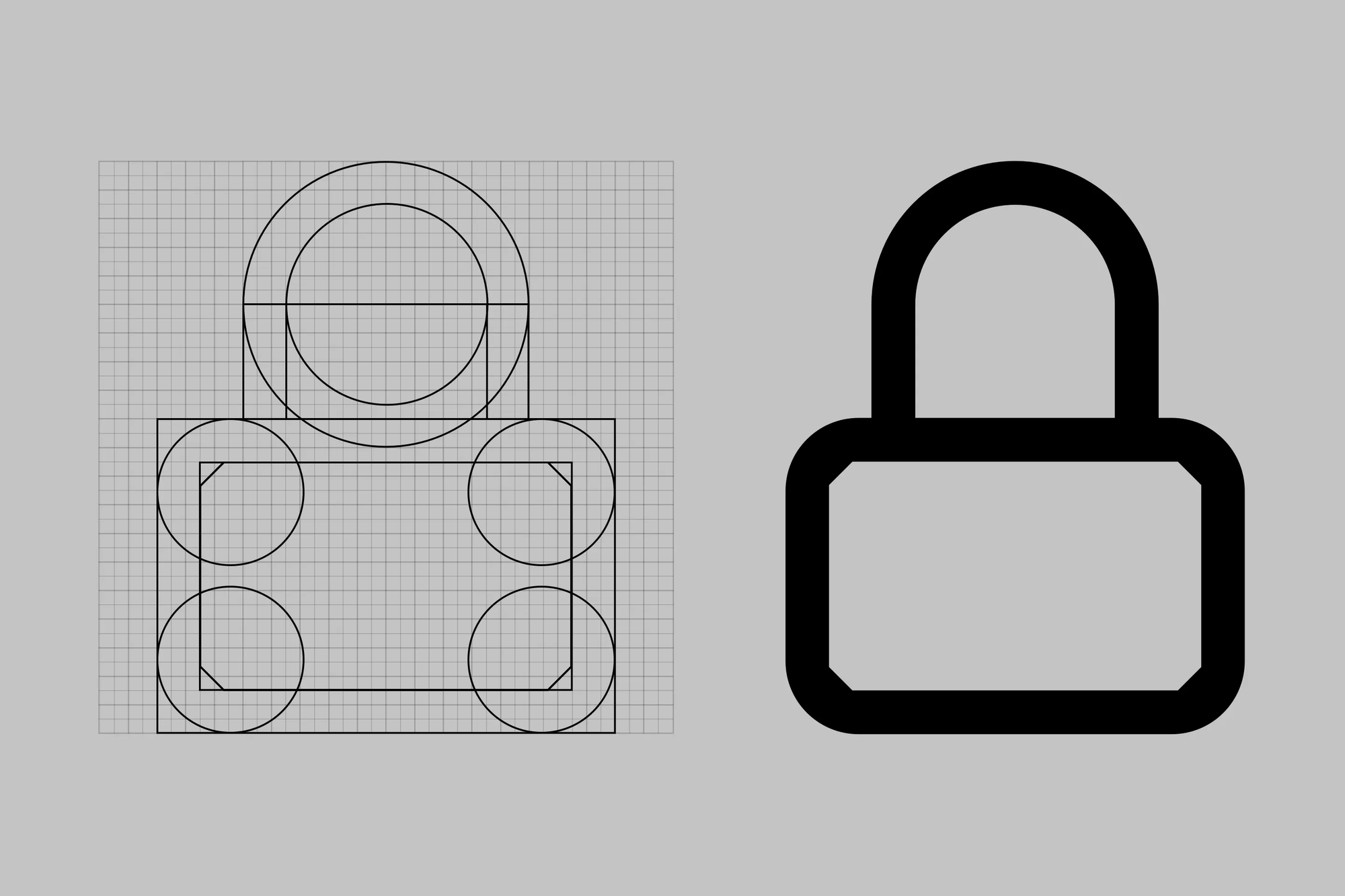
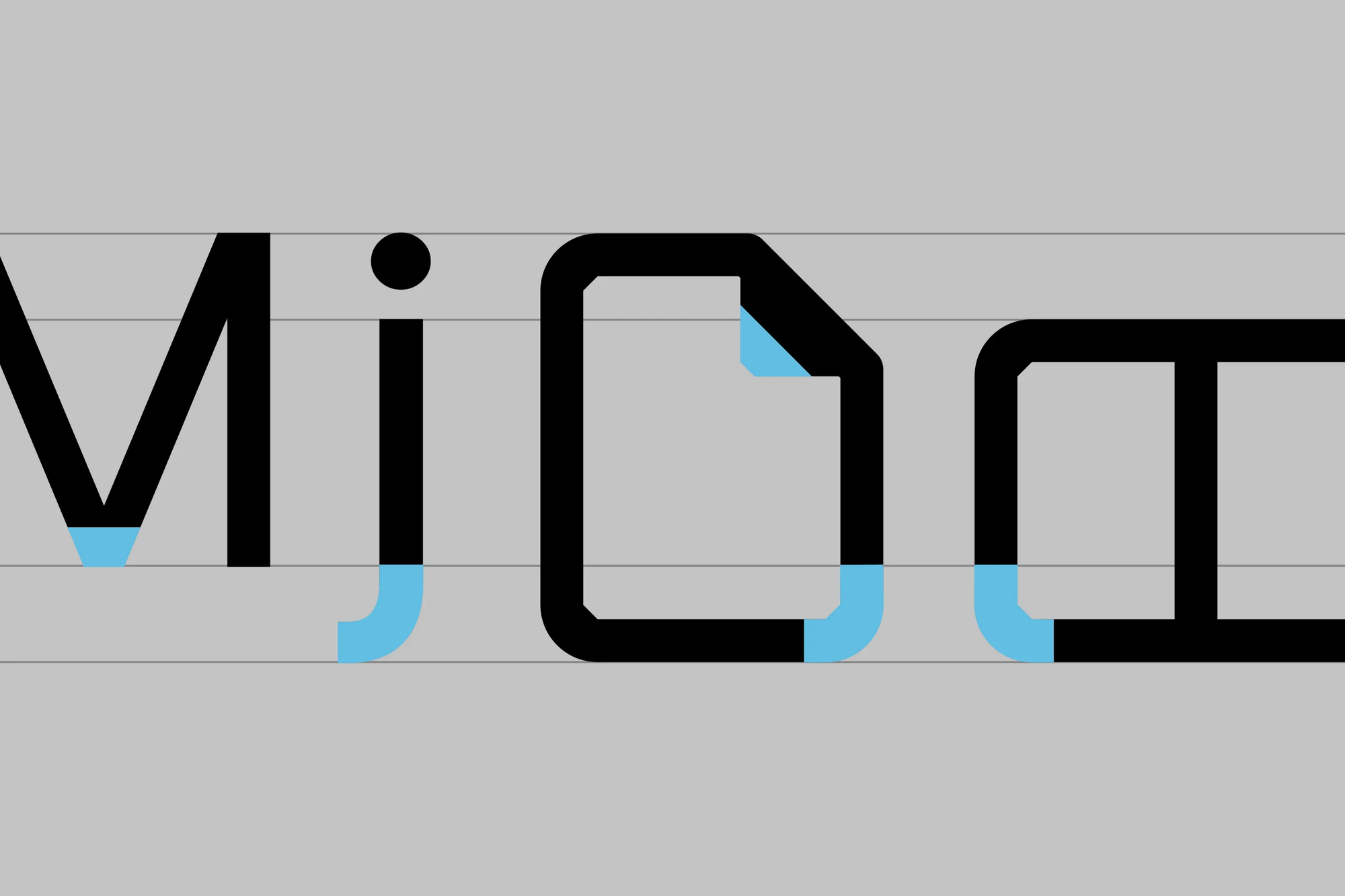
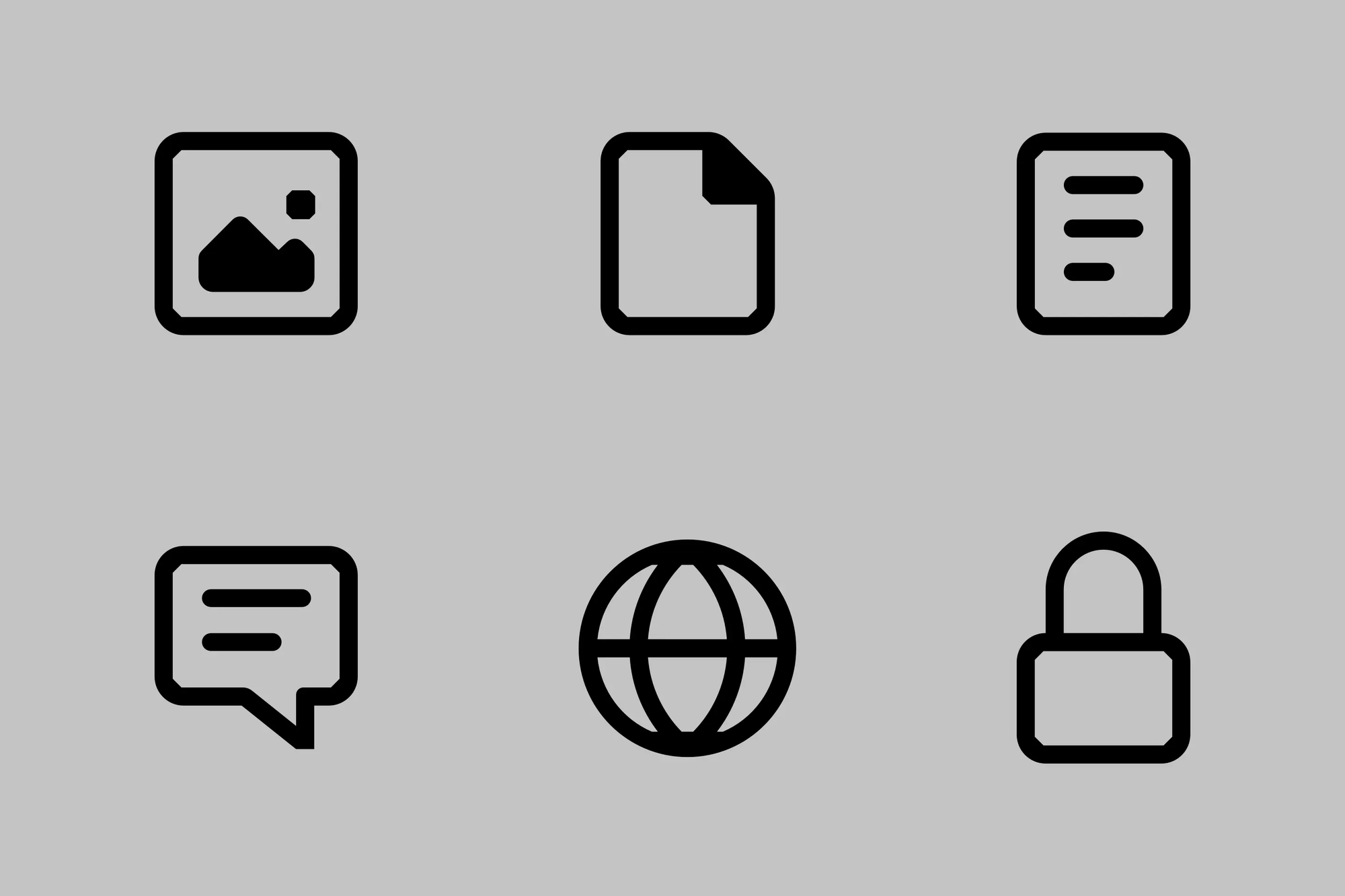
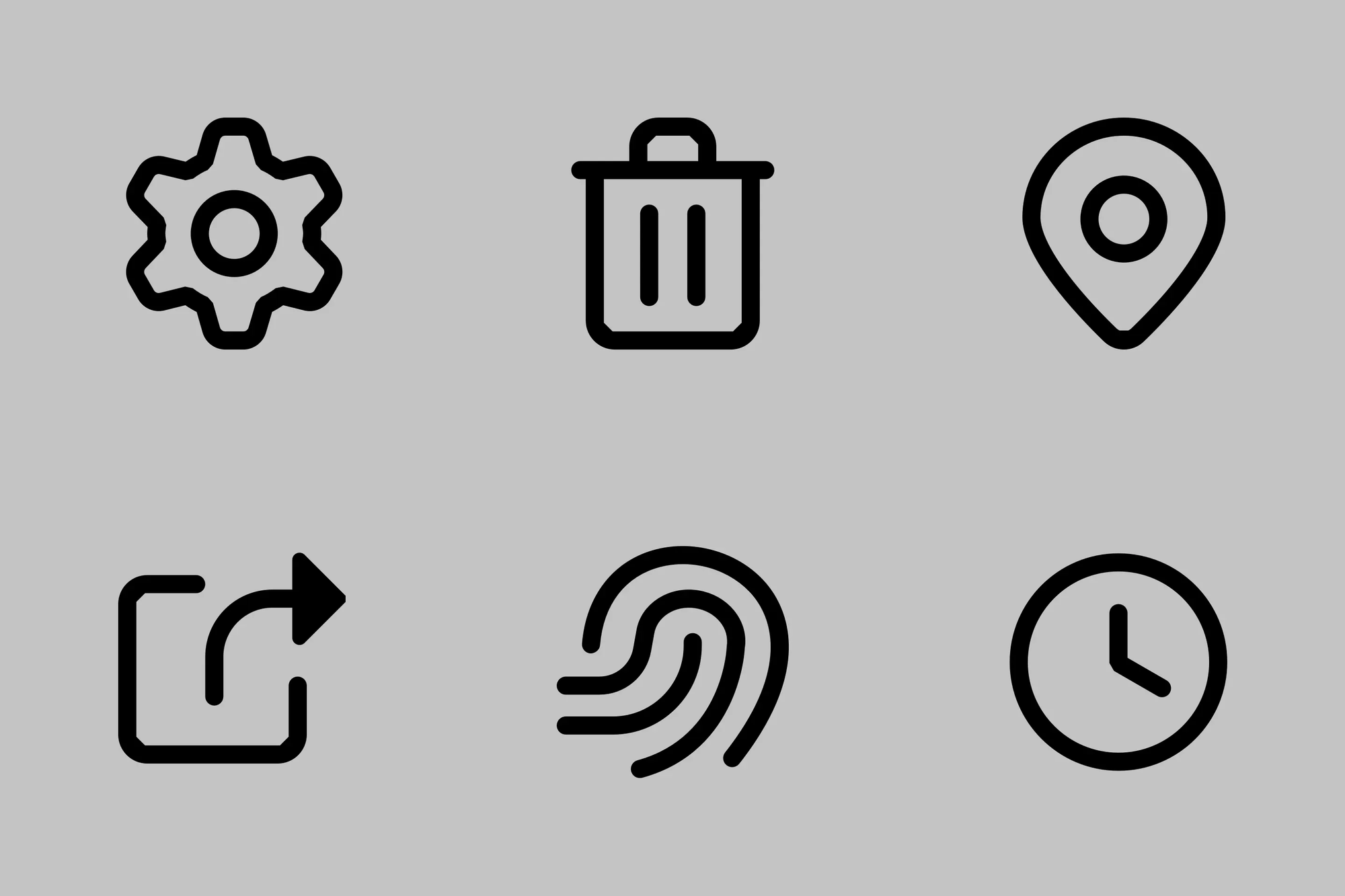
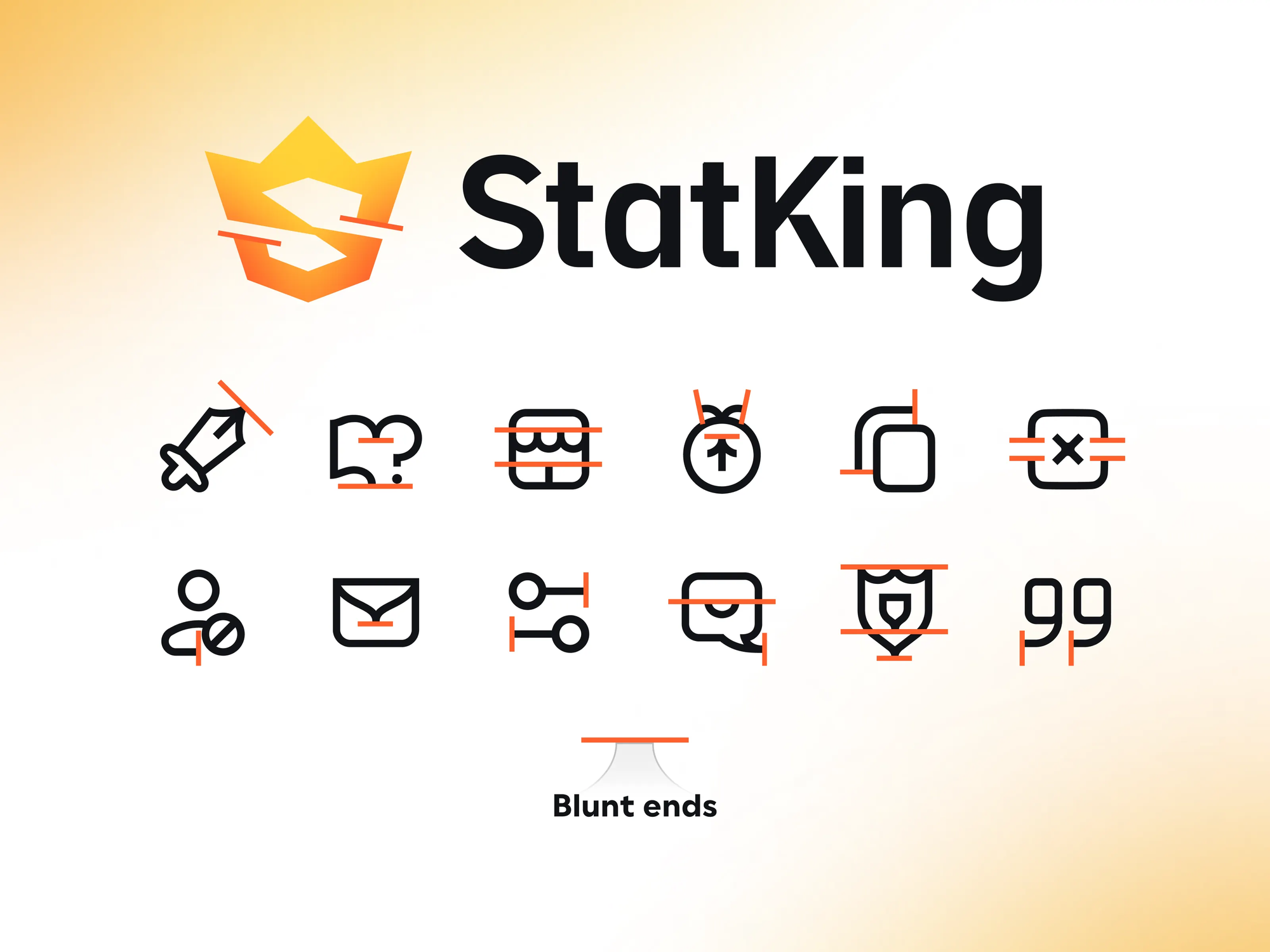
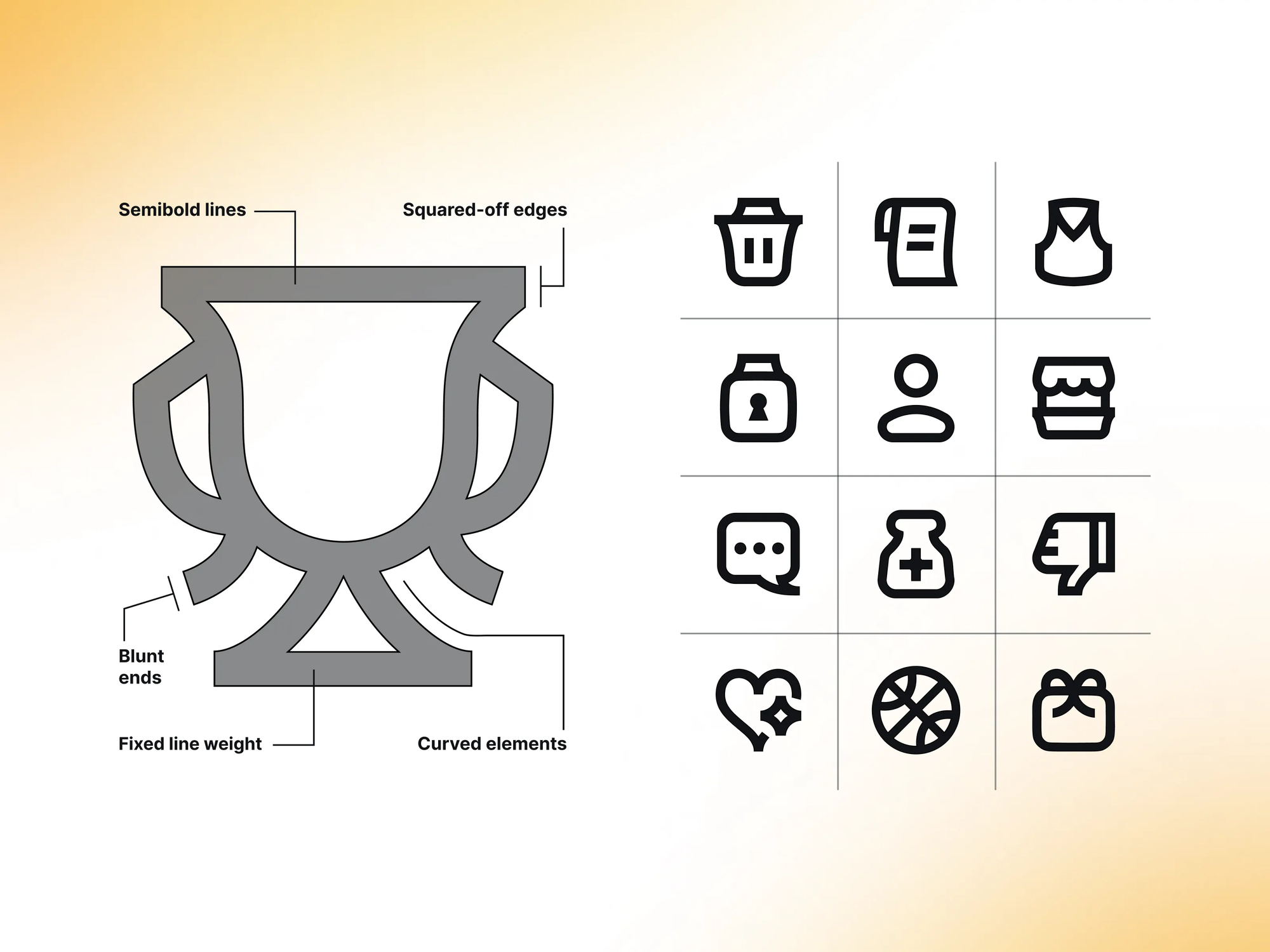
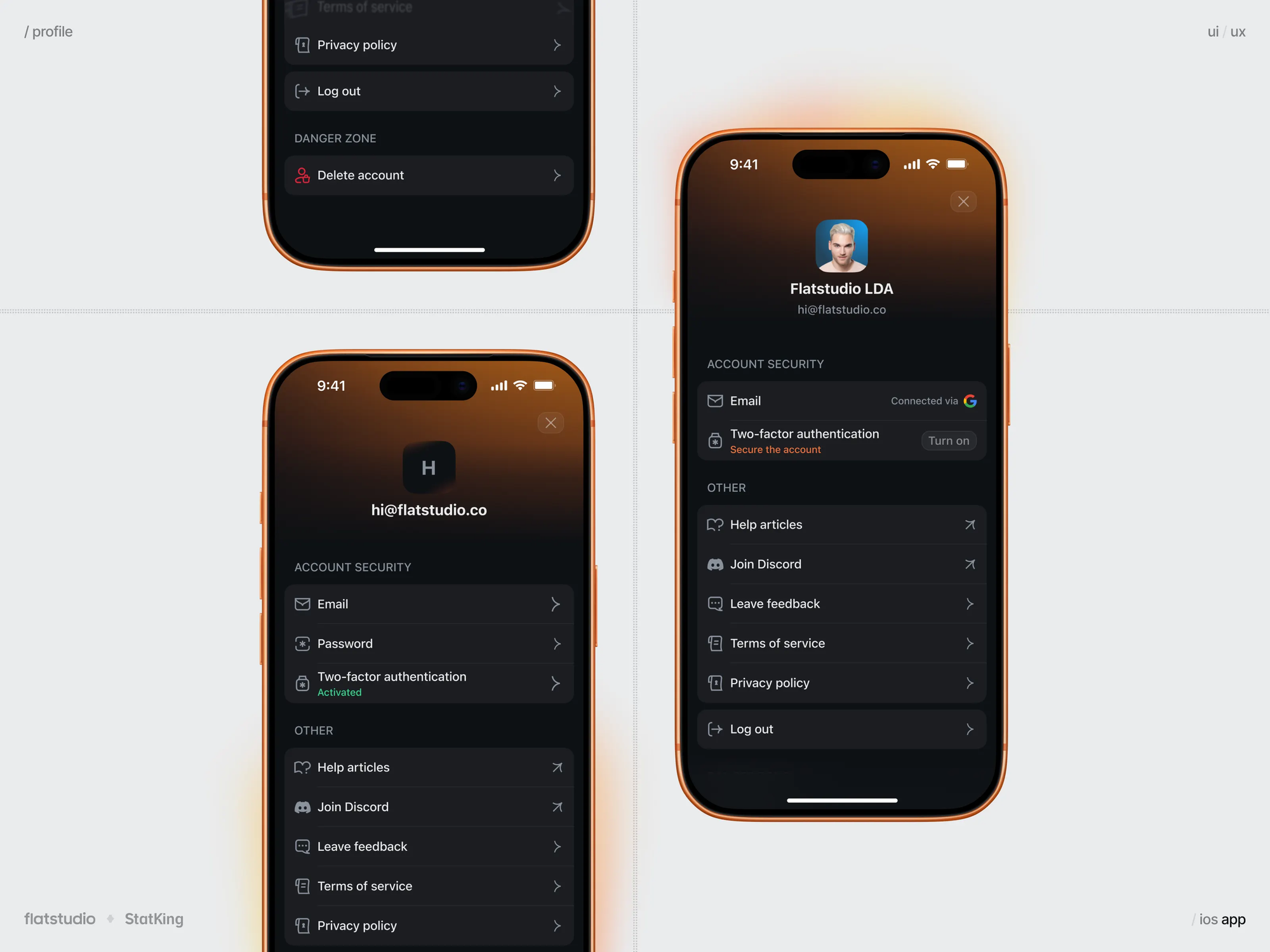
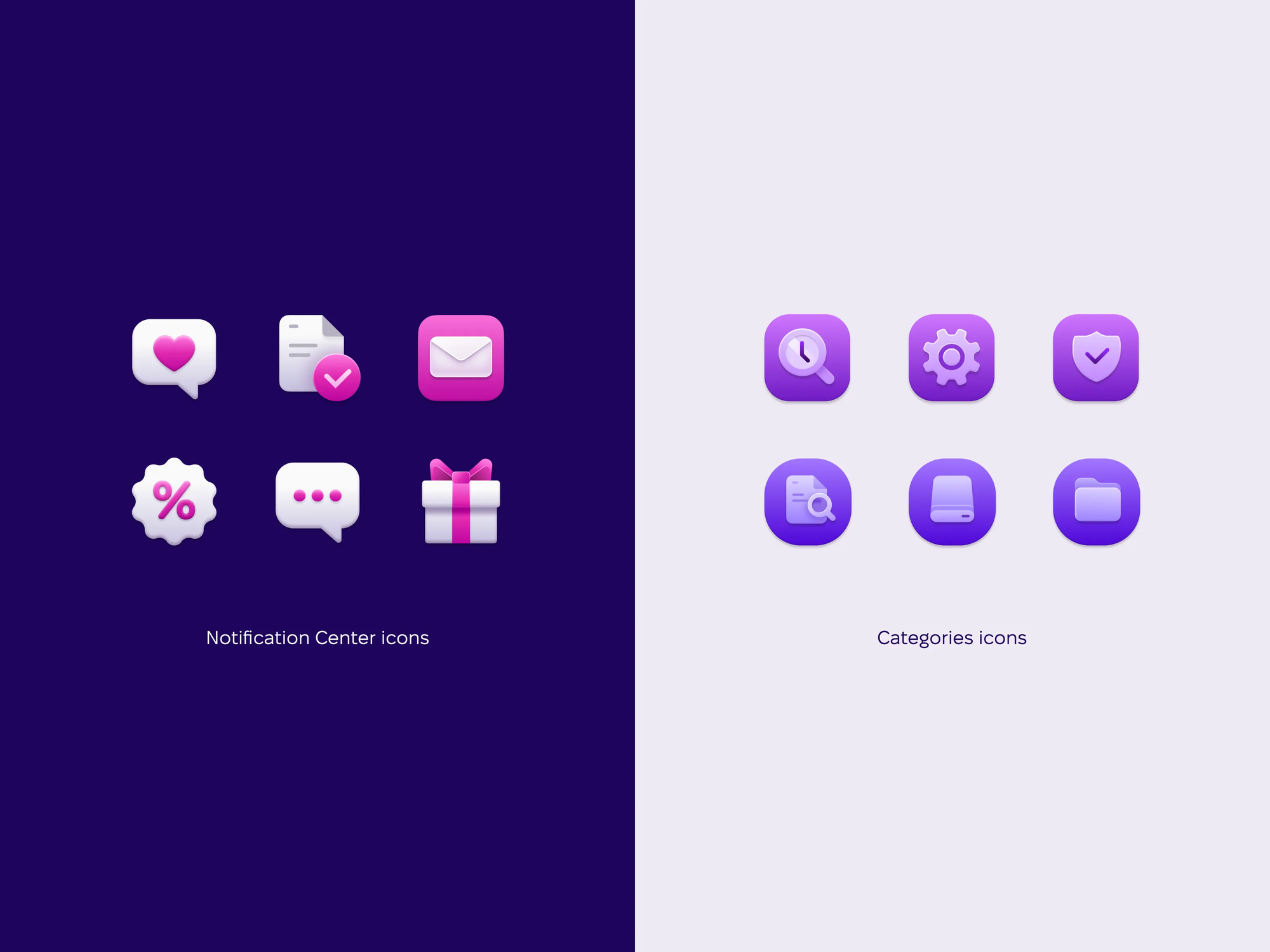
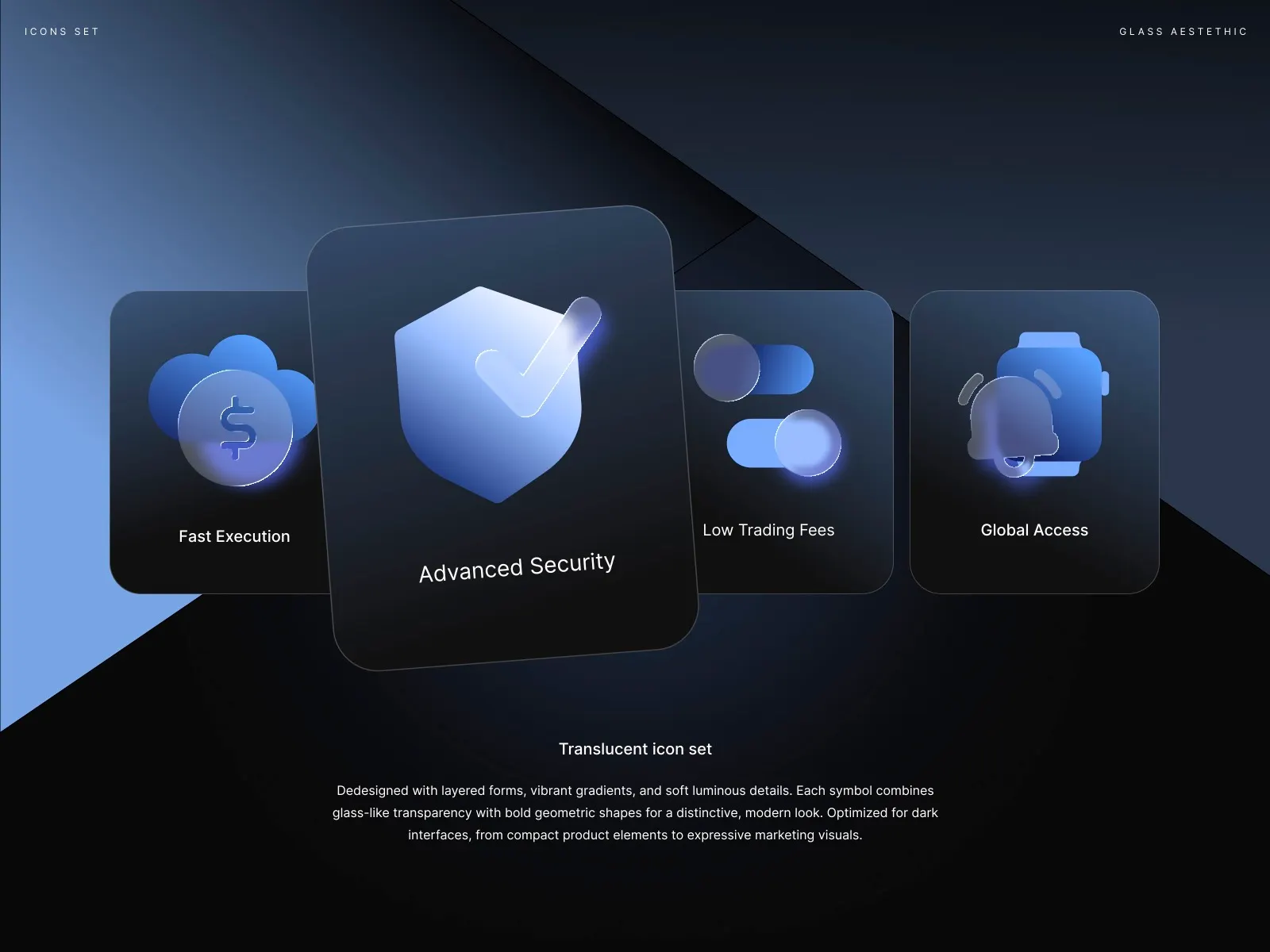
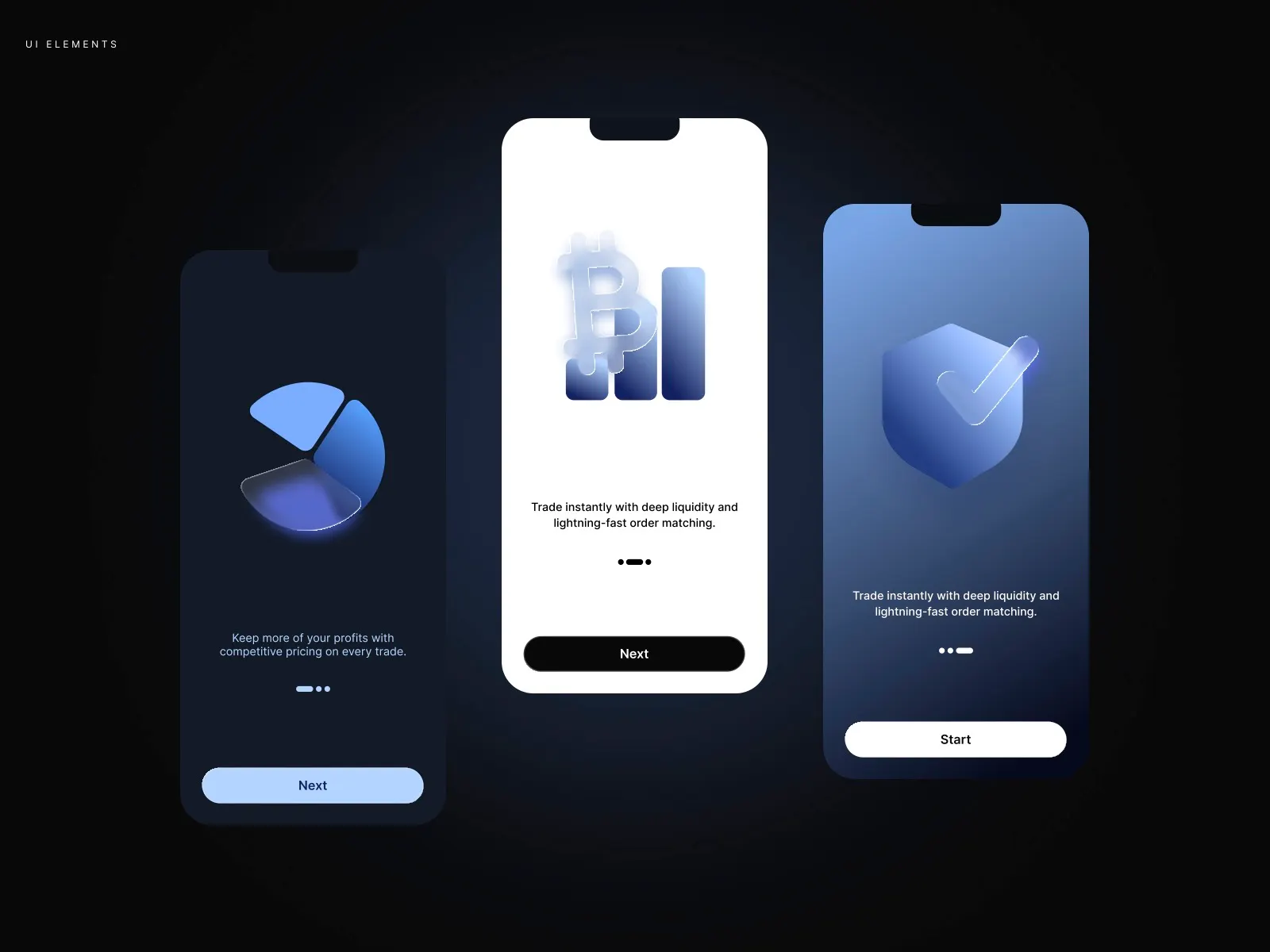
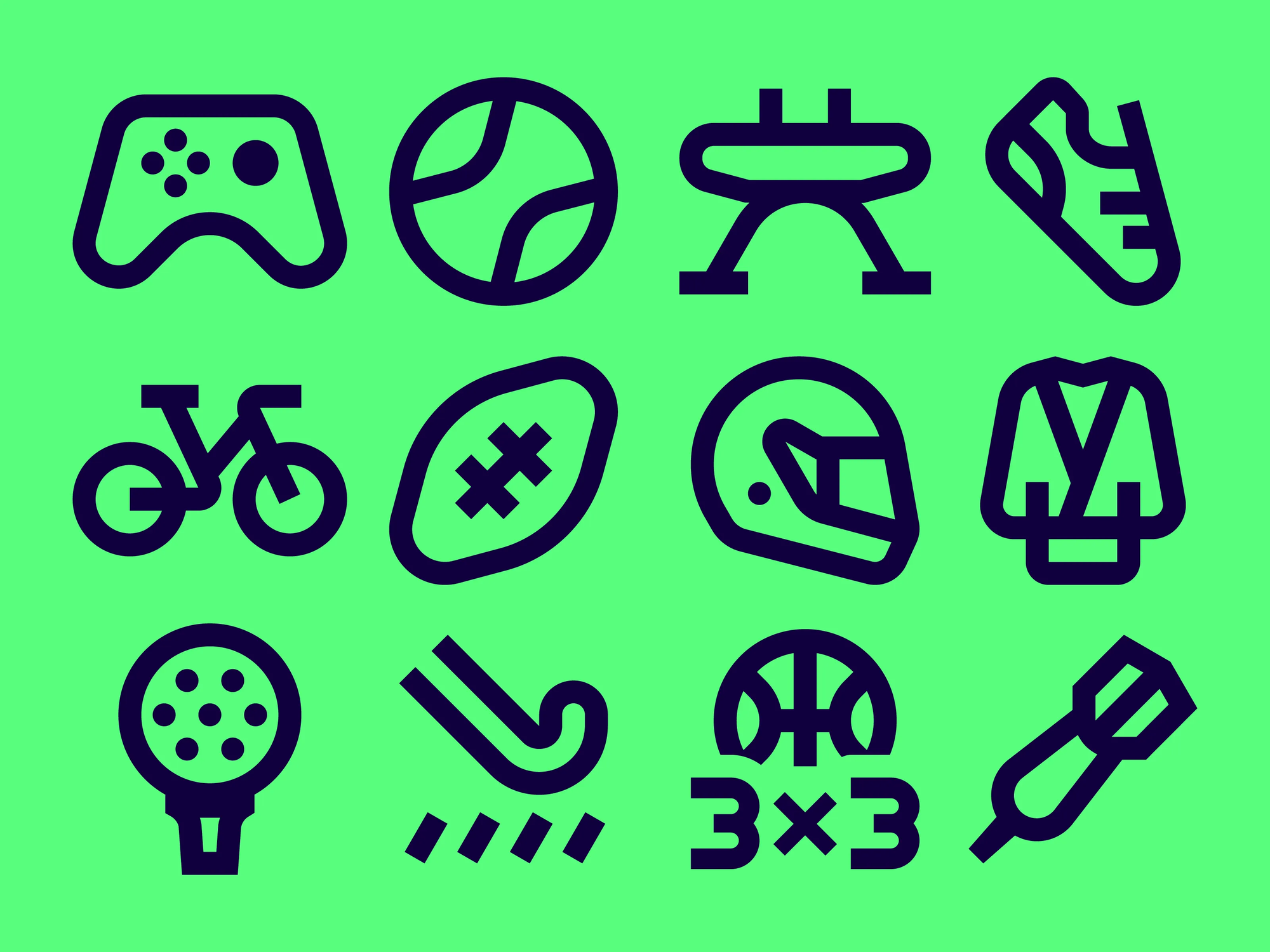


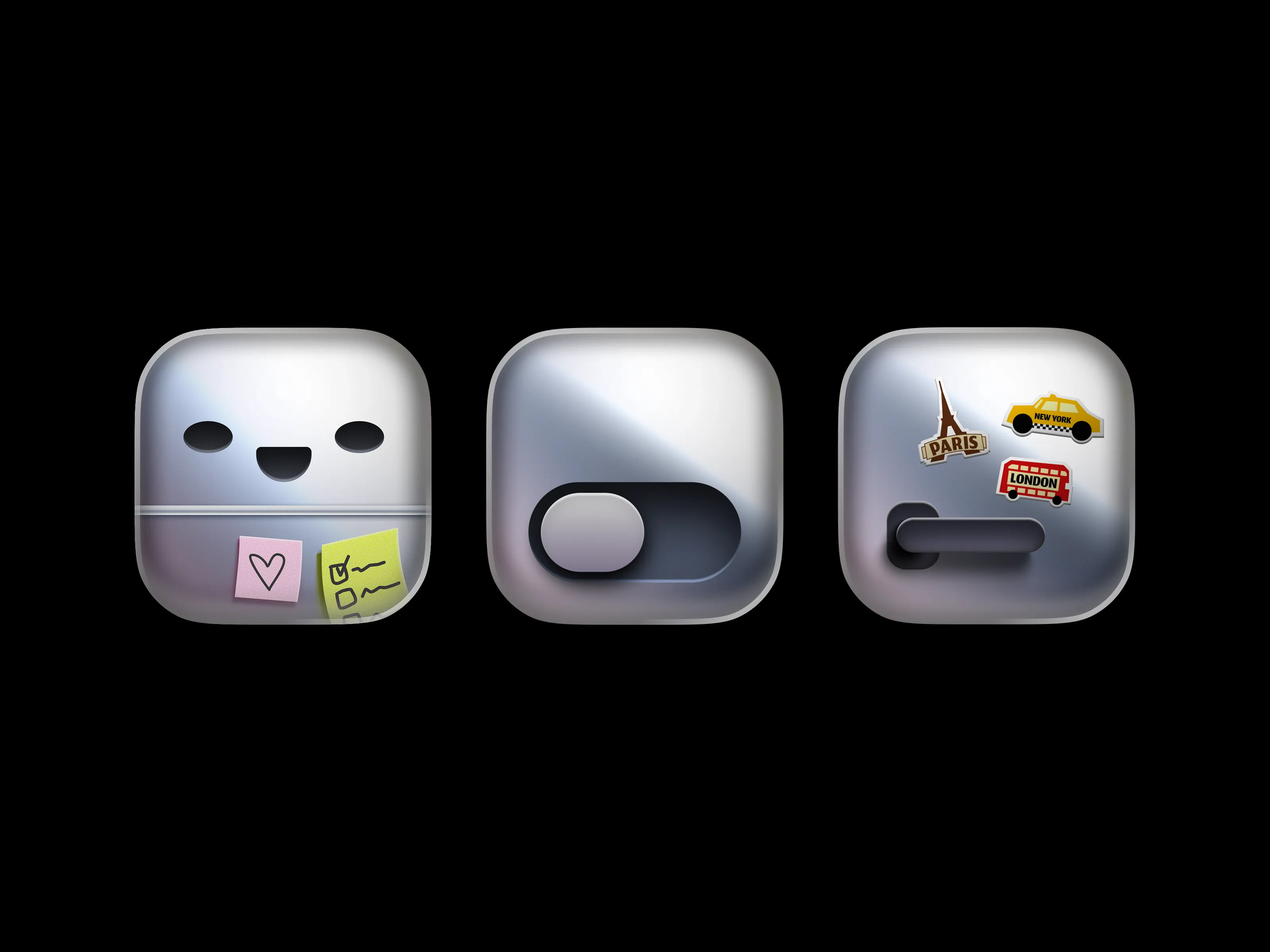
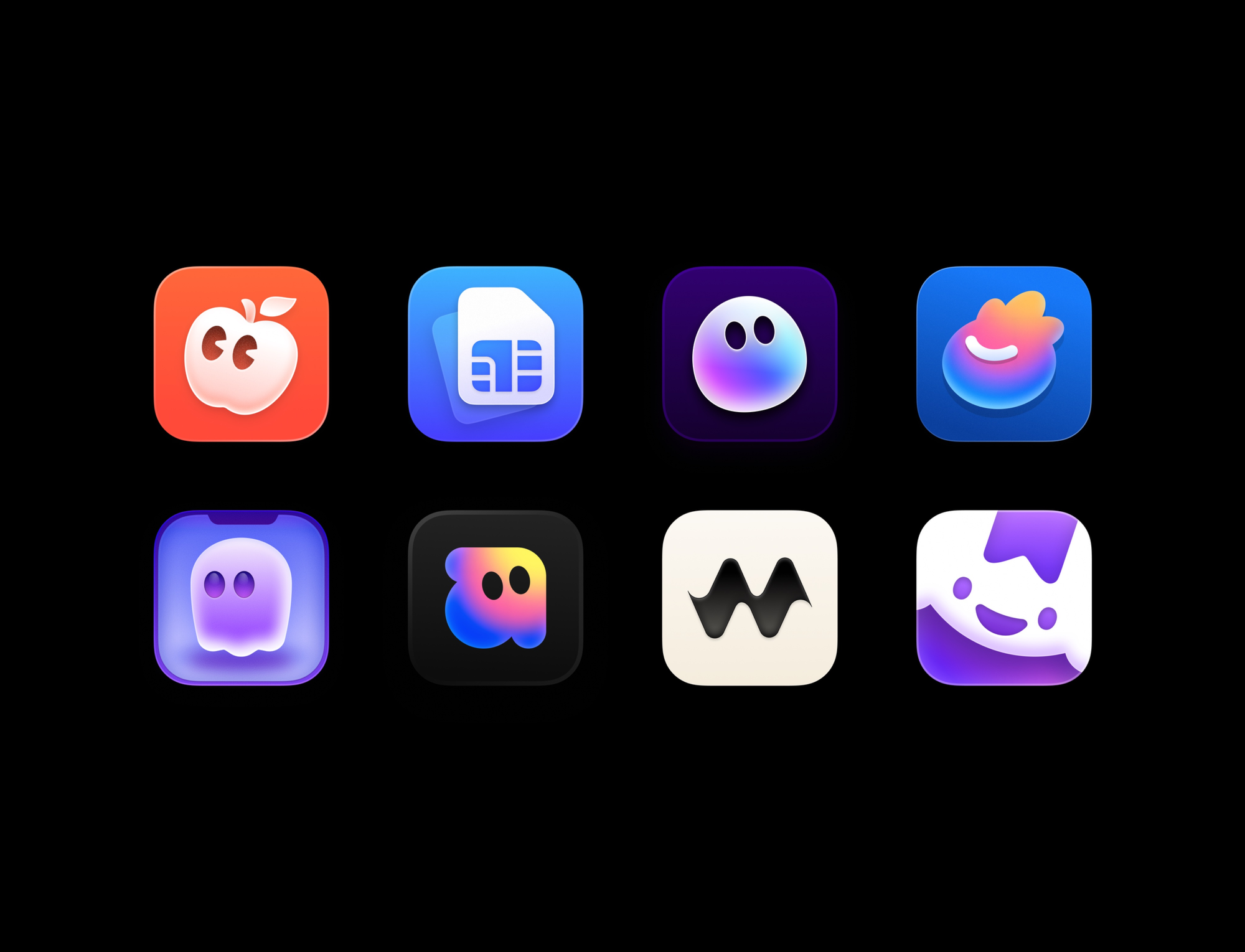
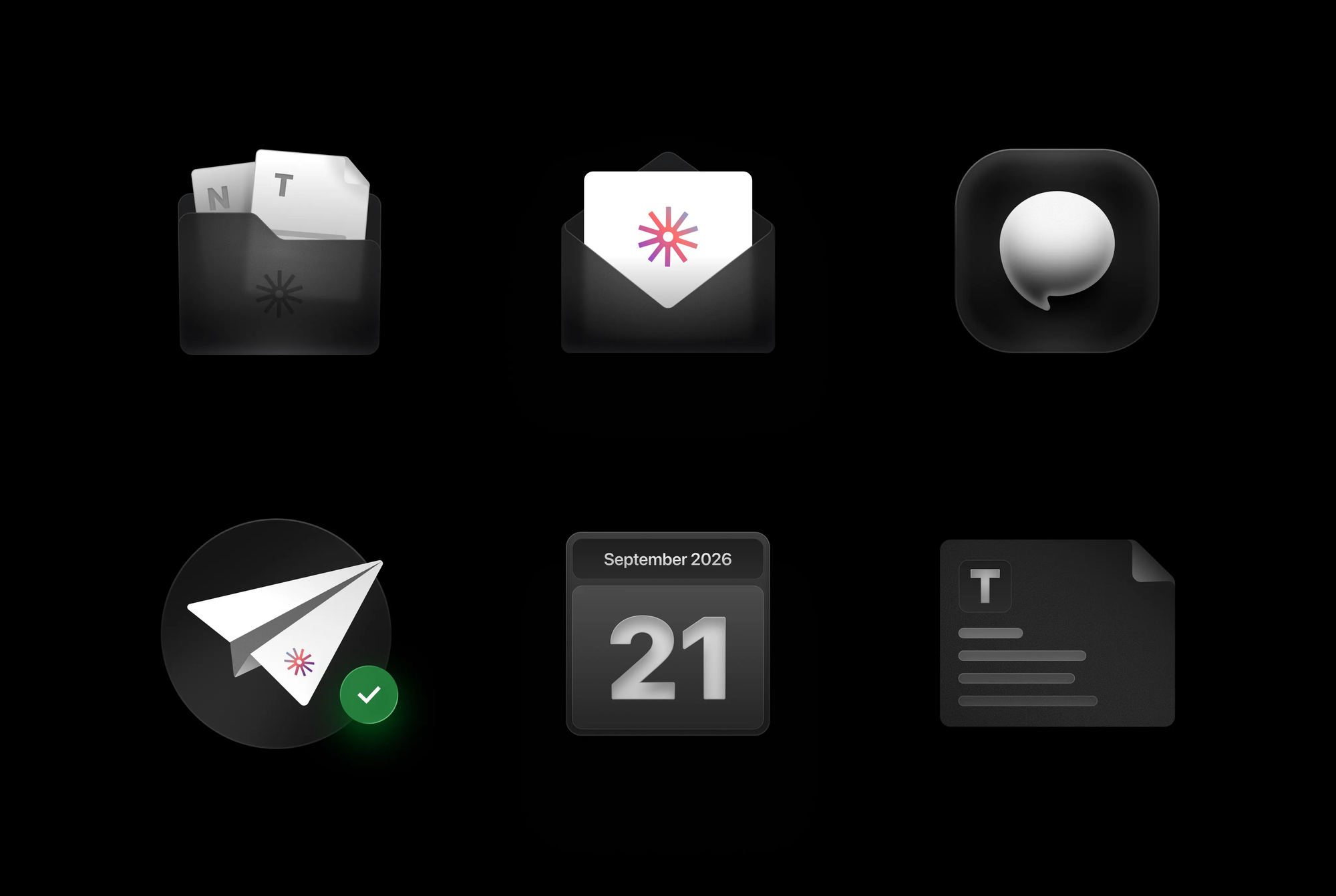
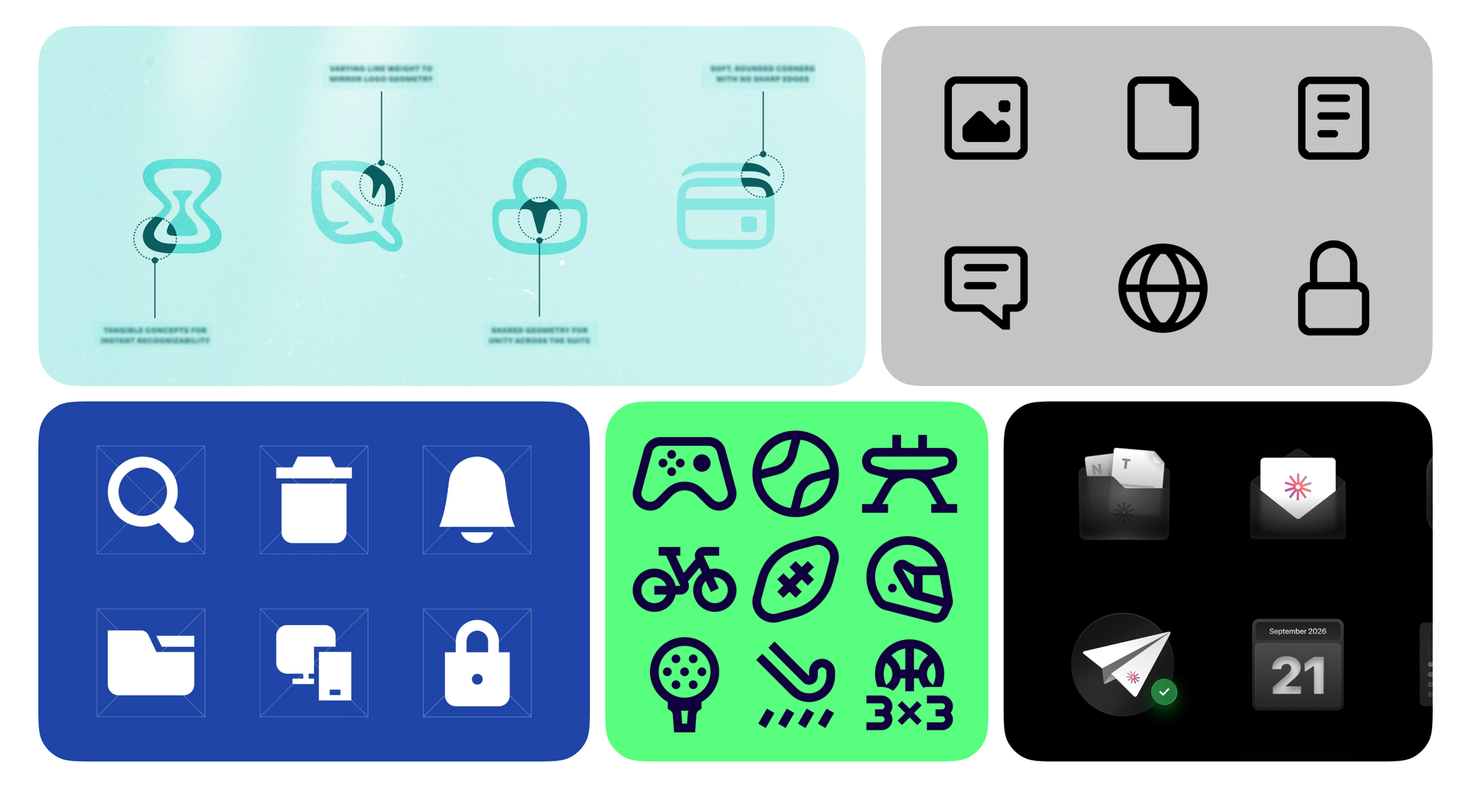
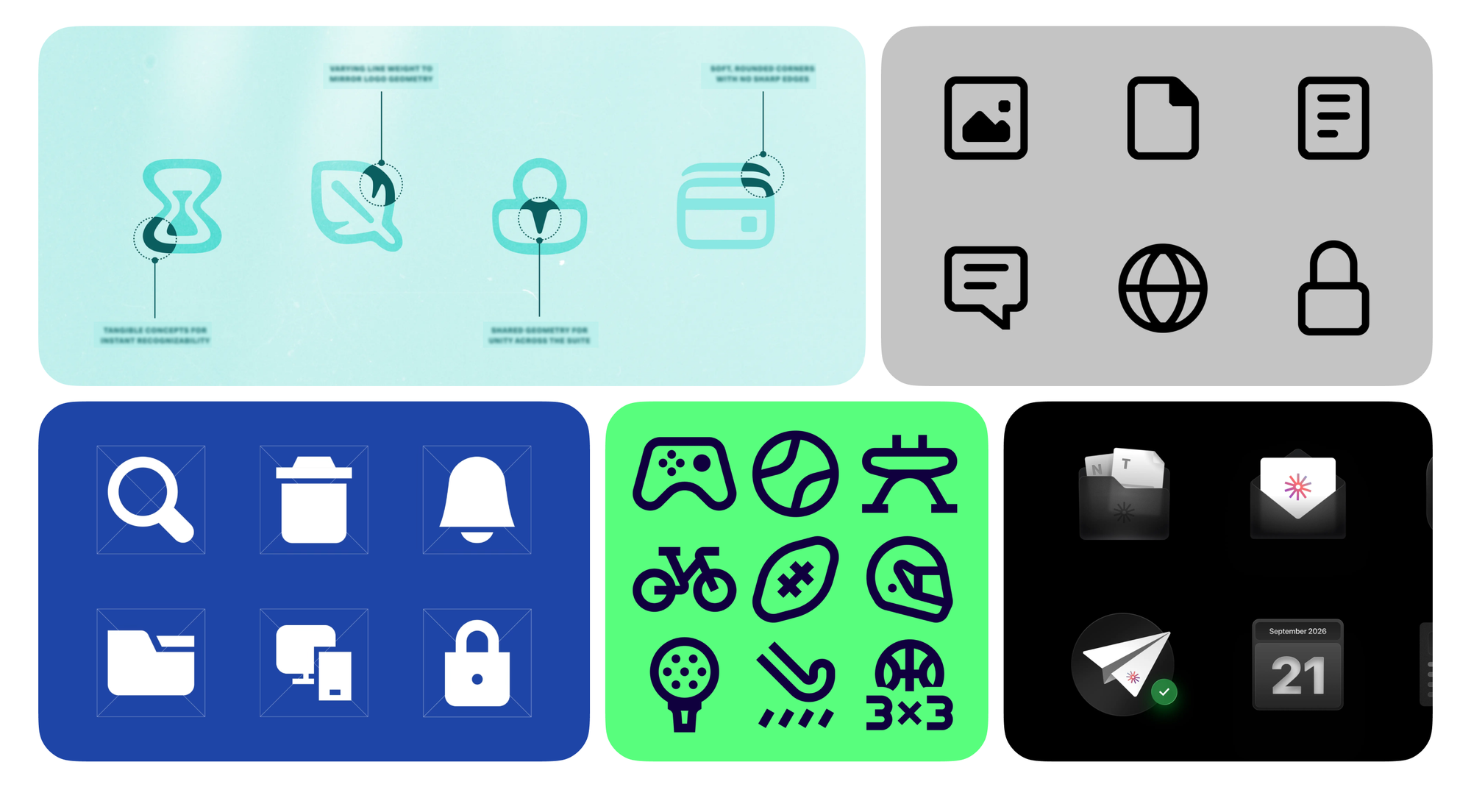
Submit your best icon designs (or creative use cases featuring Streamline icons) and get featured in our monthly showcase.
The icon design community never ceases to amaze us. Each month brings fresh creativity, and we’ll be back with more handpicked projects to spark your inspiration. ✨
Missed a past edition? Explore the Icon Spotlight posts.
2026-08-25 20:15:22
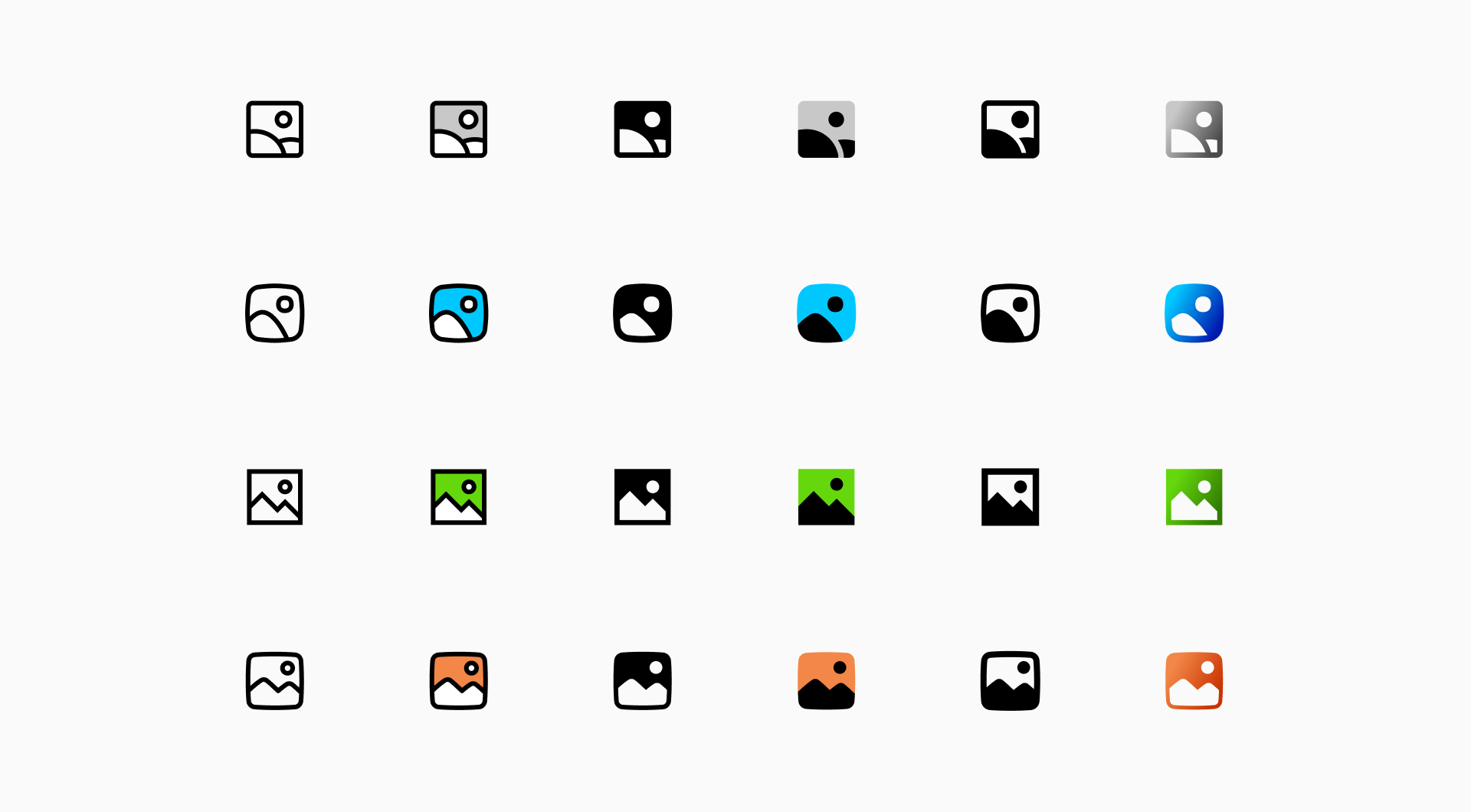
As libraries become larger, many companies turn to freelancers or open their platforms to outside contributors. Others become marketplaces where anyone can publish icons, allowing the collection to expand much more rapidly. These approaches certainly make it easier to scale, but they also make it increasingly difficult to maintain a coherent visual language and a consistent level of quality over time.
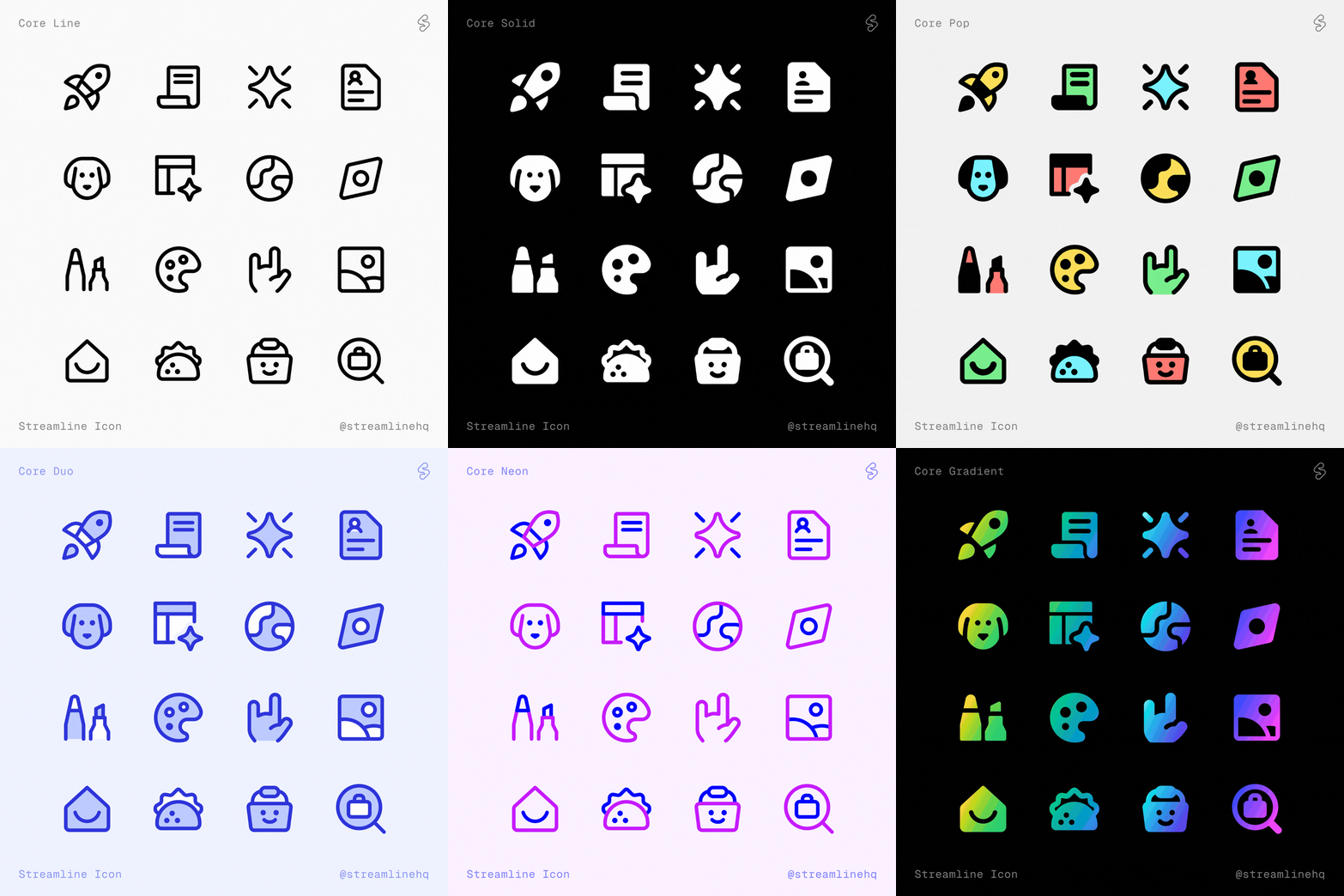
At Streamline, we chose a different path.
Today, our library contains more than 400,000 icons, spanning a wide range of design systems including Core, Flex, Sharp, Plump, Micro, Freehand, Pixel, Ultimate, and more…
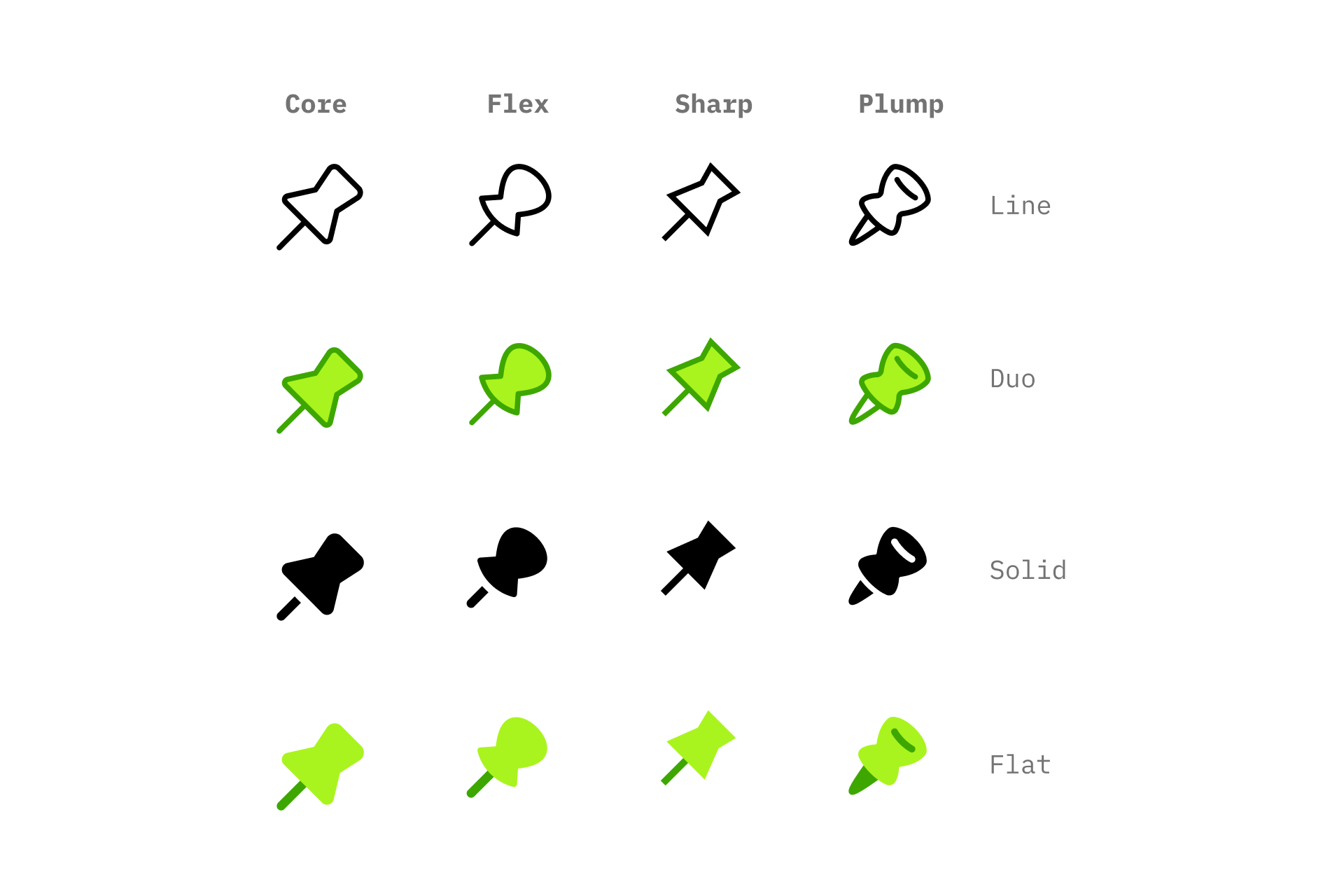
Despite that scale, every icon is still designed by the same in-house team of seven icon designers. It is undoubtedly a slower and more demanding way of building an icon library, but after many years, we remain convinced that it is the best way to create a product that designers can trust.
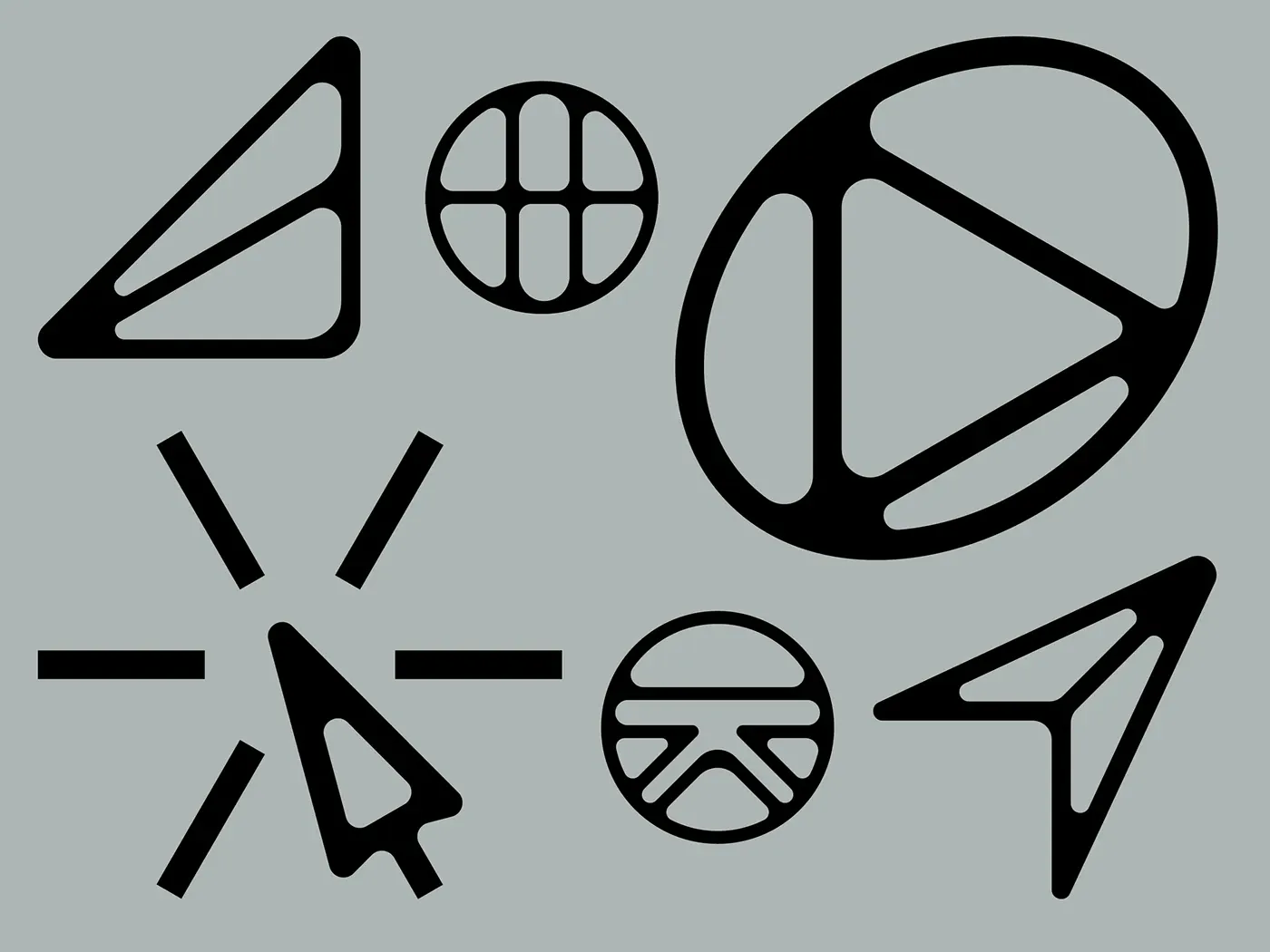
Streamline has gradually evolved into an ecosystem of independent design systems, each with its own personality, geometry, proportions and construction principles. Core, Sharp, Plump, Micro or Freehand are not different visual treatments applied to the same drawings.
Each family was designed independently, with its own philosophy and its own way of solving visual problems while remaining internally coherent.
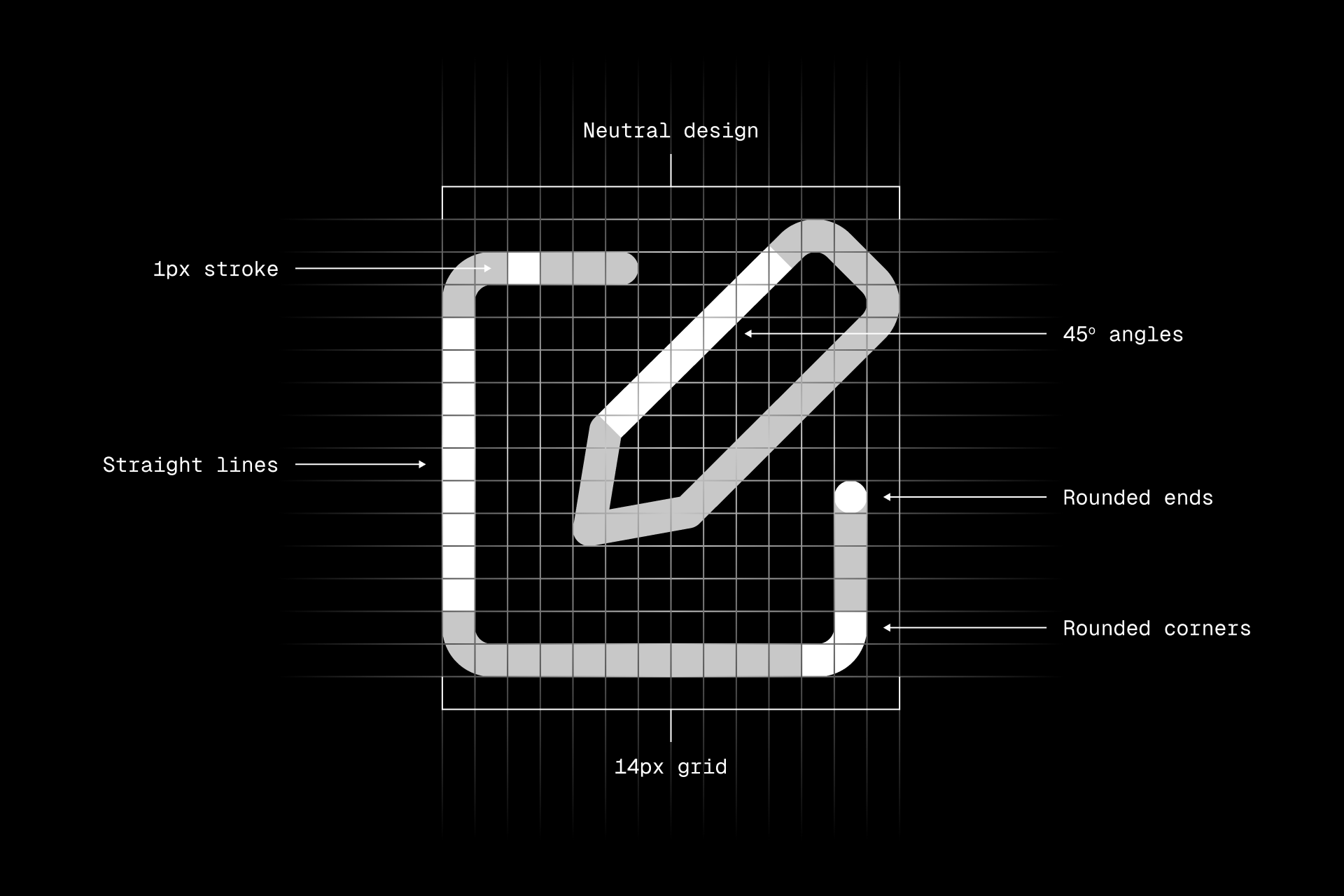
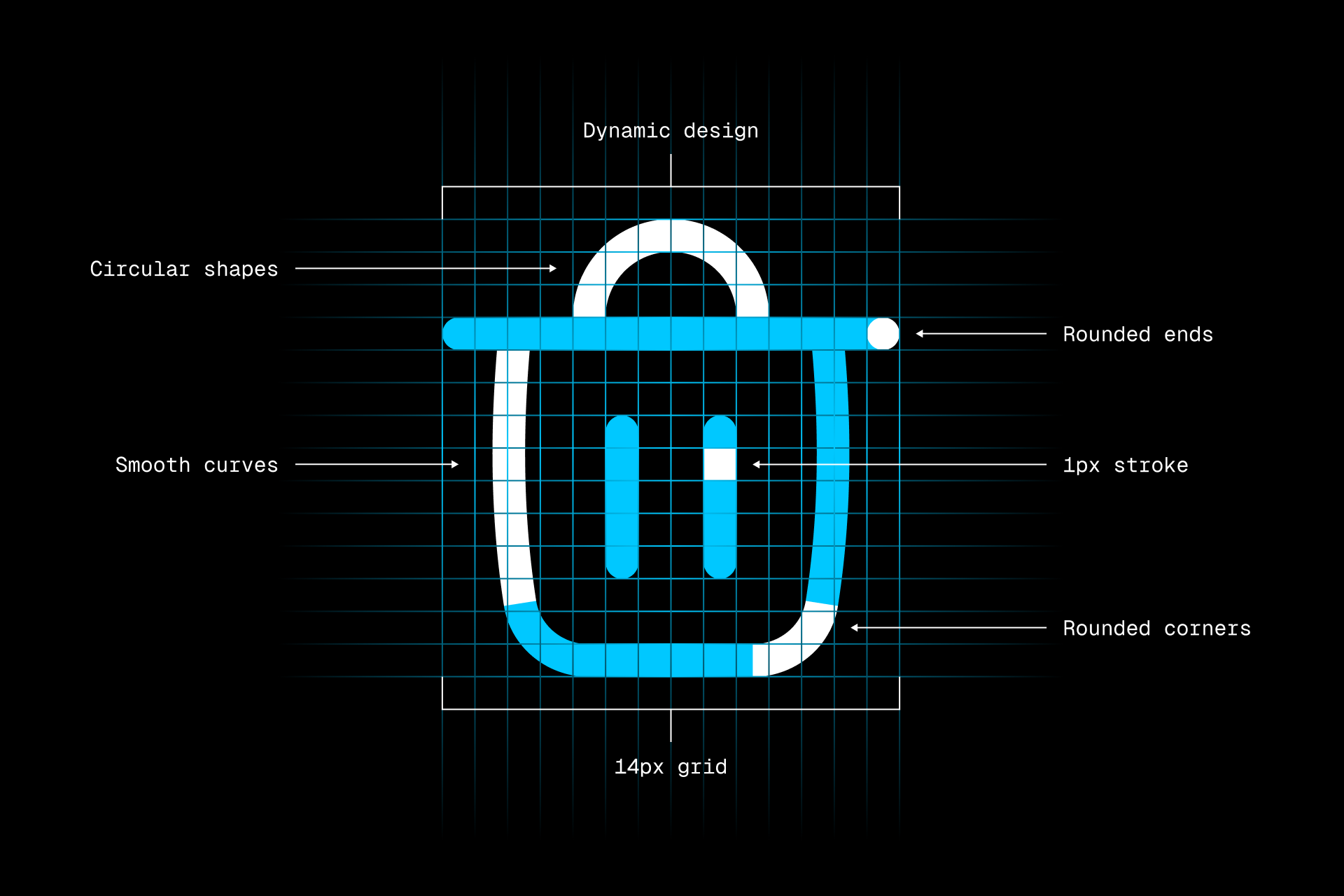
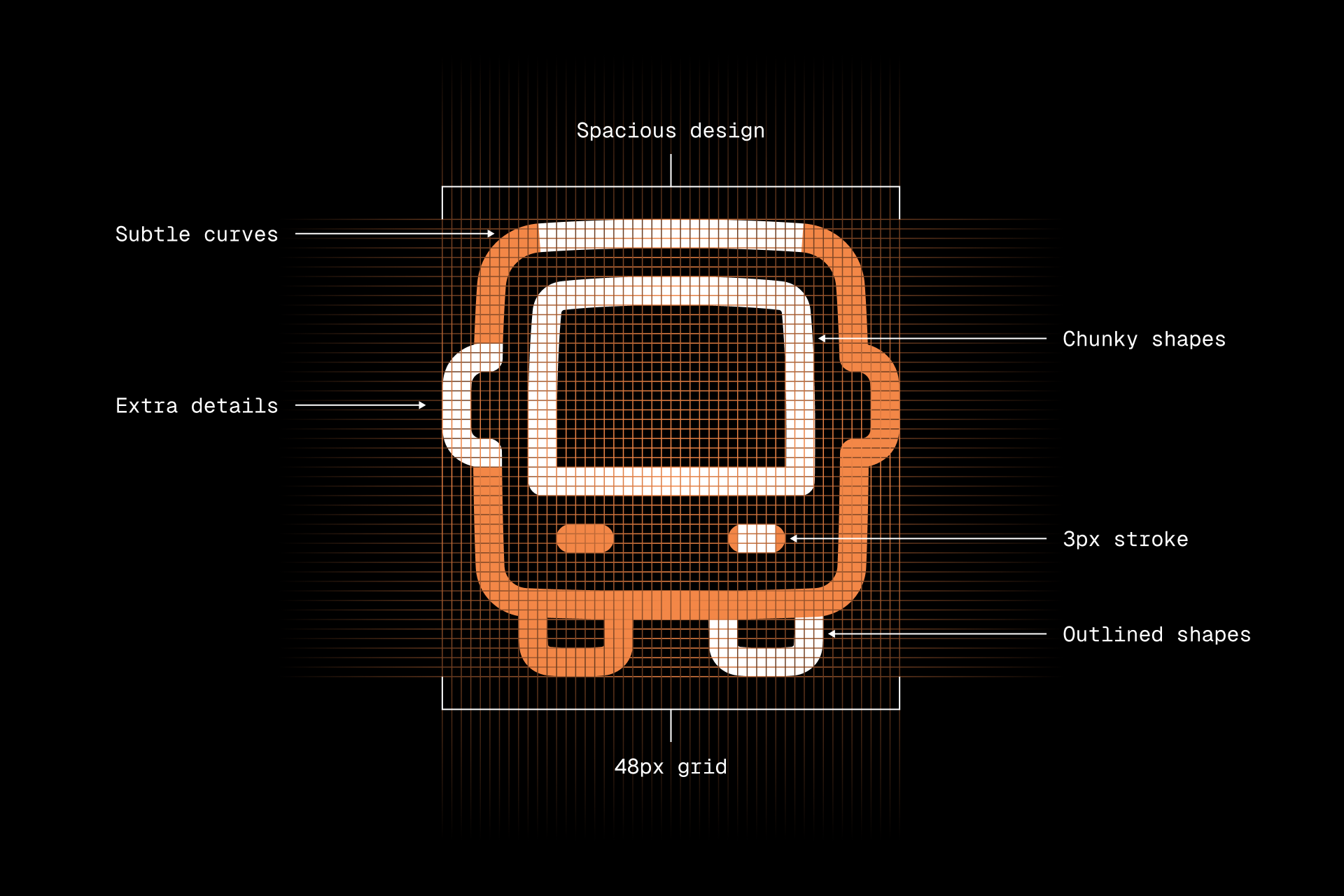
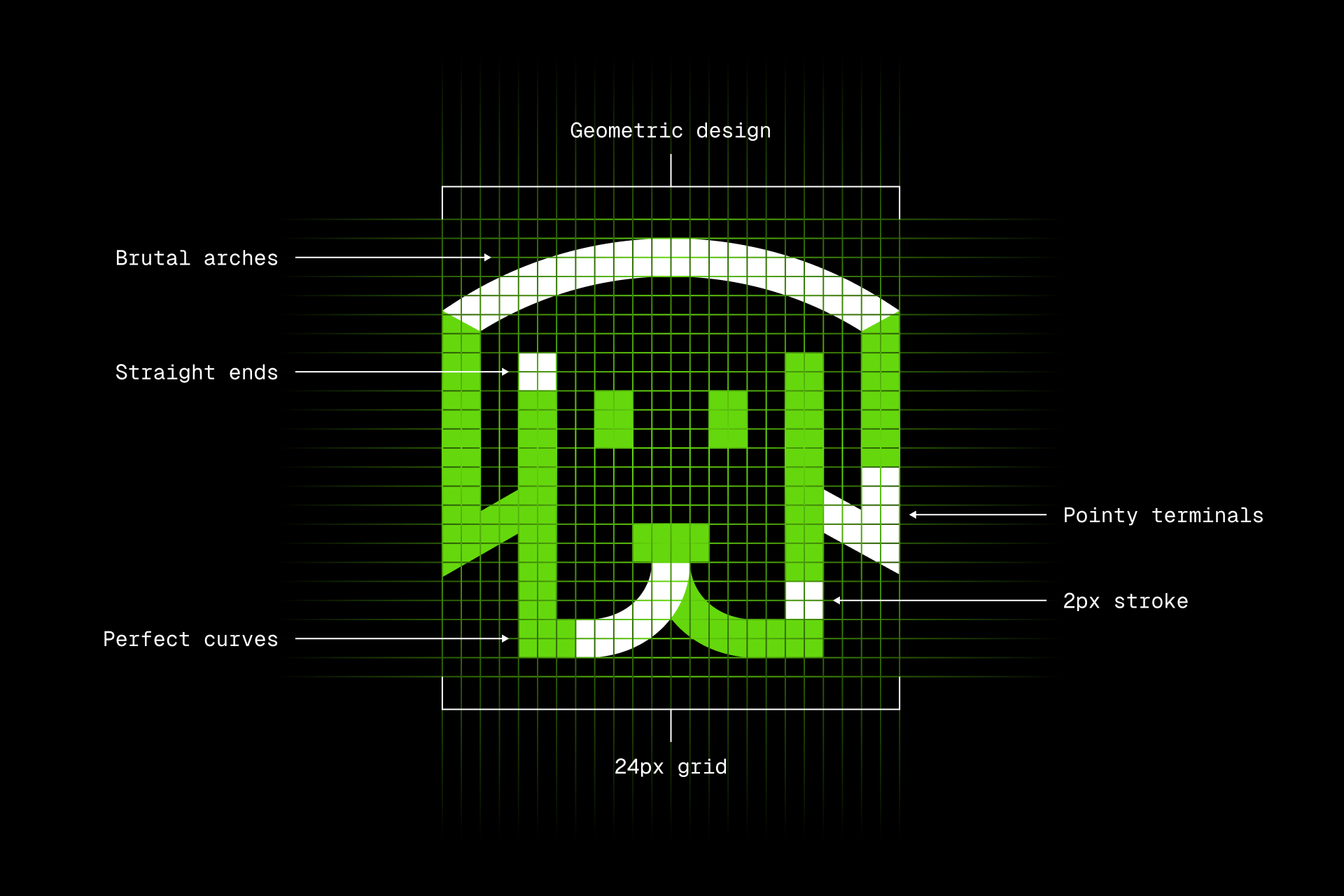
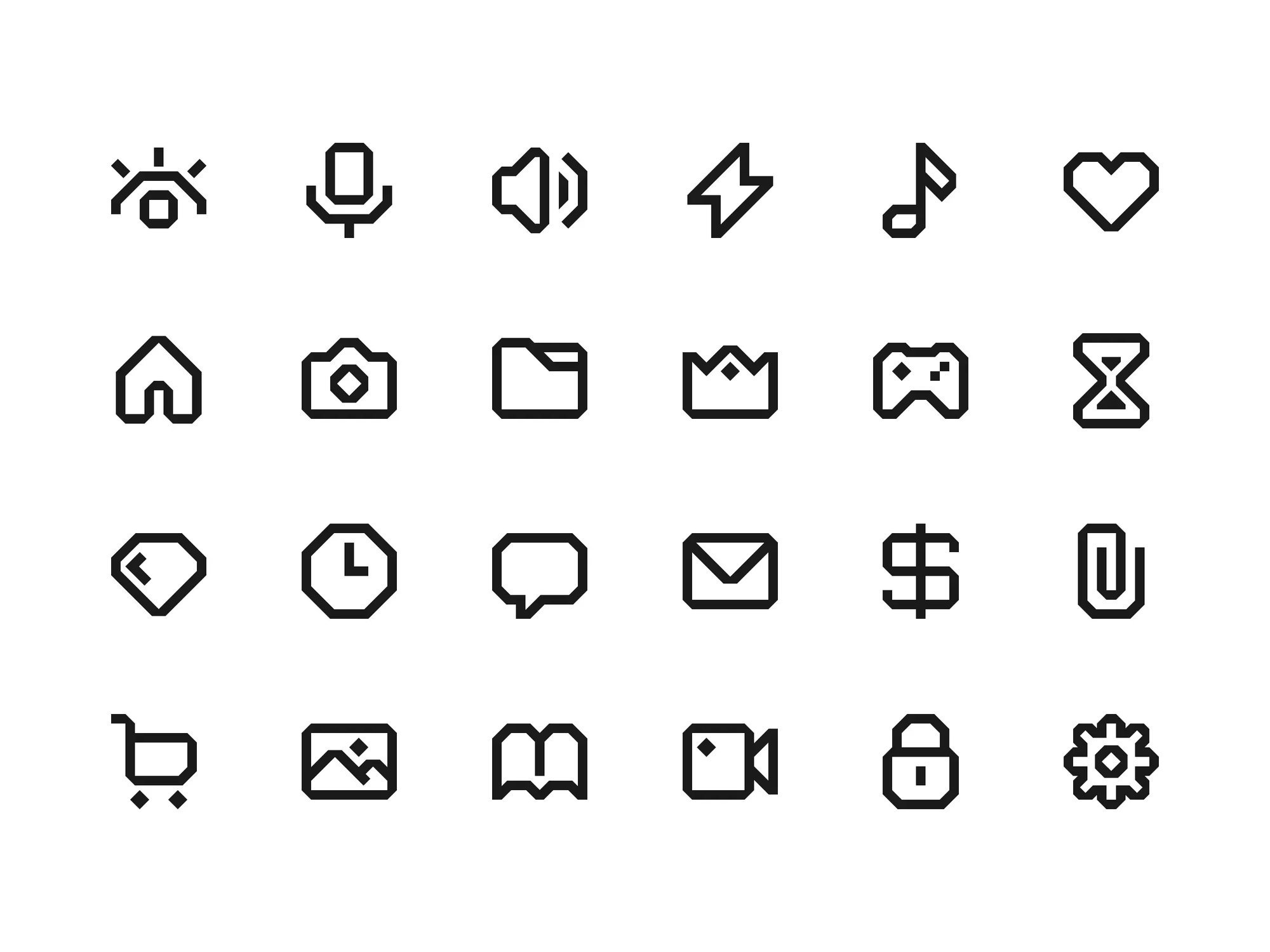
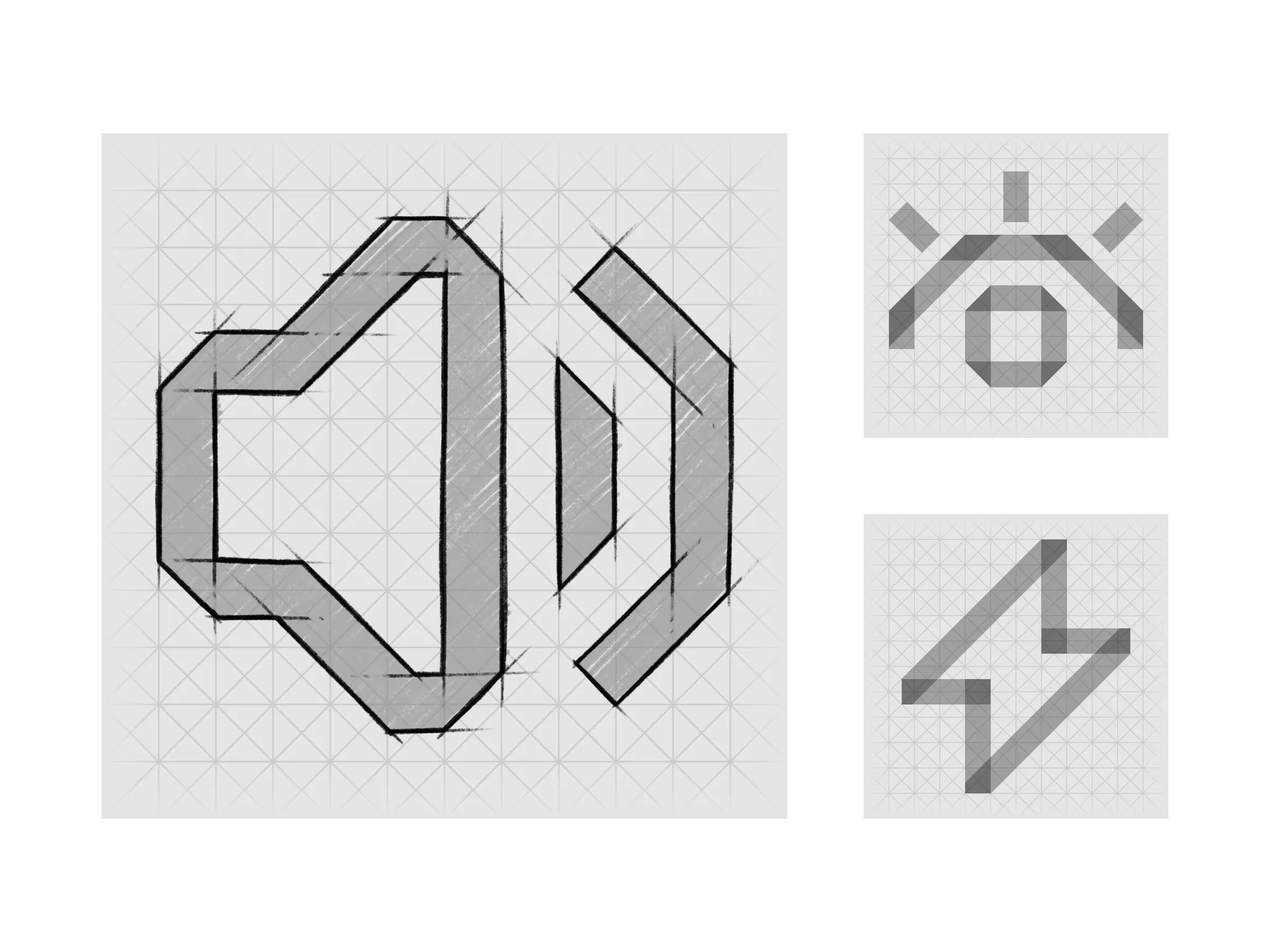
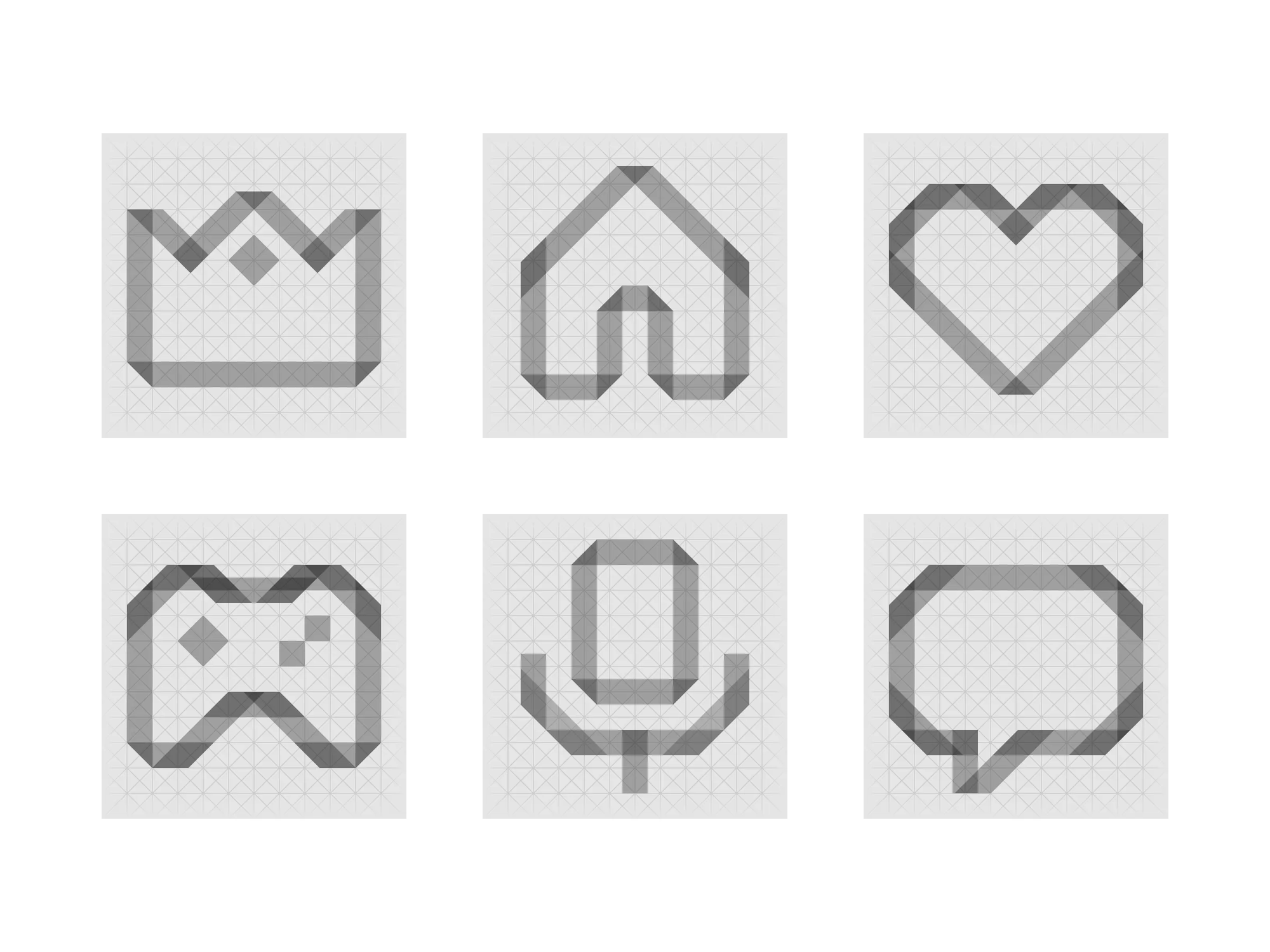
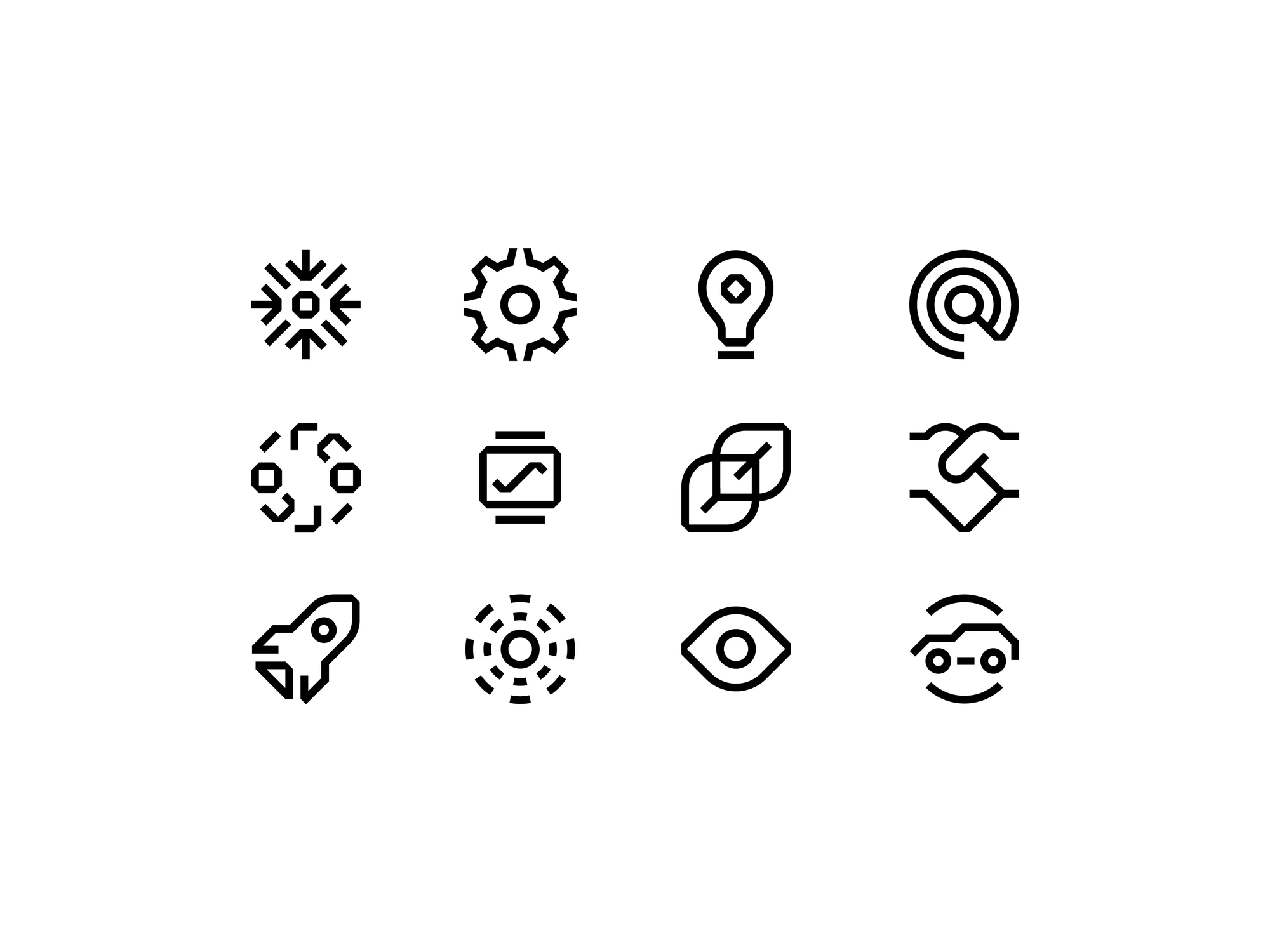
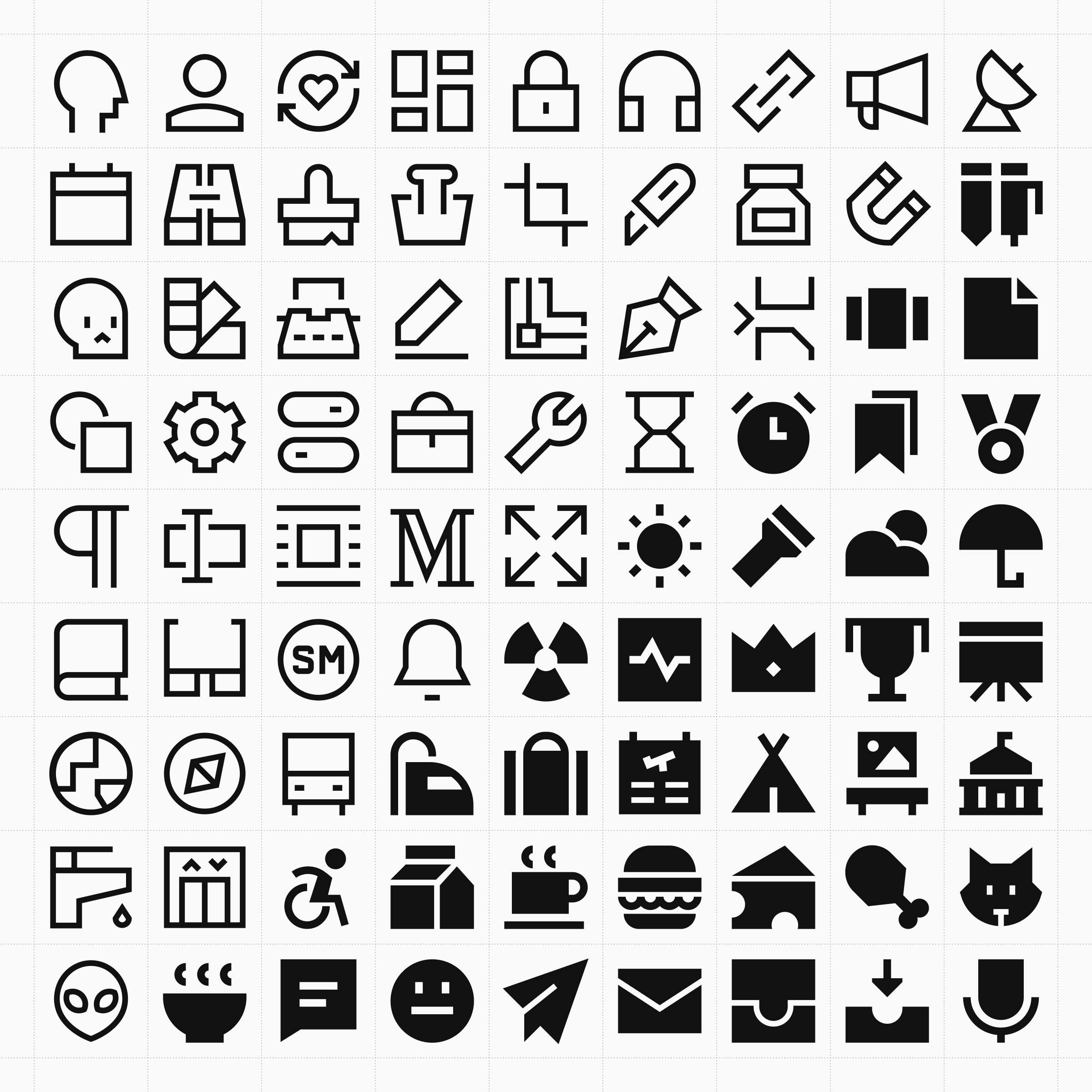
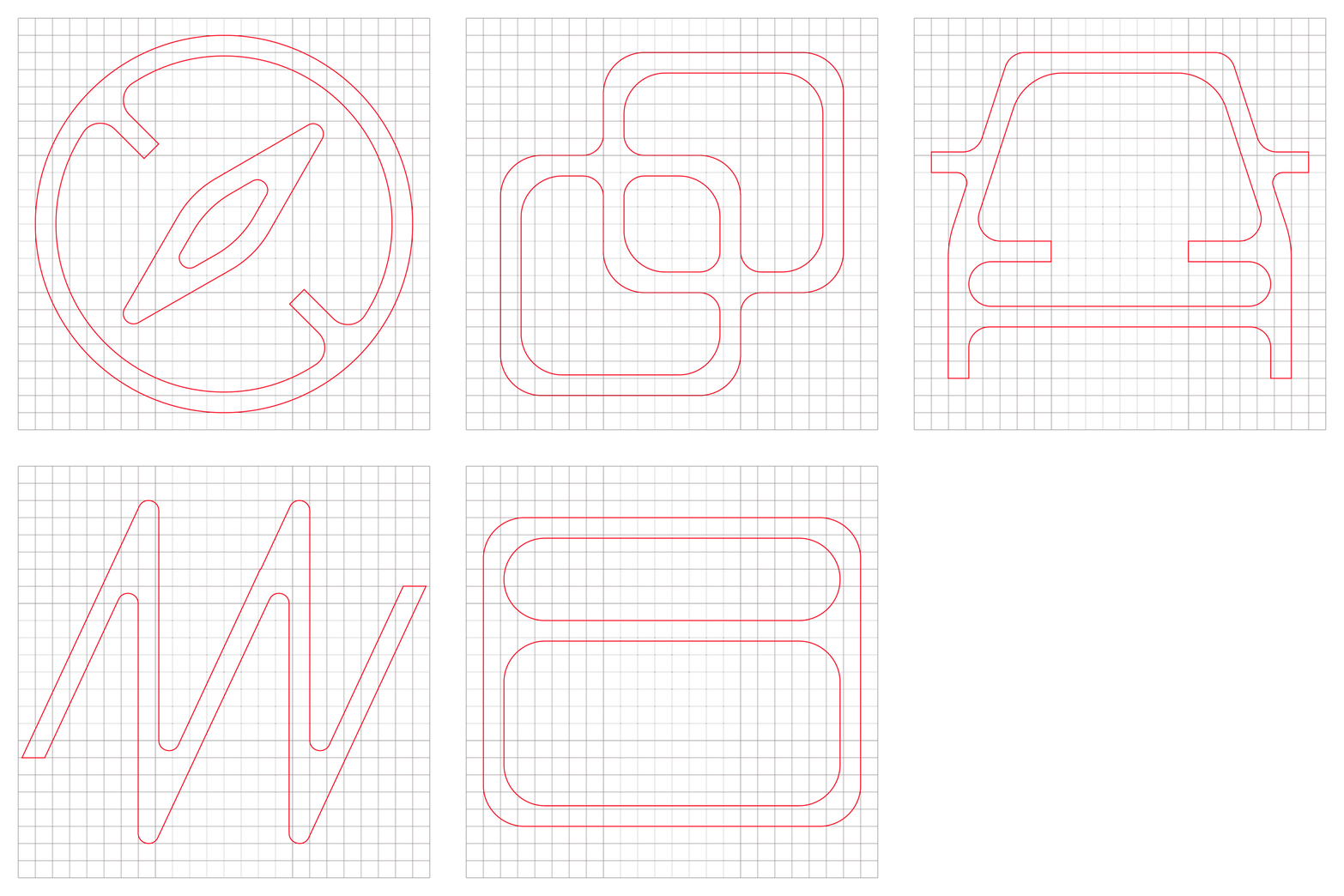
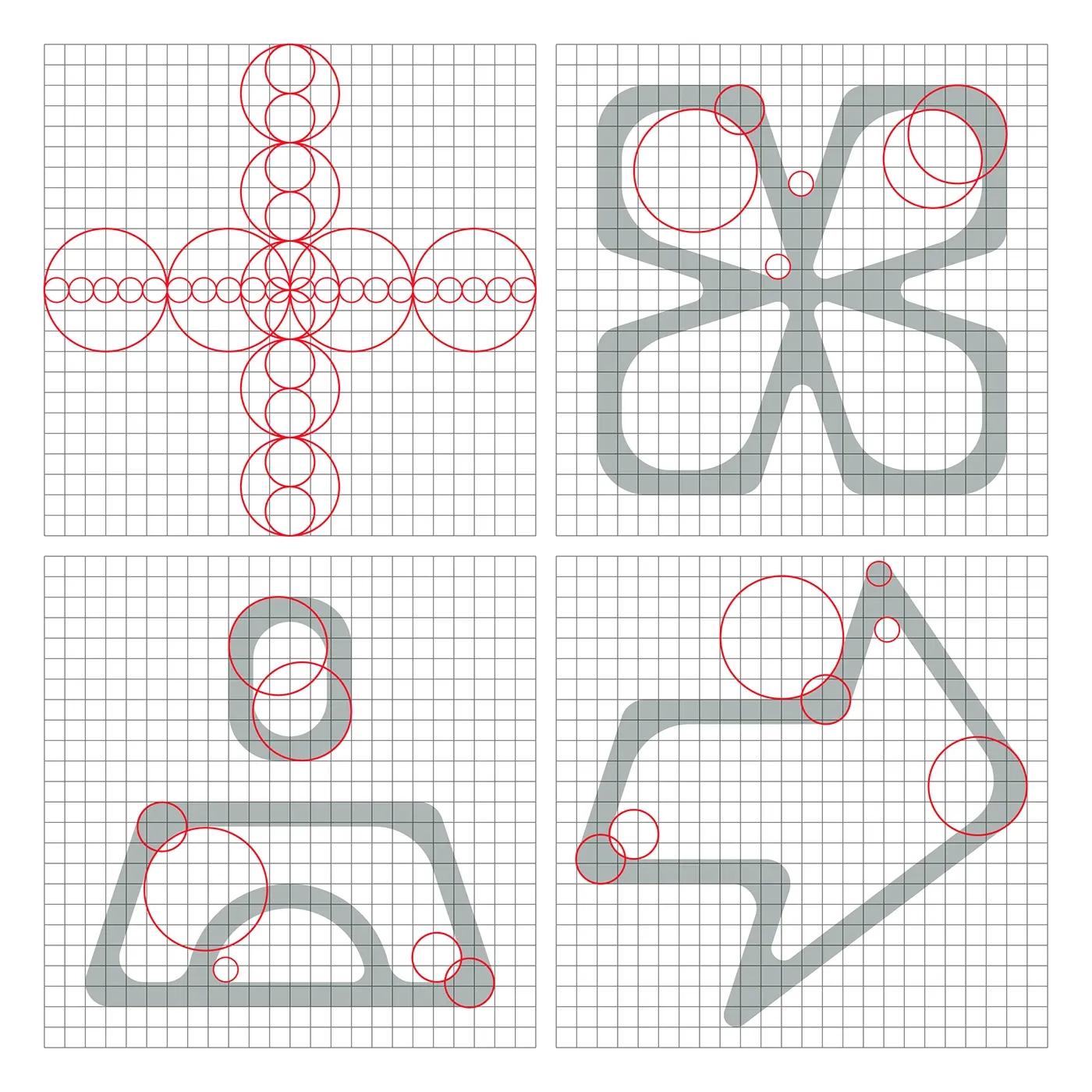
Icon construction across four icon styles: Core (top left), Flex (top right), Plump (bottom left), and Sharp (bottom right), showing the grids, stroke weights, geometry, and defining design principles behind each icon set.
Many of these families are themselves available in several weights, fills and stroke variations, resulting in dozens of complete icon sets. Designing one coherent icon system already requires an enormous amount of discipline. Designing many of them simultaneously while preserving each family’s identity requires continuity. Something only possible when the same team continues to evolve every design system.
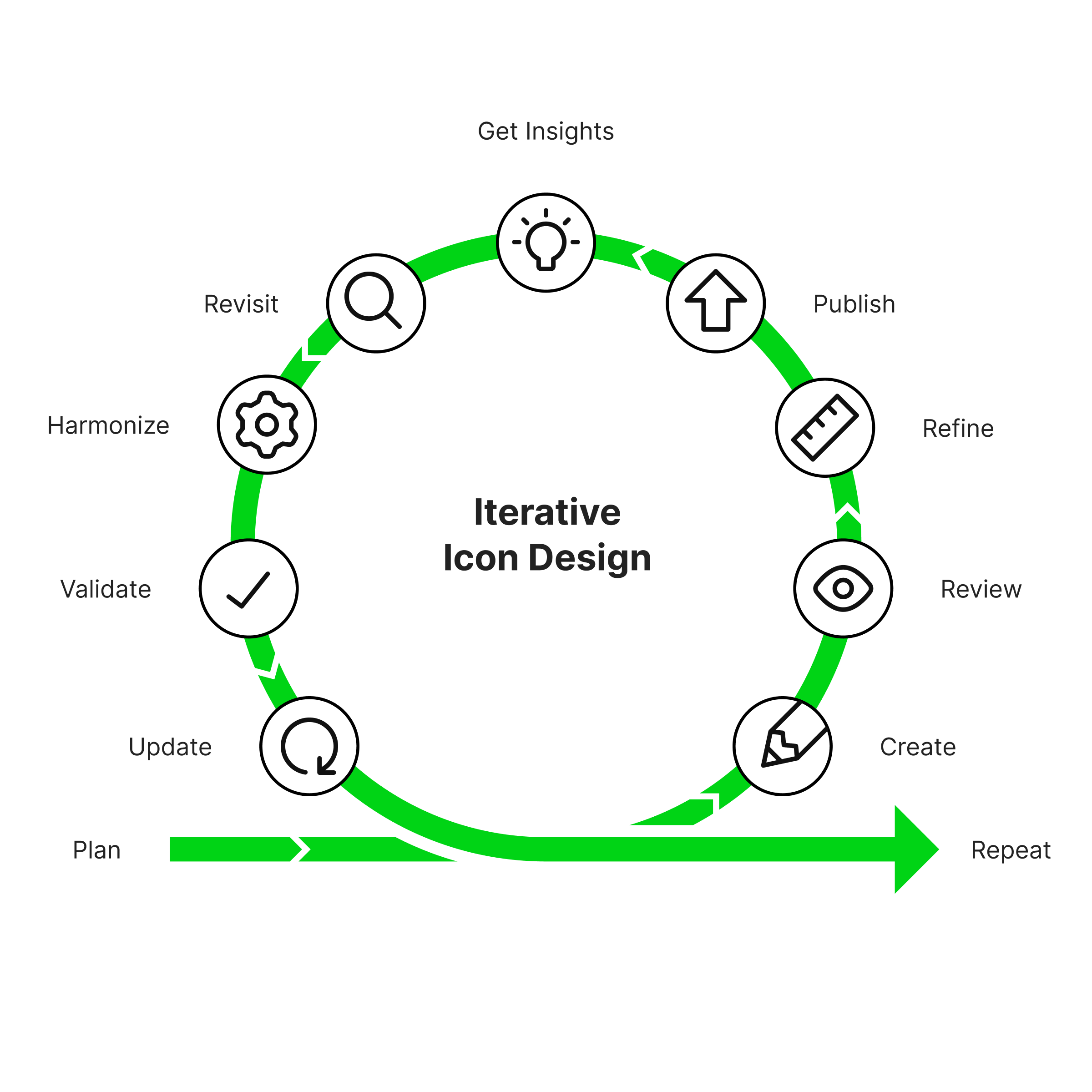
People often imagine that consistency comes from establishing a set of rules at the beginning of a project. In reality, consistency is something that must be cultivated continuously. Every icon we draw teaches us something. We discover better proportions, clearer metaphors, simpler constructions or more balanced silhouettes. As our understanding of each family matures, the design system itself becomes more refined.
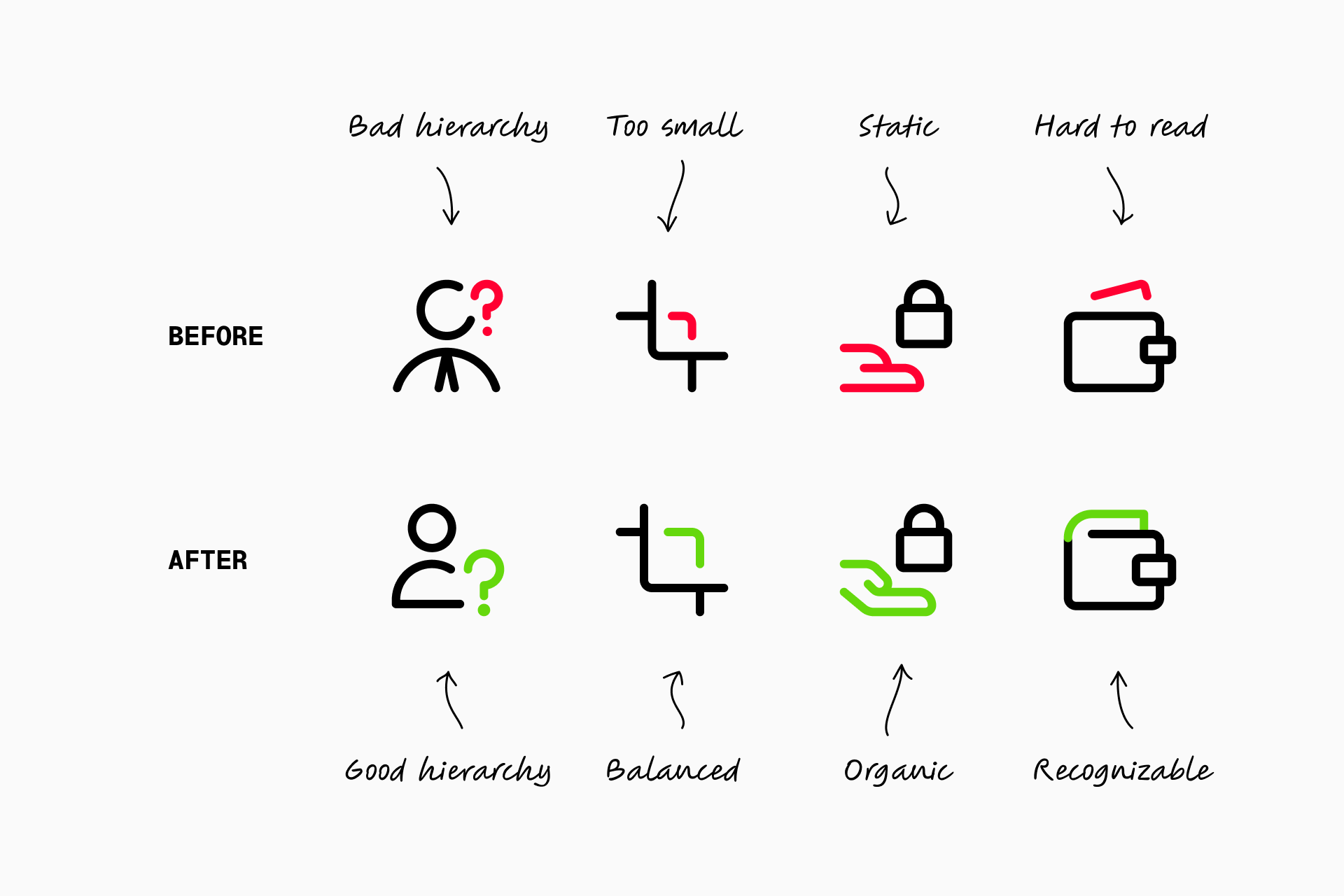
Those lessons should not only benefit future icons. They should benefit the entire library. This is why we regularly revisit icons that were created years ago, carefully harmonizing them with everything we have learned since. Our objective is not to redesign the library for the sake of novelty, but to ensure that an icon designed today feels perfectly at home alongside one designed several years earlier.
Adding a new concept to Streamline rarely means drawing a single icon. More often, it means designing that concept across multiple families and multiple stylistic variations, each of which has its own visual language. The challenge is not to reproduce the same drawing over and over again, but to understand what makes a concept immediately recognizable while allowing every family to express it according to its own principles.
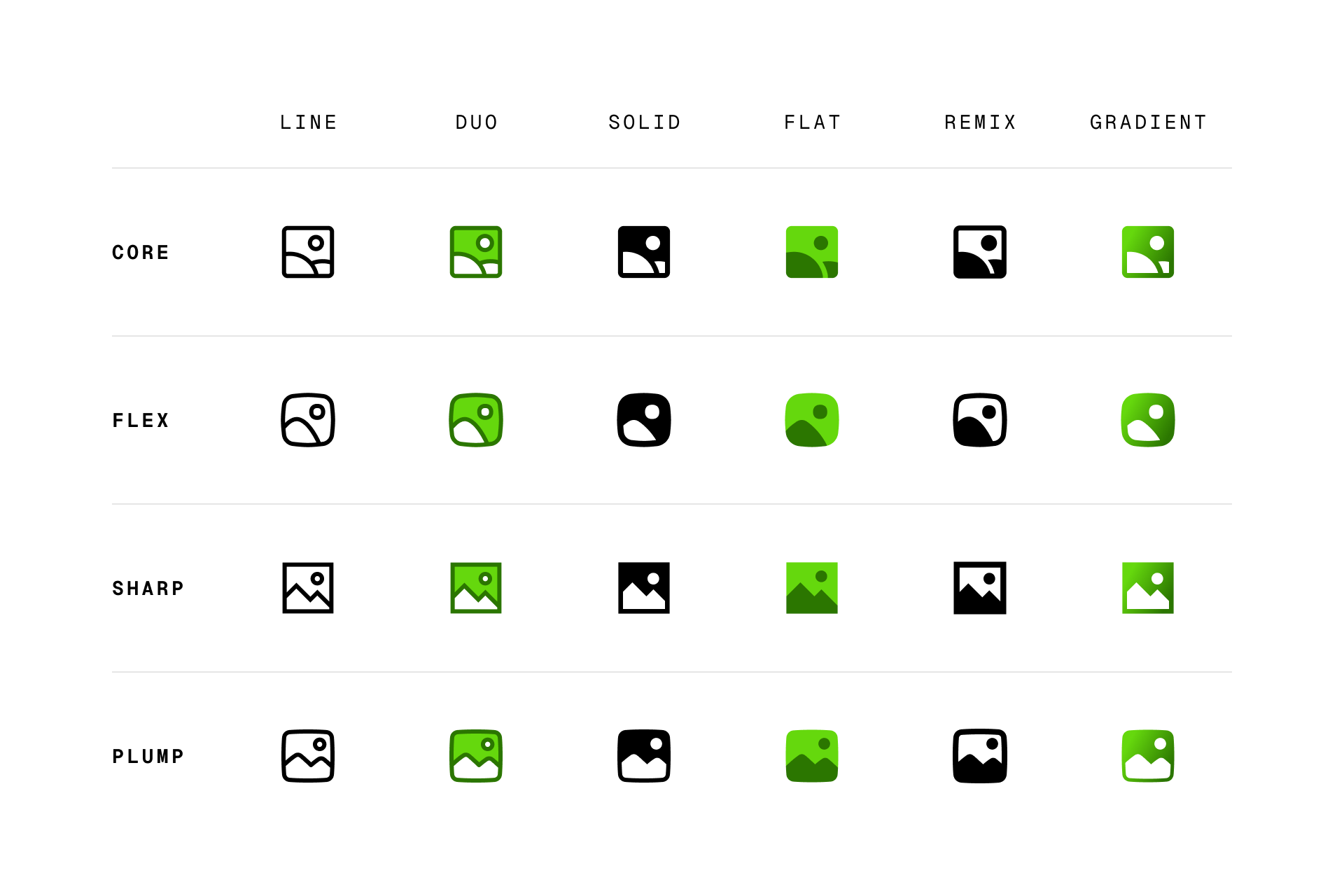
An icon that feels perfectly balanced in Core may feel awkward in Sharp. A metaphor that works naturally in Freehand may need to be completely reconsidered for Micro. Every family solves the same problem differently, and every solution must feel native to that particular design system.
Because our designers work across the entire library, they are able to make decisions that strengthen both the individual family and the coherence of Streamline as a whole.
The design language of an icon family cannot be reduced to a style guide or a list of construction rules. Much of it exists as tacit knowledge accumulated over years of practice. Our designers know instinctively why a particular radius feels more balanced, why one perspective works in Nova but not in Core, or why a certain metaphor communicates more clearly than another. These are decisions that become intuitive only after drawing thousands of icons together.
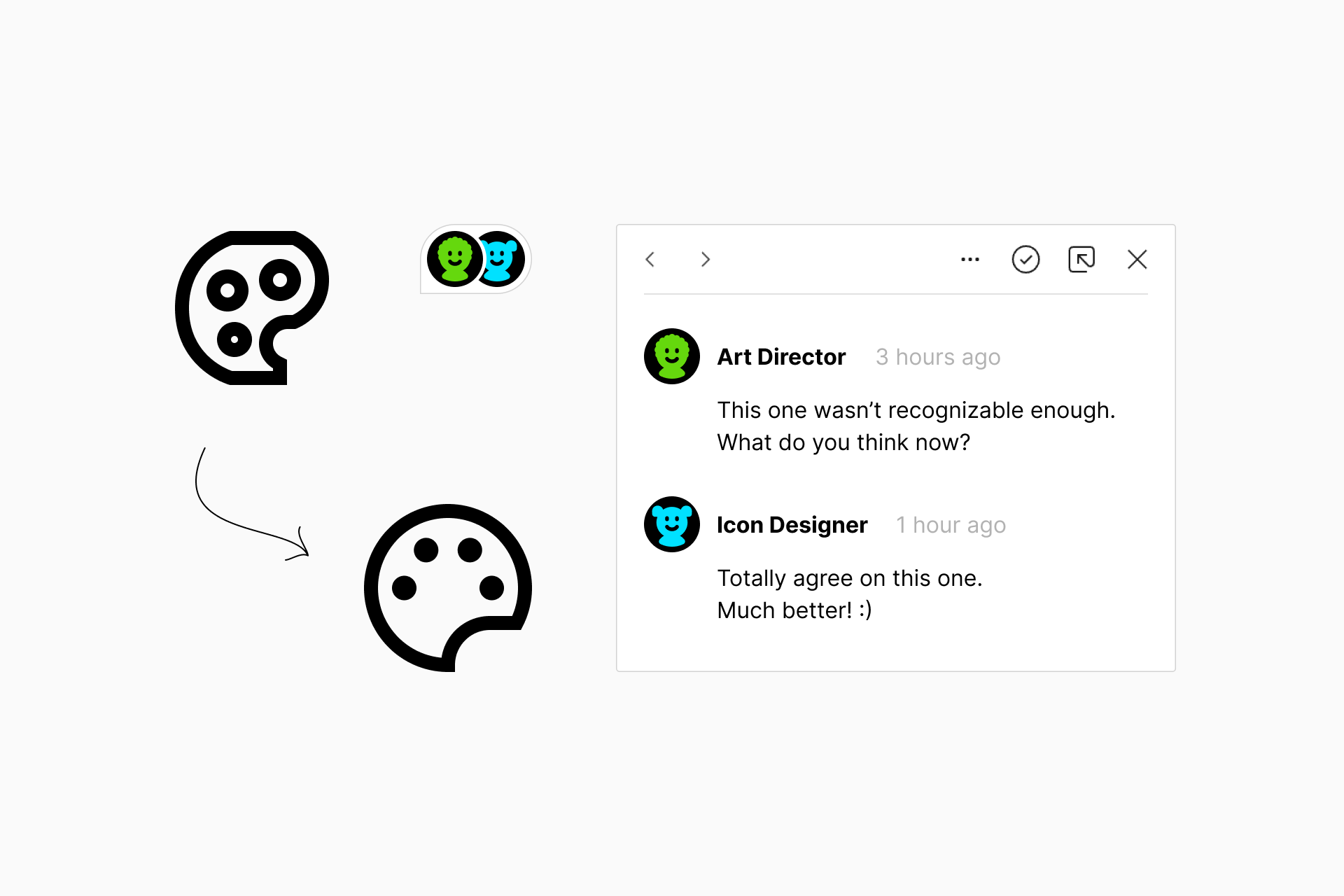
That shared understanding grows with every project. It becomes part of the culture of the team and continuously influences future work. This is one of the main reasons we have never outsourced icon production. Preserving that collective knowledge allows every new icon to benefit from everything that came before it.
Our perspective is shaped by the simple fact that we use icons ourselves. We know what it feels like to search for the right metaphor and discover that it doesn’t exist, or to find an icon that almost works but feels visually inconsistent with the rest of a project. Those experiences influence not only how we draw icons but also which concepts we decide to add to the library.
We constantly observe new technologies, emerging products, evolving interfaces and changing design patterns, asking ourselves how these ideas should be represented visually. Choosing what deserves to become an icon is often just as important as designing the icon itself. Our ambition has never been simply to create the largest collection available. It has always been to create the most useful one.
It is tempting to measure an icon library by the number of icons it contains, but we believe the real measure is something less visible: trust. Designers should be able to trust that every icon follows the same principles, that every family remains internally coherent, and that an icon chosen today will still feel consistent with future additions years from now.
This is why every Streamline icon continues to be designed by our own team. Not because it is the fastest approach, nor because it is the easiest, but because after designing more than 400,000 icons, we still believe that building an exceptional icon library is less about producing individual drawings than about patiently cultivating a coherent design system over time.
A recent example of this process can be seen in our Ultimate icon family, where our team revisited and redrew 3,249 existing icons across Ultimate Light, Regular, and Bold.
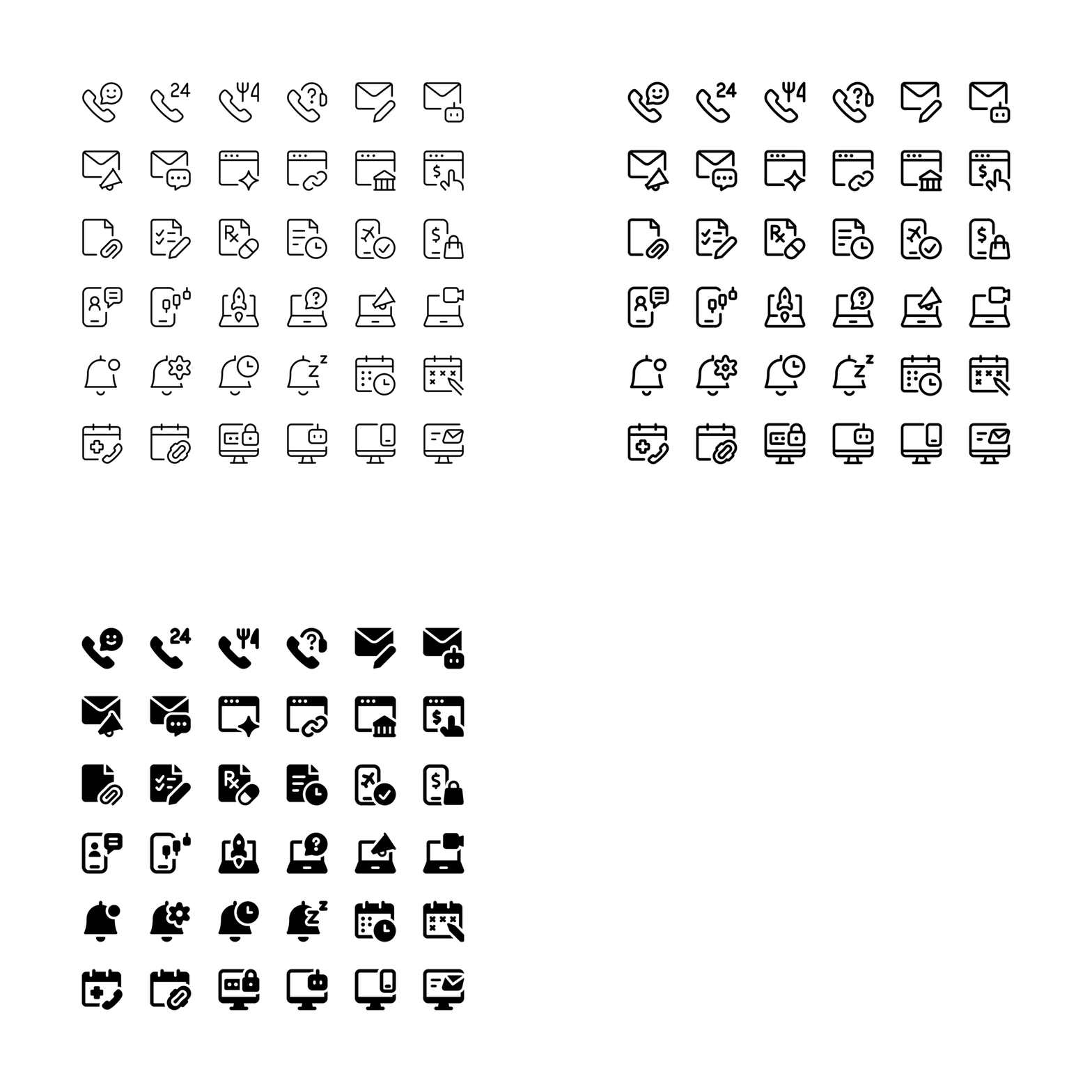
Rather than updating individual icons in isolation, we reviewed entire icon series together, refining their metaphors, proportions, use of space, and consistency across different weights. It is a good example of how the principles above translate into the everyday work of maintaining and improving a large icon system over time.
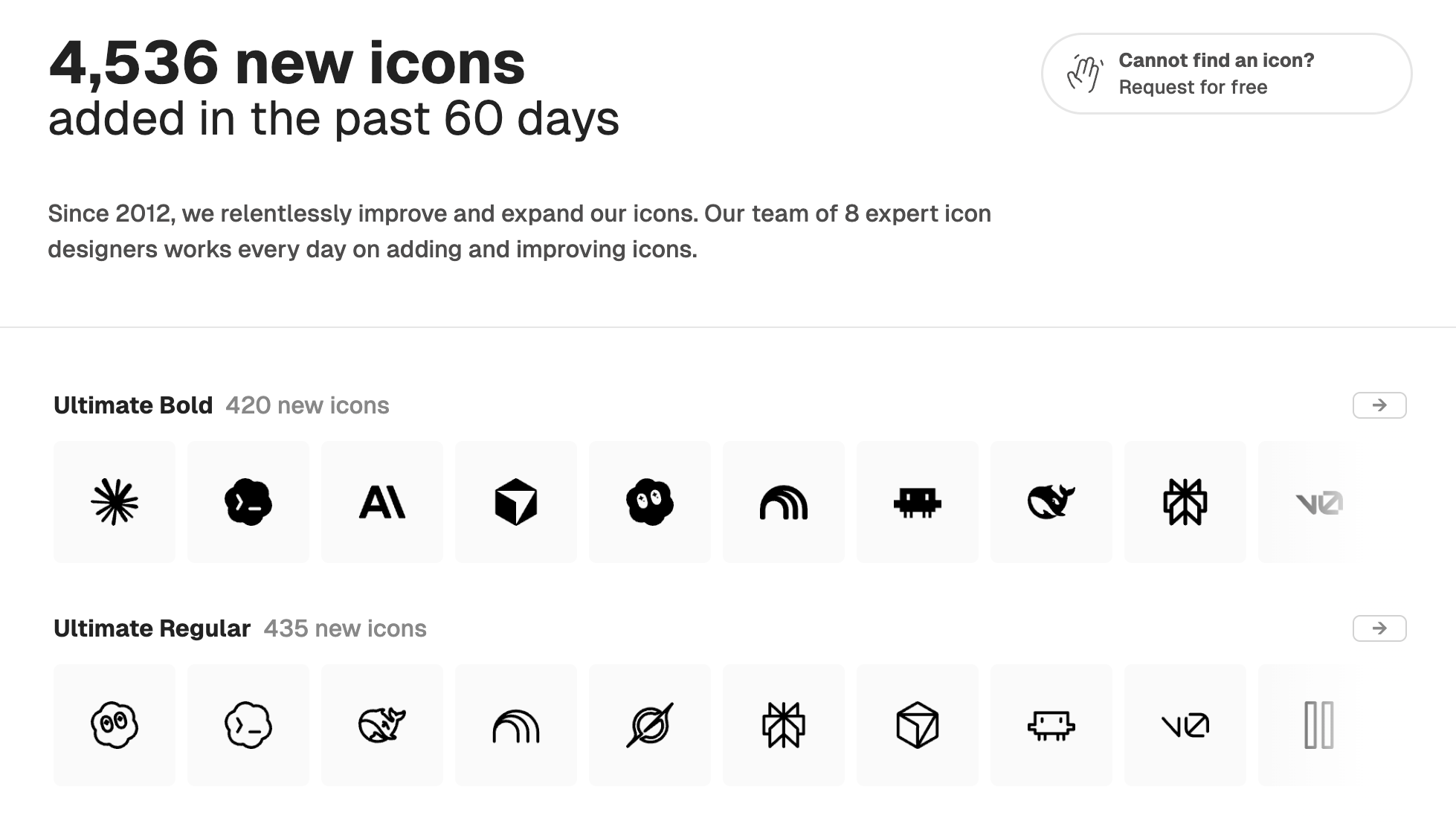
Our library continues to grow every week through both our own research and suggestions from the design community. Explore the latest icons to discover the newest additions across our different families and see how Streamline continues to evolve, one carefully crafted icon at a time.
2026-08-12 22:41:49
Ultimate is our most popular and best-loved icon family. Over the past few weeks, our in-house iconographers redrew 3,249 icons across Ultimate Light, Ultimate Regular, and Ultimate Bold.
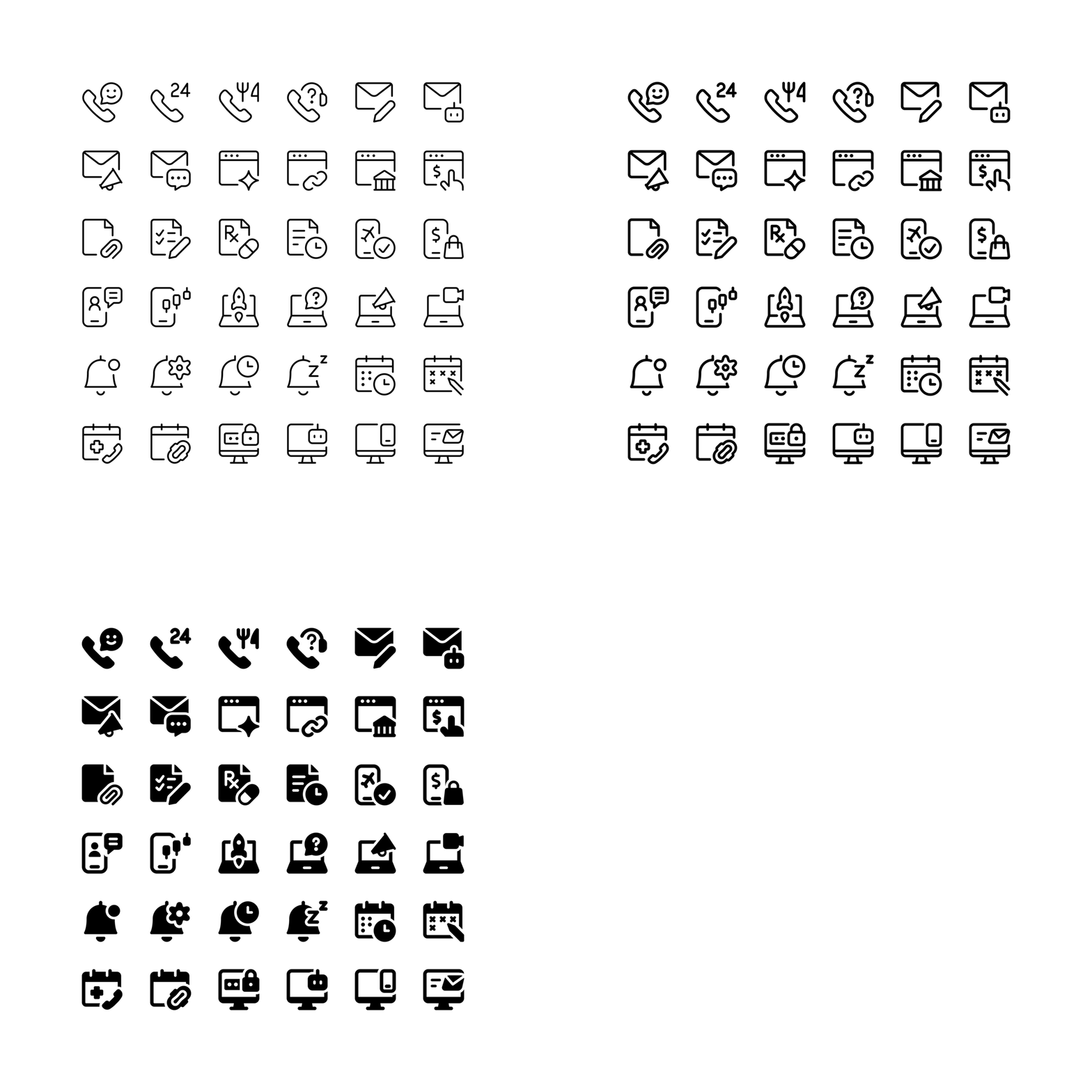
This was not about changing icons one by one. We revisited whole icon series, focusing on the everyday interface icons people use most. The aim was to make their metaphors feel more modern, their forms easier to recognize, and the overall family more consistent.
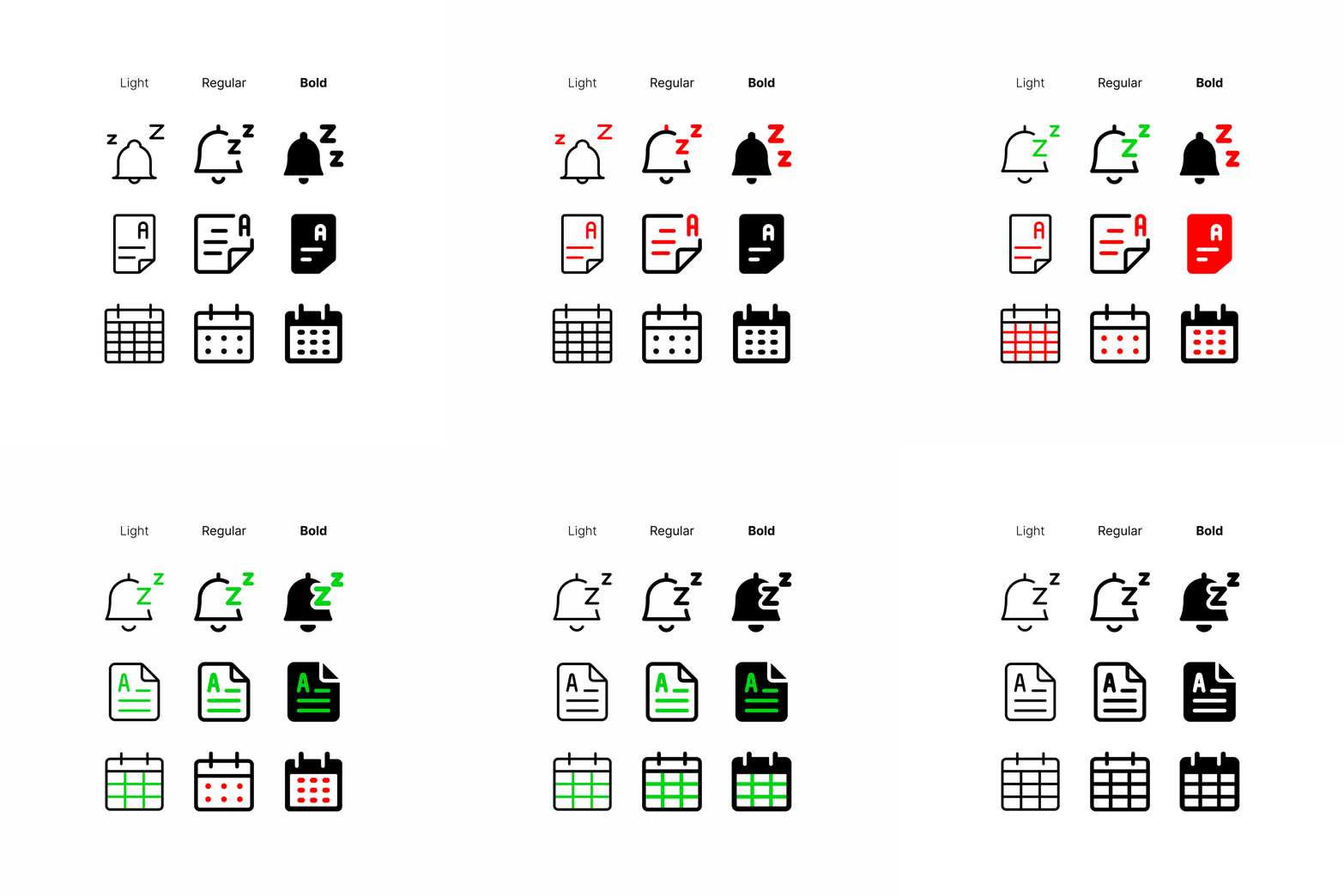
Here is a closer look at what changed, why we made those changes, and how the three Ultimate weights work together.
This update brings five key improvements to Ultimate. The changes span multiple series, including mail, smartphone, document, computer icons, and more.
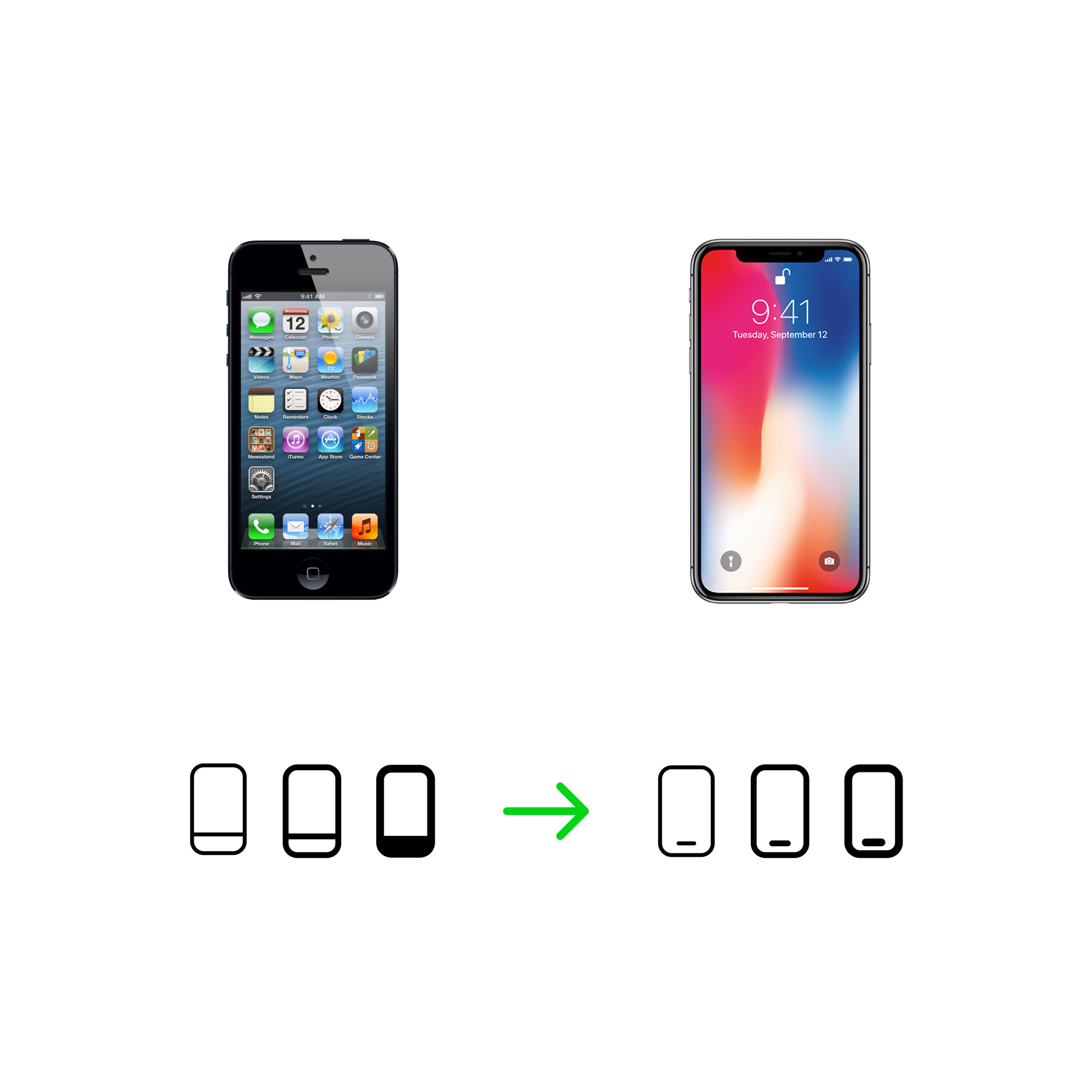
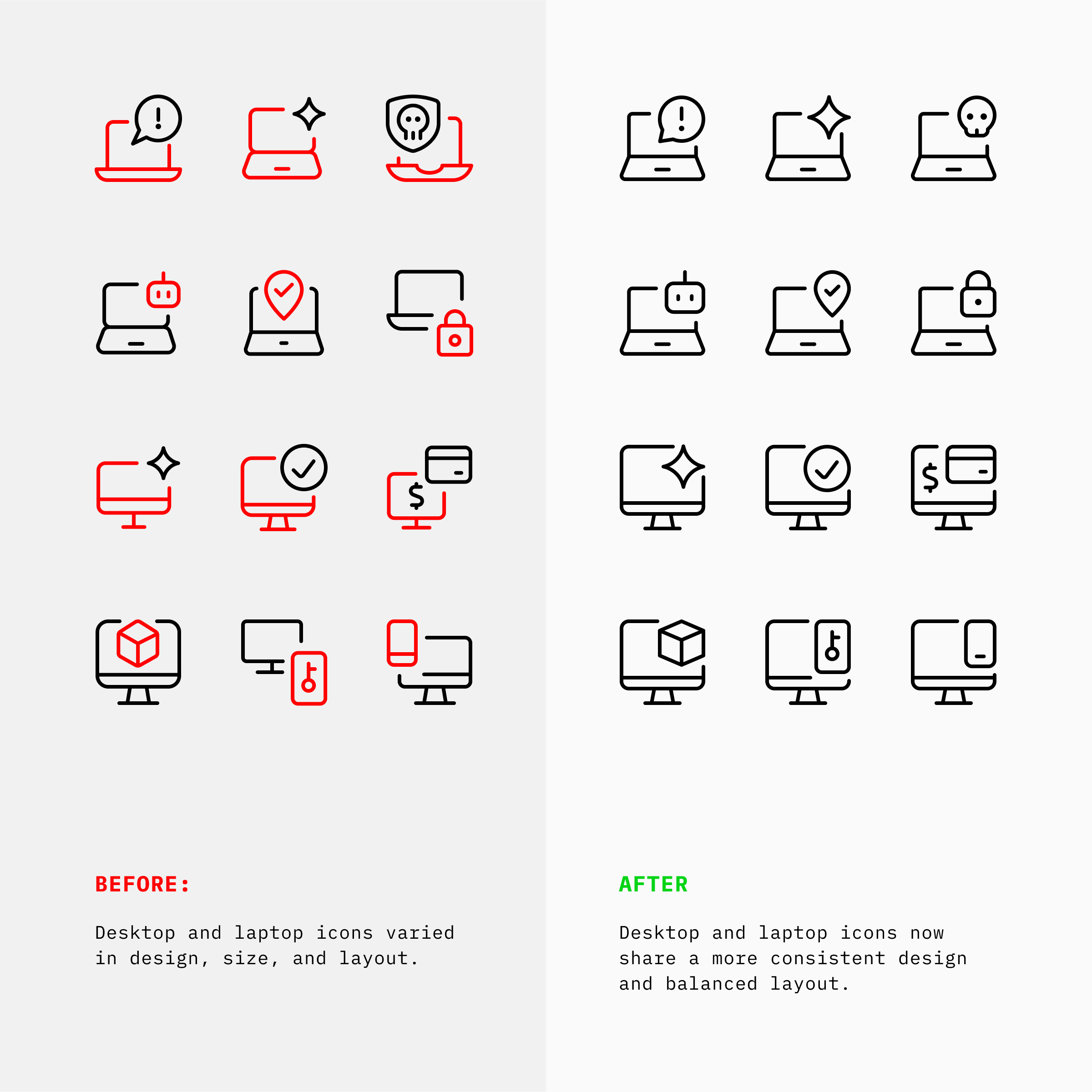
Some familiar icons no longer reflect the devices they represent. For the smartphone series, we updated the base phone shape to better reflect current smartphone design.
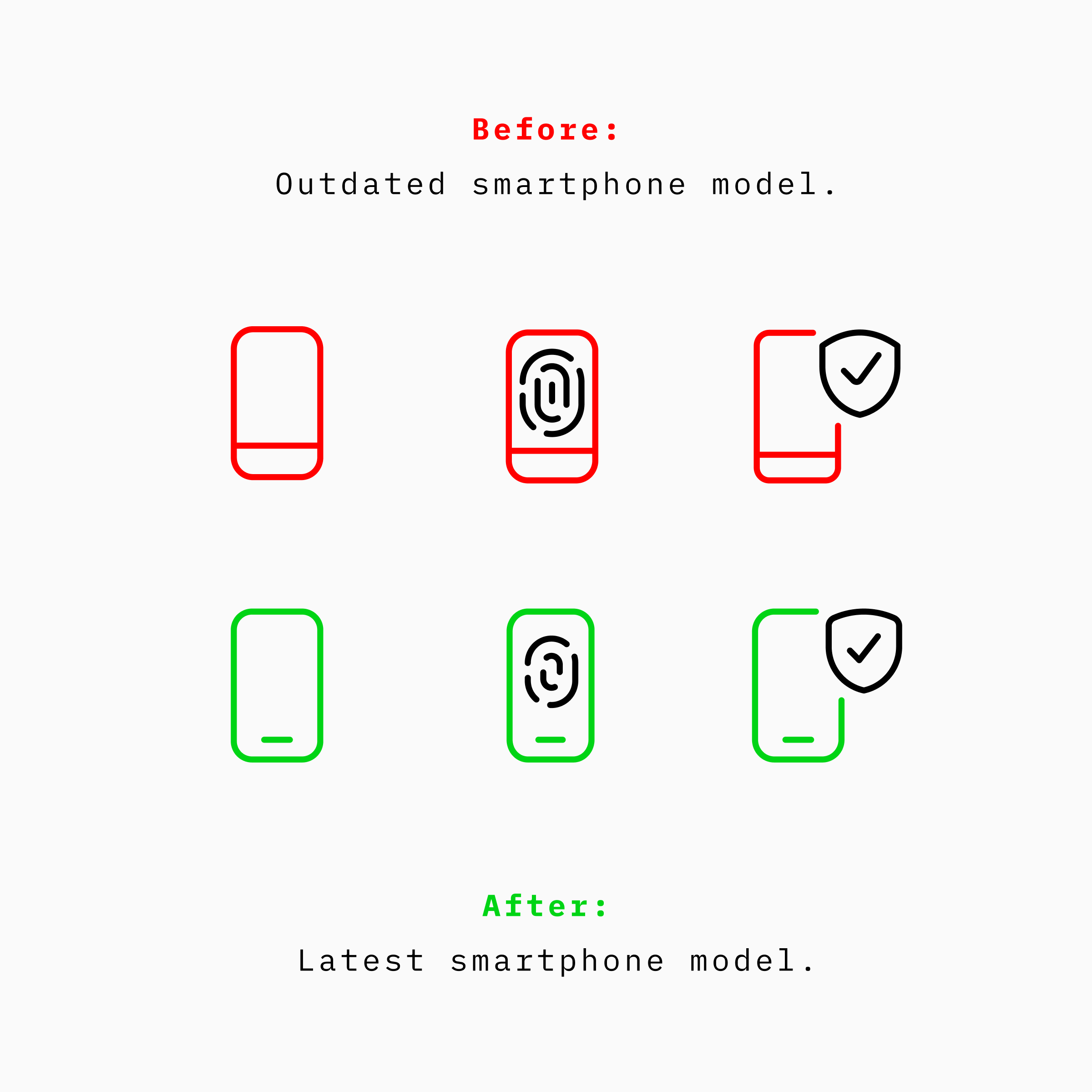
This gives related icons a more modern starting point while keeping their meaning clear.
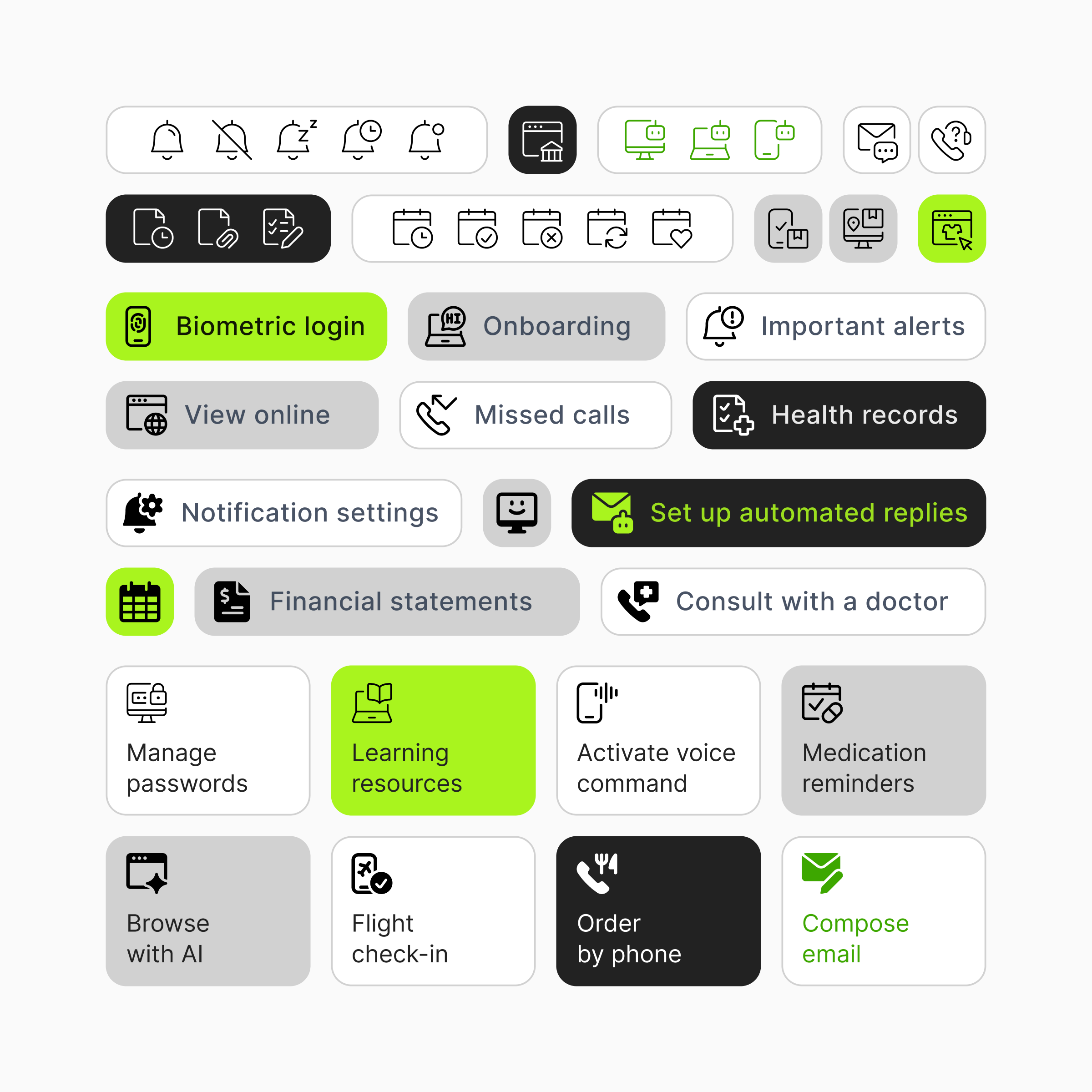
Recognizable shapes make familiar icons easier to understand at a glance. We refined the main icons across the updated series so they read more clearly before you even notice the details.
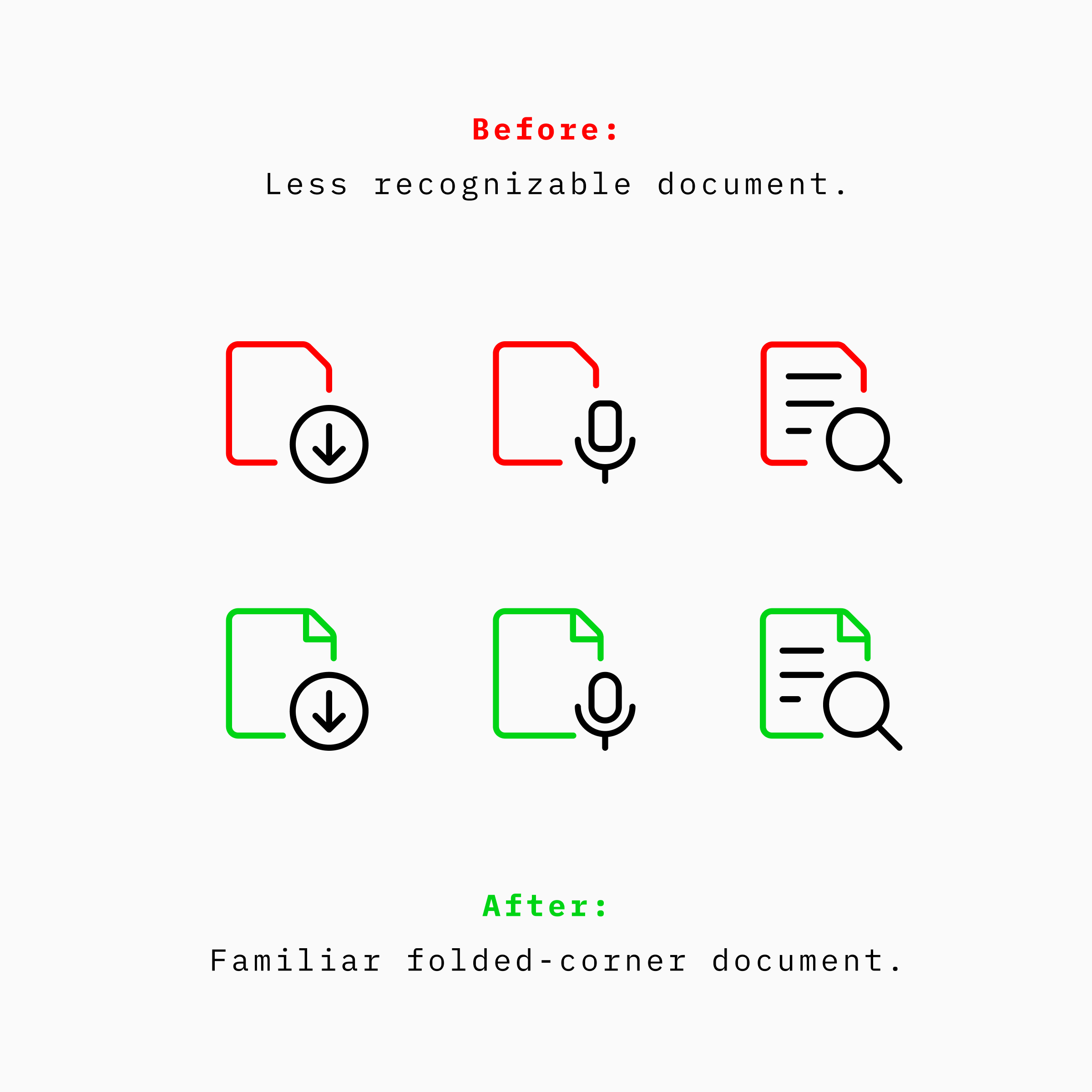
For the document icons, we replaced the less recognizable outline with a familiar folded-corner shape. That small change makes the document easier to recognize while giving related icons a clearer shared foundation.
Empty space helps an icon breathe, but too much of it can make the main icon feel small or leave the supporting symbol doing too much of the work.
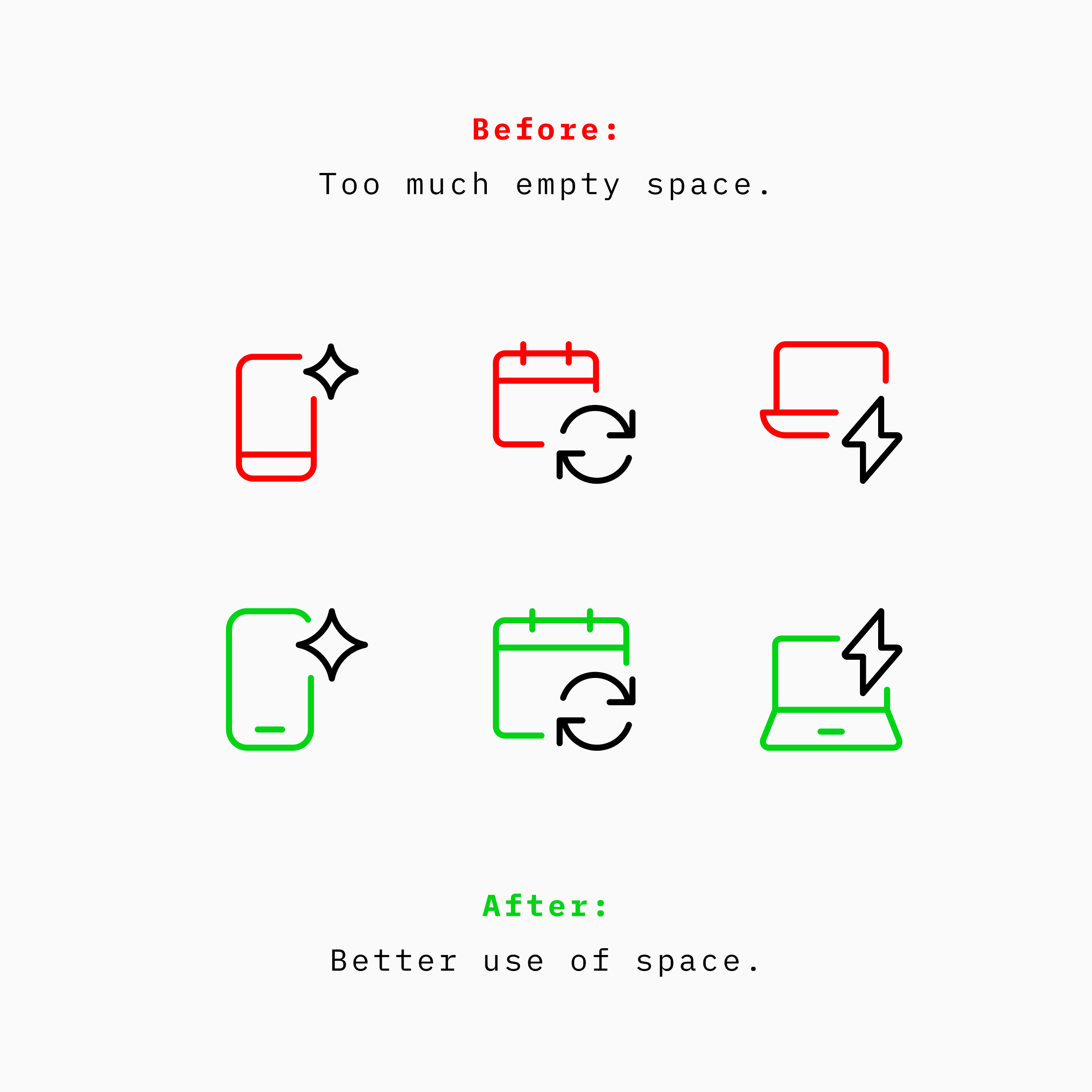
We rebalanced how each icon uses its available space, giving the main component and its supporting symbol a clearer, more even relationship. The result feels more legible and better balanced.
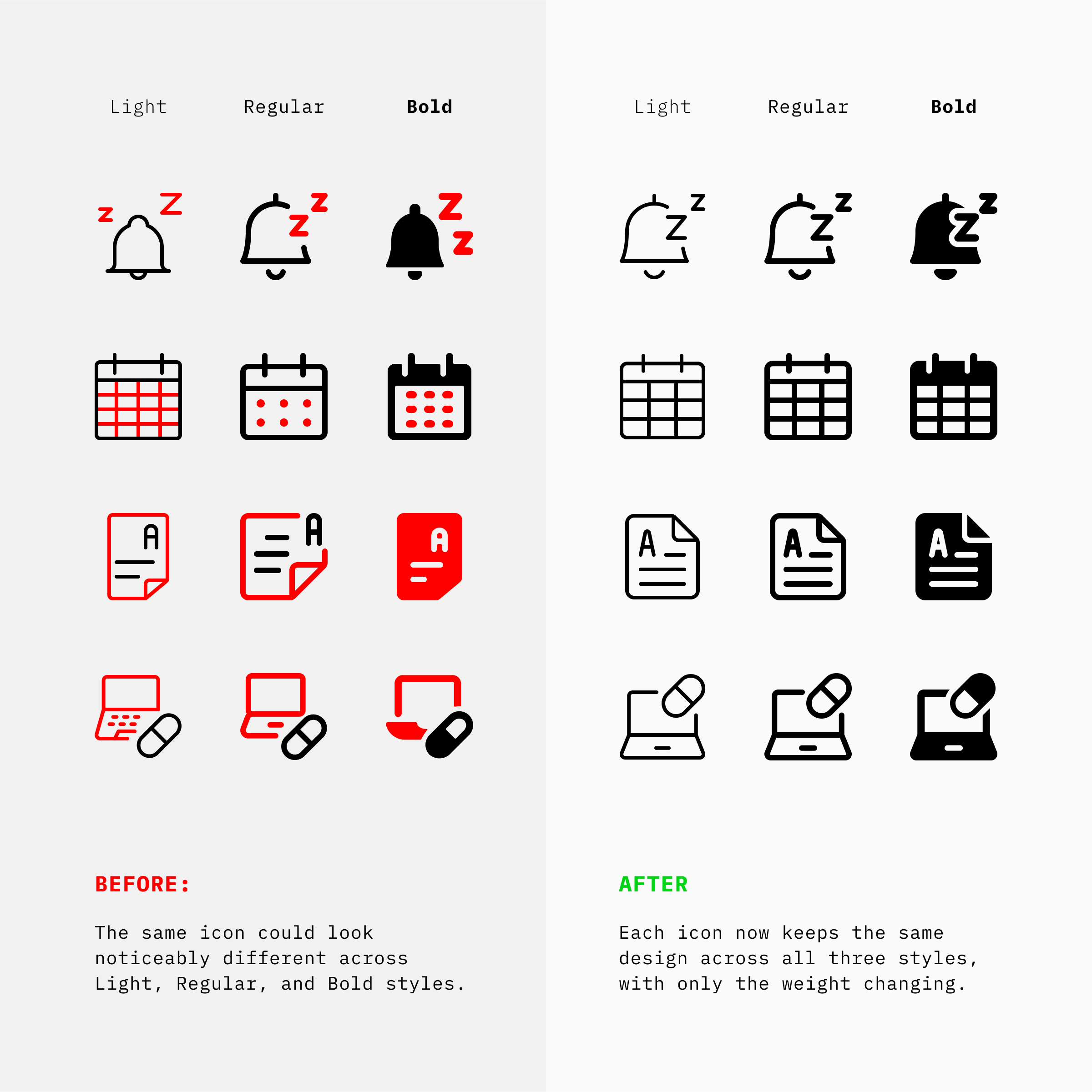
Ultimate is a family of three styles, so the same icon should retain its identity from Light to Regular to Bold.
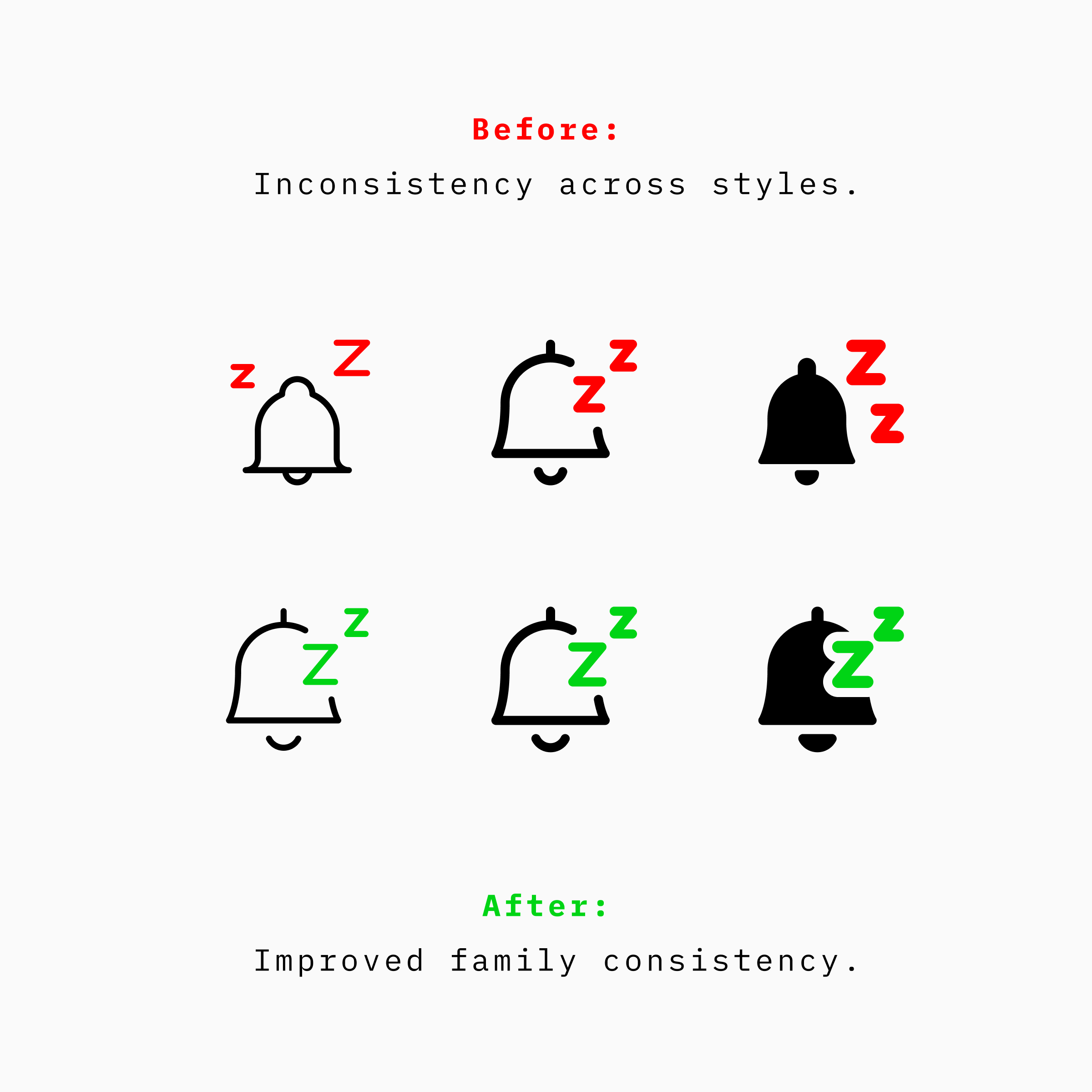
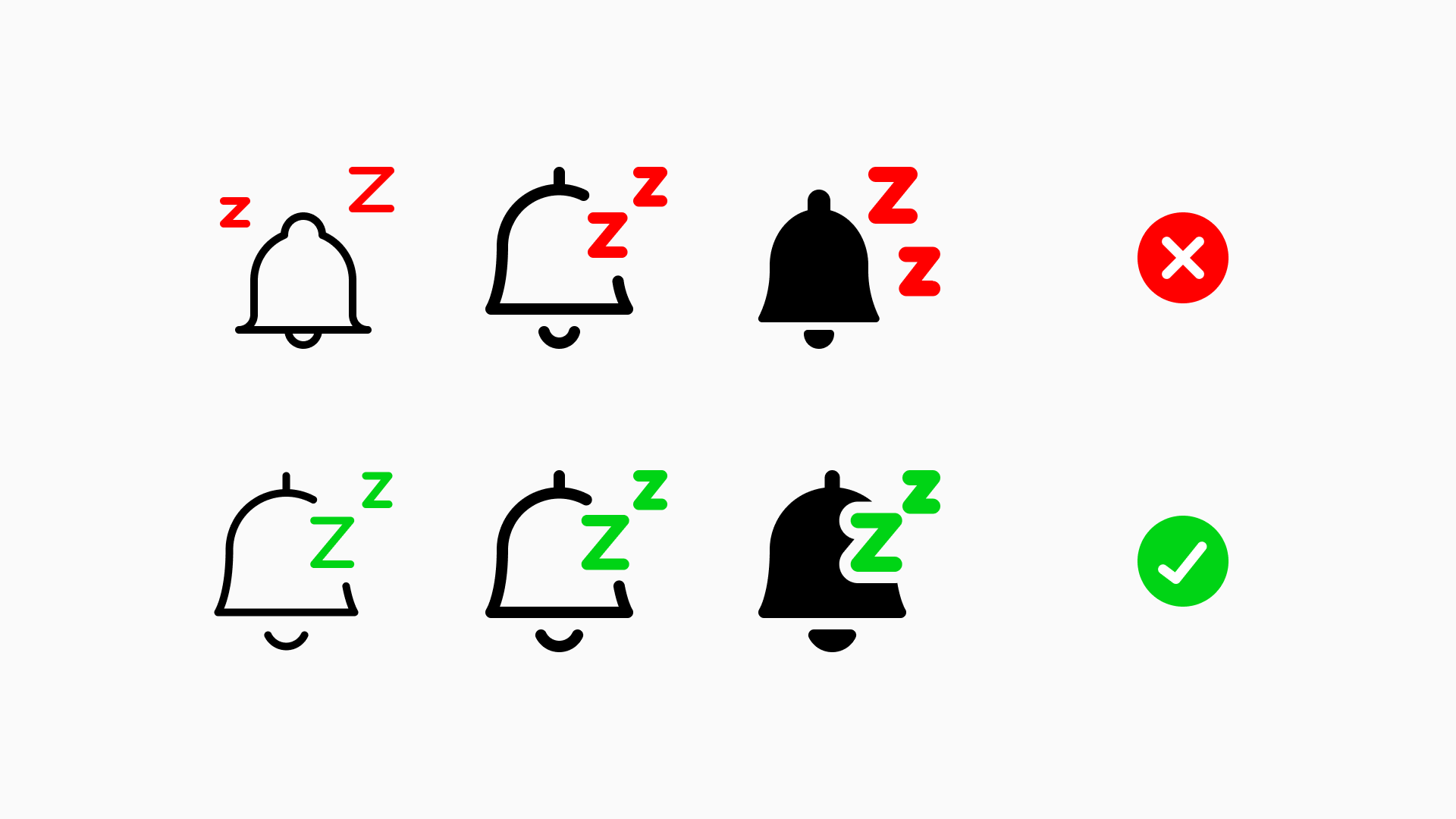
We refined how icons translate across the family, keeping their detail, proportion, and composition consistent. The weight changes, but the icon’s core design stays the same.
An icon series is a group of related icons built around the same base icon. As the set evolved, some of those series developed with different proportions, levels of detail, and placements for supporting symbols.
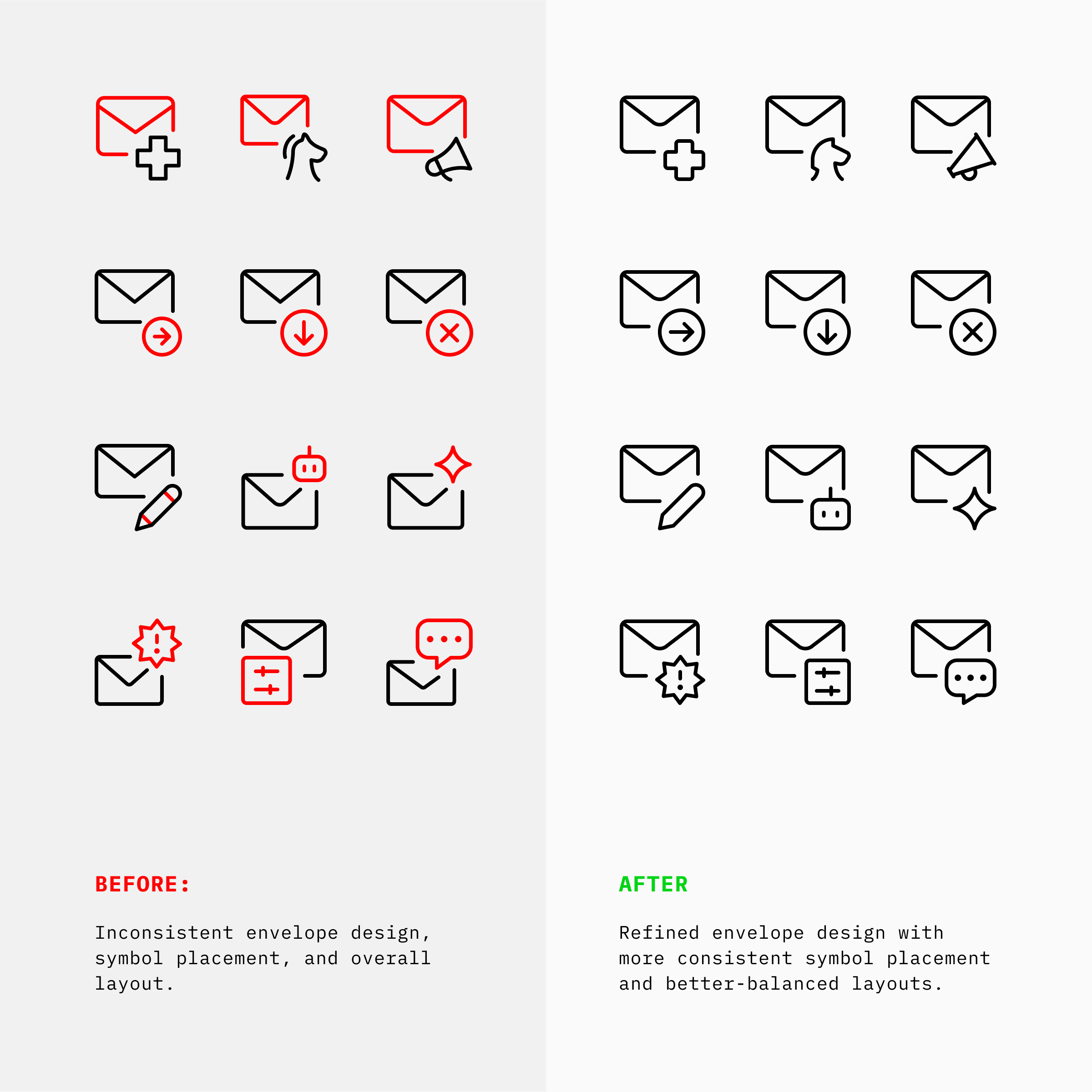
We redrew them as groups, not as isolated icons. Each series now shares a more consistent base design, with supporting symbols placed and scaled in a way that feels balanced across the whole group.
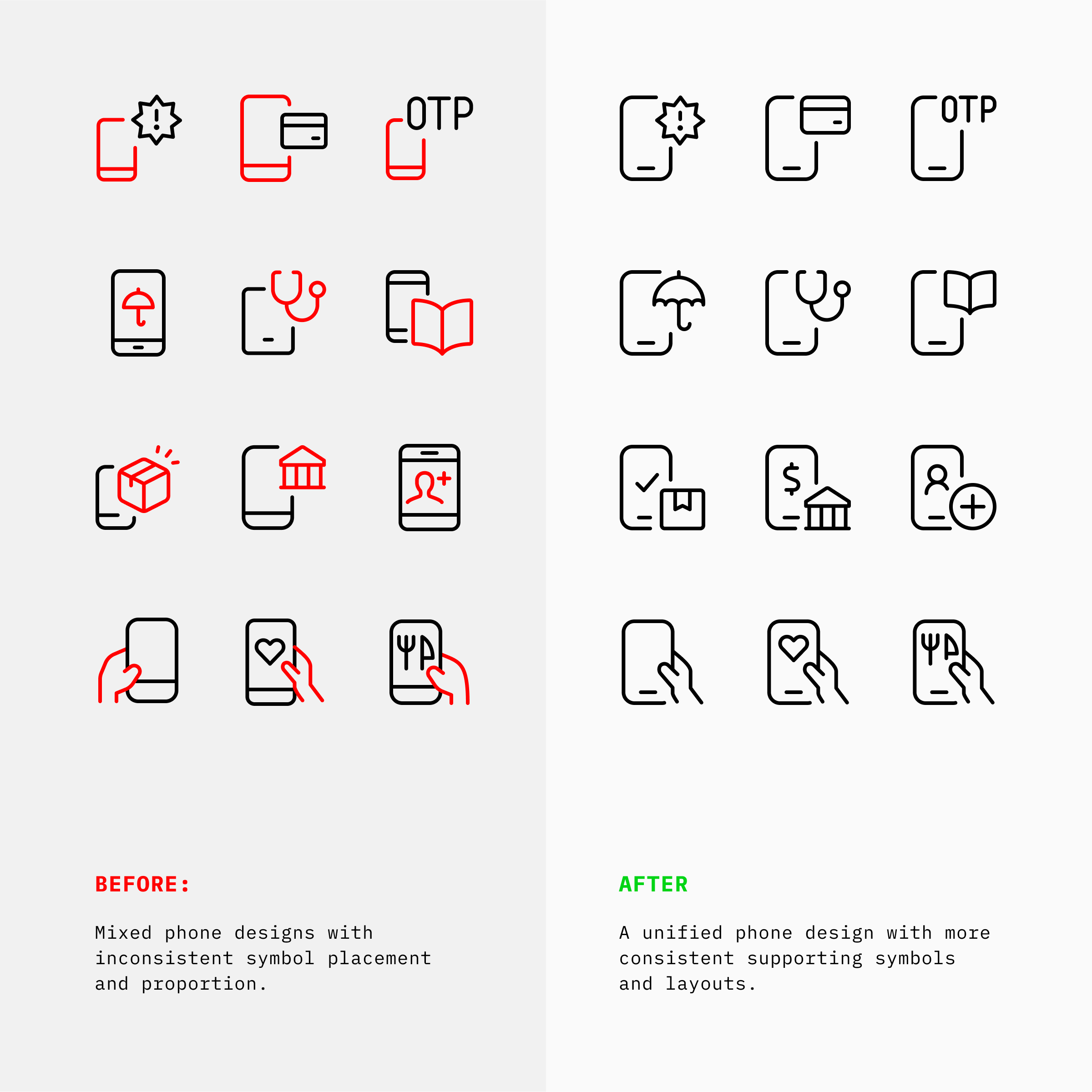
Together, these changes make the icons easier to recognize and the Ultimate family more consistent.
The five changes above solve three practical problems: keeping familiar symbols current, improving legibility in real interfaces, and helping a large icon family stay consistent.
The devices and services people recognize change over time. Updating icon metaphors helps familiar symbols, such as smartphones, remain clear and relevant in modern interfaces.
Icons often appear at small sizes in navigation, toolbars, tables, and other dense interface areas. Clearer forms and better-balanced space help them remain easy to recognize beside text and other icons.
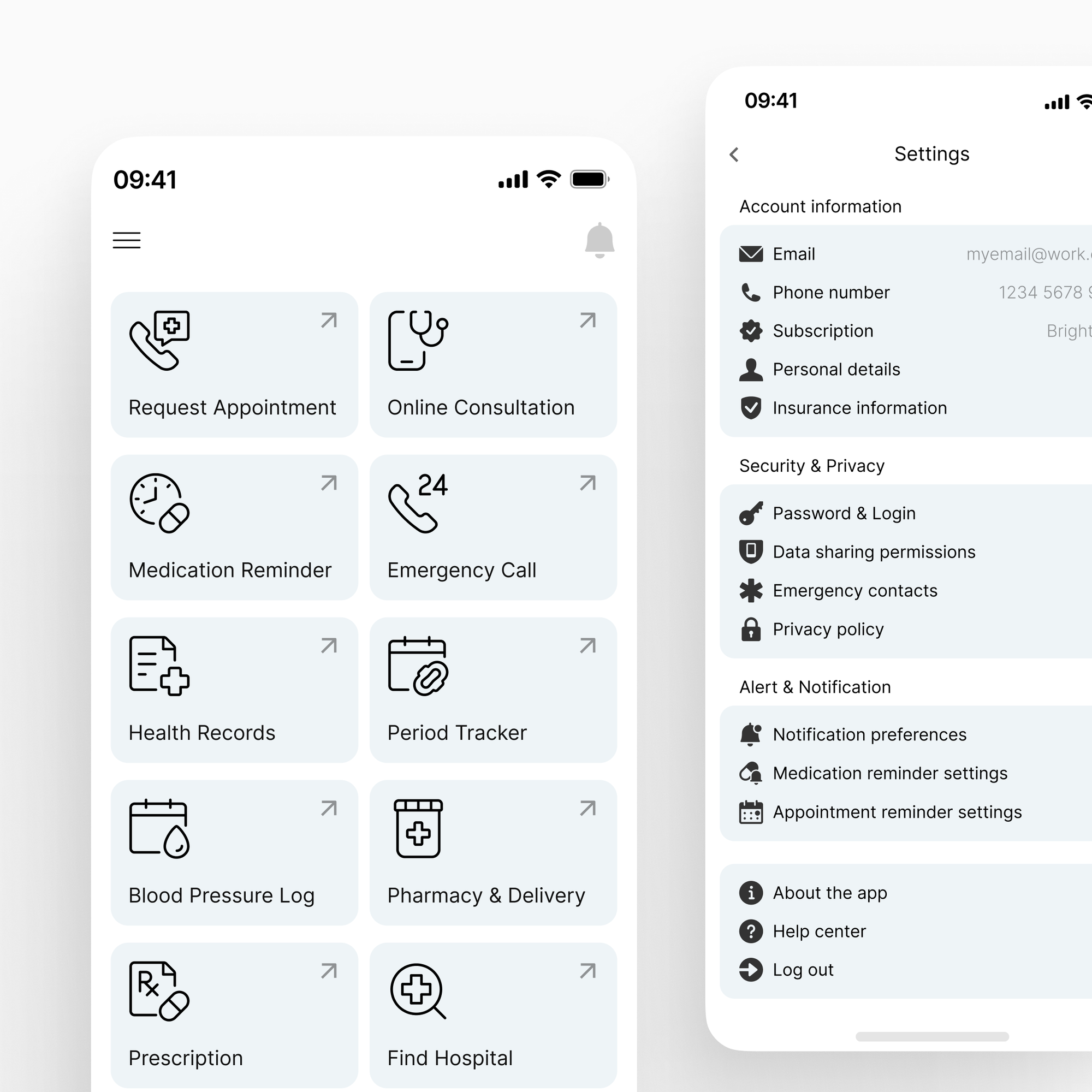
A large icon family is most useful when its icons work together. By aligning related series and the three Ultimate styles, we make it easier to mix icons across a project without the set feeling disconnected.
That same approach carries across Ultimate Light, Ultimate Regular, and Ultimate Bold, each designed for a different kind of interface.
Ultimate is one family, not three separate icon sets.
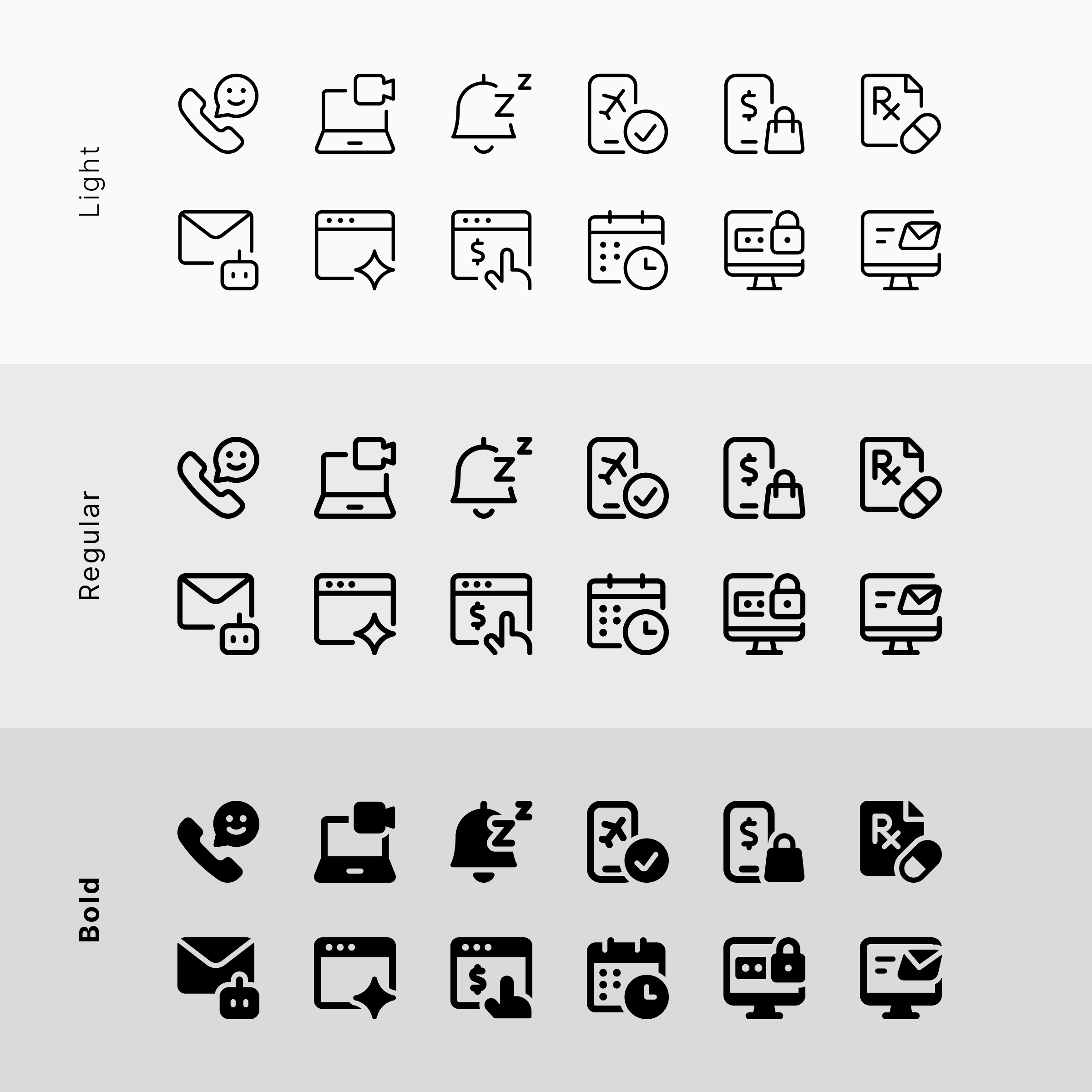
Each weight has its own character, but the same icon should feel natural in Light, Regular, and Bold. Making that work requires consistency at two levels.
Each icon series within a style needs a common approach to size, proportion, detail, and supporting-symbol placement.
When the same design is translated to Light, Regular, and Bold, it needs to retain the same composition and identity.
That is where harmonization matters. It brings related series into line within each style while preserving a design’s identity as it moves between them.
The result is a more consistent Ultimate family, whether you need an airy outline, a versatile everyday weight, or a stronger filled icon.
Not every screen asks for the same visual voice. That’s why Ultimate comes in three carefully balanced weights, each designed for different situations.
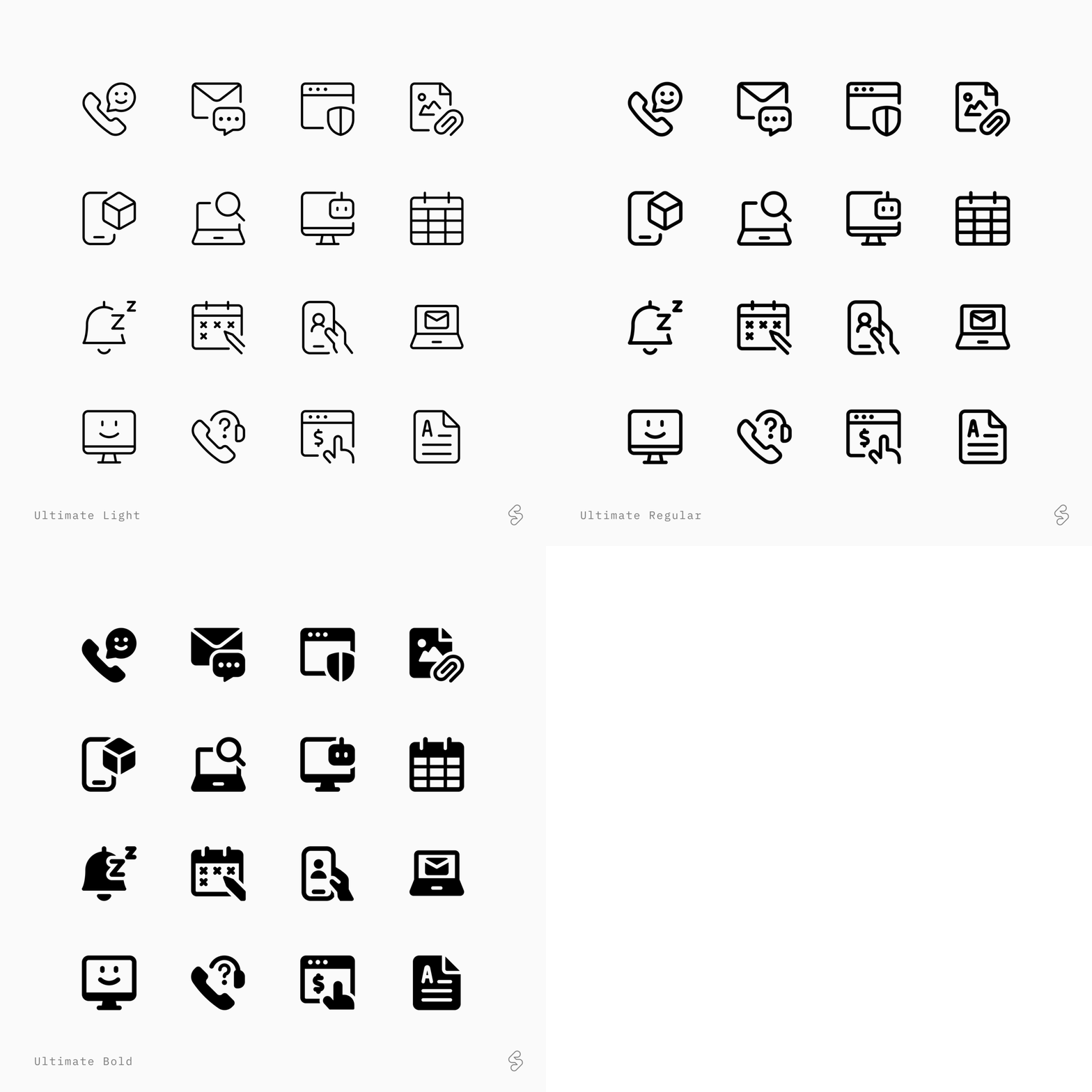
Explore all three and choose the weight that fits your project best.
2026-07-31 18:20:11
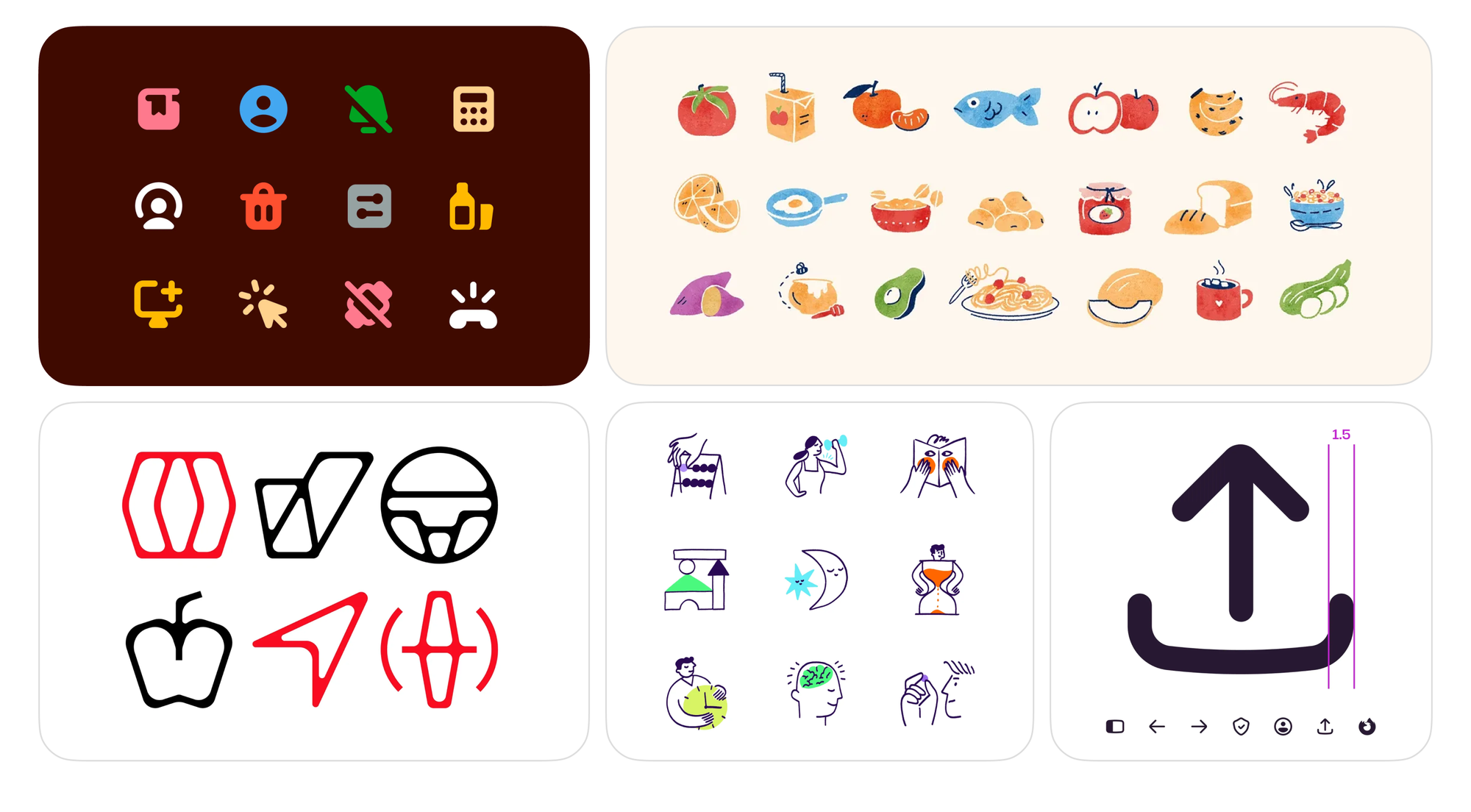
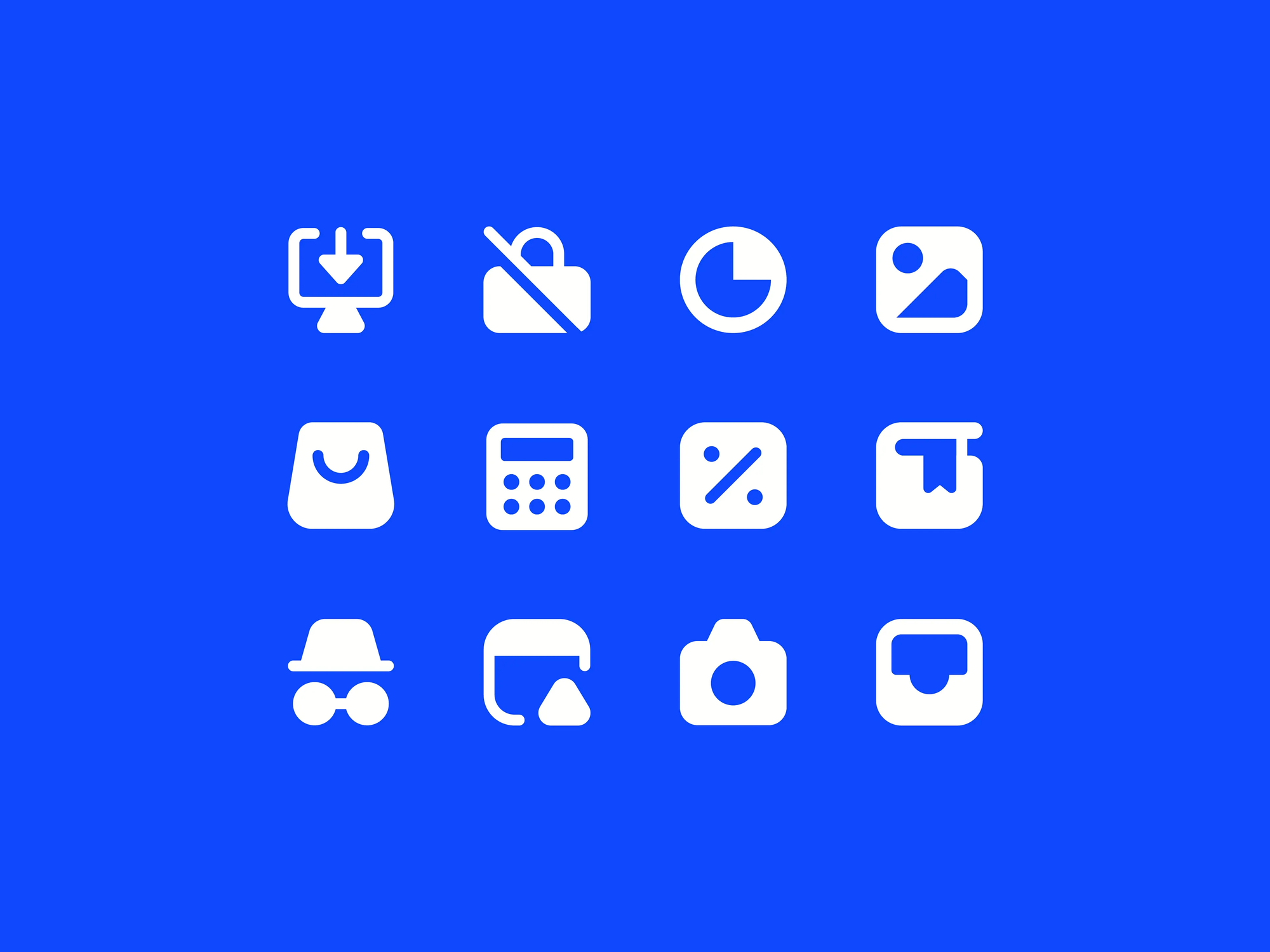
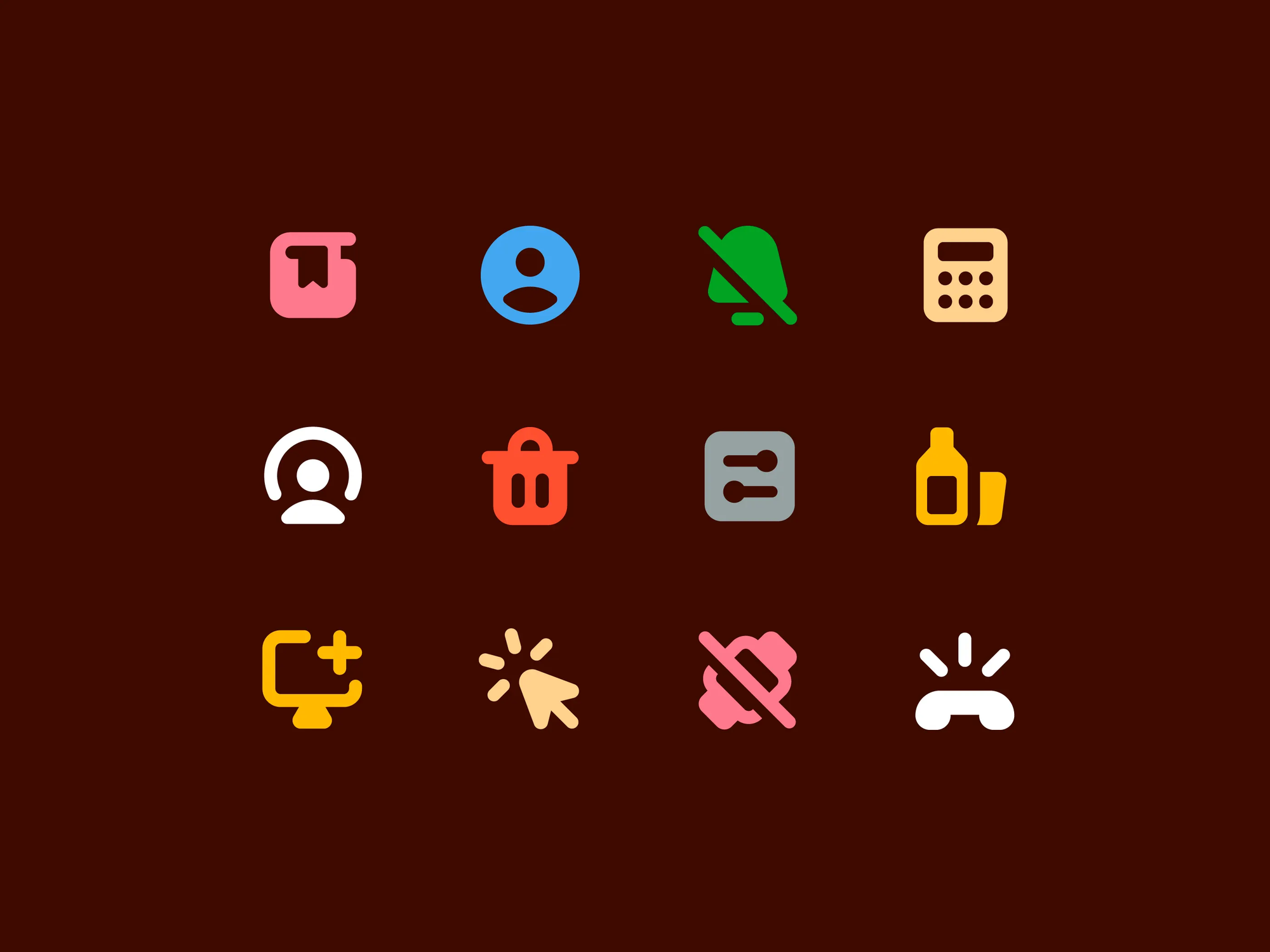
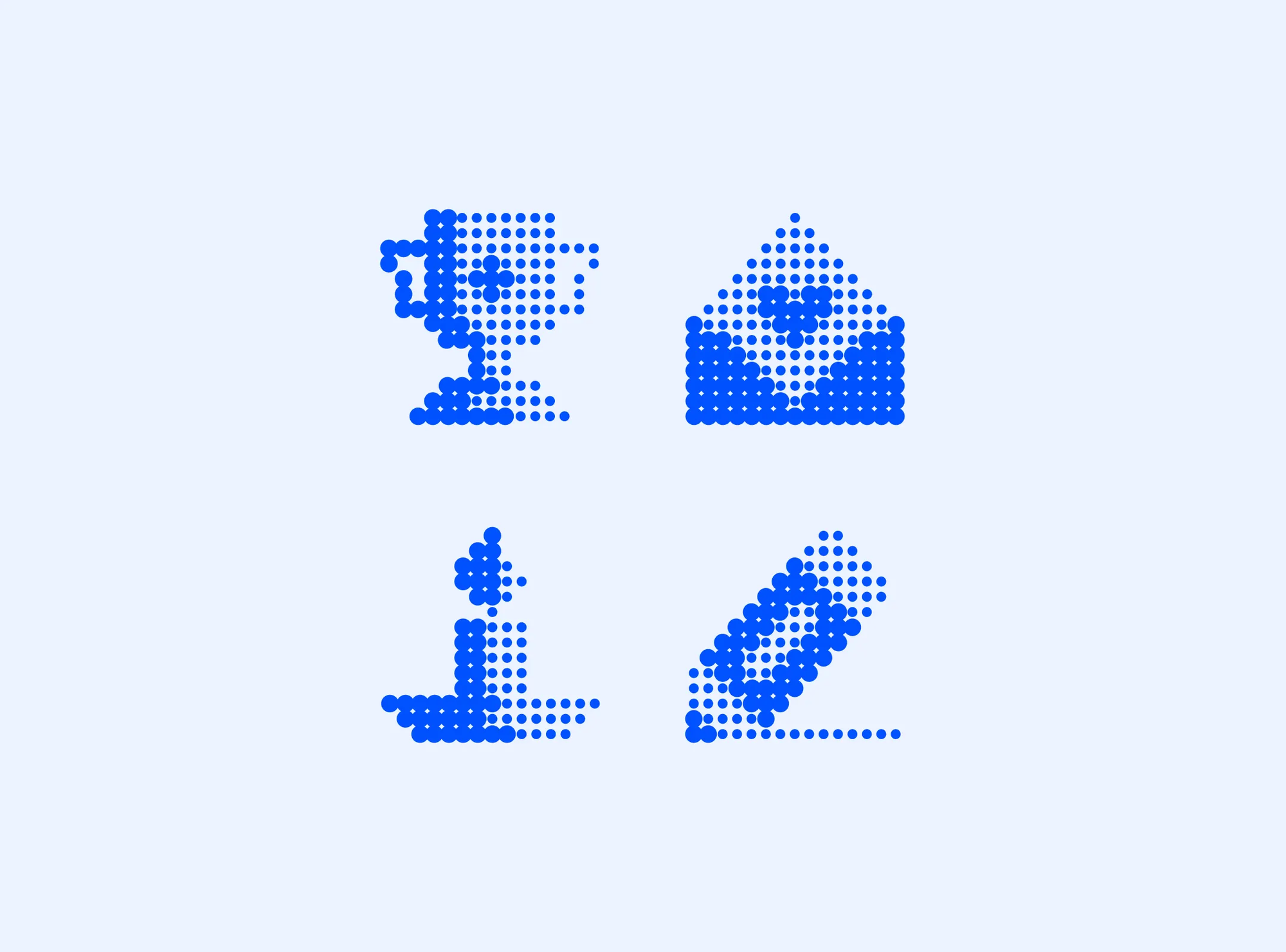
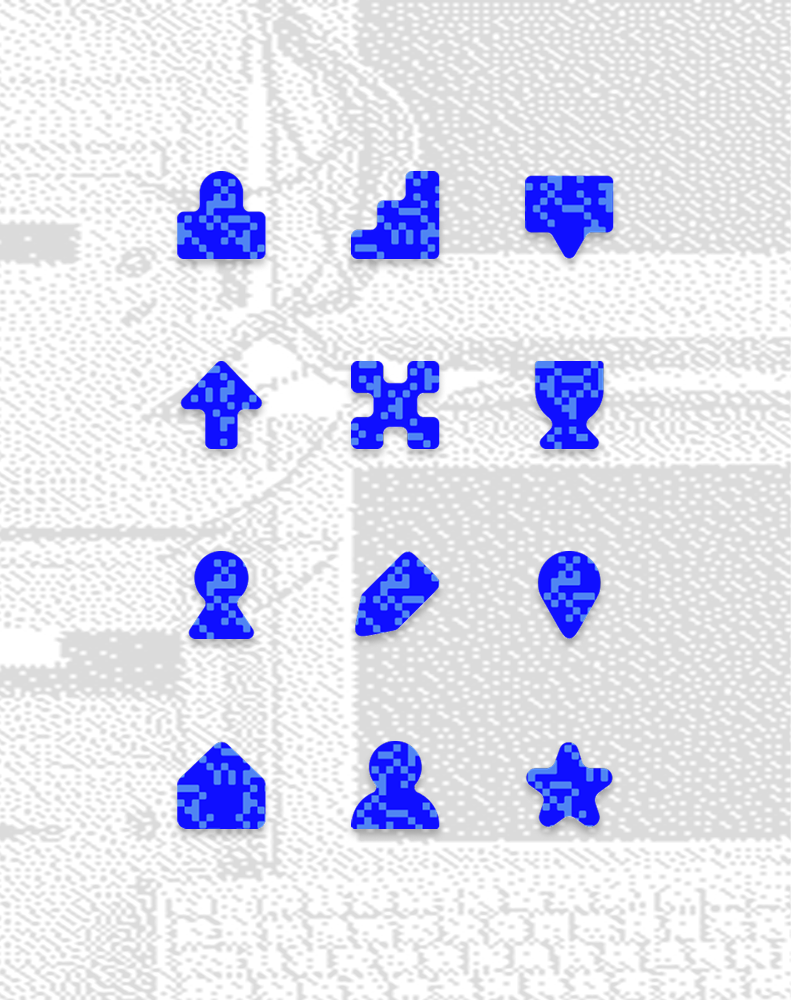
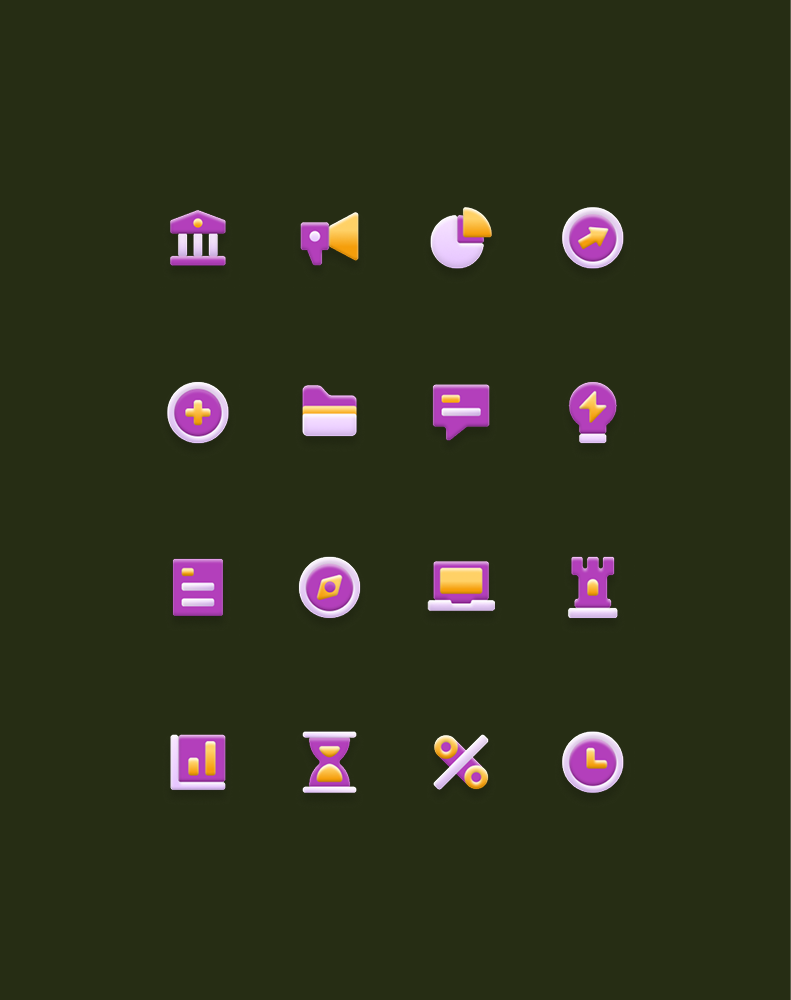
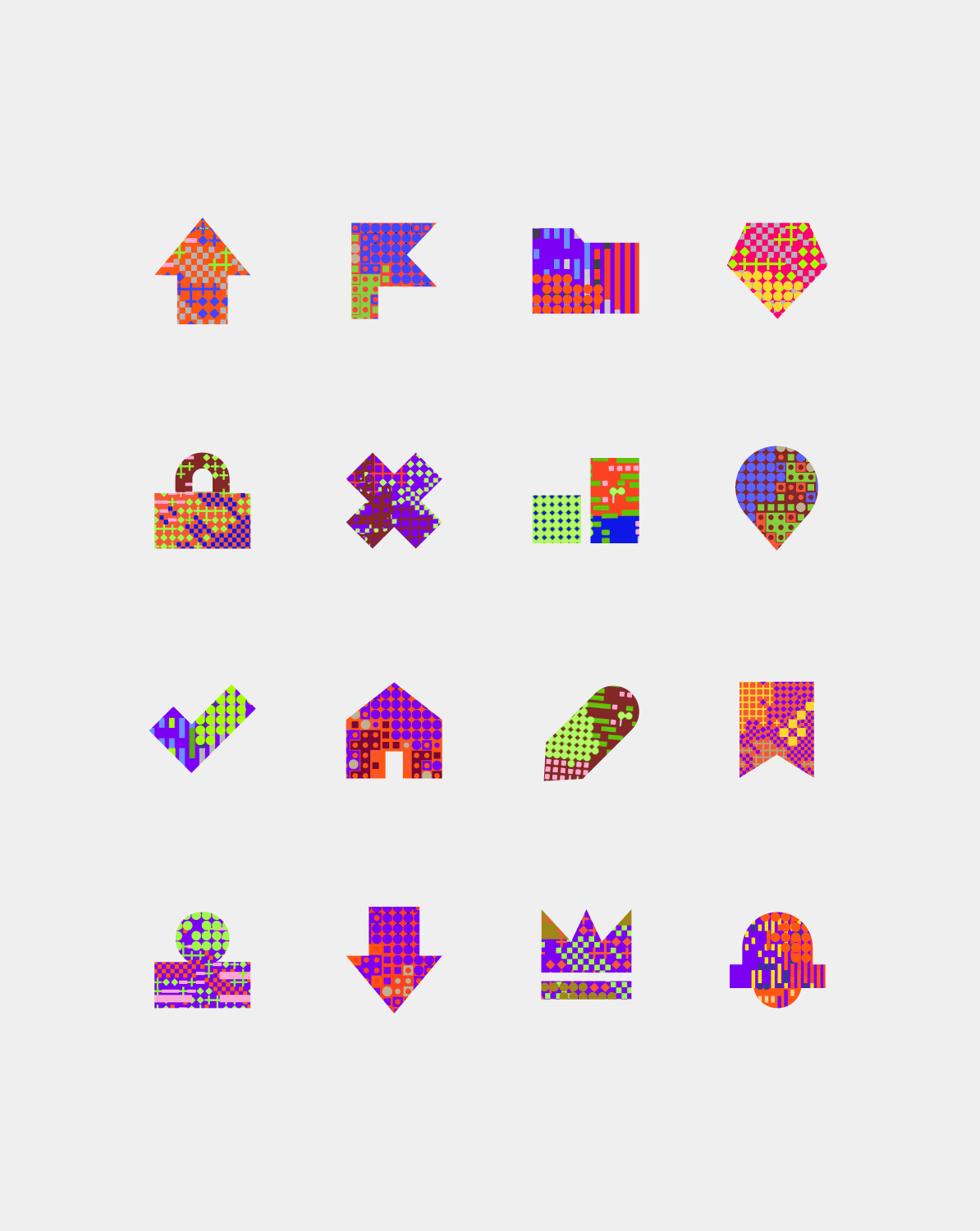
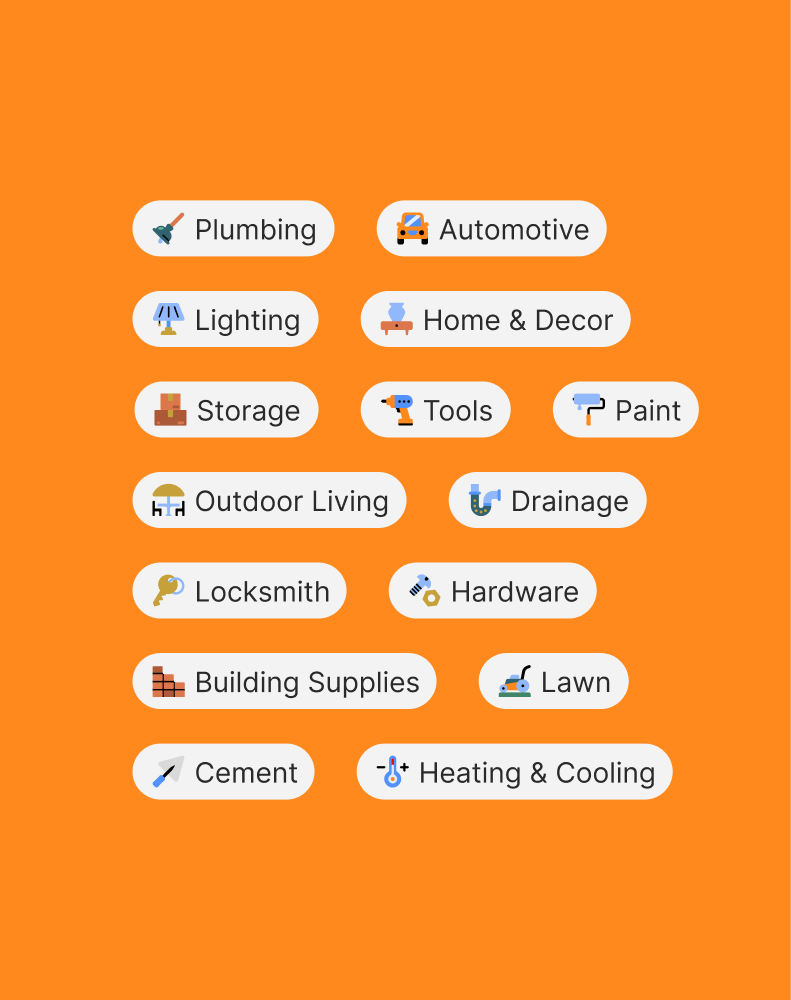
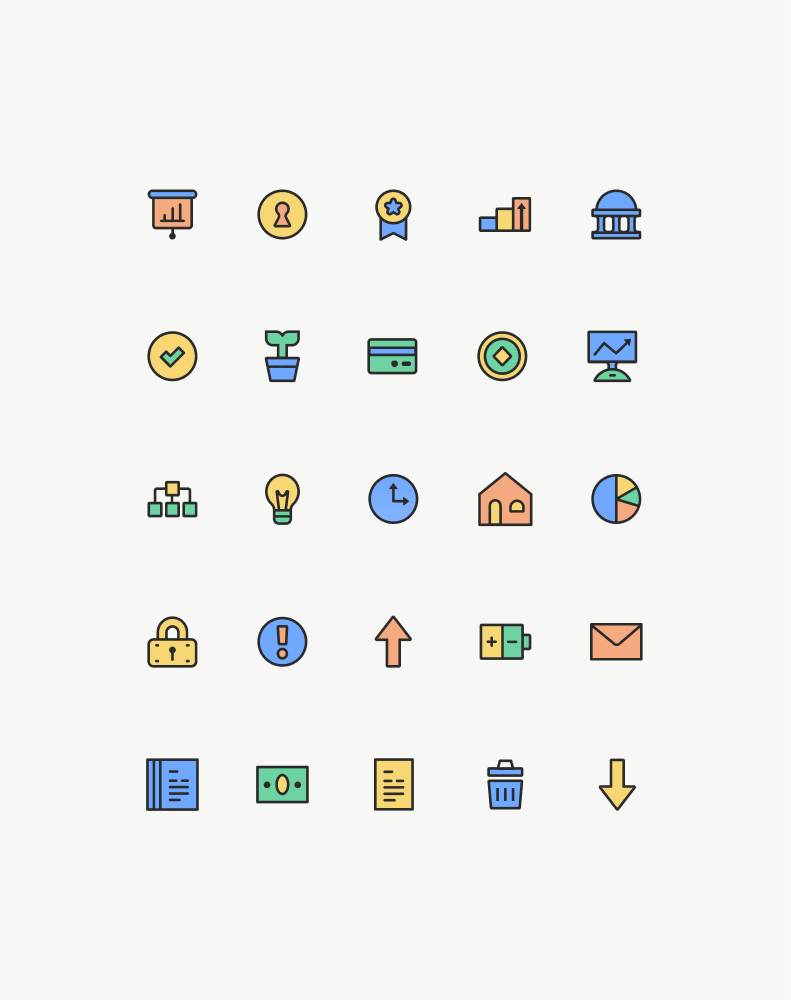
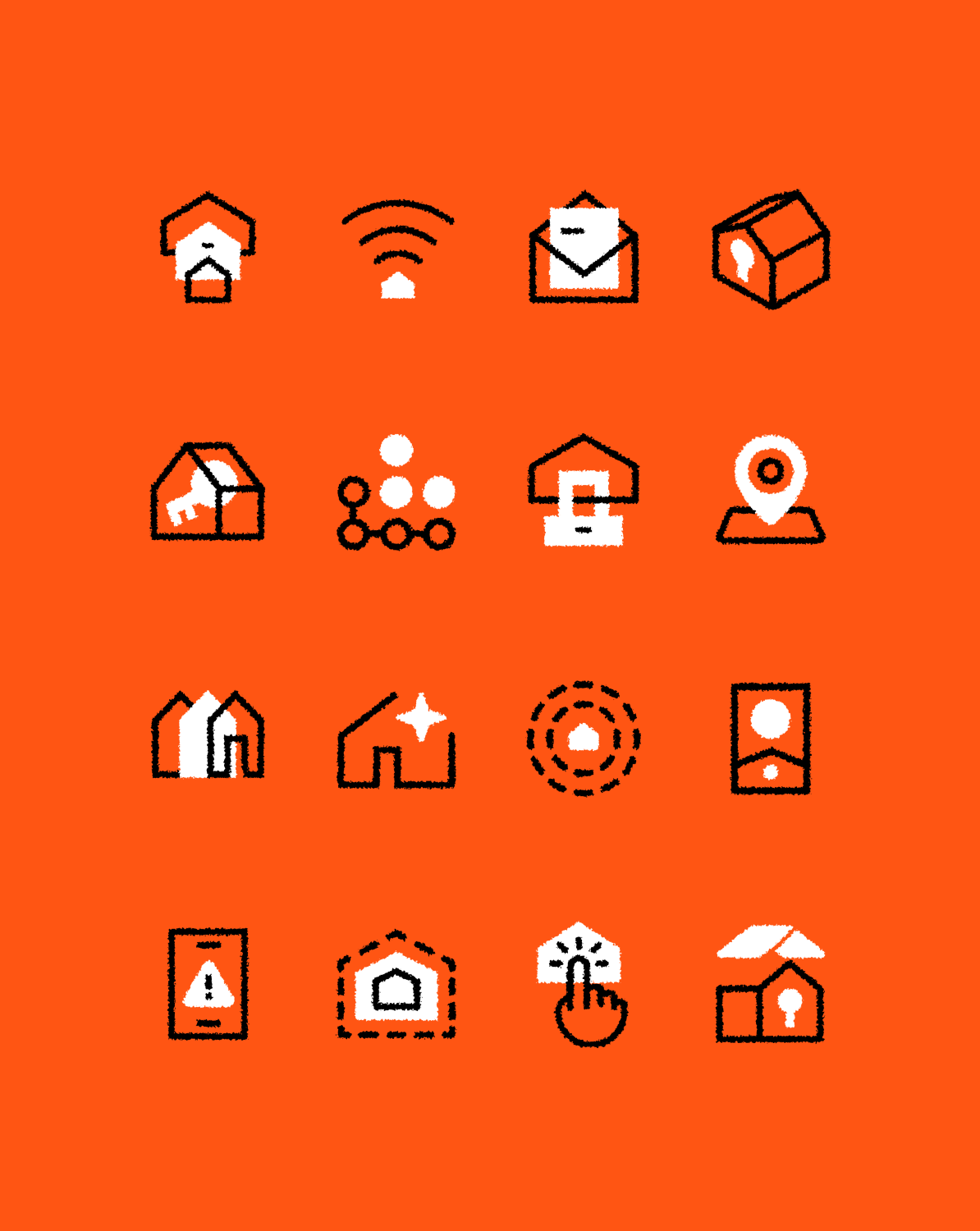
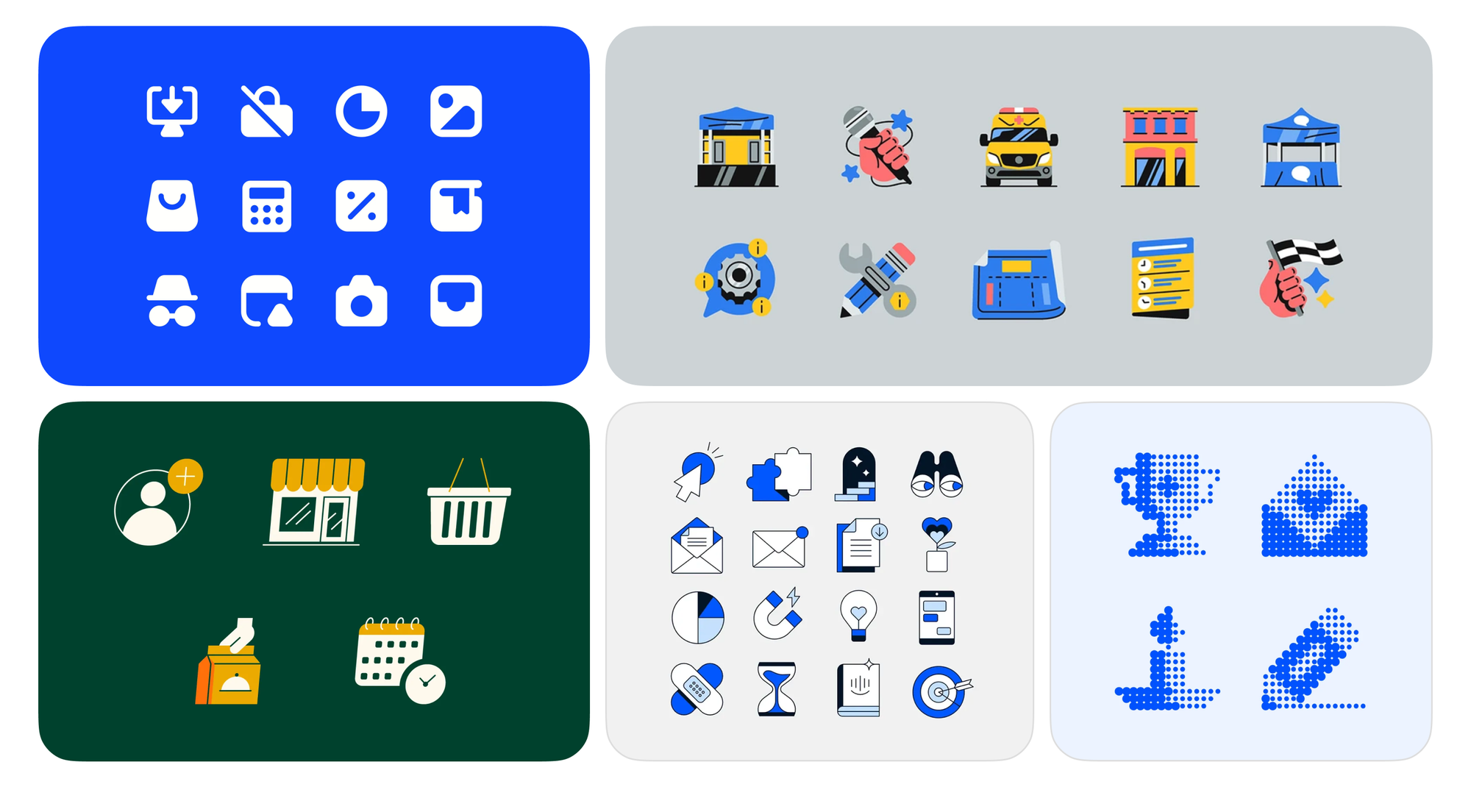
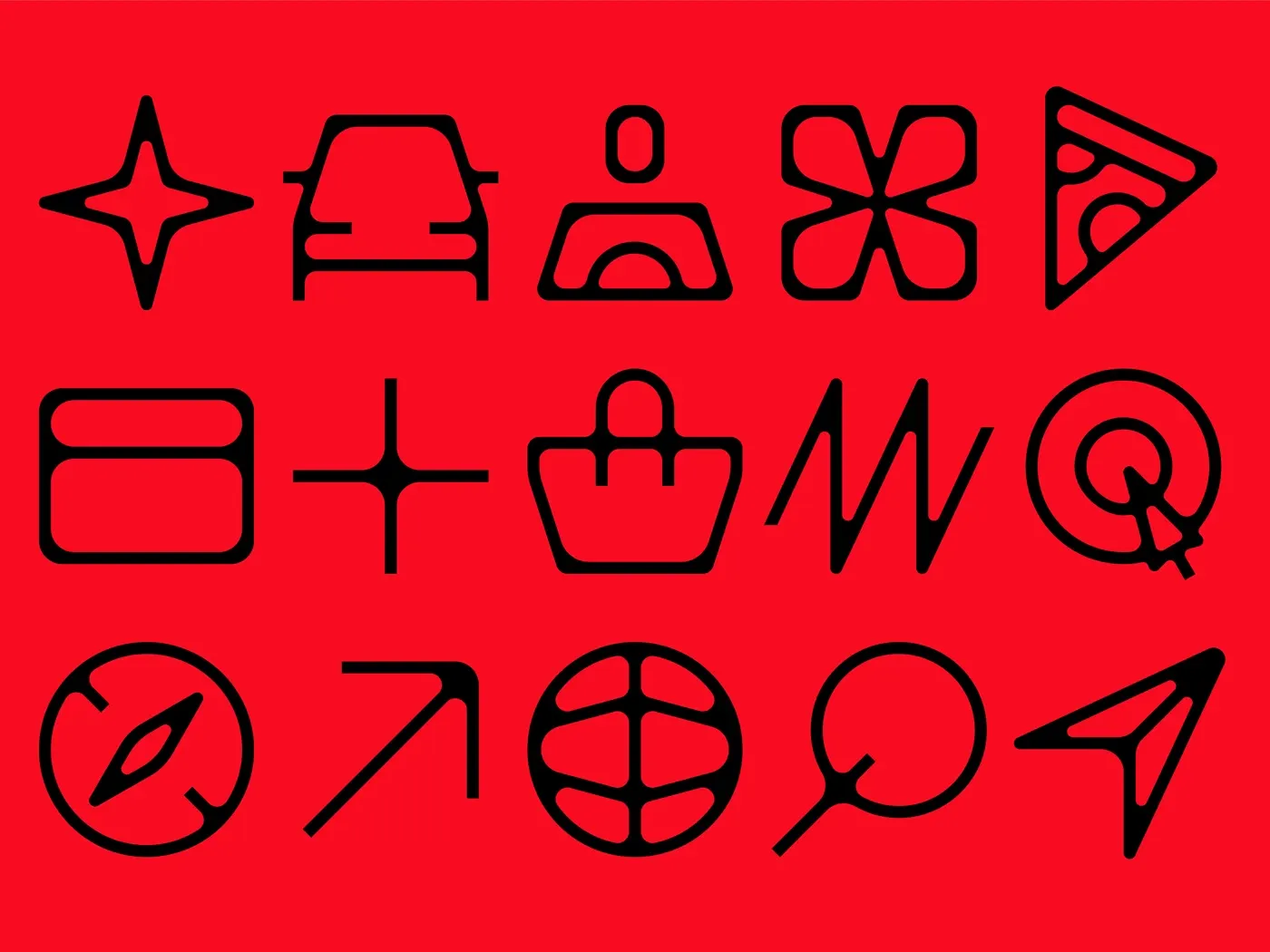
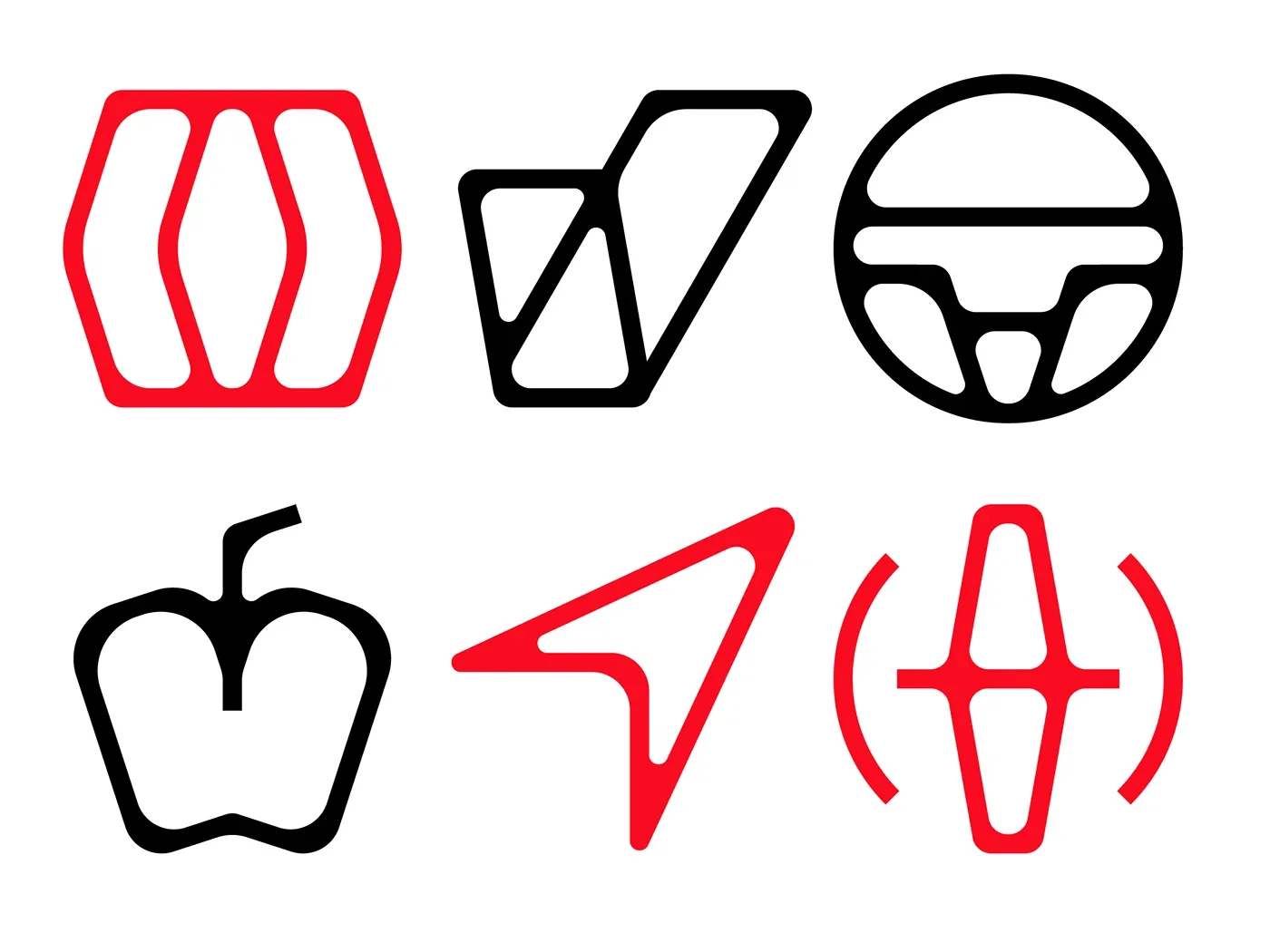
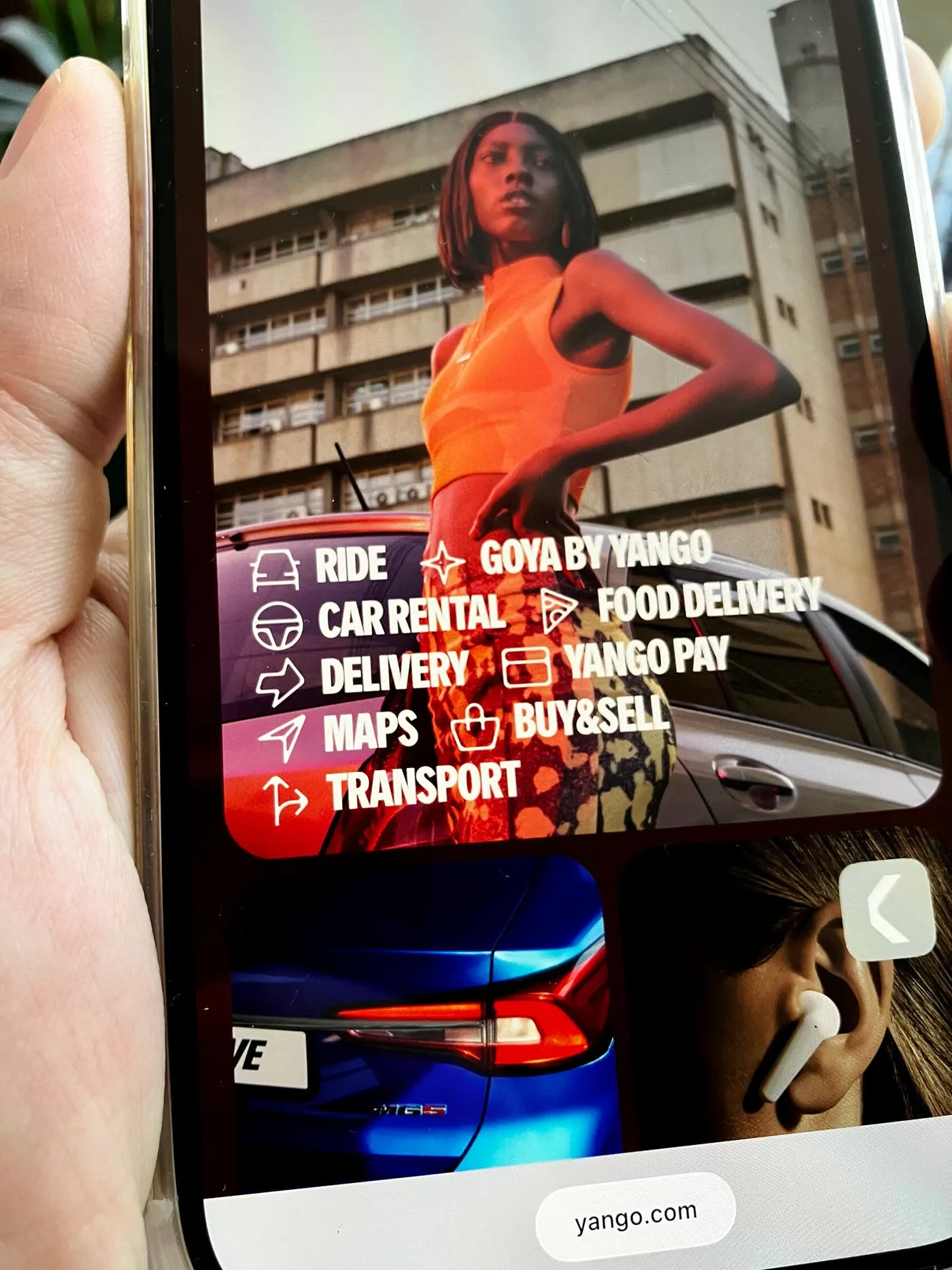
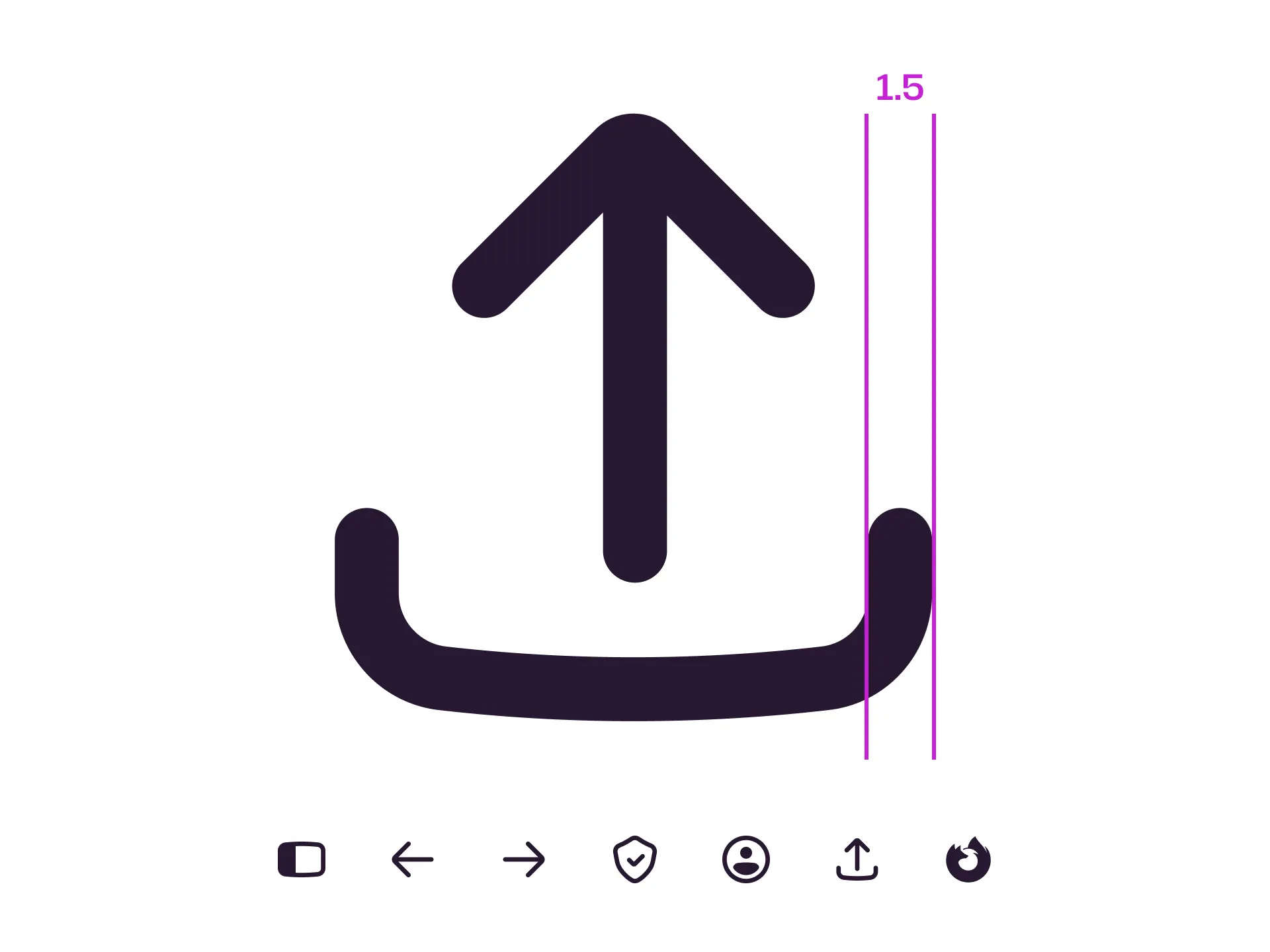
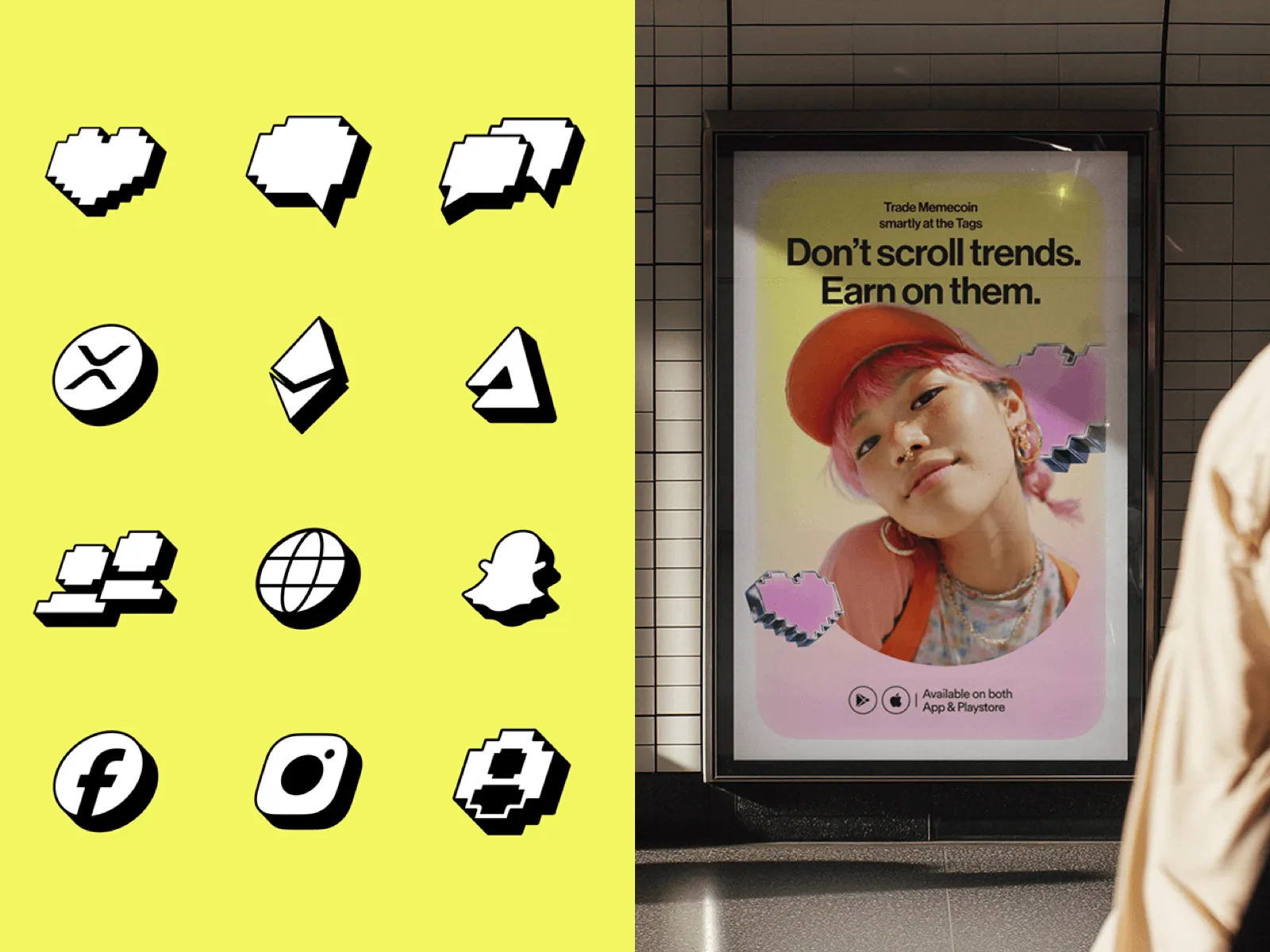
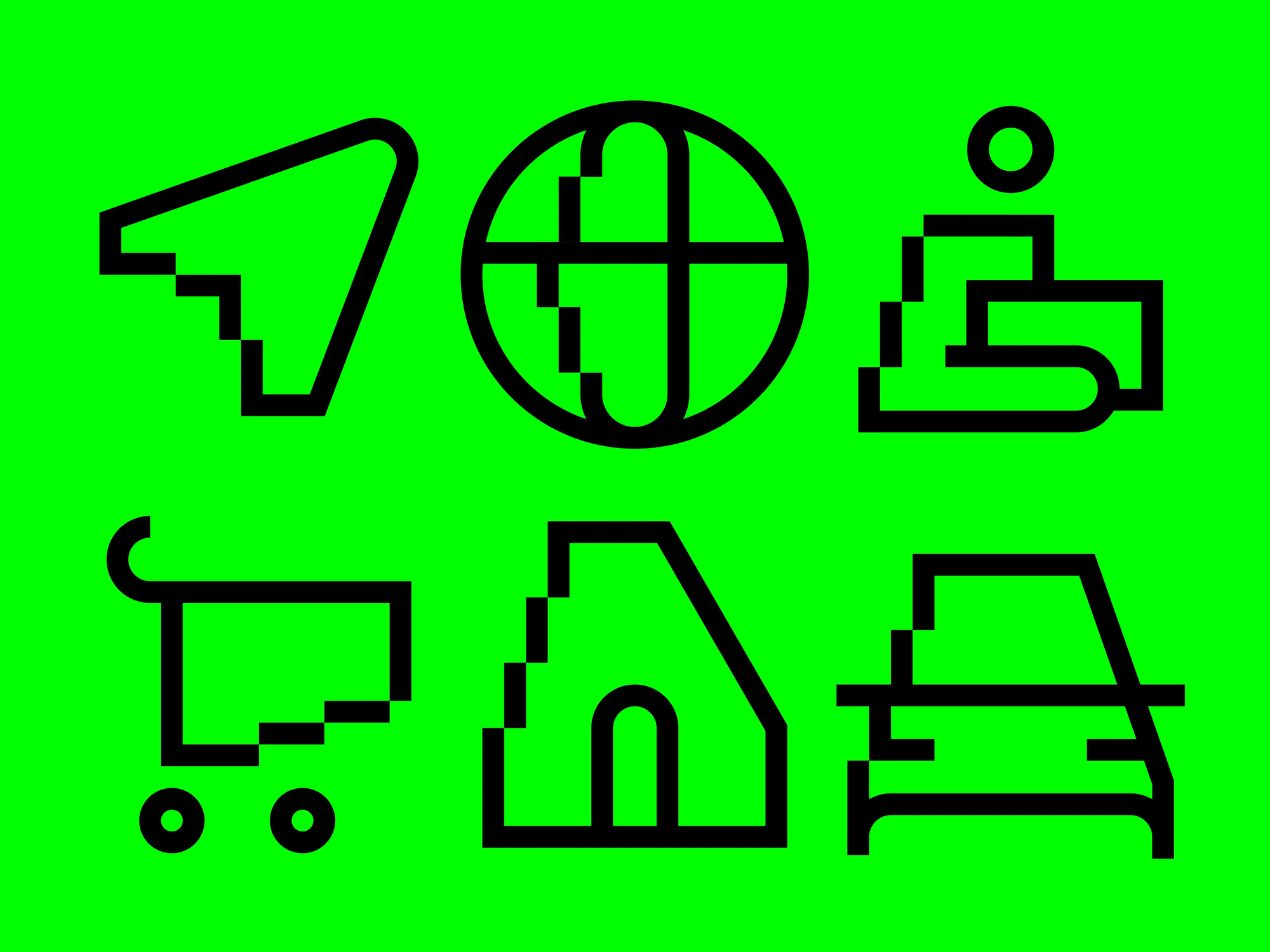
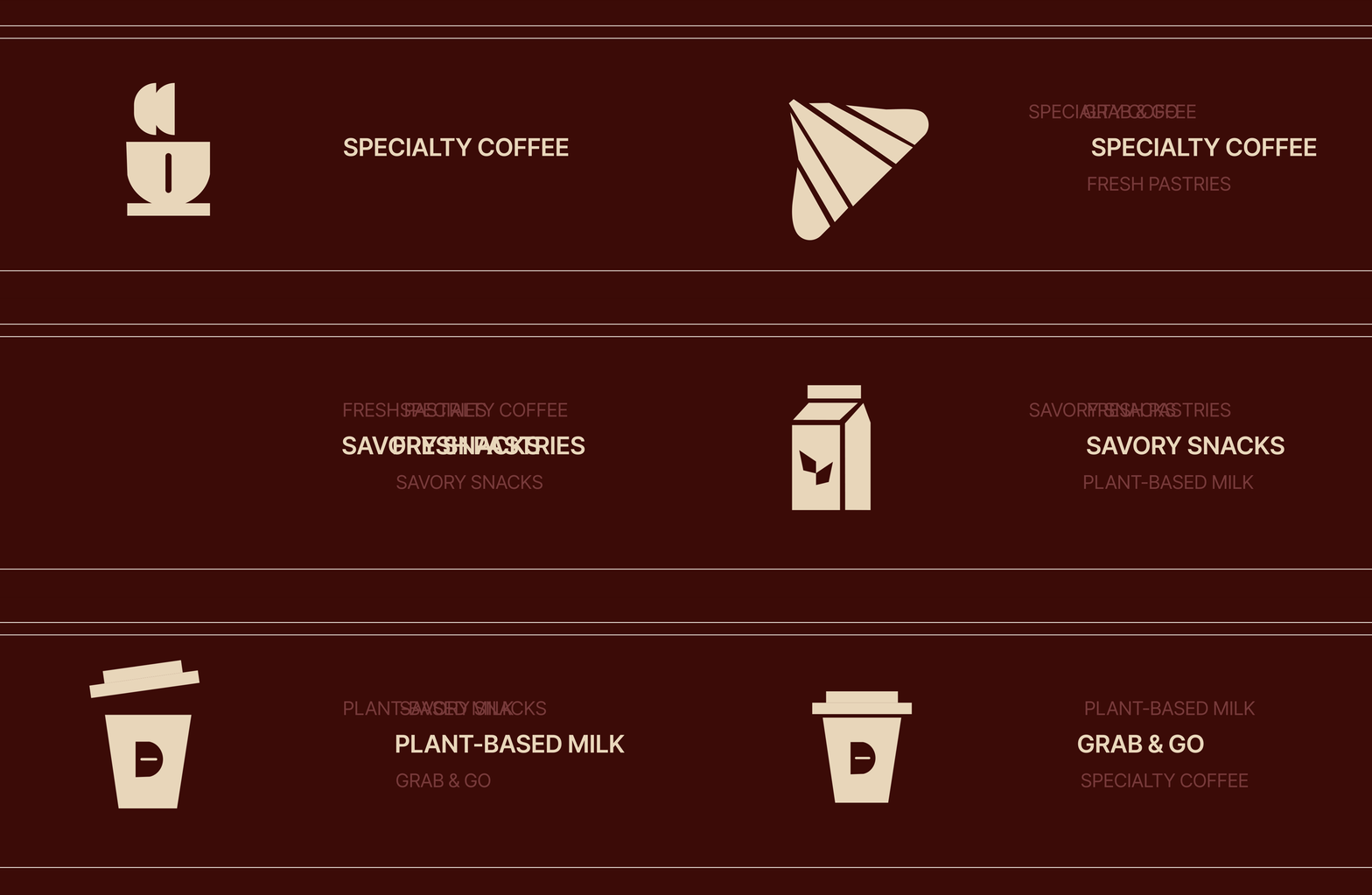

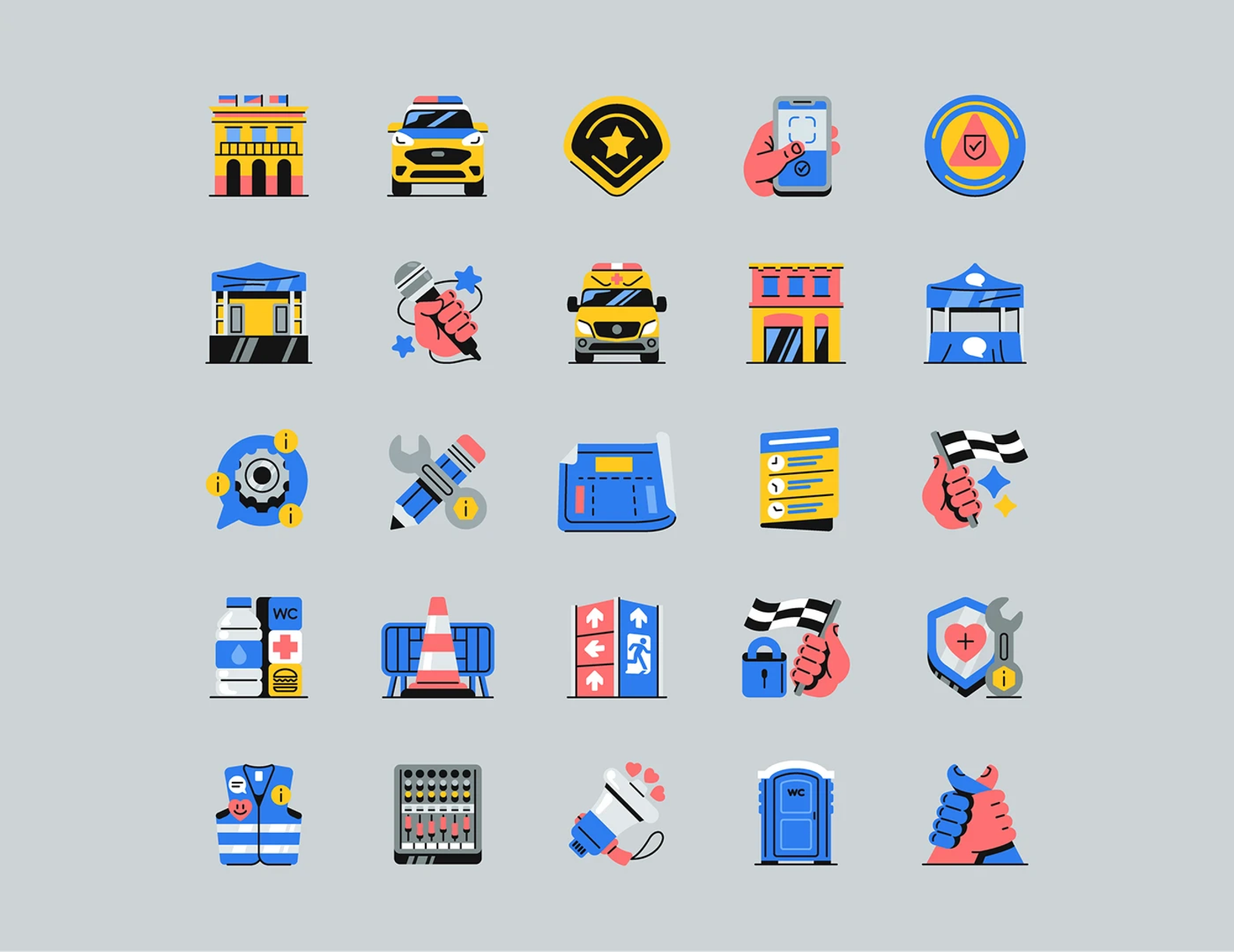
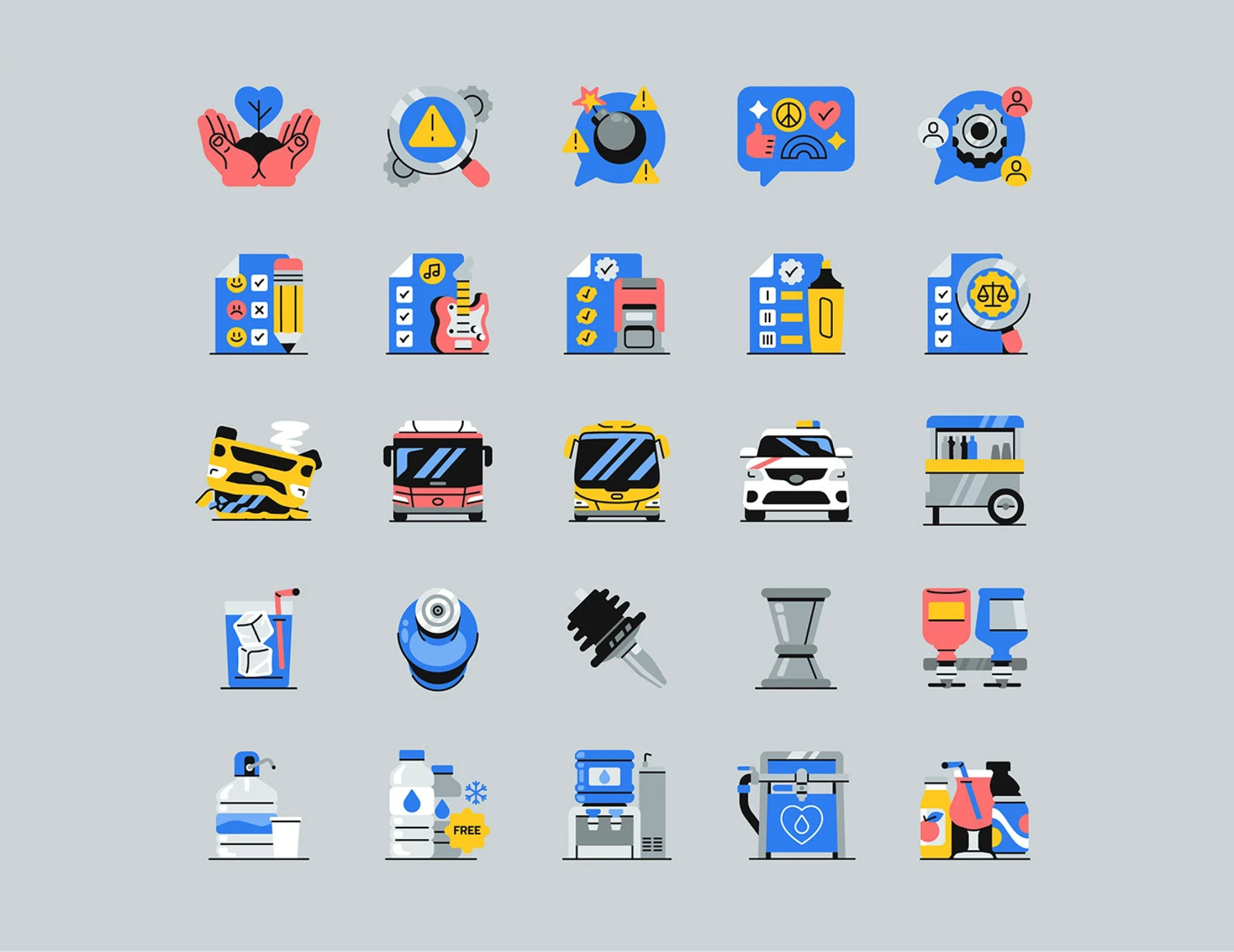
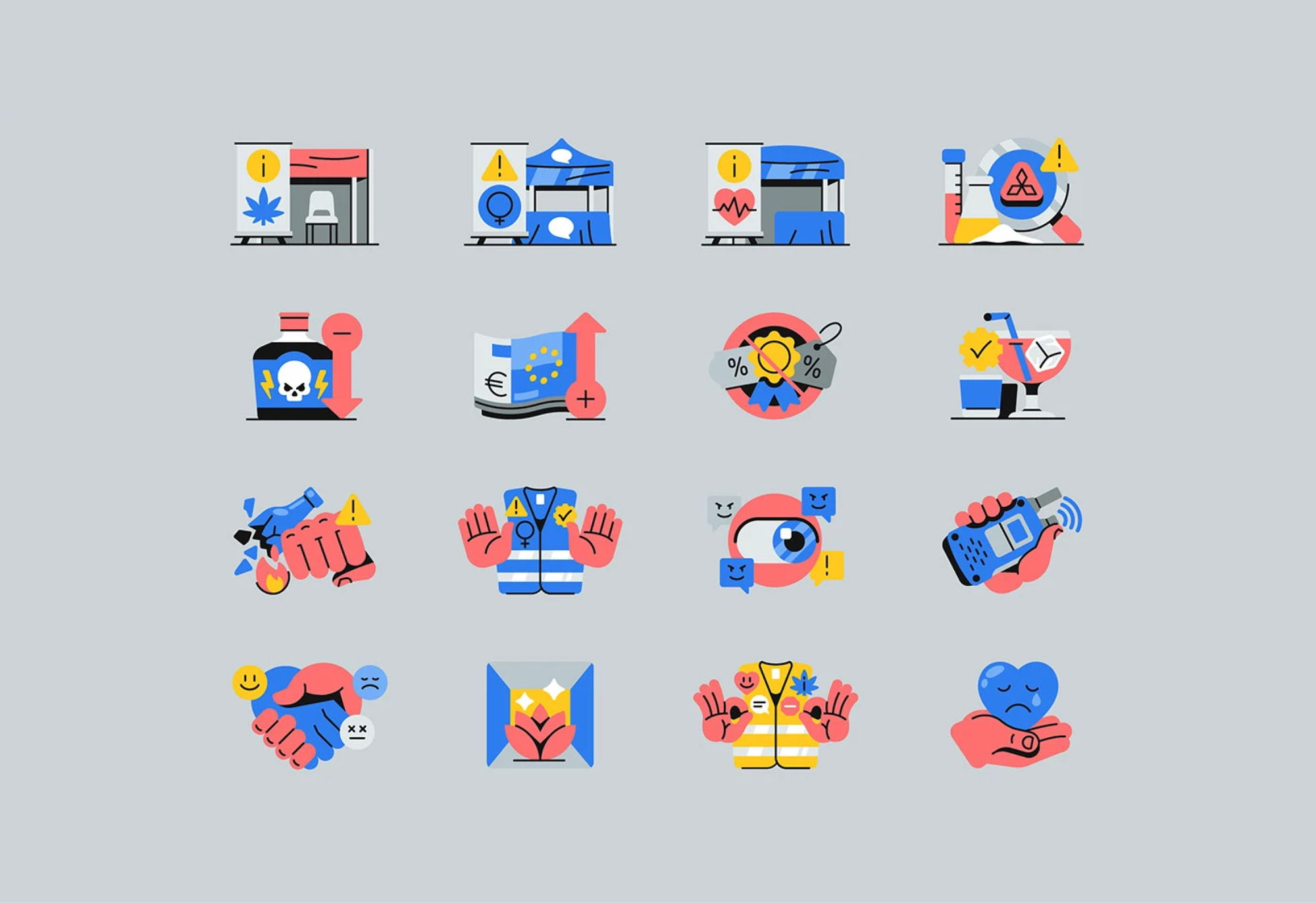
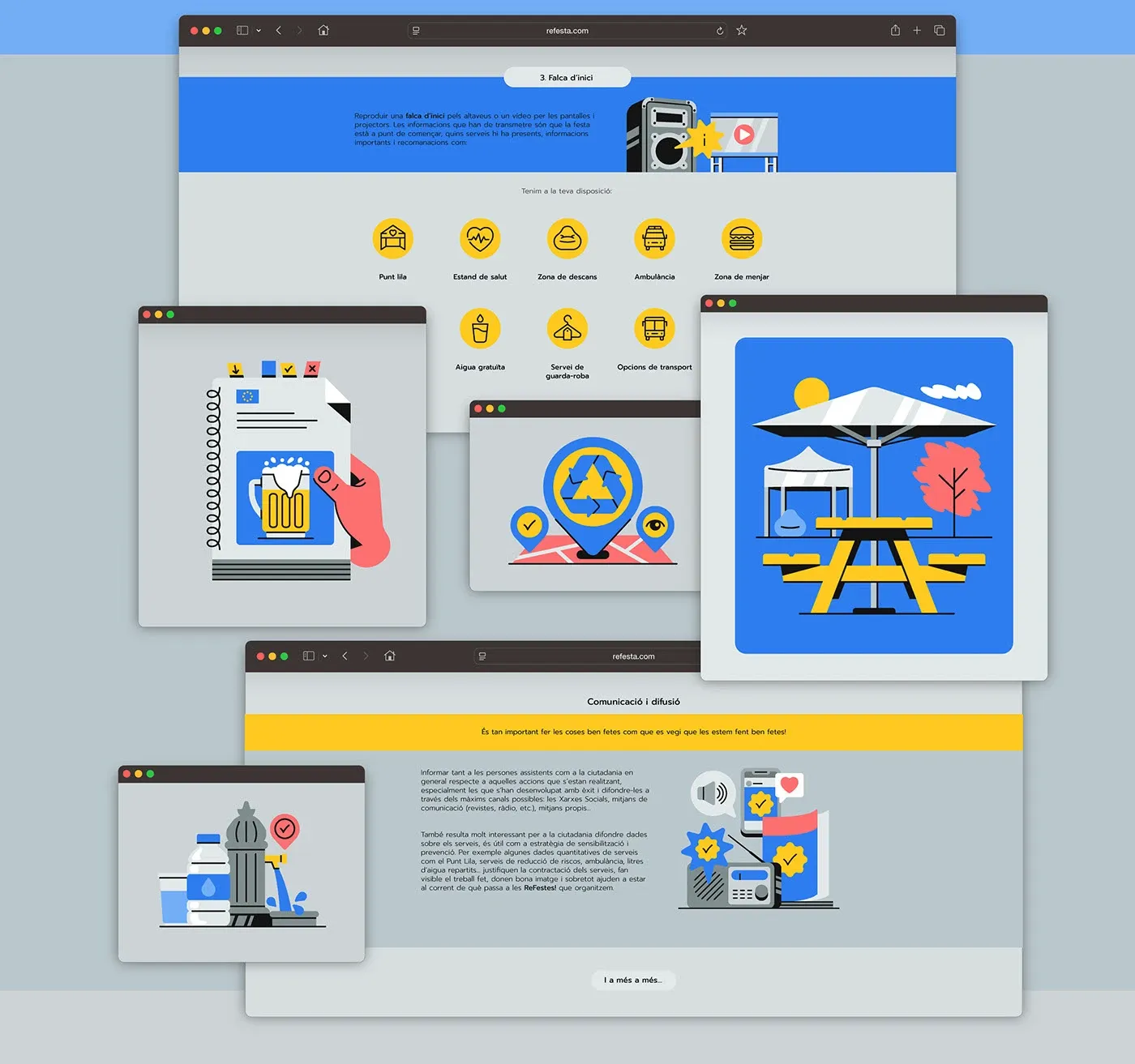
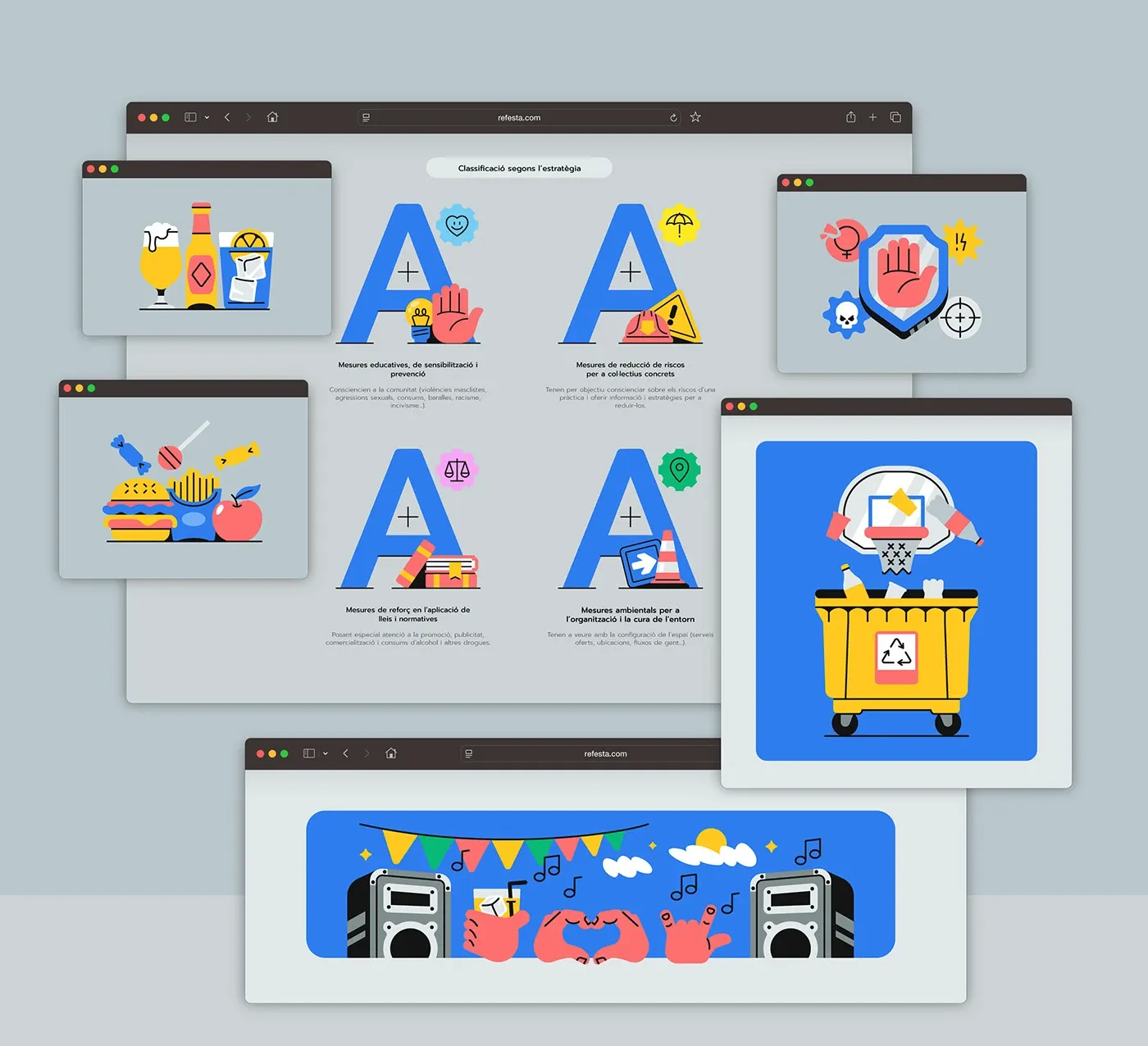
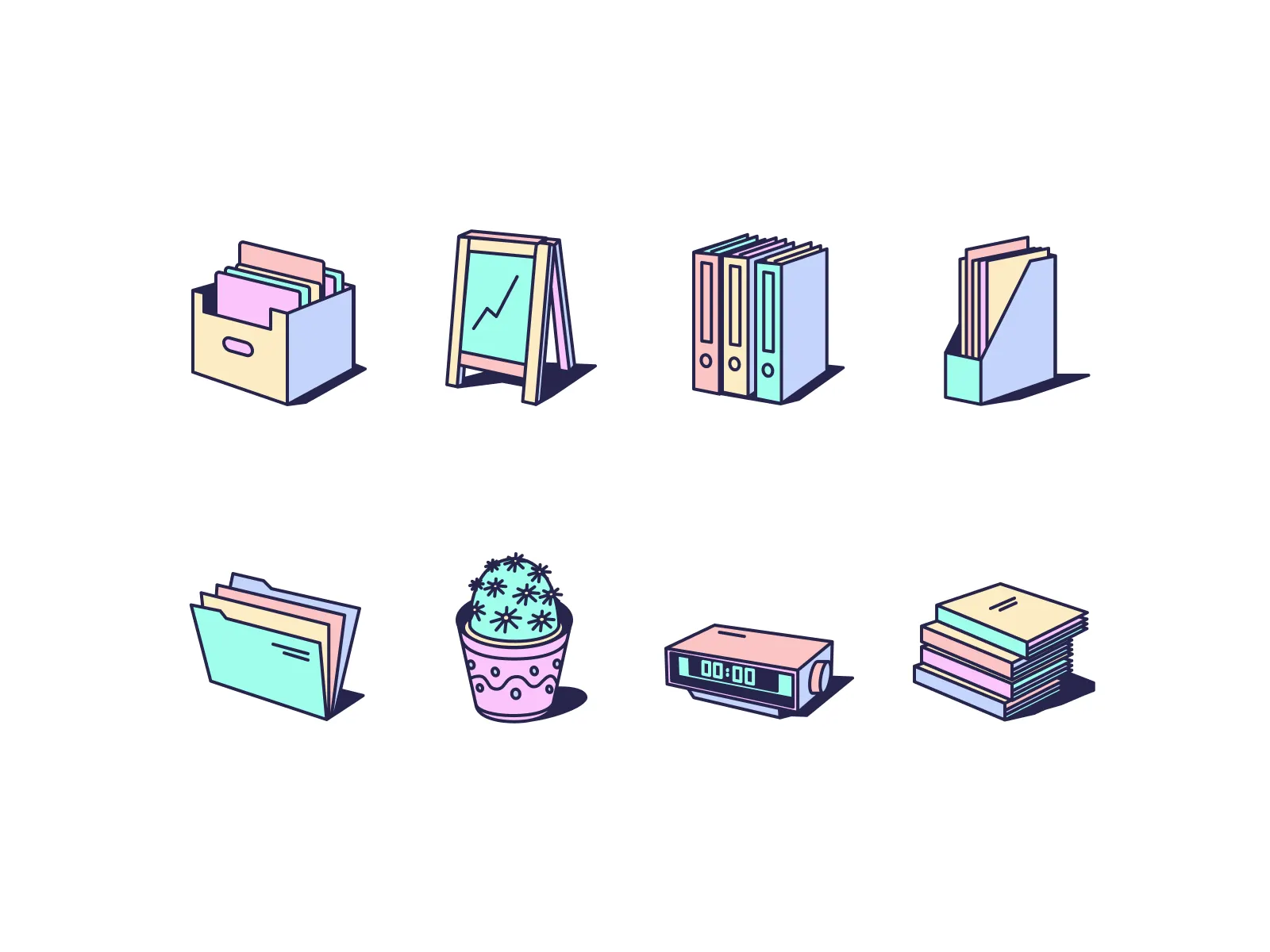
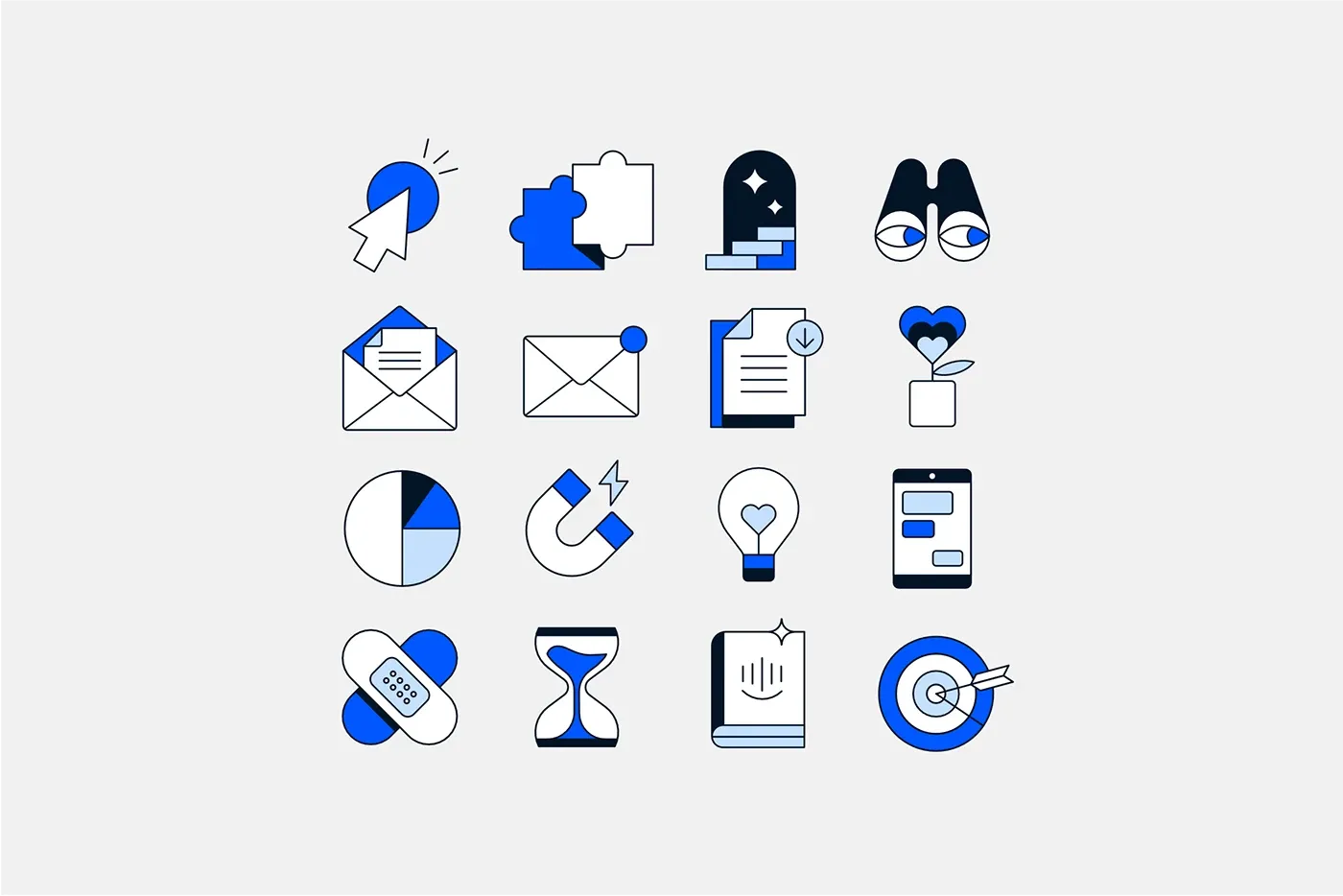
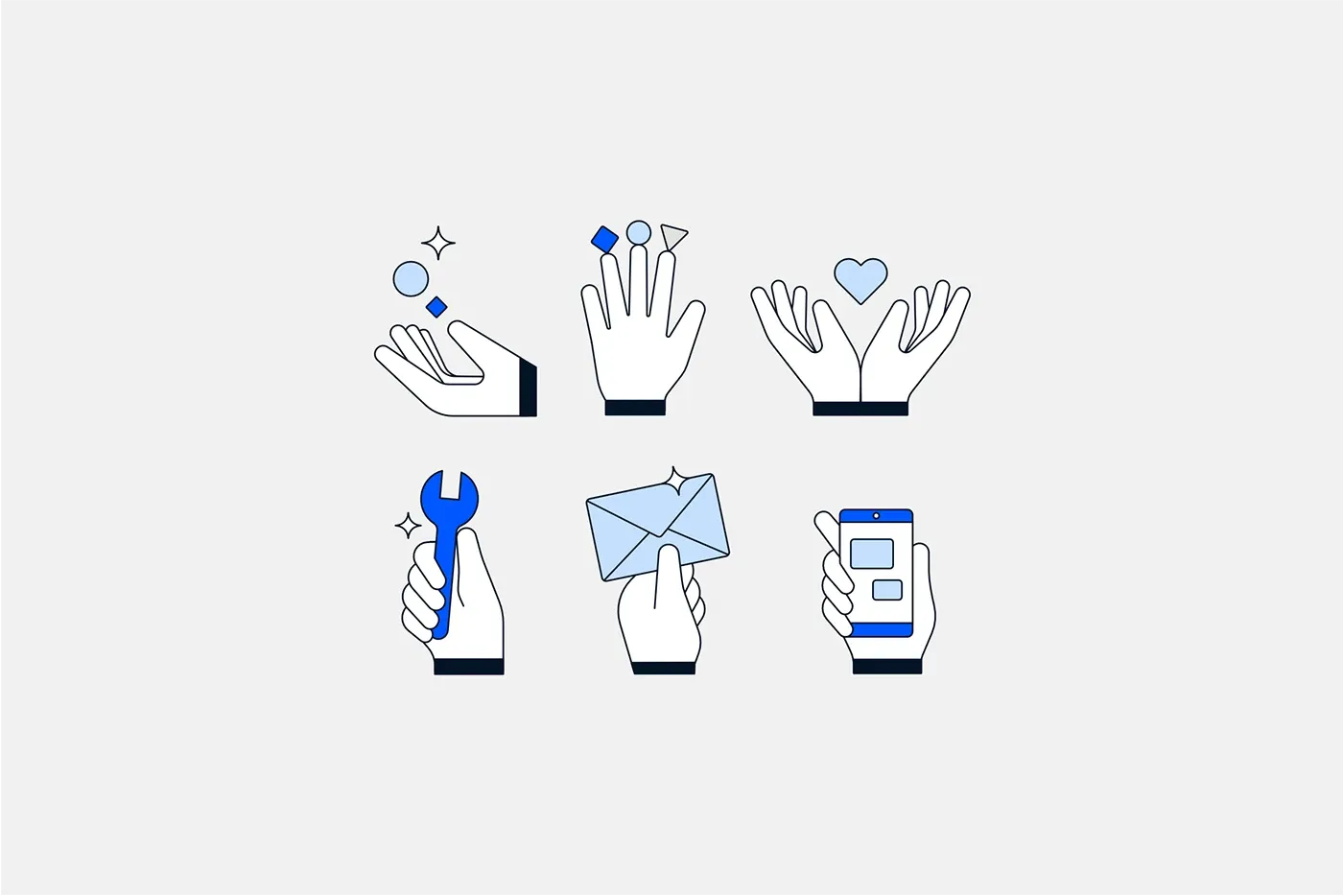
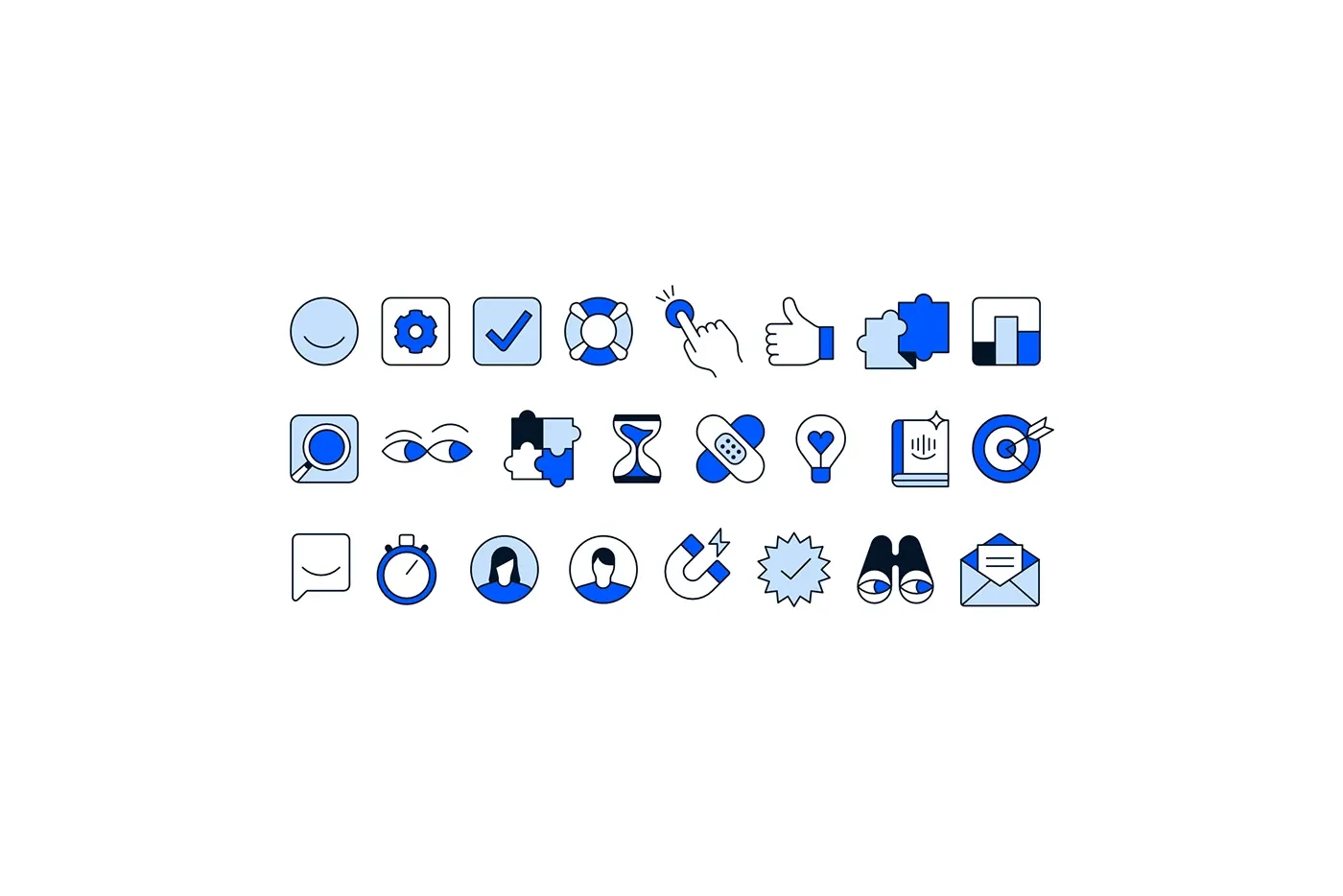

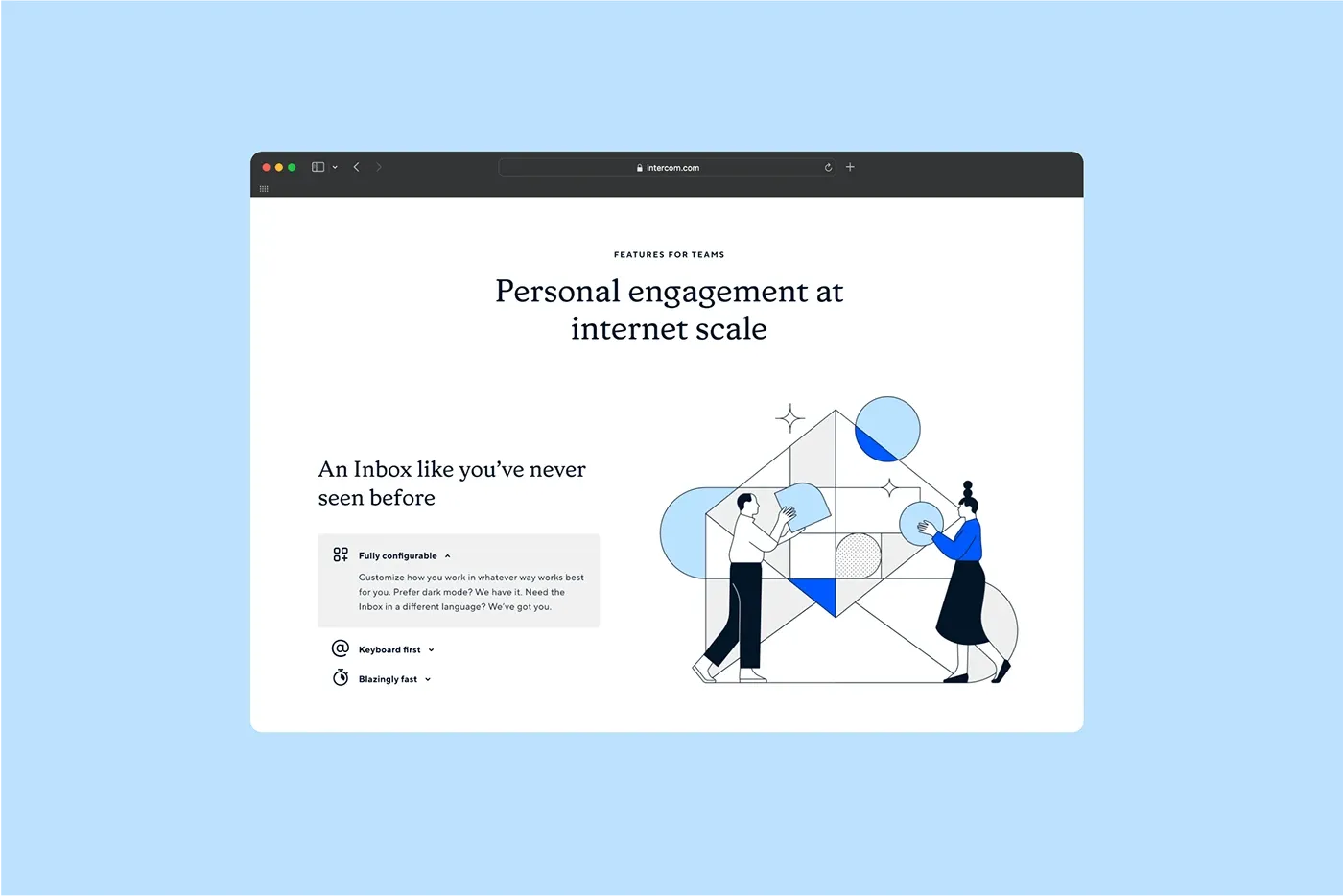
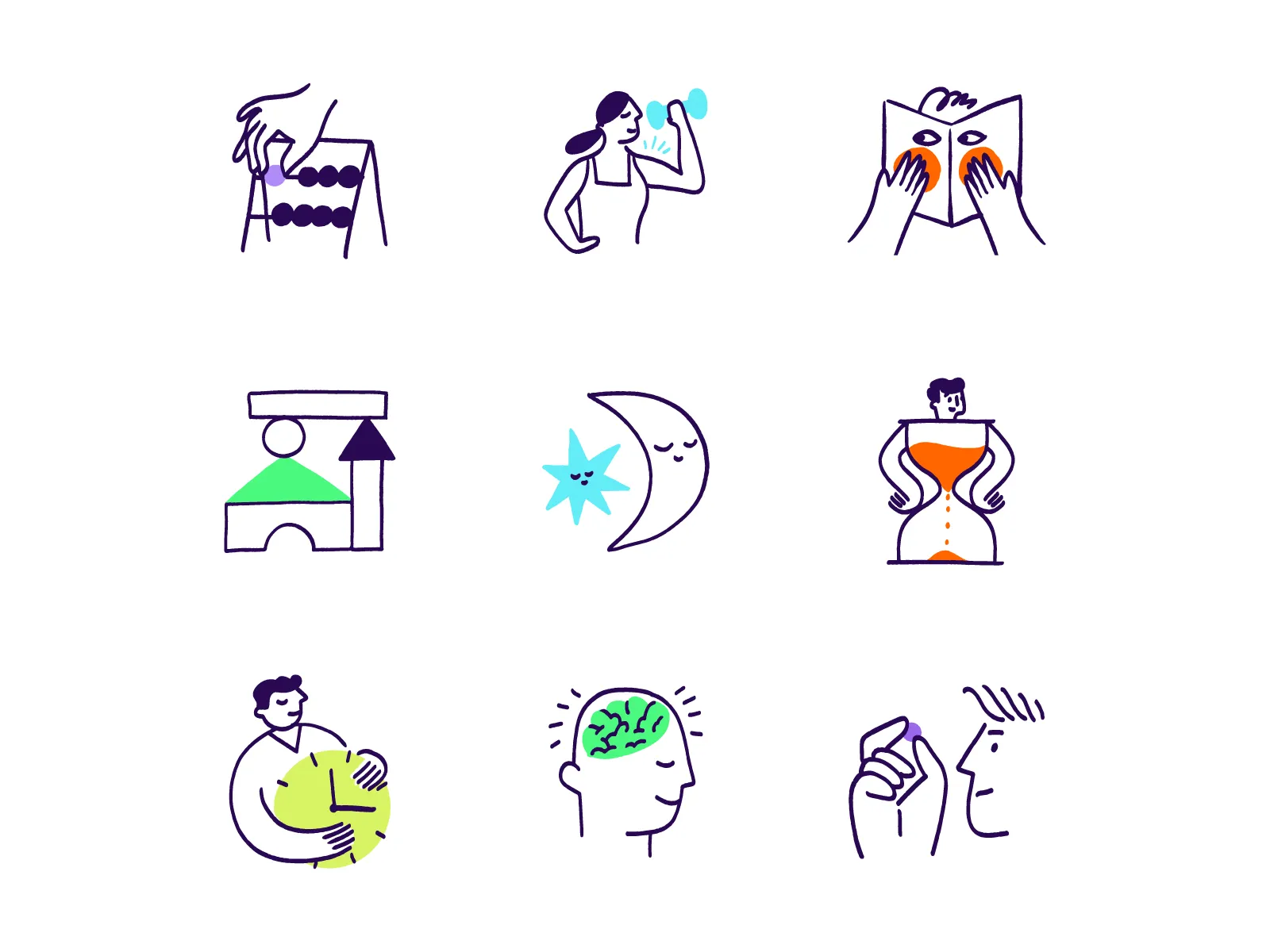
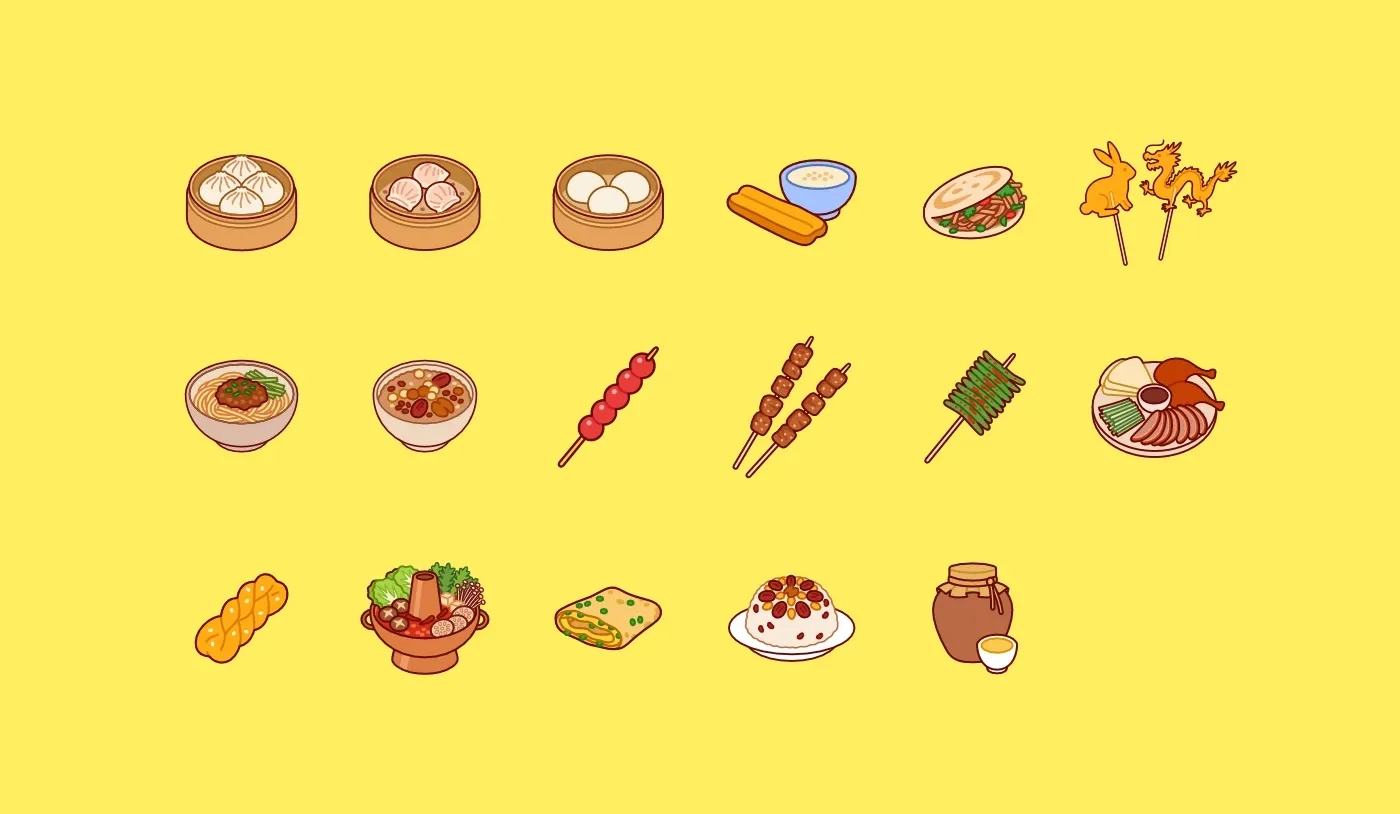
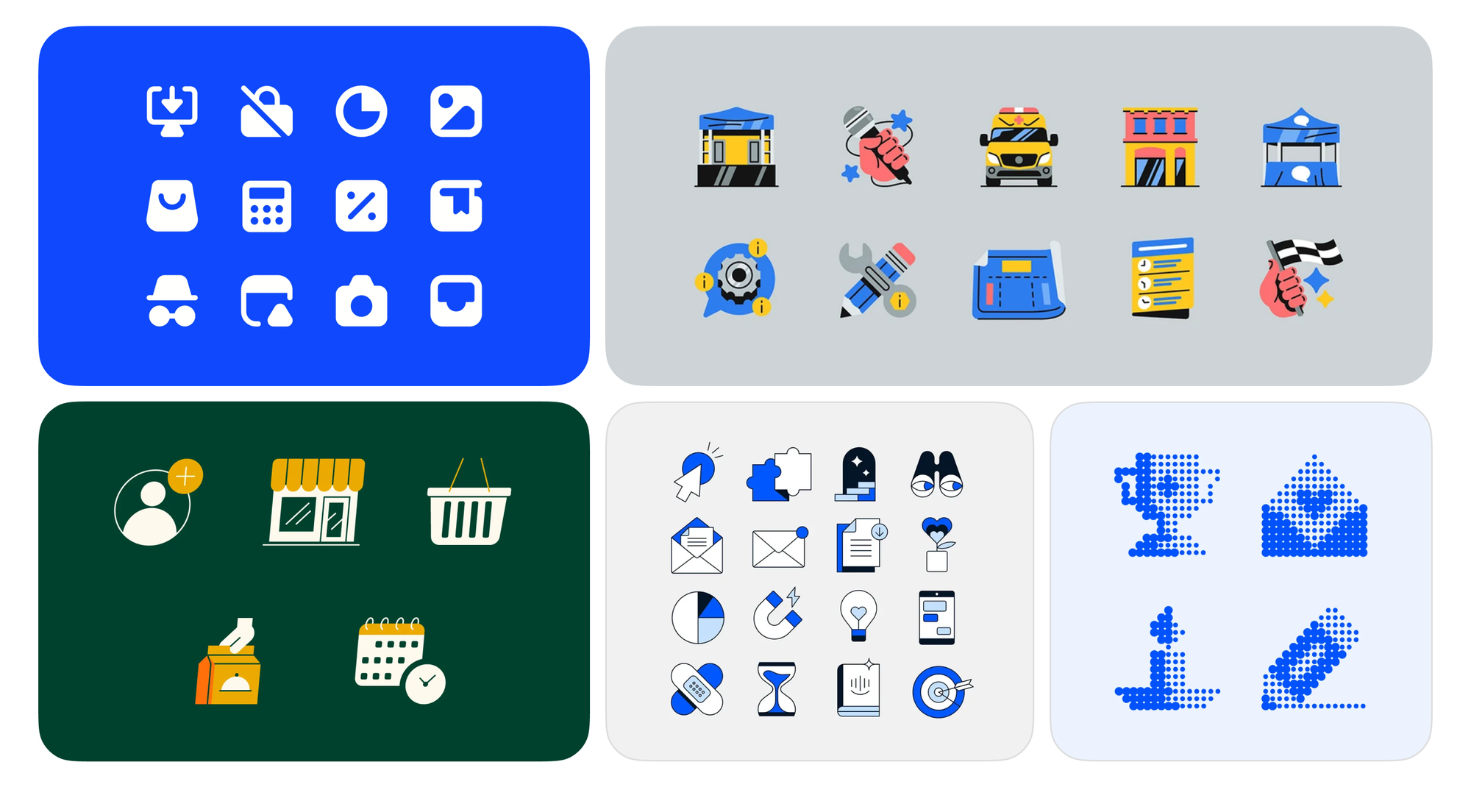
Submit your best icon designs (or creative use cases featuring Streamline icons) and get featured in our monthly showcase.
The icon design community never ceases to amaze us. Each month brings fresh creativity, and we’ll be back with more handpicked projects to spark your inspiration. ✨
Missed a past edition? Explore the Icon Spotlight posts.